VMware has launched a new March beta with a new addition to the package - ESXi Host client. As many … more -->
ESX Virtualization
VMware ESXi, vSphere, VMware Backup, Hyper-V... how-to, videos....

A Busy Cybersecurity News Cycle with High-Impact Events: Monthly Threat Report by Hornetsecurity
Hornetsecurity is a cloud-based security company that provides security-based cloud services for … more -->

Nakivo for Proxmox – Your safe backup solution
In the ever-evolving landscape of data protection, Nakivo has taken a significant leap forward by … more -->

How 365 Permission Manager Can Help You Secure and Manage Your Microsoft 365 Data
Microsoft 365 is one of the most popular and widely used cloud platforms for businesses of all sizes … more -->

Friday Freebie – Tailscale VPN Mesh Service for Home Labs and SMBs
Remote access without VPN is a pain. That's why Tailscale which is a VPN provider allows you to … more -->

Why Skillshare is a Great Way to Sharpen Your IT Skills and Learn New Technologies
If you are interested in pursuing a career in IT or enhancing your existing IT skills, you might be … more -->

VMware vSphere 8.0 U2b Released
There is a new patch you'll have to apply to your virtual infrastructure. The patch is quite … more -->

View PSTs without Outlook with this FREEWARE called Outlook Viewer
Friday Freebie is here! There are times that you wand to open a PST file and you don't have Outlook … more -->

Proxmox Virtual Environment (VE) as a VMware Alternative?
Ok, let's continue our series of articles about VMware alternatives. Not easy, I tell you. … more -->

Linux Lite: A Popular and User-Friendly Linux Distribution
Linux Lite is a project that started in 2012, and the goal is to deliver free, lightweight linux … more -->

VMware vCenter Server Converter 6.6 Released
VMware, after a public beta period, has released a new version of conversion tool that every VMware … more -->

Nutanix Community Edition
I feel this is the right timing for this. By VMware ending ESXi FREE Hypervisor, people running … more -->

Parallels Desktop 19 For Mac – 15%OFF
If you are a Mac user who needs to run Windows applications, games, or other operating systems on … more -->

How-to Enhance your company’s security with Role-Based Access Control in Nakivo Backup and Replication
If you're thinking of any backup solution, think that while you working in an IT team, you need to … more -->
Sponsors
Private Sponsors
 |
|

Run Windows on MAC

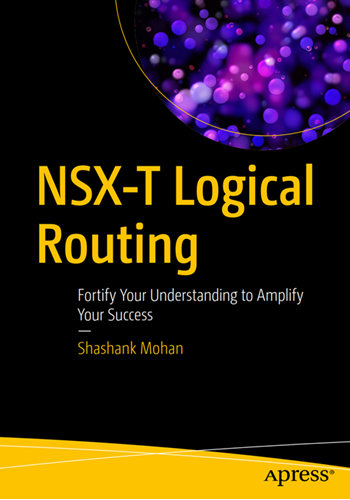
NSX-T Logical Routing