How-to connect ESX Server to Openfiler iSCSI NAS. Now that we are in the ESXi era we can test it in a lab environment with a iSCSI NAS freeware solution Openfiler. Few months ago I wrote an article about how to configure OpenFiler iSCSI Storage for use with VMware ESXi. That blogpost was a step-by-step procedure for a new persons coming to learn stuff about ESX Virtual environments and Openfiler is a great Linux distribution to play with as a storage for ESX Server. In the blogpost you'll learn about the Openfiler configuration.
Now there is the part when you'll need to configure your freshly installed ESX/ESXi, or vSphere if you like, to reach the shared storage where the Openfiler is.
01.) Fire up the vCenter and go to Inventory > Configuration > Networking and in Networking click on Add Networking. You must add VMkernel to handle features like vMotion and HA.

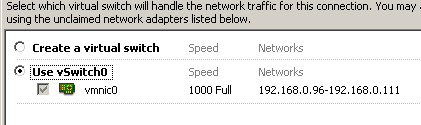
02.) Use vSwitch0 for the test connection. If you have more than one NIC you can use another vSwitch. I had only one nic in my lab…
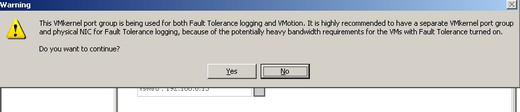
As you can see there is a warning message saying that it's Highly recommended to have separate VMKernel Port group and physical NIC…. But never mind, just go on… For your lab it's OK.
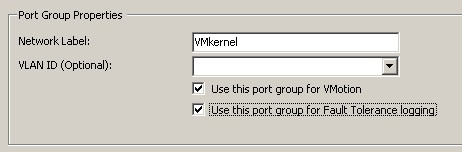
03.) Check the box “Use this port group for Fault Tolerance logging” and “VMotion”.
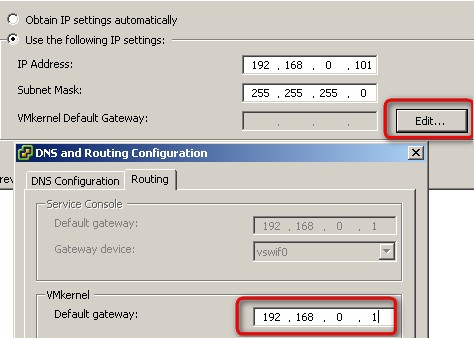
04.) Set an IP adress for the VMkernel (Just choose a free IP in the same network) and fill the Default Gateway IP adress.
05.) Go to Configuration TAB and click on Storage Adapters.
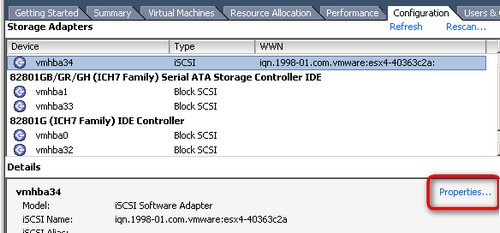
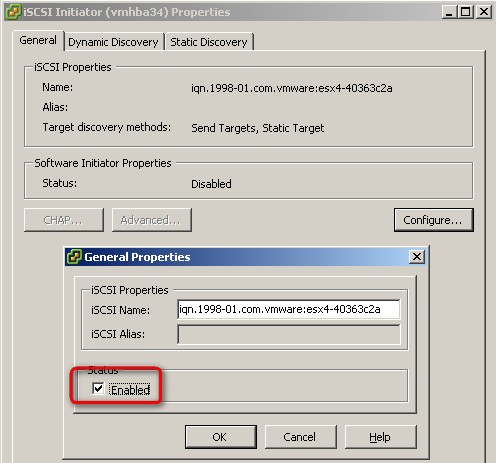
06.) When you click on Properties, then you open firs the General TAB and enable the software initiator checkbox.
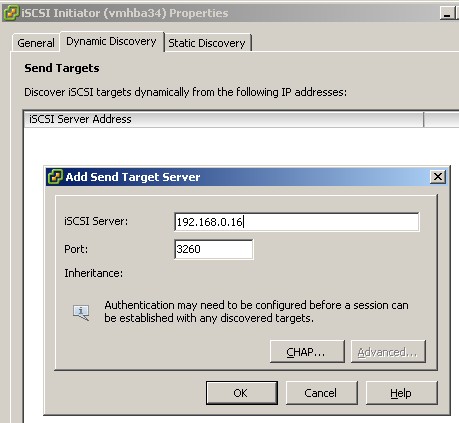
07.) Then click on Dynamic Discovery TAB and add your Openfiler IP adress. In my case 192.168.0.16
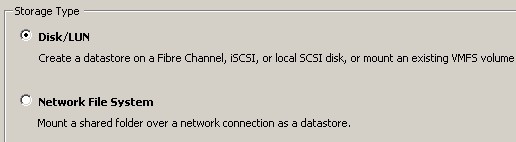
08.) Then go to Configuration TAB > Storage > Add Disk/LUN.
09.) Your Openfiler NAS should already appear in the list….
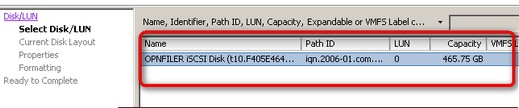
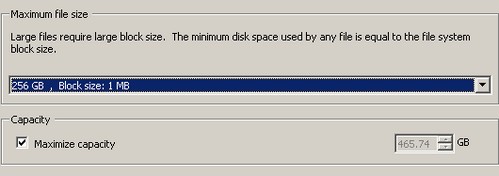
10.) Check the box to maximize capacity of this storage.
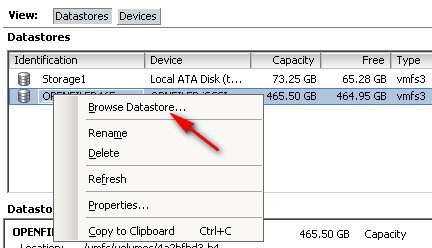
11.) And you can browse the Datastore, copy paste files to and from… -:)
If you want to try Openfiler and configure NFS share which can be presented to your ESXi host, you can follow this link to my article about Installation and configuration Openfiller 2.99 as a shared storage for VMware vSphere Lab.








Hi,
I have a problem. I cannot connect openfiler with esx4i. I have a doubt with the configuration about “Network interface configuration” and “Network Access Configuration”. I don’t know what of them is for acces from esxi, and what is for set an ip adress to openfiler. And finally what ip i must set to vmkernel port in esx4i.
I have installed Openfiler 2.3 x64 and ESXi 4.0.0. 164009.
Thanks for all.
Something is missing here.
1. Network Access Configuration, I guess, has to be Network/Host and not IP of OF, Network where initiators reside. 2. Volumes – iSCSI Targets have to be configured. 3. Check out: iSCSI Initiator Properties – Target discovery methods: Send Targets, Static Target. Note that it is only Static Discovery, so add into the Static Discovery name of your OF iSCSI target.
You must first configure Openfiler correctly in part1 here: http://www.vladan.fr/how-to-configure-openfiler-iscsi-storage-for-use-with-vmware-esx/
Then follow the how-to to configure ESXi 4.0 here: http://www.vladan.fr/how-to-connect-esx4-vsphere-to-openfiler-iscsi-nas/
Can’t really do more detailed… -:)
hi Vladan
I am trying to create fault tolerant VM using ESX HA
system was prompting me for a fault tolerance logging port, should I b using the same vmkernel i used for iscsi and enable it for fault tolerance logging or should i be using a third VM kernel for that. i used second one for vMotion.
I would create a separate vmkernel, but I’m not VCP…
Good article. People also might want to check out a Best Practice for simple iSCSI hookups with VMware:
http://itkbcentral.blogspot.com/2009/08/iscsi-s…
Thanks for the link Semir. Good info. I really beleive that with lower price for iSCSI SAN/NAS devices it's possible to penetrate the SMB market more easily… Not everyone has got enough funds to invet into Fibre channel…
My volume doesn't show up under add storage device. The adapater is configured correctly and the IP addresses are correct.
Nic,
when you're at the openfiler configuration, you go step-by-step to create partition > create volume group > create volume and follow the rest of the how-to here….. Just try it again, I'm sure you must have missed a point… -:)
http://www.vladan.fr/how-to-configure-openfiler…
I too followed both guides and unfortunatly I am not seeing any devices under my ISCSI Software Adapter and similar when i scan for new storage nothing is displayed. Thoughts ?
Since I do not know exactly in which configuration you're, I can't really help.
Try one of those… and you might try to do the config in a VMware Workstation. There is a Openfiler Appliance available for download too.
http://www.vladan.fr/three-guides-on-about-how-…
I have followed all the steps as detailed and still cannot see my openfiler volume as in step 9. Can you please suggest what I might have missed? thanks.
Try to ping th iSCSI target first. If Ok, and if iSCSI is enabled and correctly filled in on the ESX part, the trouble could be on the Openfiler side…
Thanks vladan. Could you please confirm if the mask is to be set to 255.255.255.255, in the Network Access Configuration part as suggested by the screen shot or to the mask of the Openfiler server?
I’ve tried this at least 5 times now and cant get it to work.. I’ve followed every step exactly and it’s just not working..
I’m running Windows 7 x64 as my desk os
VMWare workstation 7.1
ESX 4.0 Update 2 in one VM
and the Openfiler appliance.
Any help is greatly appreciated.. Trying to setup a test area to study for the VCP.
Thanks
Did you tried to ping ?
I, too, had the issue where the LUN did not show in step #9. Go back to openfiler – Volumes – iSCSI Targets – LUN Mapping – make sure you have added a LUN.
Thanks for helping out landog. -:)
Hi Vladan, thanks for this blog however there are a lot of steps missing on the Openfiler configuration. Firstly under iSCSI targets you need to map the primary LUN, you also need to ensure that under “System” you have the local network added as a share i.e 192.168.1.0/24. Also under the “Network ACL’s section of “Volumes” -> “iSCSI target” you have allowed those networks to communicate. After a bit of fiddling around and doing the above I now have this working with ESXi4.1.
Hi Leon, Which version of Openfiler you using, because when I was writing the tutorial, the step-by-step worked… Did you check the first part of the tutorial?
I had to separate it to 2 blog posts, since it was too heavy….
Hi Vladan, it is the latest release of Openfiler (V2.3). I’m guessing in the old version it automapped the LUN and allowed the network by default?
Anyway excellent tutorial, I have ESXi 4.1, OpenFiler 2.3, vCentre all running in a VMWorkstation 7 environment. Perfect for testing, although I could do with a little more RAM 😉
I agree. Thanks for the tutorial. Between Vladan and Leon I have it running in VMWorkstation (16 GB ram on my Thinkpad w510 – could use more 🙂 )
Hi
Though have IT back ground but I am fairly new to vmware and storage stuff. Wanted to build home lab and have so for obtained 2 HP server with SCSI drives in them. I have installed esxi on one of them and have crated windows server vm so for. Second HP box has MS storage server on it which works as NAS(can rebuild it to what ever required). I need guidance to start building my home lab for learning details of vmware technology and storage and also backups using veritas netback software. I have some experience in backing up/restoring ESX server using NDMP but I wanted to present san/nas volumes to system to learn backups using openstorage API. I do have vmware simulator as well. Openfiler seems to be exciting idea but so for I have not learned enough about its capabilities and how it can help me towards my objectives.
Mazhar, Calgary, Canada
For those not being able to connect to the openfiler iscsi share to your esxi4 server, check the following:
-on the ESXi4 iSCSI initiator properties windows, press the Advanced button
-set the iSCSI Adapter Option: Header Digest setting to Preferred
-set the iSCSI Adapter Option: Data Digest setting to Preferred
Rescan for iSCSI volumes and your openfiler iSCSI shares should be visible.
Hi,
That’s a great tip. I hope that it helps to those who are somehow frustrated not being able to see the target…
Thanks
Vladan
Thank you for the tutorials.
You can subscribe via RSS… Just go to the RSS page, you’ll find the explanation there.