Today's article I'll show you the Installation and configuration of the latest Openfiler. In fact, few days ago, a new build – 2.99 has been released. This is after very long period where no updates to Openfiler were made.
I did again choose NFS as an access protocol, since in my earlier post with FreeNAS I also used NFS. I found it easier (in FreeNAS) to configure NFS than iSCSI.. .-:) So with that said, let start the configuration process. At first again configured my home made NAS box to boot from CD/DVD rom drive and boot on the installation CD which I already burned from an ISO image I downloaded earlier from the Openfiler's website here.
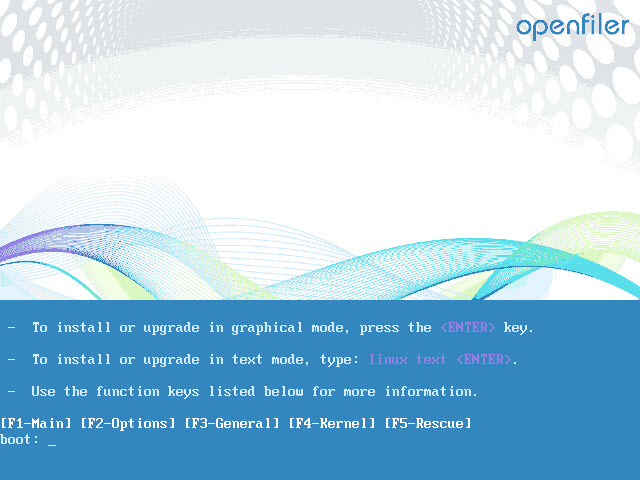
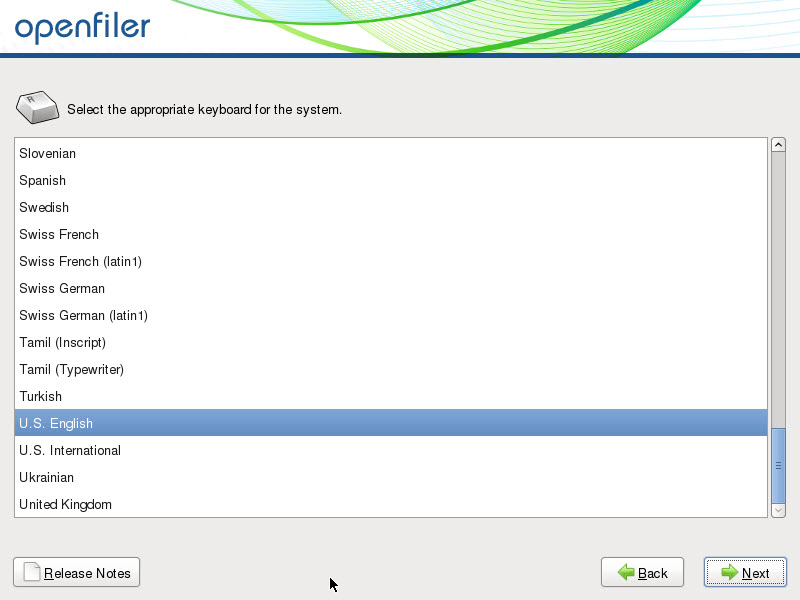
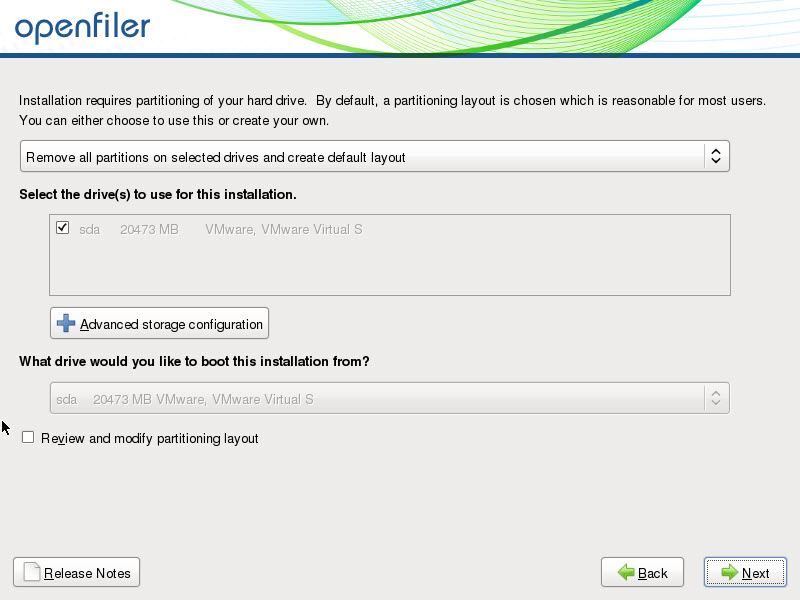
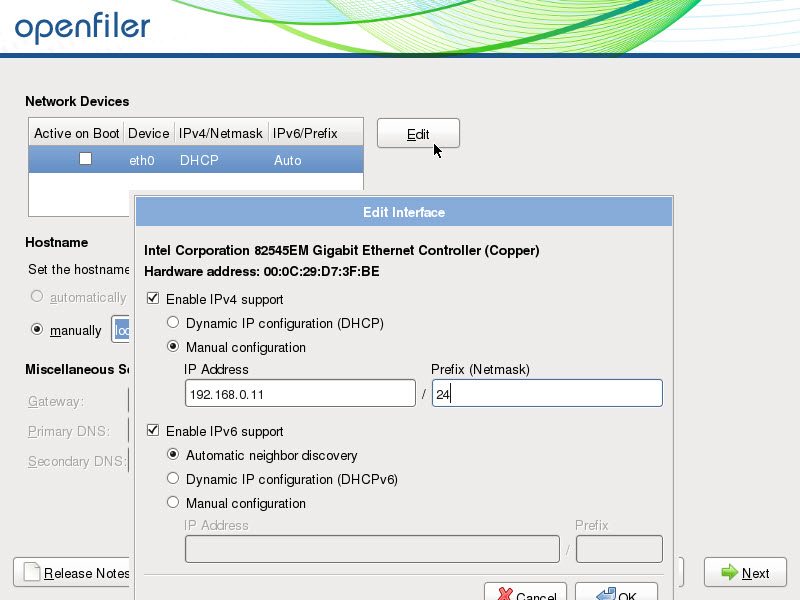
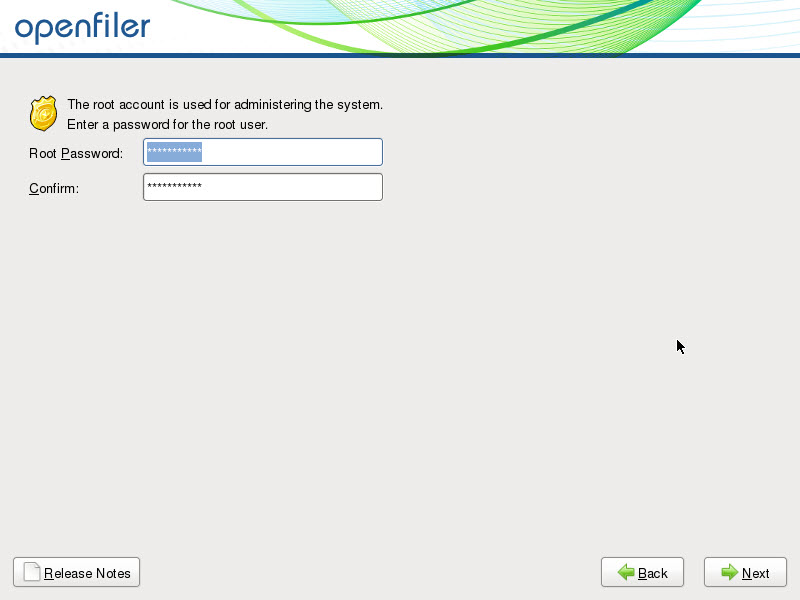
The installation process isn't difficult to follow as you can choose the graphic or text only installation. During the installation process you choose your default language, location, DHCP (if you're having a DHCP server or router) or fill in a static IP address, and you can choose the installation disk.
In my case I wanted too to install the Openfiler distro to my USB thumb, but unfortunately there was not enough space on that 2 Gigs USB stick and I haven't got any other with larger capacity. So that's why I put in my Kingston 64Gb SSD drive and I chosed this drive as an installation drive, with automatic partitioning scheme.
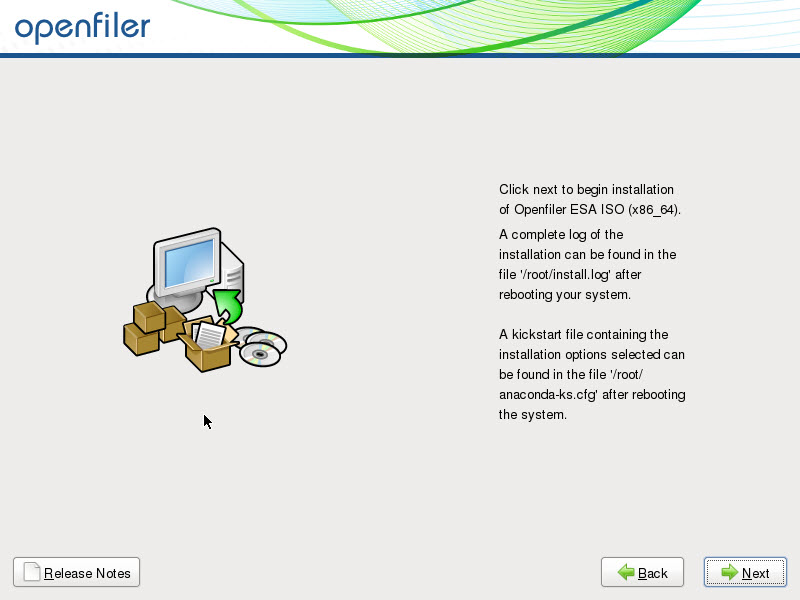
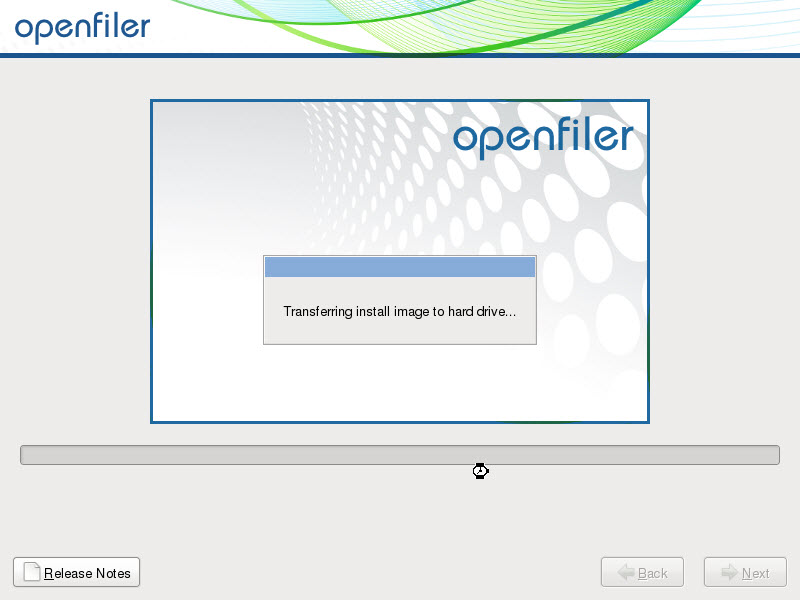
Here are some screenshots from the installation process (shooted from within VMware Workstation ….)
 |
 |
 |
 |
 |
 |
 |
 |
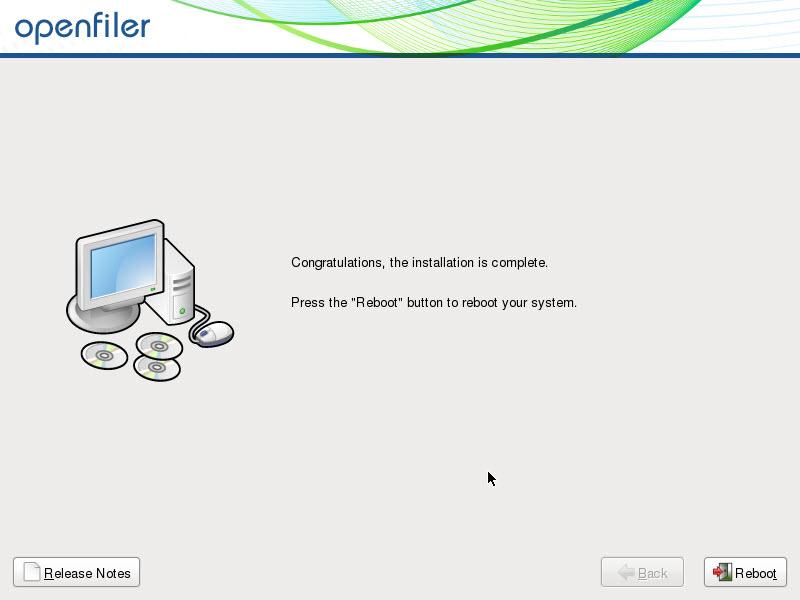 |
As you can see, the installation graphics got some face lift… -:)
Now, when the installation is done, to be able to connect via your Web browser through GUI you must use different login/password combination than you filled in during the installation process. The default login/password combinations are:
Management Interface: https://<ip of openfiler host>:446
Administrator Username: openfiler
Administrator Password: password
Ti means that only through the console you'll use your root password which you did setup during the installation steps.
Now when the system is up and running you must configure the RAID 5 and format a volume.
To achieve that you should follow those steps:
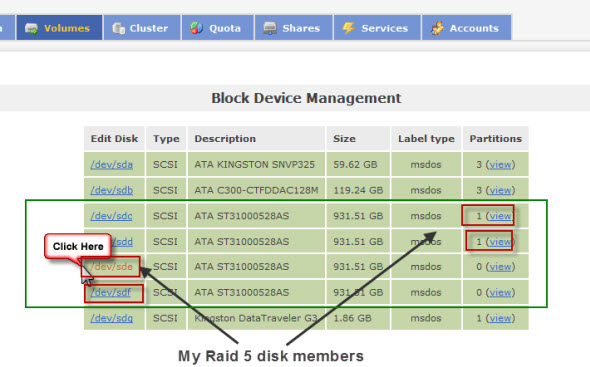
01. At first you should go to the volumes > block devices management (on the right). This should show you an image like this. In the image below I already repeated this for my first 2 disks of my future RAID 5 array.
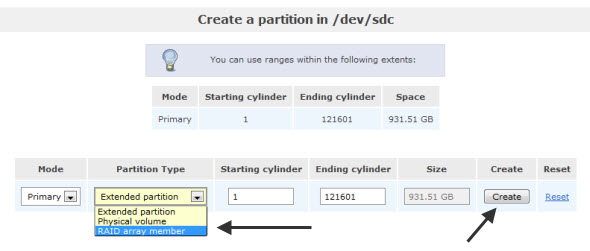
When clicking on the disk as showed on the top image, you should obtain a screen like the one below, where you can add the disk to the RAID 5 array.
Read the rest of the tutorial on next page.








Great post. Looking forward to reading your benchmark test results.
The test results with the FreeNAS were a bit disappointing in my opinion…
That’s why I’m trying other solutions. Did you try Ubuntu server with mdadm? It seems that the writing speeds are more than double…. but, everything has it’s time…. -:)
Cheers
Vladan
I did not try Ubuntu but my QNAP devices use MDADM. 4x1TB disks in RAID5 you should have write perf between 55 to 75MB/sec.
Cheers
I’ve been running Openfiler 2.3 for a few years now and like it very much. I’ve gone the iSCSI route with a dedicated 1Gb link between my esxi server and Openfiler.
Never did any benchmarks with the config i have so i’m curious as well what the difference between NFS and iSCSI connection would be.
Nice post
Vladan,
I will power up my Openfiler 2.99 machine tonight and run the same tests as you and publish them over on my site in the next day or so because I certainly didn’t see such a drop in performance doing the testing I did.
I will only run the 4k tests but run them twice to get the average score from both runs.
Simon,
good Idea. I forgot to mention that I used the fix to the mdadm in openfiler you announced in this article on your blog: http://www.everything-virtual.com/?p=349
Cheers,
Vladan
Vladan, additional testing carried out. http://www.everything-virtual.com/?p=378
Now testing Open-E DSS v6 using the same script as before, will do additional testing using the suggestion from Didier over on my site (as well as IOzone).
Vladan, DSS v6 testing carried out, this has been done using the original test script you used, I am currently re-testing using 32 outstanding IO’s.
Testing with IOzone to occur over the weekend but DSS definitely shows ALOT more performance gains over Openfiler.
Simon,
you’re a way ahead of me… -:).. Great to team with you to see the best we can get from home made NAS box. Find the best perf. platform for shared storage for VMware vSphere
Vladan, I have now carried out testing using Didiers original IOmeter script but using 32 outstanding IOs instead of the default 1, results over on my site. To make things comprehensive I will also re-run the Openfiler test using the same settings but what we can definitely see from the runs using a single outstanding IO is that DSS far outperforms Openfiler and if you’re using NFS as your storage solution then DSS is definitely the way to go.
Thnks for the great post
Vladan I tried the setup in the sameway ……everything went fine till end…….but at last when i added nfs share in ESX i am receiving the error message as
“Call “HostDatastoreSystem.CreateNasDatastore” for object “datastoreSystem-10” on vCenter Server “vc.lab.dom” failed.
Operation failed, diagnostics report: Unable to complete Sysinfo operation. Please see the VMkernel log file for more details.” Kindly help me on this…
Its not supported. Sure, OpenFiler will work (until it breaks). Then you gotta reboot everything (esx, then openfiler, then bring esx back online).
It doesnt handle SCSI reservations properly and if you have more then 1 esx host connected, you might find your storage disappearing or locking up due to this issue.
There are lots of unsupported alternatives but stay clear from openfiler unless you dont care about hard stopping VMs.
The only vmware-supported (free) NFS solution for ESX4.x is Fedora Core (if memory serves me correct, i think version 8)
Has anyone gotten FC working? This is my status on that project http://realworlducs.com/?p=84
Craig
The performance figures are about what I’d expect. You’re running OpenFiler *inside* of a virtualized environment (VMware Workstation), which is pretty sucky at IO in the first place. Then you use SATA 1 TB disks – probably 5400 rpm no less. Lets be generous … maybe 7200 rpm (doubtful). Then you’re layering software based RAID over that?
It’s going to suck big time for performance. NFS is NOT a great protocol for performance either… This comes from 20 years of industry experience with it…
Some precisions: When the installation has been done (the 19.th of April 2011), the setup was on physical box with 7200RPM SATA Drives. No VMware Workstation.
There is a hardware RAID card used in the setup – the
That’s for sure that the NFS protocol cannot deliver satisfying performance on the box that I tried the install.
The gear has an Atom CPU, so I use it for sharing ISOs via the NFS mostly.
There is one 128Gb SSD in the box as an iSCSI target for my vSphere Cluster.
I shall build more powerfull gear for storage, with probably SATA III 6gb/s SSD later this year….
You need a controller for the SATA physical disks, or everything is virtual in Openfiler?