FreeNAS 8 got installed and configured in no time on my NAS box. With my Do it yourself NAS series, recently there has been a new release of FreeNAS 8. Since I tested the 7.2 quite deeply in my small lab and quickly the Beta RC4 of the FreeNAS 8, I was just happily surprised that the release of the FreeNAS 8 has made it so quickly. So I downloaded the ISO and installed it on my homemade NAS system.
If you did not read the earlier parts of the series, just quickly what's all about. The system was built by me from parts widely available to prove and to show that it's possible to build a Home made NAS box without being an ace for much cheaper then commercial NAS boxes.
The installation of FreeNAS was performed to the internally plugged-in USB stick (you can see all the parts used in the system in first part: How to build a low cost NAS for VMware Lab. Then there are 4 SATA drives and 2 SSDs. One SSD of capacity 128Gigs and the second one 64Gigs. I'm gonna use those SSD's for “Tier 1 storage” and (or) for caching the VMs swap files to improve overall performance of my NAS.
After the installation finished, the configuration steps were done in 5 minutes of time…… There is actually less features in the version 8 of FreeNAS, and also the GUI is quicker, because it's using the TreeMenu by default and it's all written in Django.
A quick quote from the FreeNAS Blog:
The release of FreeNAS 8 includes major architectural optimizations, a django-driven user interface, and ZFS – lending us some useful features like thin provisioning, periodic snapshots, LDAP and Active Directory authorization along with the most popular platform sharing protocols.
FreeNAS 8 retains enterprise-class services while eliminating some “Home User” functionality such as iTunes/DAAP, Bit Torrent, and UPnP. These features will make it back as third-party plugins at a later date.
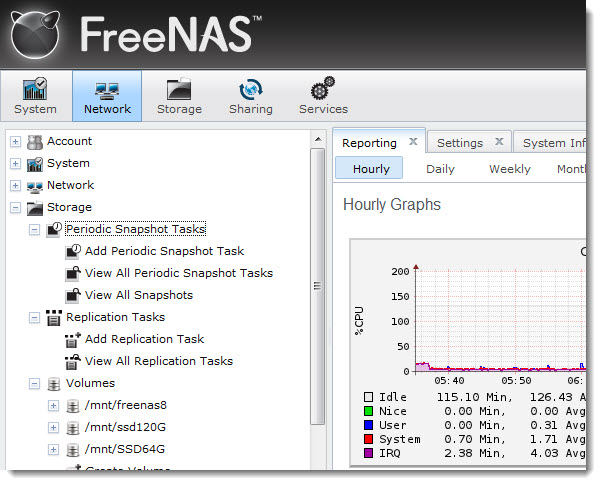
But let's move on and I'll show you what I configured on the installed system to be able to access the NFS share from my VMware vSphere running some ESXi Whitebox. I'm not gonna repeat the part of the installation where you have to choose the destination disk for the installation (USB stick Kingston in my case) since it's identical to FreeNAS 7.2, so if you want to have a look at that part of the installation you can do so by reading this part here: VMware Home Lab: building NAS at home to keep the costs down – installing FreeNAS.
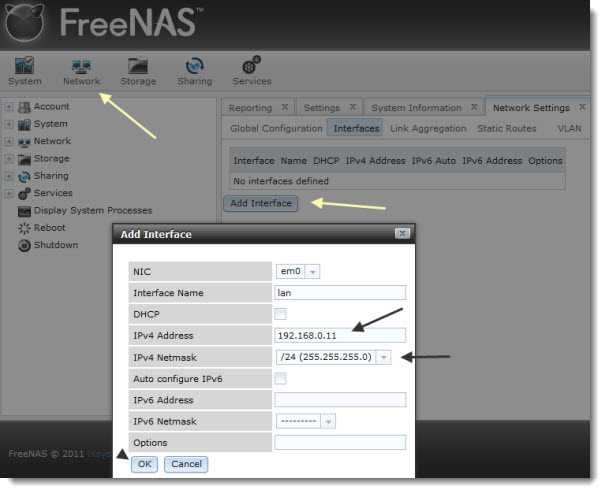
After the first reboot the box come up with an adress assigned by a DHCP server, so first thing to do is to configure a static IP adress. You connect via the web browser interface and you'll use admin and freenas as a login/password combination. Then you'll go to do this you'll go to Network > Add interface.
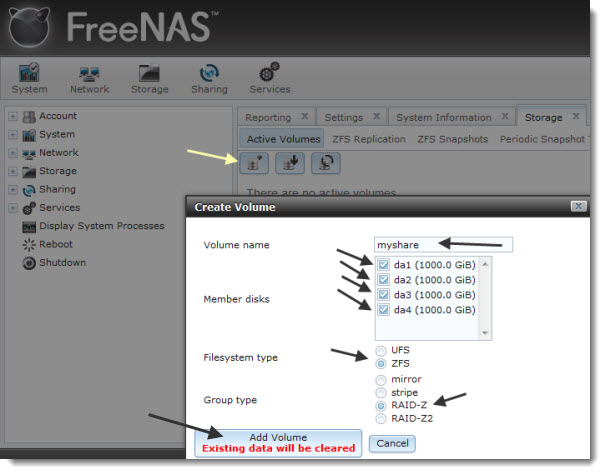
The next step is to Add all the SATA drives present and create a RAID.
To do this you go and click the Volumes > Create Volume. In the pop-up window just click the check mark to select the disks you want to create a RAID volume with. In my case I checked the four sata drives and created a RAID-Z array. (a ZFS raid with single disk failure option). If you take the RAID-Z2 you can have a failure on 2 disks simultaneously.
Easy, even an eight year old boy could do it… -:)
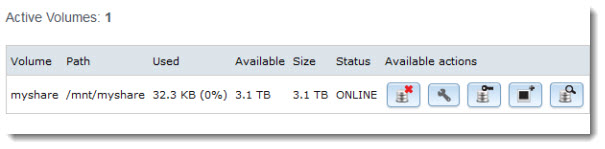
So after I did this, I ended up with a volume created and this volume can be shared now.
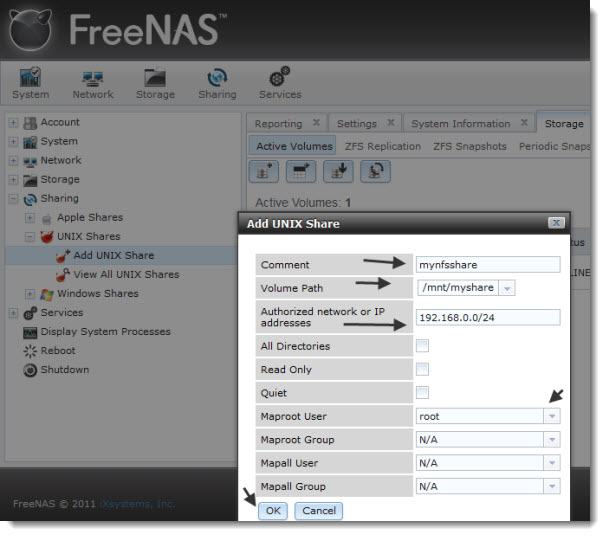
Now the next part will be the NFS part. First you must create the NFS share which will be visible for your ESXi server. As you can see the root user is mapped to the root user I'm using on the other side on my ESXi system. Make sure that on both sides you use the same password….
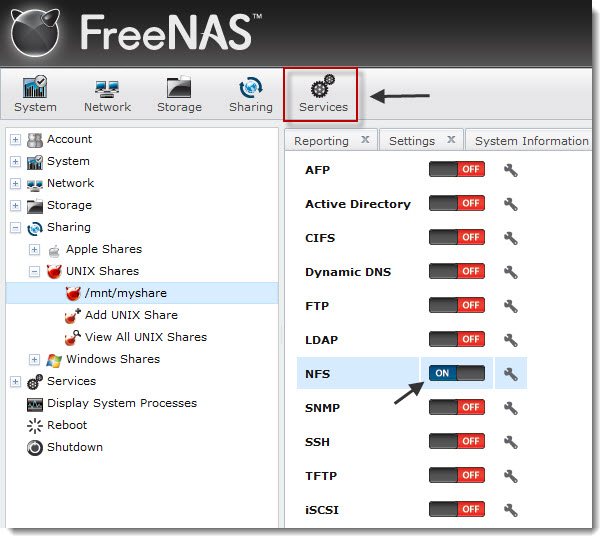
What next? Oh, activating the NFS service and here we go…
The access form the ESXi side did not change so if you want to see how-to connect via NFS from ESX(i) server, just go and read this article: installing FreeNAS (7.2).
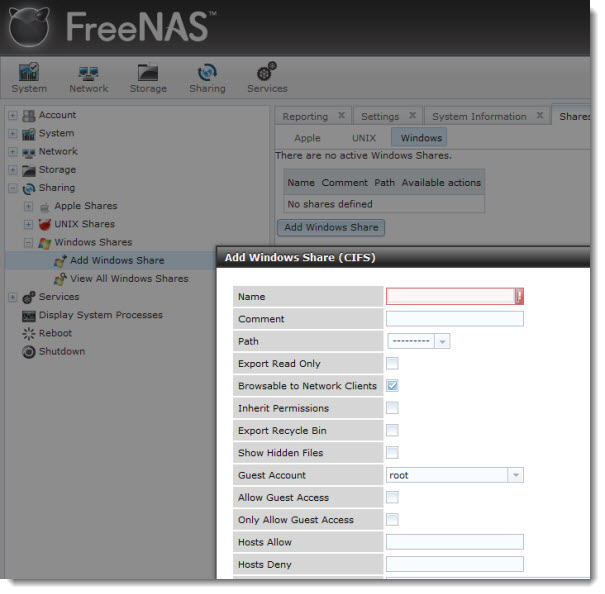
Oh, and if you want to use this NAS box for some windows files or movies, just activate the CIFS share service and Add windows share… that's it.
The Performances – The navigation through the GUI was much faster than in the previous release, I hope that the results of the performance tests will be so as well…. -:). The installation and configuration is easy. There are some enterprise class features too like being able to configure periodical snapshots of you volume.
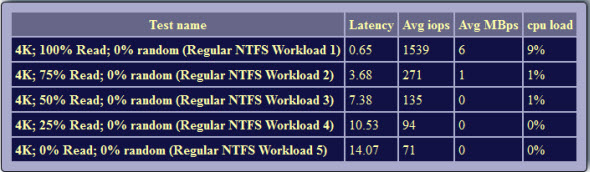
I was quite curious to see what's the performances will looks like. I conducted the same type of performance tests as I did in the 7.2 version. (just the 5 first tests).
To properly format the results when you got the *.CSV file, just go to the http://www.vmktree.org/iometer/
So here are the results:
Well, as far as I can see the FreeNAS 7.2 has better performance…
You want to know how to correctly configure a windows share? Read on…
Update:
Curiously when wanting to add some Windows shares, a strange stuff happened. If I added for example 2 shares,(share 1 and share2) through the Sharing > Windows Shares menu, the only possibility to specify the path in the drop down menu was the default one which I had: /mnt/RAID5 as on the pic below. Not good. Through share1 I could see any other files and folders presents on the whole volume…..
There were no other entries in the drop down menu, so one cannot enter the correct path there.
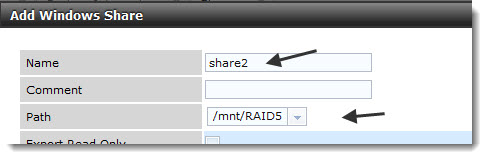
In fact to create the windows shares work correctly, you must create a ZFS dataset. Go to the menu Storage > Volumes > Create ZFS dataset.
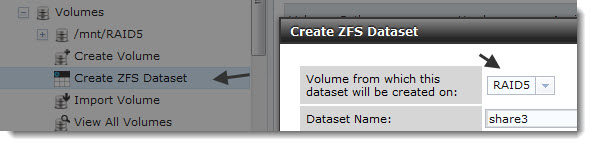
There you can add the windows share with the proper path like on the picture below… -:).
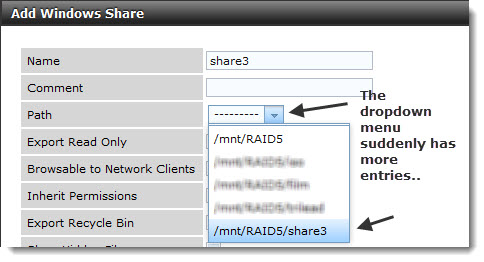
You can have a look at the whole project:
- How to build a low cost NAS for VMware Lab – introduction
- How to build low cost shared storage for vSphere lab – assembling the parts
- VMware Home Lab: building NAS at home to keep the costs down – installing FreeNAS
- Performance tests with FreeNAS 7.2 in my homelab
- Installation Openfiler 2.99 and configuring NFS share
- Installing FreeNAS 8 and taking it for a spin – this post
- My homelab – The Network design with Cisco SG 300 – a Layer 3 switch for €199.
- Video of my VMware vSphere HomeLAB
- How to configure FreeNAS 8 for iSCSI and connect to ESX(i)
- Haswell ESXi Whitebox
You can find also Free virtualization Whitepapers to download on my Free Resources page.








Hi Vladan,
I have just tested iSCSI ZFS performance on FN8, the results will be over on my site later on but I can tell you that it’s slightly better than the NFS results you see (a more uniform set of results across the board).
Actually scratch that, I was on my second set of tests when the FreeNAS server stopped responding. Turns out I am not the only person to have issues with FreeNAS, with that in mind FreeNAS is out of contention for the foreseeable future (8.1 needs to be solid before I attempt this again).
My next Installation…. DSS6 free edition… -:) Looks like a solid one and 2Tb of data is more than enough for my home usage.
Cheers
Vladan
I’ve had a few problems with my older hardware and running 32 bit with freenas 8.. Overall I am upgrading some components now and it seems to have solved some stuff temporarily.. My experience with freenas7 was pretty limited.. I ran a pretty cruddy IDE setup with freenas old and slow but got the job done over 100 ethernet.. Essentially I wanted a new box with a few 2 tb drives with new freenas.. When i initially installed the stable 8 release my wd20ears +freenas were incredibly slow.. Same poor performance was experienced with Freenas 7.. Using 8.0.1 beta releases seems to fix with 4k option no jumpers.. I also had problems with my onboard NIC giving weird packet errors and messing with the initial connection.. Ive put in a dlink pci 1000 card (complementing 1000 devices now) and this seems to have fixed and it sped up transfers a good deal.. Ive been reading and it looks like zfs and new freenas 8 are gonna be needing alot of ram.. Just my thoughts.. My hardware .. emachines t6528 with 2 x 2tb wd20ears and a cruddy pcie card.. 1 gb ram 🙁 slow ddr..
I got that feeling that a dedicated NAS box, with custom linux distro embeded in it (Synology, Drobo or Qnap) will get you better perf, since it’s already optimized.
Otherwise one would have to be a really good linux guru to optimize the perfs…..
Best
Vladan
Hi!
Could I please ask a newbie question? When you say iSCSI, are we talking about SCSI disks or simply using them to access, e.g. external USB hard drives that are connected to the physical machine?
I have installed FreeNAS on VSphere Hypervisor 5 (ESXi 5), and have added a USB controller and USB device (and the disk is available and visible there); however, I am unable to see this disk in FreeNAS itself, and hence even unable to use the instructions.
Any ideas`?
Kind regards.
Ben
Ben,
You got it all wrong.. -:). Never mind. I’ll try to explain shortly. Leave those external USB drives. They’re not used in cofiguration with iSCSI.
The FreeNAS should be installed on physical box. It’s small linux distro. Then connect remotely (via web browser) to this box and configure the iSCSI or NFS for shared storage.
Only then you can access it remotely with an ESX(i) host…
Thanks a lot for the reply – much appreciated.
Would then you have any idea how to use FreeNAS over a hypervisor? I.e. I have only one [really good] machine at home, and I was hoping to run a VPN server and FreeNAS at the same time on VMWare VSphere Hypervisor (i.e. VMWare ESXi 5). I have used a similar setup before; however, with FreeNAS on a dedicated old laptop , which is not available anymore.
Thanks a lot.
Kind regards, Ben
Hi
I’m a bit of a newbie with this stuff and am having a few problems getting set up!
I’m running an old computer with a 500GB HDD and I’ve got freenas installed seemingly OK.
The part where you create the volumes, where it asks to select the member disks – I’m not getting any showing up. I have no items to select. What am I doing wrong?
Any advice would be gratefully received.
Thanks,
Jon
I installed the FreeNAS onto a 2 Gigs Flash Disk. If you do the same, then you should be able to see your 500Gigs Drive. But If you got only one 500g drive, then you’ll have no redundancy ..
Hi Vladan,
Maybe I’m missing something here (never used FreeNas8 with ZFS) – but are you able to configure SSD as caching devices?
You’ve mentioned that you want to use SSDs as ‘Tier One’ storage, but with L2ARC system can automatically put ‘hot’ data to RAM and SSD and cold data on spinning disks, it’s nicely described here:
http://blogs.oracle.com/brendan/entry/test
also have a look on zfsbuild.com or anandtech article about ZFS box, maybe useful for your build
and last thing – FreeNas looks very nice, I’ve ran for a while some old version of it, but performance was horrible, later on found similar opinions about FreeNAS performance around the network.
regards
Tomasz
In fact, I just created a separate datastore for the SSD. That’s all. No integration has been made into the ZFS as a cache or something like it. Luck the time to play with it a bit more. I’ll be upgrading to the latest build 8.0.1, then will see.
best
Vladan
Try NexentaStor, have free version that would work great for you and performance wise seems to be much better than FreeNAS.
regards
Tomasz
Unfortunately, the NexentaStor did not see my SATA drives which are plugged into a PCI > SATA card… -:(.
Shame.