New Virtual Network Editor in VMware Workstation 7
Brand new Virtual network Editor inside of VMware Workstation 7
New release of VMware Workstation 7 incorporates also new Virtual Network Editor. This easy to use tool is present in current beta and I gave it a try.
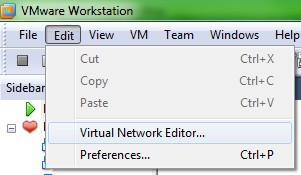
To enter to virtual network editor just go to menu Edit > Virtual Network Editor
The editor starts and assigns default IP address to all subnets (all of them).
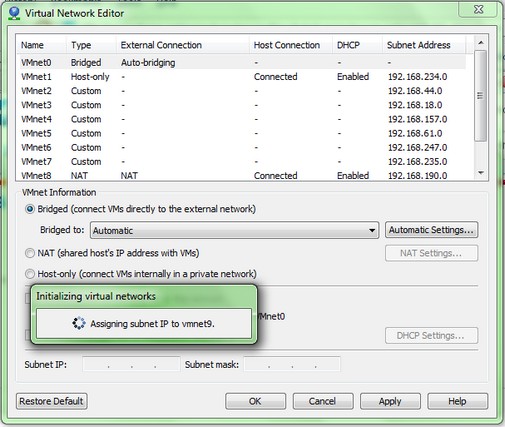
Then you can just select VMnet to configure your own configuration if necessary. I mostly stick with the default one. It’s the bridged – it means that the NIC present inside of your VM is connected directly to the Physical network and the VM is present on that network as a real machine. And it can interact with real machines on that network.
If you choose – host only – then you can isolate this VM so the machine can only communicate with another VMs which has the same VMnet configuration. This is useful if you want to have your own DHCP server for exemple and do some testing there.
NAT option – this option is helpful when you want to share the same ip address with the host.
Upgrade to VMware Workstation 7 for only $99.00 – Upgrade Now!
Related Posts :
VMware Workstation 7 was announced ready this morning. Together with VMware Player 3.0 and VMwa ...
Another coupon codes for ESX Virtualization readers. I know 5% is a little discount, but it's s ...
For beginners: Installation VMware Workstation and setting up a Virtual Machine. Little video f ...
VMware Workstation 7 Release Candidate is available. With that there some great news for you wh ...
Installing VMware Workstation and receiving error? If you receive a following error when you're ...
Other posts from Desktop Virtualization
- VMware Workstation 7.1 public beta
- Readers Choice Awards for VMware Fusion and update for 3.0.2
- Use snapshots on Virtual ESX with VMware Workstation
- VMware Workstation with Teams functionality is a really flexible and usefull
- Minor release update for VMware Workstation 7
- Why I did not start using teams earlier?
- SSD's will transform the way we think of hard disks
- How-to install Windows 98 inside VMware fusion
- Invalid drive error when Installing VMware Workstation
- How-to enable Thin Print in VMware Workstation 7
- Vmware Workstation 7 new features - Import Windows 7 XP mode VM
- VMware ACE portable package VM creation How-to
- How-to install VMware Workstation
- How-to setup Windows 7 XP Mode
- VMware ACE
- VMware Fusion updated to 3.0.1
- Learn for free with this VMware course for VMware Workstation 7
- New Website Design of VMware Website and new product launch - VMware View 4
- How-to Install ESX 4 inside VMware Workstaiton 7 video
- Expand Virtual disk of Windows 7 VW with VMware Workstation 7
- You can really play now with VMware Workstation 7
- VMware Workstation 7 final is here
- Great tip how-to boot from USB stick inside of VMware Workstation
- Create a Virtual Machine in VMware Player 3.0
- New feature in VMware Workstation 7 - Auto Protect
- Buying VMware Fusion 2 now gets you free upgrade to Fusion 3
- MAC users - VMware Fusion 2 On Sale only Today at Amazon
- No more tweaks of VMX files. With VMware Workstation 7 you will be able to run ESX 4 with nested VMs without any tweaks.
- Install Linux Backtrack in a VM on VMware Workstation running on Windows 7
- VMware Workstation On Sale Too...40% OFF !!!