
Part 3 – ESX server configuration
In my last article I was explaining how and why setup Starwind High Availability feature to protect you virtual infrastructure data from materiel failure. The article series would not have sense if I would not explain how to connect the iSCSI Target created to my VMware vSphere 4 installation.
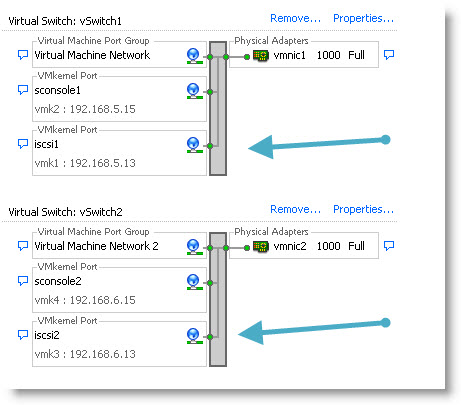
So what do you need to connect your ESX Server to the iSCSI target? When ESX server first installs there is a default service console management interface and VM network port group as a default. What we need is to create a new VMkernel interface which we'll be using for ISCSI traffic. We actually need to create 2 vmkernel interfaces.
Step 1: Create an vmkernel interface. In the VI client select your ESX server and go to Configuration > Networking > Add networking.
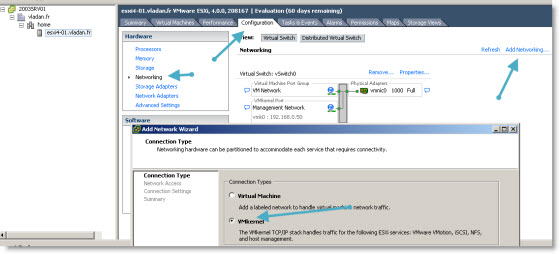
Note that I'm using several NICs with my ESX Server. Actually I can configure up to 10 NICs to this VM (yes my ESX server runs as a VM). Thanks to VMware Workstation 7…
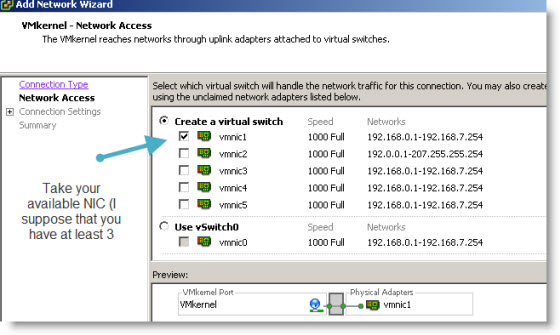
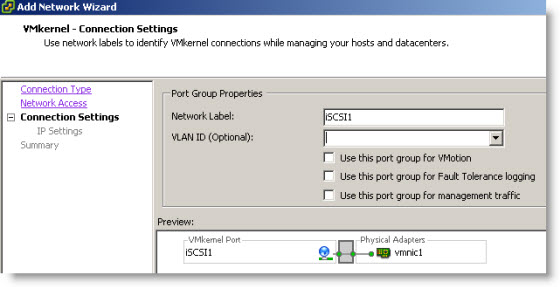
Click finish to close the assistant.
Step 2: You can add a second service console to this vSwitch. Still in Configuration > Networking > Add networking. This time you check the “Management Traffic”
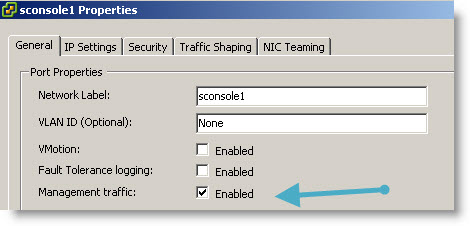
Then you must create a second vmkernel interface with the exact same steps. You should end up with a configuration like this.
You can find many technical configuration white papers PDFs on Starwind Website.
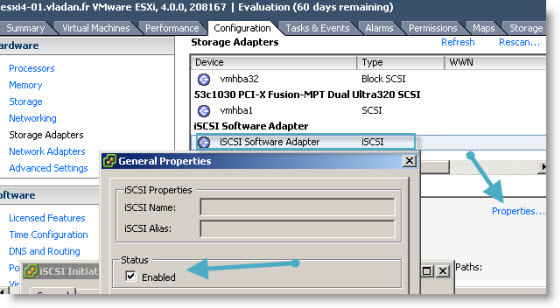
After you sucessfully created those 2 vmkernel ports, you must enable the iSCSI initiator. Go to
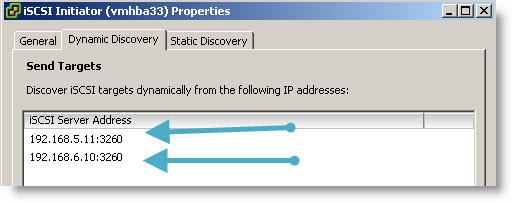
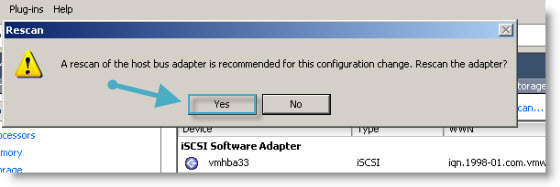
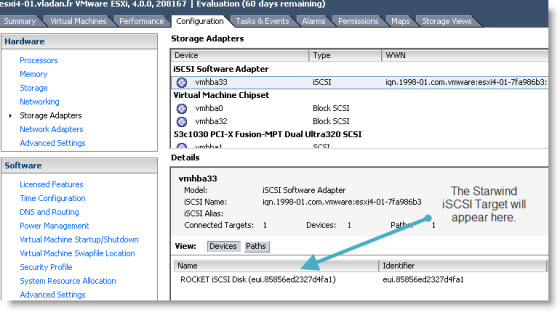
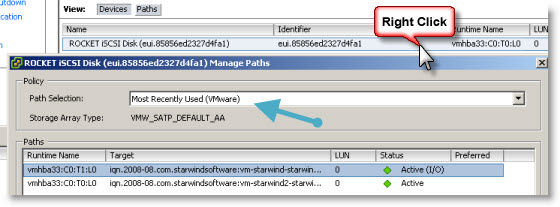
And to be sure that VMware ESX 4 server sees both paths to the storage, just click at the button “paths”. You will see, that now you have 2 valid paths to your iSCSI target. In case one path became unavailable, then there is the second one.

You should now go and click on the “Devices” button to verify that the “Most Recently Used” path is selected. That's the best practice.
Once you got here, you've done the hardest part already. The next step is simply add a storage to your ESX server. Just go to Configuration > Storage > Add Storage. You just follow the assistant which will walk you through the necessary steps to create and format the new volume. I don't go into details here since its pretty straightforward.
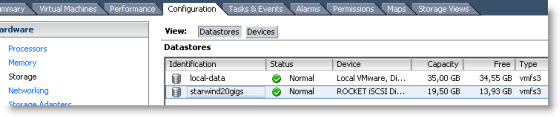
You should end up with a volume like on this picture. My volume was created as a 20Gigs Starwind Image which is hosted on 2 different 2003 R2 Windows servers machines as a fail over high availability solution.
What I've done next I wanted to actually test the High Availability solution from Starwind. I created and placed a Virtual Machine on that Starwind 20Gigs volume and stopped one of those Nodes where I installed Starwind. I installed 2 Nodes. I stopped vm-starwind2 in my schema in part2 of the series.
My VM just continued running. It works.
Quick look at the paths in the VMware VI client and you can see that the node2 is down. The connection was lost, but the storage is still there together with my VM and running.

In production environment you won't be using VMs as a Starwind Targets, but a real servers. It's only me in my lab I can do a and test configuration like that together with VMware Workstation 7 running a team of Virtual machines.
With that said It was a nice exercise and demonstration how Starwind Software with High Availability feature can help to avoid buying new expensive SAN hardware. By using 2 existing servers running under Windows you can achieve very reliable and fail-over redundancy with Starwind HA.
This solution is quite easy to setup by using EXISTING hardware already running Windows. In most cases those windows boxes are with OEM license from Microsoft so you can't really virtualize those machines, because that the OEM license lives and dies with that physical server. What you can do with servers like that? …. Install Starwind Software.
- Starwind active-active HA availability storage
- Starwind with ISCSI SAN Software can do High Availability for you…
- Starwind iSCSI HA Connection to ESX Server – this post


Thanks for posting this info, but what about increasing the performance of the SAN Server that hosting StarWind? Is there any tips or tricks for that?
Thanks
Yes, they are! And depend on OS on StarWind box. You can send a note to [email protected] and we`ll be glad to help you all possible ways! 🙂