 After the Death of Virtual Iron acquired by Oracle, the users of Virtual Iron do have a solution to convert their VM's to VMware format.
Oracle has bought Virtual Iron to phase it out. To develop Oracle's virtual solution with Xen.
You can convert Virtual Iron Virtual machines in 2 ways:
You can do cold clone or hot clone. In case you'll want to convert those VM to be hosted on ESXi 4, you'll want to use for this task VMware vCenter Converter Standalone 4.01, which is a free product.
Windows virtual machines running on Hyper-V Server, Citrix XenServer 4 Enterprise Edition, and Virtual Iron version 4.2 can be imported as live sources (using local or remote hot cloning) with Converter Standalone 4.0.1.
What's needed :
- The source virtual machine must not be para-virtualized. Normally none of the previously listed guest operating systems are para-virtualized.
- Within the source Virtual Iron virtual machine you must disable the VS Tools Installed setting on the Configuration tab prior to starting these steps.
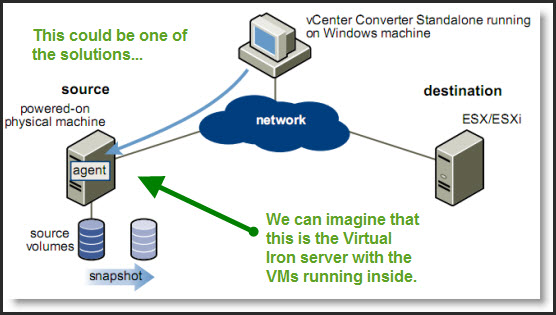
Do a hot clone:
By installing the VMware vCenter Converter Standalone 4.01 inside of the Virtual Iron's VM or on a supported remote system with network connectivity to the Virtual Iron host, the Virtual Iron virtual machine to be converted, and the VMware vSphere vCenter and/or VMware ESX/ESXi hosts to receive the converted virtual machine(s).
Do a cold clone:
By booting the converter CD. The VMware vCenter Converter Boot CD image is available at https://www.vmware.com/download/download.do?downloadGroup=VC250U4. You must ensure that “Before starting the virtual machine, ensure the setting for Are VS Tools installed is disabled to ensure the VMware Converter Boot CD starts correctly.” Otherwise the boot CD will not boot correctly. After that, you can remove all system checkpoints and choose to customize the VM.
Existing Virtual Iron customers can learn more about how to migrate now to VMware vSphere 4 by visiting www.vmware.com/go/safepassage
VMware converter is a multi task product and can convert virtual machines from many different 3rd party virtualization products by running mutiple conversion tasks at the same time. There are many 3rd party VMs, System Images and OVF and OVA Virtual Applicances supported.
- Acronis True Image Echo 9.1 and 9.5, and Acronis True Image 10 Home (.tib). (Supported only in Converter Standalone server and agent for Windows.)
- Symantec Backup Exec System Recovery (formerly LiveState Recovery) 6.5, 7.0, 8.0, and 8.5, LiveState Recovery 3.0 and 6.0 (.sv2i, .v2i or .iv2i). Supported only in Converter Standalone server and agent for Windows.
- Norton Ghost version 10.0, 11.0, 12.0, 13.0, and 14.0 (.sv2i). Supported only in Converter Standalone server and agent for Windows.
- Parallels Desktop for Microsoft Windows and Mac OS X 2.0, 2.5, 3.0, and 4.0 (.pvs and .hdd). Parallels Virtuozzo containers are not supported.
- Parallels Workstation 2.0 (.pvs)
- All versions of StorageCraft ShadowProtect Desktop, Server, SBS, IT, and so on (.spf). Supported only in Converter Standalone server and agent for Windows.
- Microsoft Virtual PC 2004 for Windows and Microsoft Virtual PC 2007 for Windows(.vmc) Microsoft Virtual Server 2005 and 2005 R2 (.vmc)
- OVF or OVA virtual appliances. OVF specification version 0.9 and 1.0 Local .ovf or .ova file URL to an .ovf or .ova file
Last but not least you can even use VMware Workstation 7 to convert your 3rd party VM with the built-in VMware Converter… and do the job.
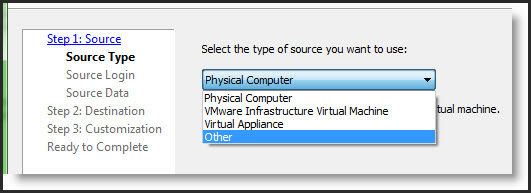
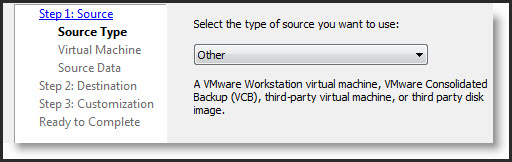
Don't hesitate to visit the PROMOs categories on this website to find VMware products with some discount code too…
Read more about VMware Workstation 7 in following posts:
- How-to enable Thin Print in VMware Workstation 7
- Vmware Workstation 7 new features – Import Windows 7 XP mode VM
- How-to install VMware Workstation
- Learn for free with this VMware course for VMware Workstation 7
- How-to Install ESX 4 inside VMware Workstaiton 7 video
- Expand Virtual disk of Windows 7 VW with VMware Workstation 7
- You can really play now with VMware Workstation 7
- Great tip how-to boot from USB stick inside of VMware Workstation
Source: KB Article: 1012460
Some Promos from Acronis.
Acronis True Image Home 2012 Trial Download
Acronis True Image Home 2012 Full product – $59.49
Acronis True Image Home 2012 Upgrade – $35.69
Acronis True Image Home 2012 Family Pack(3) – $178 | $95.19
Bundle Acronis True Image Home 2012 + Acronis Disk Director 11 Home – $59.49 + $59.49 | $17.85
TOTAL: $118.98 | $77.34