VDR – VMware Data Recovery
While listening this year's VMworld Session on VDR – VMware Data Recovery – while on many of the information I already knew and was aware of, because I install and use VDR quite often. There was an information about how to collect the diagnostic logs, in case anything gets wrong.
VMware Data Recovery (VDR) comes as a part of the vSphere Essentials PLUS Kit, but it's also possible to get VDR as a standalone product or as an Add on for vSphere Standard.
Why would someone would needs to collect the diag logs? It's because when you'll call VMware to get you out of the trouble, they'll ask you for that.. So it's handy to have them already before you make the phone call.
Some more interesting stuff that we will certainly see in the next major release of VDR is – the e-mail reports. This is one of those on my wish list too.
I find using VDR very convenient and easy to setup. Also, the VDR appliance don't need a separate physical server to run on. And also with the session of Michael White – BC6701 I could certainly find stuff I wasn't aware of …
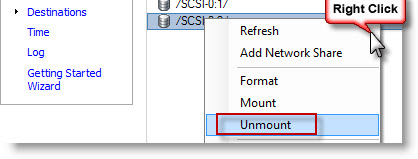 For example: You can take your backups off site in case you have 2 devices and you unmount the destination deduplication store before you unplug the device from your network…
For best possible performance use VMDK as a backup destination which is no bigger than 1Tb. Group your VMs per destination like: Windows VM into one dedup store and linux VM into another dedup store.
Always use the latest plugin for VDR in your vCenter.
Quick steps about how to collect those logs:
- Right-click on the VMware Data Recovery appliance, and click Open Console.
- Press ALT+F2 to open an alternate console.
- Log in as a root user. The default password is vmw@re.
- Run the command:/usr/sbin/datarecovery-supportThis command generates a compressed log bundle that can be found in the following directory with this naming convention:/var/vmware/datarecovery/datarecoveryLogs-<year><month><day><time>.tar.gz
- Connect to the VMware Data Recovery appliance using an SCP client to download the files to your desktop.
Source: VMware KB 1012282
More on VMware Data Recovery:
- VDR connectivity and divers troubleshooting
- VMware Data Recovery 2.0 – the upgrade process from earlier version
- Troubleshooting tool for VDR
- VDR plugin do not connect to VDR appliance
- How-to enable verbose logging in VDR – VMware Data Recovery
- If you're trying to use Windows CIFS with VDR
- How to fix damaged restore points in VDR
- Using VMware Data Recovery without vCenter?
- VDR appliance not mounting automatically the backup destination after reboot
- VDR – how to get a log bundle before you call the support – this post
- How-to update VDR to 1.2
- Do you want to see a little magic?
- VDR backup fail error
- VMware Data Recovery – a tool for Easy backups of your Virtual Infrastructure
- VMware VDR – vSphere Data Recovery – part 3 – Restore Your Data
- VMware Data Recovery – your first backup – part 2 video
- VMware Data Recovery – install and configure video- part1
- Data recovery – new GUI backup tool present in vSphere 4