The new webclient (server part) installation video.
The new web client web interface is using Adobe Flex which is the same as the VMware View and vCloud Director user interfaces. The use of Flash plugin in your browser is necessary.
The new Web client, present on the installation media of VMware vSphere 5 gets installed in this video. The necessity of having Flash Plug-in installed is evident. In my video I used a 2003 Server system to install the server part of the Web client, and so the IE6 did not have the latest Flash plug-in installed, of course. So I had to install it and then I was able to explore the web client web interface.
The web interface is quite rich, you can do basic VM operations, vMotions etc…. but still the full vSphere 5 client is necessary to make use of the vSphere plugins and add ons, like VUM (VMware Update Manager) so you'll have to install the vSphere client somewhere to make the use of those plugins.
On the other hand, the web client console greatly simplifies the remote administration, because the remote access through port 443 can be leveraged and the web console is rich enough to handle functionalities which haven't been accessible to administrators running vSphere 4.x.
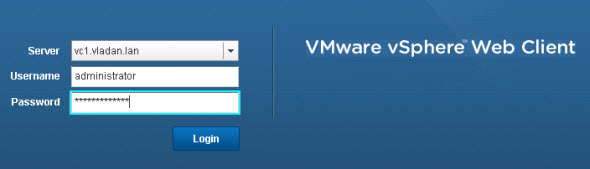
Some browsers are not supported. Like the one I used in this video, and so the message saying that :
This browser is not supported. Some features may not work or appear correctly.
Enjoy this little video of installation, which has been done just to demonstrate how easy is to deploy and use this feature. It's only 7 minutes video…
Enjoy…








What happened to installing the client by HTTP ing to the esxi host. did they drop that in ESXI 5.0?
Is it possible to connect to ESXi 5.0 with web client. When I try to access it comes back with page can not be displayed. I am following instructions from http://www.virtualizetips.com/2011/07/walk-through-of-new-vsphere-5-web-client-interface/
We are using the new interface, but are having problems accessing the console on the virtual machines. Which ports need to be opened in the firewall? If thought it was sufficient to open for the web interface.