Zimbra Collaboration Suite 8 my look.
During VMworld Barcelona talking with one of my peers the question raised about Zimbra. Since I have tested the Zimbra suite in the past, I was curious to see what's new in this release. I briefly reported on the new features in my post here, and I talked about the new built in web apps with unified communication. VMware partnered with Cisco and Mitel for that. Users can do Click2Call, voicemail, presence, and chat all from within the Zimbra Web app.
A fellow blogger and now VMware Employee @J_Brison (congratz btw…) has told me that the now when Zimbra deployed through the Zimbra appliance, there are all the functions available through the web interface. (This wasn't the case before). So I just wanted to digg enough into it, I wanted to see myself what's the changes to the UI (which is very nice) has been done.
The installation of Zimbra virtual appliance is very straightforward task. The product is shipped through an OVF file which is imported into vCenter as any other OVF files that you have usually tested (installed) for yourself, your organization or your client's needs.
01. File > Deploy OVF template and two minutes later you have Zimbra up and running… -:). Well, not quite yet. During the deployment process, you're asked to fill in the IP address (I prefered fixed IP..), DNS server and gateway. If you're going through a proxy, you have the option to fill in that informations as well.
02. Another thing to do is to create DNS records (forward and reverse) on your DNS server.
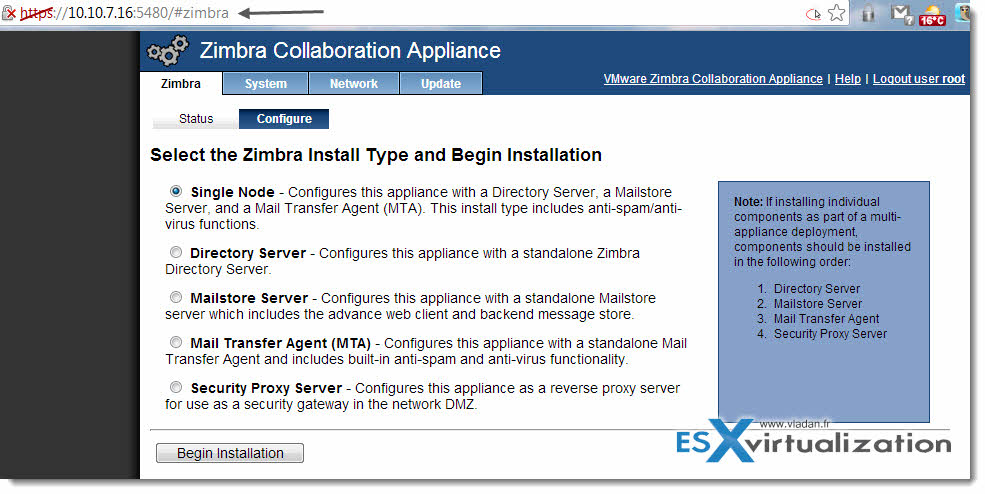
03. Then you can connect through the web interface to deploy the server from within the appliance, which is running. The default credentials: login: root password: vmware, and only after you have the chance to click on the big Begin Installation button.
As you can see, the deployment is a snap….. for larger installations, you have the possibility to install each of those sub-components as a different VM.
Similar like MS Exchange deployments, you might say. Well, architectural choices like this are necessary and to say that the one copied the other or the other way around is just time waste. The end user or IT admin does not really care about that anyway. What count is that 10 min later I had my Zimbra Server up and running, and I was able to play through the GUI, use the admin interface etc…
For my lab test the single, All-In-One option was just fine. Zimbra Collaboration Suite 8 has the possibility to be deployed as a directory server only, mailstore server only, Mail transfer agent only or as a security proxy server.
The pictures are clickable for larger view.
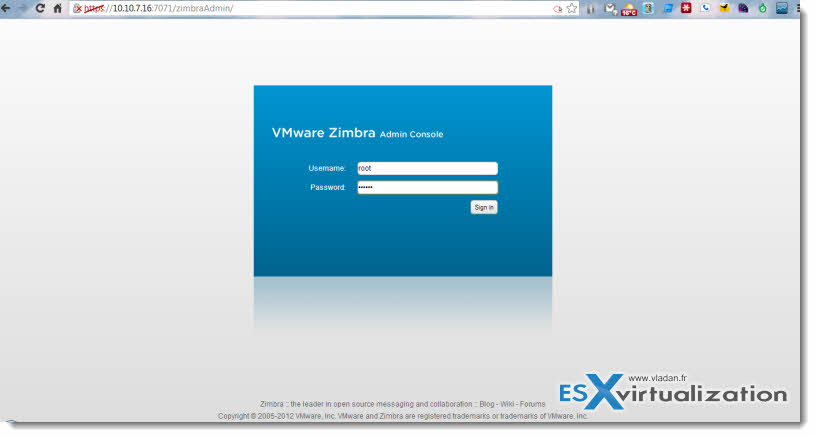
04. After the deplyment done, the admin interface can be reached through this port: https://10.10.7.16:7071
In step 3 you were asked for a password before clicking the deployment button. You need to use this password now for login to the admin interface.
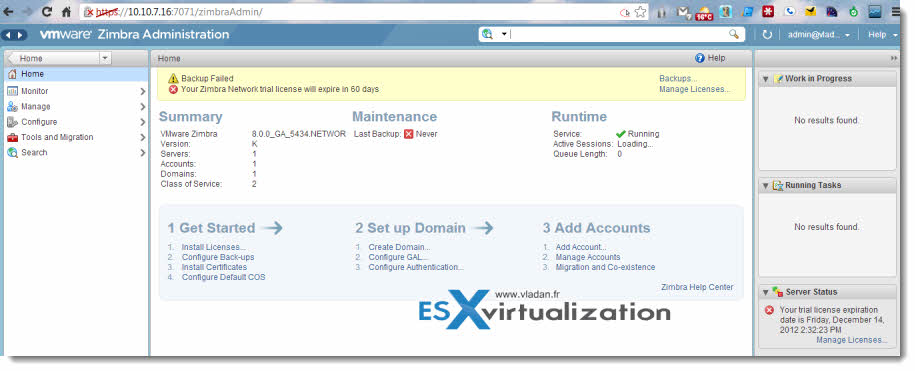
And so after the login you'll get a nice admin interface like this. One of the first thing to I noticed was the red button with a small cross there saying that I don't have a backup. Yes, Zimbra appliance incorporate it's own backup tool.
Here you can see the admin interface in action… Similar like the new vSphere 5.1 web client, the interface enables you to access all the administration and configuration taks. You'll see the work in progress window on the right top, the running tasks window just bellow… The look and feel is very similar (if not the same) as managing vSphere 5.1.
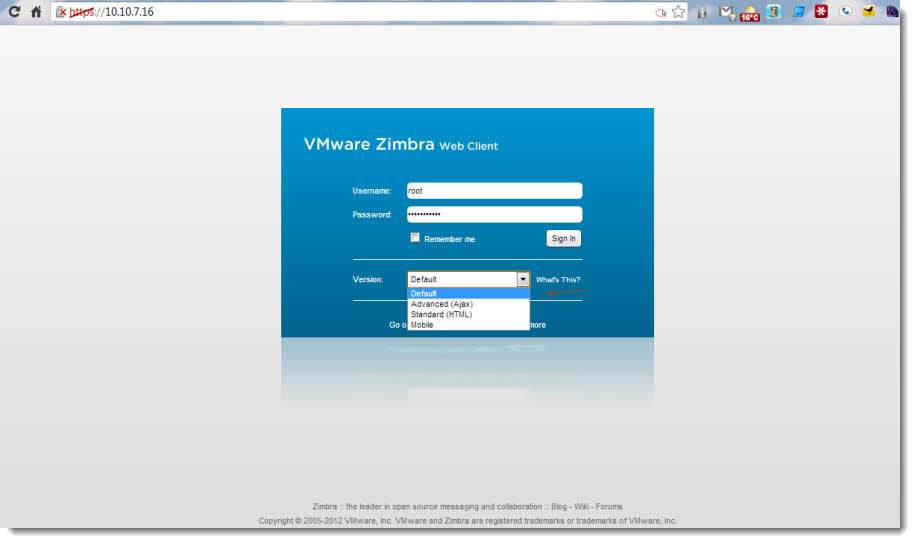
After, I went to look through the client interface and connected to the https://10.10.7.16 address, which is a client access user interface. Note the possibility to go through Ajax enabled UI, classic HTML or interface optimized for mobile devices. Neat…!!
This article is no mean to be a step-by-step guide. I'm not even finishing here the configuration. In fact, I'll be first reading the Admin user guide before going further.
The Zimbra product comes with 60 days trial. You can download and test Zimbra from this page. Here is the screenshot from the UI in Zmbra 8.
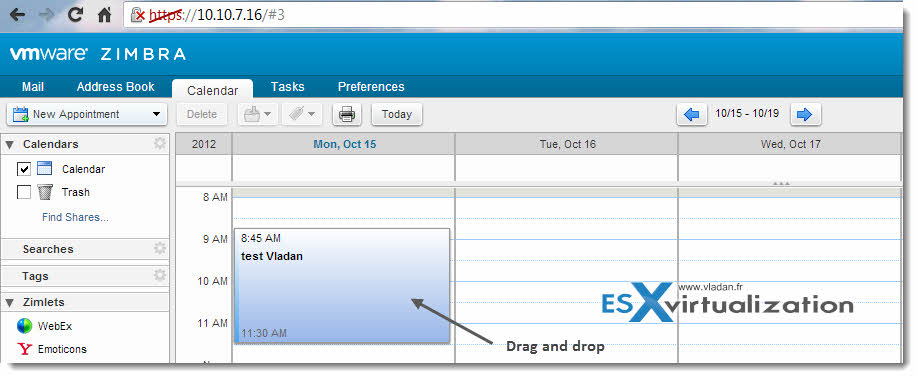
I'm also finding my way through this new product. But wait, in the days to come I'll dig further and show you what to do next in order to test the Zimbra 8 functions.
Stay tuned through RSS.
Enjoy…-:)








Hi Vladan,
I cannot find the link to download the ovf file on the downloads page ?
Can you point me in the right direction ?
It’s an old post from the era when Zimbra was a VMware product. After VMware has sold it, It seems that the only installation method is in guest installing.