
How to mount your VMDK hard disks easily? Vmware is using VMDK format for virtual disks. You might do not know that you can mount virtual disks (.VMDK) file directly to your windows explorer interface with a little software called VMware Disk Mount Utility.
This utility can be downloaded from VMware.
I will show you how to do it but beforre let me tell you few things before you get started:
-
You can make changes to your virtual disk vith Disk Mount Utility.
-
You cannot mount vmdk file when your VM is running or suspended.
-
If your VM has a snapshot, any changes you mad to your VMDK will be lost when your revert to the snapshot.
-
There is no official support from WMware for the disk mount utility.
-
On your windows host you have to mount the virtual disk as D: or greater.

Step by step how to use the VMware disk mount utility:
1.) Go to the VMware Disk Mount download page and accept the EULA before you can download the software, then save it to your disk. (file is called VMware-mount-5.5.0-18463.exe )
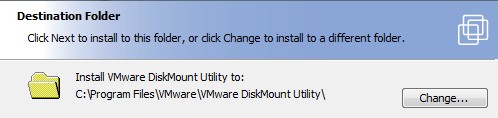
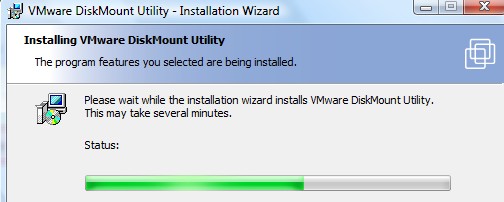
2.) Install the software, then open the command prompt window.
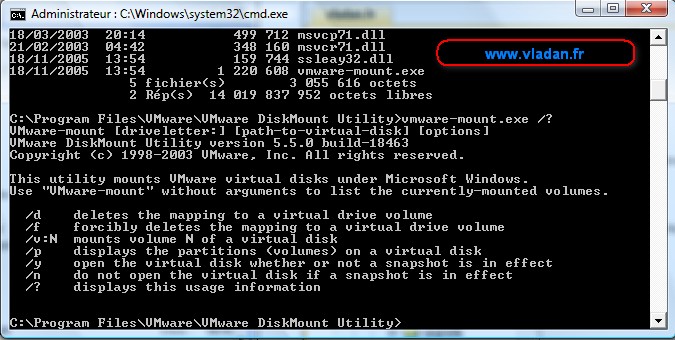
3.) Type there: cd “\Program Files\VMware\VMware DiskMount Utility”
4.) Then if you do not know any of the switches type: vmware-mount /?
5.) Now let's mount really some disks… You must know the exact location of your virtual disk. In my exemple I have my VMDK files on different partition, because I separated the system and the data. So my vmdk files are at E:\VMs
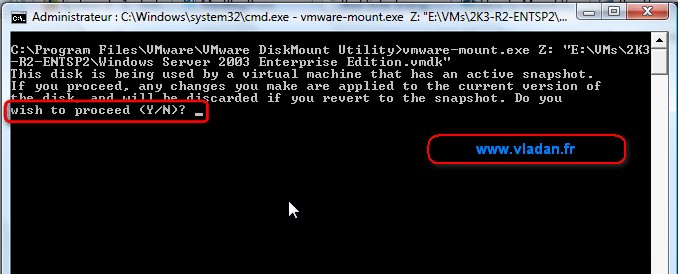
6.) So I type vmware-mount Z: “E:\VMs\2K3-R2-ENTSP2” and press ENTER. (I want the VMDK file to appear as Z: )
7.) If your disk has a snapshots you'll have to answer if I want to proceed because any changes (if any) would be lost if I revert to the snapshot. I said yes.

8.) To access the disk you do like you access any other hard disks or mapped network disks.

9.) If you want to umount the volume just type: “vmware-mount.exe /d z:”

As see, with this little utility you can easily and fast access your VMware Virtual Disks from your Windows box.
If you want to read more information on this utility, you can get a PDF here: VMware disk mount utility online manual.
If you want more informations how to do it in Linux, take a look at Accessing Virtual Hard Disks Outside of VMware on Linux.
Now if you have VMware Workstation, you can do the same thing :
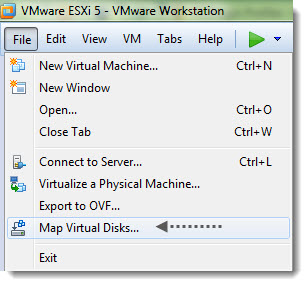
1.) You go to menu File > Map Virtual Disk
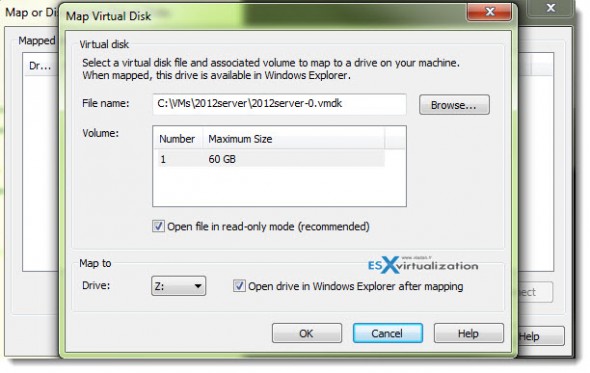
2.) Select the hard disk, and click ok to mount it in Windows explorer.
You liked this article? You can subscribe to my RSS feed here .
You can find some Free VMware Tools or Free Whitepapers to download on my Free Resources page.
Enjoy… -:)





WinMount provides an easiest way to mount VMDK as a virtual disk. You can read or write to the vmdk file without loading the virtual system.
Here shows you how to do: http://www.winmount.com/mount_vmdk.html
Thanks for the info…;)
sorry, i cant access the disk! I’m installed mac OSX on the Virtual Drive. I’m using windows 7 Ultimate as a host. How to solve it?
I’m more interested in how you got OSX hosted on top of Win7.
I’m running into the same problem with my Windows 2008 vm. Did you figure out how to access files from the mount?
The link provided in the above post now lands you at a download page for VMWare Workstation 9.0 .
The updated URL is here:
https://my.vmware.com/web/vmware/details?productId=47&downloadGroup=WKST-550-DISK-MOUNT-UTL
Thanks Michael. Difficult to keep updated those old posts… -:)
7-Zip can open and extract vmdk files now.
My experience:
Summary: 7Zip worked great for me.
One very minor comment: When I opened the VMDK, I saw, basically, 0.NTFS, 1.NTFS, and 2 (no extension). 0.NTFS was able 30 folders. 1.NTFS was one giant file. I didn’t try to open 2.
My VMDK was split into 20 smaller VMDKs. I had joined them. I used that. I did not test if 7Zip would handle the split version.
Very useful post, thanks vladan!
You can also use OSFMount to mount VMDK files on Windows.
OSFMount works with GUI or from command line and it’s freeware.
You have version 32 and 64 bits.
Article at: http://www.sysadmit.com/2016/07/vmware-abrir-vmdk-desde-windows.html
@Franciscofreide Thanks for the useful comment. OSFMount is really helpful tool to mount vmdk files.