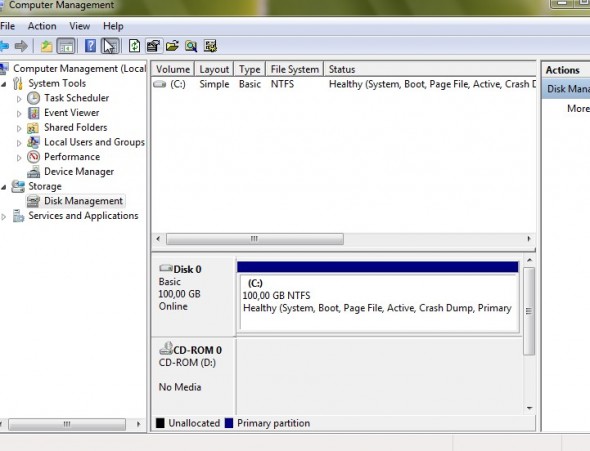
Expanding Windows 7 virtual hard drive. Quick how-to, real easy to do.
You need no tools to achieve this. You just need a copy of VMware Workstation.
When you run into a situation that you under-estimated your prevision for your Virtual Machine Disk size. You installed lot's of software and you became running out of space. Now you have 2 possibilities:
1. You uninstall not necessary software… -:(
2. You make your VM's disk larger capacity … And that's what we gonna do. You can see the flexibility of Virtual machines? That's a real case scenario….
Folow this steps:
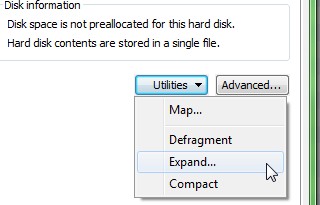
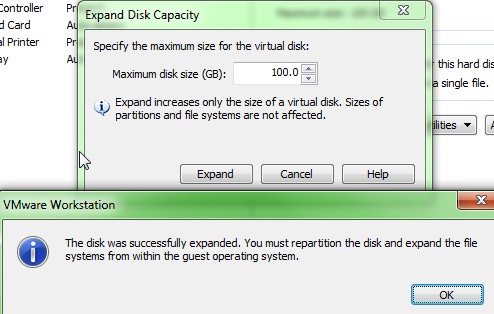
01. – Start VMware Workstation and go to Edit > Settings while you select your Virtual Machine > click on the Hard disk – and you have a button on your right side called Utilities > choose Expand.
02. Enter a value for the new size of your virtual disk. It will take some time for the process to finish.
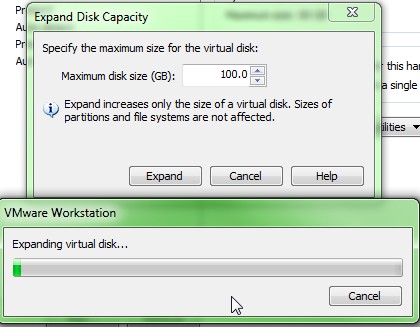
03. At the end you should have a confirmation message like this one.
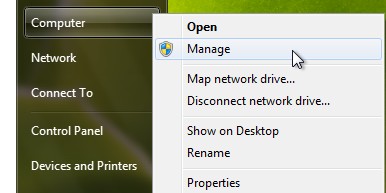
04. Go and start your Windows 7 VM and go and right click on My Computer > Manage
05. While you are in computer management, just expand the volume where your system lives.
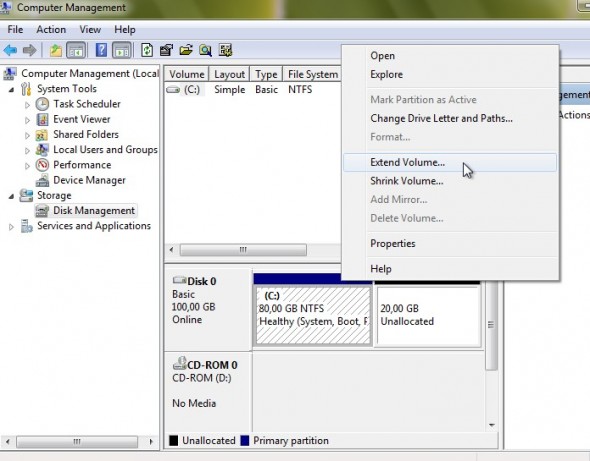
06. You just follow the Extend volume wizzard inside of your Windows 7 VM and you'll end up with your volume extended to a desired size. In our exemple I rezized from 80 to 100 Gigs.