Great tip how-to boot from USB stick inside of VMware Workstation
A tip pointed by Ivo Beerens. By using my RSS Reader to stay updated on blogs in the Virtualization Sphere I checked this post from Ivo. It’s a great tip. What’s about?
Basically when you want to test ESXi 4 installation to the USB Stick (or this Video post too…) you’ll want to folow my post, which I’ve done in the past and that’s it.
But if you want to test unattended installation of ESXi 4 on USB stick then you would want to boot your VM which is executed in your VMware Workstation, from an USB stick too.Well you can’t. Even the version 7 of VMware Workstation does not support that.
Here comes the help tip from Ivo. Basically what do you have to do is a work arround.
01. Download boot manager from PLoP
02. Use the Iso in the boot manager as a boot device to boot your VM
03. Add an USB adapter to your VM (if not already done).
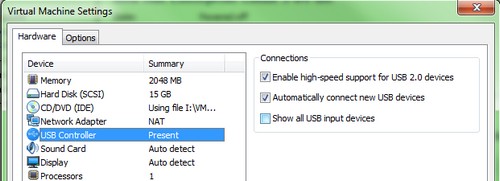
03. Insert your USB stick with ESXi 4 installed in it.
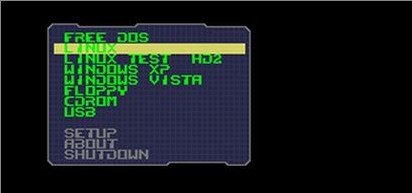
03. When your VM boots from that ISO, just select USB from the menu.
Well not all the credit goes to IVO, because the original help provided was from Ulli Hankeln from sanbarrow.com. -:)
Get some Top Free Whitepapers which you can download for free:
Top 5 VM Performance Problems.
In the Whitepaper you’ll first read the explanations where are the usual location of performance issues, and see that the resolution is not always evident in Virtual Infrastructure in general.
There are some caveats to know to find the problem first and then resolve.
Continuing to Reap the Rewards of Virtualization -
Balance and Efficiency. This illustrated e-book tells you more about interesting scenarios for sizing servers. With a clear examples. Also by using the monitoring solution bundled with Veeam One can show you exactly what’s going on in a real time or in what-if scenario.
If your RAM utilization is 4%, you have plenty of room to grow, but if you have no intention of growing that is a lot of expensive RAM going to waste. Bear in mind that more is not always better and the optimal strategy is to instead right-size your virtual environment. Download for Free
Analytics Required to Successful Manage Performance and Capacity in Cloud Environments- Managing Virtual Infrastructure instead of just physical servers one by one is challenging. One must make some decisions on where to best place the workloads or how much physical server and storage capacity to provision for new VMs…
What’s the best sizing for new VMs so they’re not oversubscribed with memory, disk or CPU…? Identify the “sleeping VMs” which do nothing, orphaned VMDKs, Snapshots, logfiles…
You can find more Free Whitepapers to download on my Free Resources page.
Enjoy… -:)
.
You may also like:
- How-to install and manage ESXi Server inside VMWare Workstation 6.5
- Installing ESXi 4 onto USB memory stick using VMware Workstation Video
- How-to install vSphere 4 inside of VMware Workstation
- Installation ESX Server inside of VMWare Workstation 6.5
- VMware Player 3.0 with some great new features
- VMware Workstation 6.5.2 released
- VESI – sponsored initiative of Vizioncore might be a great way for us to adopt Powershell


Pingback: Installing VMware ESXi on a USB drive: A walkthrough « WhiteCode The Online Learning Center