
There is quite a few resources around when it comes to converting Windows boxes to Virtual machines. Using VMware Converter for your conversion as a tool is pretty straightforward. It's a free tool from VMware you can Download here. But what to do if you want to convert a Linux machine which does not have GUI (graphical user interface). I'll try to help. I suppose that you have a Linux server, an workstation under XP and your infrastructure ESX.
The steps you need to do:
01.) Download Vmware Converter for linux here.
02.) Extract the converter package on your linux server: “tar xf VMware-converter-4.0.0-146302.tar.gz”
03.) Start the installation “cd vmware-converter-distrib/ && ./vmware-install.pl”
04.) You can just accept the majority of the options just make sure that you activate the remote access “Do you want to enable remote access in Converter Standalone Server? yes”
05.) Usually a linux server has an Apache installed on port 80, so good think to do is to add aditional port for https proxy : “What port do you want the HTTP proxy to use? [80] 8080 and What port do you want the HTTPS proxy to use? [443] 444
06.) Also you should go and allow root to login localy “/etc/ssh/sshd_config change the line PermitRootLogin yes
07.) Then you just leave your linux server and go to your Windows XP or Vista Workstation and connect to your linux server remotely via https for example “https://192.168.0.1:444”
08.) Download and install the VMware Converter client.
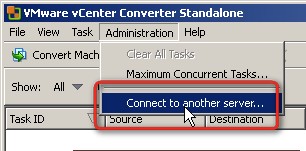
09.) Start the Converter Client and go to Administration > Connect to another server
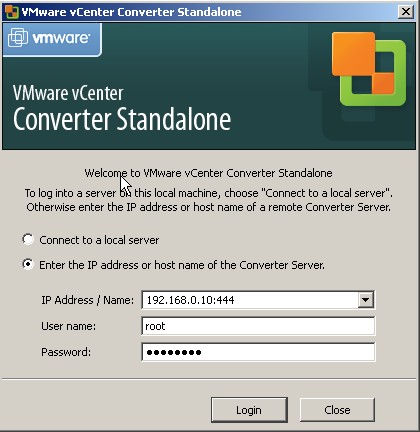
10.) In the credentials window just enter the IP address followed by the port number, then the root login and password.
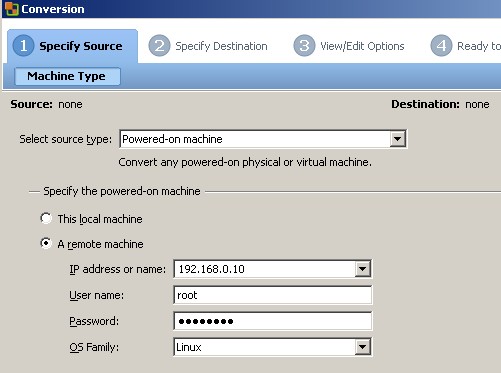
11.) Enter the credentials once more and choose Linux as a OS family.
12.) Then Just follow the assistant for the rest of the steps. As a destination you choose the ESX server IP address or hostname. There is nothing difficult with that…





It gives me “Server logon failed due to a bad user name or password.”
I am doing exactly as you instruct above.
Great guide! Is there a way to make VM-images on disk such as Workstation 5/6.x or Fusion machines? Seems like this export option only works for Windows machines, not LINUX.
Nice post. I am doing something similar however, my destination is actually a machine running VMWare Server 2.0. Any help? I can get to the destination portion but I cannot make it any further as it seems to want to work with ESX only. Thanks.
I wanted to use this on CentOS however …
This only works for the following Linux distros:
# Red Hat Enterprise Linux 2.1 (32 bit)
# Red Hat Enterprise Linux 3.0 (32 bit and 64 bit)
# Red Hat Enterprise Linux 4.0 (32 bit and 64 bit)
# Red Hat Enterprise Linux 5.0 (32 bit and 64 bit)
# Red Hat Linux Advanced Server 2.1 (32 bit)
# SUSE Linux Enterprise Server 8
# SUSE Linux Enterprise Server 9 (32 bit and 64 bit)
# SUSE Linux Enterprise Server 10 (32 bit and 64 bit)
# Ubuntu 5.x
# Ubuntu 6.x
# Ubuntu 7.x (32 bit and 64 bit)
Hello,
Why installing something on the linux server ? Running the conversion directly from your windows XP “Vmware vCenter converter standalone” seems to be ok no ?
[Some steps are not needed according to me (see: http://dontneedcoffee.blogspot.com/2010/02/p2v-linux-to-vmware-esx-or-vmware.html ) ]
I has a Debian 3.1 LInux box that I want to add to my VMware server.
It does not have a gui console. “Cafeine” indicates that I don’t need to install VMware on my LInux box, but I get the following errors:
SourceSelectPluginModel::BuildFilter 3rd party type microsoftVirtualPCVM
not found; – parallelsVM not found; – vmwareVCBBackup not found; –
livestateBackup not found; – shadowProtectBackup not found; –
acronisBackup not found; – vmwareVM not found
THX. // Brian
Brian :
Have you take a Look at that : http://communities.vmware.com/message/1226509
Thanks. This helped me alot.
Hi,
i have a problem in passing the last step in your tutorial where after giving remote machine related IP, user,pass information, it tries to query the source machine but then times out with the following message:
“Unable to query the live Linux source machine”
Is there any port/ssh permit that prevent this client to connect to my server?
I was convert Ubuntu 6.06 physical machine to virtual machine i am using VMWare vcenter converter standalone tool
between converting virtual machine ask Converter login what is converter login?
Please help me
Thanks
I guess you need to provide credentials for your Ubuntu box. That’s what I would try. The post is quite old. What you should do is to install latest version of VMware converter standalone (on Windows box) > select source type Powered-On machine > A remote machine > OS Family choose Linux….
Hope it helps…
whe i do the p2v from physical suse this error appears “unable to find supported bootloader or bootloader configuration file”
Hi All,
I am converting Linux machine p2v but after 3 hour i am getting error message like:
”
Cannot communicate with the remote host, either due to network errors or because the host is not responding”
Can anyone please help me address this message ….
i face same issue ”
Cannot communicate with the remote host, either due to network errors or because the host is not responding”, after 3 hours running just stuck 1 %, anyone know for solving this problem?
Your link for the linux converter tool (Download Vmware Converter for linux here.)
actually opens the converter tool for windows (VMware vCenter Converter Standalone Installer for Windows).
To be honest it’s a very very old post. It seems that the Linux version no longer exists.
But this does not mean that you cannot convert running Linux VM. The process is different from conversion of a windows VM, that’s all.
In Linux conversions, no agent is deployed on the source machine. Instead, a helper virtual machine is created and deployed on the destination ESX/ESXi host. The source data is then copied from the source Linux machine to the helper virtual machine. After the conversion is complete, the helper virtual machine shuts down to become the destination virtual machine the next time you power it on.
Can you please elaborate on this? or a ‘How to’ article. I have a RHEL 7.2 that needs to be migrated onto vcenter.