Sometimes you just want to disable shrinking of VMdk for certain VMs. How do you do that?
Before you get started you should know that, if this is done repeatedly, the virtual disk can become unavailable, effectively causing a denial of service. so In most datacenter environments, disk shrinking – no. So you can disable this feature. Especially if some people (even with no administrative privileges) can do that, so you better make sure…. 😎
Normal users and processes—that is users and processes without root or administrator privileges—within virtual machines have the capability to invoke this procedure.
What does Shrinking?
Shrinking a virtual disk reclaims unused space in the virtual disk. It means that, if there is empty space in the disk, this process reduces the amount of space the virtual disk occupies on the host drive.
Before you edit the .vmx file:
01. Always power off the virtual machine.
02. Make sure you are logged on as a user with the correct permission level to edit the file.
03. Make a backup copy of the .vmx file. If your edits break the virtual machine, you can just roll back to the original version of the file.
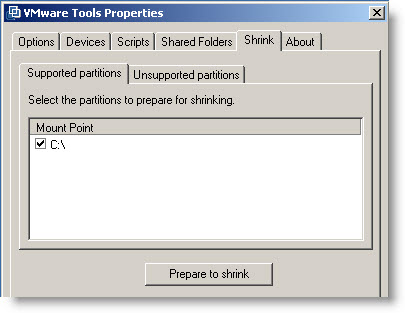
To disable disk shrink for a virtual machine:
01. Power off the virtual machine and remove the virtual machine from the inventory.
02. Edit the virtual machine's .vmx file and add the following lines:
isolation.tools.diskWiper.disable = “TRUE”isolation.tools.diskShrink.disable = “TRUE”
03. Power on the virtual machine and re-add the virtual machine to the inventory.
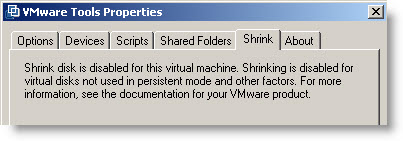
Source: VMware KB Article: 1010941








You can go even deeper in hardening your VMX file… Have a look at this article http://virtualfoundry.blogspot.com/2009/04/hardening-vmx-file.html
This one is for the paranoiacs…. -:) Sure you can go really far wit that. Thanks.
Hi Vladan,
Thanks for this useful, easy to follow article.
Do you think reducing the size that a VM occupies on the phsyical disk will also assist in any VMDK level fragmentation on the disk?
Cheers,
Simon
Simon,
I would say that after a shrink done, you should run a defrag inside of the VM. And also by using thin provisionning can help since,
“A preallocated disk avoids fragmentation at the .vmdk file level.”
They’re are some tips on Fusion blog too…
http://blogs.vmware.com/teamfusion/2008/10/tip-defragmenta.html
Where did you get to the VMware Tool Properties?