Sometimes you would like to use your external USB drive to backup (transfer) your VMDK files directly from your ESX Server external USB drive. VMDK files are files with extention *.VMDK and those files are virtual hard disks of your virtual machines. You can also mount VMDK files directly into your Windows PC.
When you plug-in external USB drive to ESX host you need to enter some commands at the console. For those of you who don't really know linux, there is some commands to remember. But they are not many…. -:) .
First of all you should know that not all filesystems are supported. For the supported ones there are those here:
- FAT32 read/write.
- Ext3 read/write
- NTFS read only (that means that you can't use NTFS formatted USB drives to copy your VMDK files, but you should create a partition with EXT3 or FAT32)
Now how-to copy data from Service Console to a USB device:
1. Plugin the external USB drive to your ESX host.
2. Run this command to find out to which device name the kernel assigned to it:
tail /var/log/dmesg
3. Now you will have to Run the following command to create a mount point (A mount point is a directory which a device or partition is attached to):
mkdir /mnt/usb
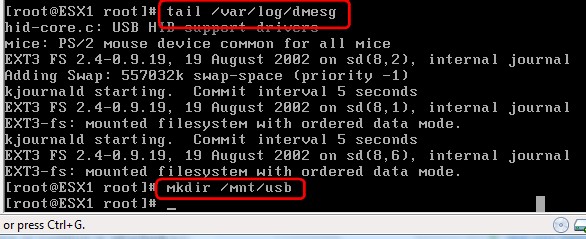
4. Run the following command to mount the drive ( When mounting, you must tell the mount command what is the device or partition you want to mount and what is the mount point. The mount point must be a directory that already exists on your system.:
mount /dev/[device_name] /mnt/usb -t [filesystem_type]
Please Note that you must:
* Replace [device_name] with your device name found in step 2
* Replace [filesystem_type] with vfat (FAT32) or ext3
5. After your copy(backup) you can type this command to unmount the device:
umount /dev/[device_name]
You might also want to export you VMDK files. Vmkstools is VMware ESX Server file system management tool. It is a program for creating and manipulating virtual disks, file systems, logical volumes and pyhsical storage device on the VMware ESX Server. Now what you need to do to export the VMDK (virtual disk)? You will use a command ‘vmfkstools':
vmkfstools -i /vmfs/volumes/[datastore_name]/[vm_name]/[vm_name].vmdk /mnt/usb/[vm_name].vmdk -d 2gbsparse
And how-to import the VMDK (virtual disk):
vmkfstools -i /[path_to_USB_mount]/[vm_name].vmdk /vmfs/volumes/[datastore_name]/[vm_name]/[vm_name].vmdk
You might also want to copy the configuration files for a virtual machine. Those files are files with following extentions: *.vmx *.log *.nvram *.vmxf *.vmsd (you will not only copy the configuration files, but at the same time you will make a zip file in tar.gz format:
cd /vmfs/volumes/[datastore_name]/[vm_name]
tar -czvf [vm_name].tar.gz *.vmx *.log *.nvram *.vmxf *.vmsd
cp [vm_name].tar.gz /mnt/usb
Now you will be able to extract the configuration files of a virtual machine:
tar -xzvf [vm_name].tar.gz /vmfs/volumes/[datastore_name]/[vm_name]
Source: VMware Knowledge Base
You can find more Free Whitepapers to download on my Free Resources page.
Enjoy… -:)








Thanks for the great article I found it really useful
Hi, please help me!
I can´t mount the USB drive because the “device name” don´t appear when I connect a pendrive.
Look:
login as: root
[email protected]'s password:
Last login: Thu Aug 13 17:37:50 2009 from 10.75.202.55
[root@UYMVDVMP02 root]# tail /var/log/dmesg
hub.c: USB hub found
hub.c: 7 ports detected
EXT3 FS 2.4-0.9.19, 19 August 2002 on cciss(104,2), internal journal
Adding Swap: 554200k swap-space (priority -1)
kjournald starting. Commit interval 5 seconds
EXT3 FS 2.4-0.9.19, 19 August 2002 on cciss(104,1), internal journal
EXT3-fs: mounted filesystem with ordered data mode.
kjournald starting. Commit interval 5 seconds
EXT3 FS 2.4-0.9.19, 19 August 2002 on cciss(104,6), internal journal
EXT3-fs: mounted filesystem with ordered data mode.
[root@UYMVDVMP02 root]#
Try using another USB drive… Each model is different..
Hello! I would NOT recommend to use an USB-disk as backup with ESX 3.5. I did that the way explained above. Everything seems to work well. But recently I wanted to restore a backuped vm to another server just as copy (what a luck!) and: The file was corrupt! I checked all backuped files with md5sum und nearly 50% of them were just shit! I blamed that on the USB-disk and tried three other disks. All the same! 30-50% of my backups were corrupt. But I had no error-messages during copy (dmesg an /var/log/message) but after checking the files: shit! I even tried other disk-vendors and even tried the backup from another esx-host (different hardware) but no luck! It also seems the bigger the file the greater the chance that it gets corrupted. Well let my clearly say: I tried different usb-disk, different usb-ports, different usb-cables, different esx-hardware at different locations. I always got that errors. Seems like the usb-driver of the esx runs out of sync with the drive and just produces garbage without realizing this. So. DO NOT BACK UP OVER USB WITHOUT CHECKING THE BACKUP-FILES
Well, it’s good to know. Me too I don’t trust those USB devices. Prefer SAN or disk to disk backups. Thanks for your experience Dennis.
That’s why you *always* verify after backup, especially when you first setup the backup system. You also should do a number of restores to make sure that it is repeatable and predictable. That’s like system administration 101 and not specific to VMware or virtualization. I still can’t believe that sysadmins still don’t check their backups as a matter of routine.
As far as USB goes, I haven’t noticed them being any more or less reliable than any other removable device except for some of those empty trays you get on eBay where you supply your disk. I’ve used external Seagate USB disks with very consistent results.
How do you can’t decipher device ID? The external drives are recognized.
Bus 002 Device 004: ID 1058:1003 Western Digital Technologies, Inc.
Bus 002 Device 003: ID 1058:1003 Western Digital Technologies, Inc.
EXT3 FS 2.4-0.9.19, 19 August 2002 on cciss(104,2), internal journal
Adding Swap: 554200k swap-space (priority -1)
kjournald starting.
Commit interval 5 seconds
EXT3 FS 2.4-0.9.19, 19 August 2002 on cciss(104,1), internal journal
EXT3-fs: mounted filesystem with ordered data mode.
kjournald starting. Commit interval 5 seconds
EXT3 FS 2.4-0.9.19, 19 August 2002 on cciss(104,6), internal journal
EXT3-fs: mounted filesystem with ordered data mode.
Actually, you can also mount your external USB hard drive on ESX 4 even if it is in NTFS (for example, for easy access in Windows) and even better, make it available as a Shared Drive in Windows workgroups so it can be accessed from guest VMs and other hosts on the network.
See complete article on Sharing NTFS USB Hard Drive on VMware vSphere/ESX 4 in here:
http://www.emailsecuritymatters.com/site/blog/best-practices/share-ntfs-usb-hard-drive-vmware-vsphere-esx-4/
That’s the way I backup my VMs quickly and cheaply (no expensive SAN). Not ideal maybe, but it sure works well !
Link is now 404. I’d like to read this article. Perhaps here:
https://www.vircom.com/blog/share-ntfs-usb-hard-drive-on-vmware-vsphereesx-4/
Is there any way of attaching a usb disk to a esxi 4 windows virtual machine?
Now the USB is supported for pass-through up to 20 USB devices..
USB support for ESX/ESXi 4.1:
USB is now supported. See this kb:
Sorry, but it wasn’t clear to me where in the output from the “tail /var/log/dmesg” command one is to find the device name. Could you be more explicit in helping this newbie?
IMHO there should be more emphasis on the fact that not only you *can* but you *should* unmount the device before removing it. Otherwise you risk to have a corrupted copy.
Assalamo Alekum,
Very useful information. BUT
tail /var/log/dmesg [DID NOT WORKED FOR ME]
tail /var/log/messages [WORKED FOR ME]
[root@esx3 media]# tail /var/log/messages
Mar 13 09:17:33 esx3 kernel: [1111702.672912] sdc: cache data unavailableMar 13 09:17:33 esx3 kernel: [1111702.672924] sdc: assuming drive cache: write throughMar 13 09:17:33 esx3 kernel: [1111702.693392] SCSI device sdc: 1953458176 512-byte hdwr sectors (1000171 MB)Mar 13 09:17:33 esx3 kernel: [1111702.693986] sdc: Write Protect is offMar 13 09:17:33 esx3 kernel: [1111702.695158] sdc: cache data unavailableMar 13 09:17:33 esx3 kernel: [1111702.695170] sdc: assuming drive cache: write throughMar 13 09:17:33 esx3 kernel: [1111702.695172] sdc: sdc1 sdc2 sdc3Mar 13 09:17:33 esx3 kernel: [1111702.696192] sd 10:0:3:0: Attached scsi removable disk sdcMar 13 09:17:33 esx3 kernel: [1111702.696239] sd 10:0:3:0: Attached scsi generic sg3 type 0Mar 13 09:21:24 esx3 sfcb-lsi_storage[25178]: INTERNAL StorelibManager::getEnclosureConfig – StorelibManager::getEnclosureConfig:ProcessLibCommandCallfailed;rval=0x12
[NEXT COMMAND I GAVE]
[root@esx3 media]# mount /dev/sdc3 USB-sadara-ext3/
My host has no KVM so I thought I would SSH onto it from my Linux client. I found no dmesg log file (I’m running ESXi 4.1). All was not lost. i used the scp… more power to the command line!
scp /media/usb/folder/*.vmdk root@ipaddress:disqus :/vmfs/volumes/datastoreX/folder
Hello,
It was a long time ago and ESXi 6.5 has arrived. It looks that USB disks can’t be added easy to storage area (http://www.virten.net/2016/11/usb-devices-as-vmfs-datastore-in-vsphere-esxi-6-5/) and when you do that, is it possible to use this USB disk directly connected to ESXi host as disk space on which Veeam or other backup software can do the backup of VMs?
No, It is not supported scenario. There might be some workarounds, but basically why using USB when other, much faster ways to attach storage to an ESXi host?
/var # tail /var/log/dmesg
tail: can’t open ‘/var/log/dmesg’: No such file or directory
ESX 5.5
It’s a very old post.
I need some feed back.Using your article ((http://www.virten.net/2016/11/usb-devices-as-vmfs-datastore-in-vsphere-esxi-6-5/)) i have mounted a USB as a VMFS data store the procedure worked fine. Every thing worked as intended.
I can see USB data store but the problem is that i want to use this as a backup so i case of emergency i need this VMFS volume to be available on an other host.
How can unmount this data store and mount it to another data store on different esxi host without destroying the back up data ?? any possible solution