The default location of sysprep files. Sysprep Data location.
When you have your vCenter running under Windows 2008, the sysprep files are located at this path:
ProgramData\VMware\VMware VirtualCenter\sysprep
If you're running vCenter on Windows 2003 R2 x64 then the location is here:
c:\Documents and Settings\All Users\Application Data\VMware\VMware VirtualCenter\sysprep
Then you'll see that there are empty folders for the sysprep files already created there. The folder structure is created by default, but the files are not there. You must download them from Microsoft's website first. You just need to download the latest sysprep files and extract the cabinet files there for each and different OS.
…\1.1\
…\2k\
…\xp\
…\svr2003\
…\xp-64\
…\svr2003-64\
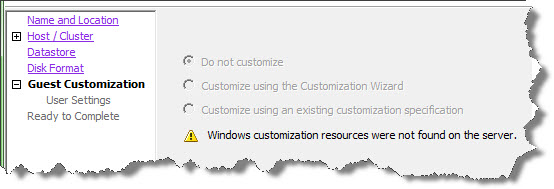
If you don't copy the sysprep files there after installing your vCenter, for certains OS you don't have the possibility to personalize your installation (the radio buttons are grayed out).
To get the latest sysprep files follow the links below:
- 2000 Server SP4
- XP Pro SP3 or XP Pro (x64)
- 2003 SP1
- 2003 SP2
- 2003 R2
- 2003 x64
- Open a Windows command prompt. For more information, see Opening a command or shell prompt (1003892).
- Change to the directory where the .exe file is saved.
- Enter the name of the .exe file with the /x switch to extract the files. For example:WindowsServer2003-KB926028-v2-x86-ENU.exe /x
- When prompted, choose a directory for the extracted files.
- Browse the directory and copy the extracted files directly to the Sysprep Directory or extract the files from the deploy.cab and copy to the Sysprep Directory
Those OS which sysprep files are not needed, because they are already integrated into the OS are:
2008 Server, 2008 R2, Vista or Windows 7
There is a further reads:
- vSphere Compatibility Matrixes for a list of supported operating systems for virtual image customization.
- Troubleshooting template deployment or cloning when it fails (1004050),
Source: VMware KB 1005593 – Sysprep file locations and versions









I’ve found in the guest customization I have to use corp.com and [email protected] i.e. using the UPN format rather than the older DOMAIN\administrator format… This seemed to be JUST Win2K8 and Win7 guest – without it they wouldn’t join the domain correctly. Not sure if it something weird about my environment or a sysprep feature…
Sir, I appreciate your efforts…. I’m having challenges here… here is my lab Setup…..
1, I’m using Windows server 2012 R2 as VMware Vcenter Server
2, I’m using windows 2003 SP2 as Guest Vm
My question is how can I implement sysprep on Windows server 2012 R2 as I will like to create customization. Please Advice me. Thanks