Optimize your VMs by uninstalling physical hardware after P2V
After your P2V one of those steps to do at first is the Installation of VMware Tools.
Also, not only you should get rid of all the physical hardware in Device manager that’s not used any more but also those software packages which had been used on a physical server to manage the hardware (like HP’s ILO , Fujitsu’s ServerView, or Dell’s OpenManage), or the soft that manages the RAID drives.
So first thing to do after you P2V and install VMware tools into your freshly converted VM is to show all deactivated hardware in Device Manager:
01. On your VM go to Start > RUN > CMD > Enter
02. Type “set devmgr_show_nonpresent_devices=1”
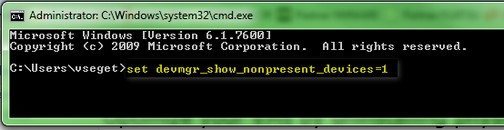
03. Then start Device manager: Start > Run > devmgmt.msc and then click on the Menu go to View > Show Hidden Devices (like on the pic).
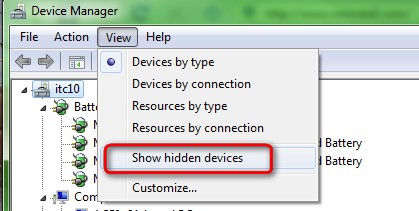
Then you should see which devices are marked like ghosted devices.They are grayed out. Those devices you can safely remove from the device manager.
Related Posts :
Windows OEM license installed on physical Server can't really be P2V. Or yes? It just came it a ...
Clearly. RV tools, this tiny application, become more and more popular. I stopped to count the n ...
How to optimize the performance of your ESX Server and your VMs With more and more Virtual mach ...
How to be sure that my hardware is compatible to run the latest VMware ESXi 4 Update 1? It came ...
There is many ways to test iSCSI connection to VMware ESX Server. Sure that there is many differ ...
Other posts from Server Virtualization
- Disable web access on VMware vCenter
- VMware ESX - Configuration of Service console via CLI
- Basic VMware ESX CLI networking commands
- How to change the default location of updates in vCenter
- Did you know that ESX 3.5 general support will end in less than 90 days?
- Starwind iSCSI HA Connection to ESX Server
- See a list of Storage Array Type Plugins on ESX Server
- New whitepaper released on PVSCSI
- Enable Jumbo Frames in ESXi 4
- How-to troubleshoot iSCSI connection to your SAN
- Starwind with ISCSI SAN Software can do High Availability for you...
- Overview Video from the new vSphere Pro video training from Train Signal
- New upgrade webpage for ESXi 4 pushes us to the right direction?
- You know how to collect diag information when your ESXi does PSOD?
- Use PVSCSI or not for lower intensive workloads
- Hardening guides for vSphere 4
- NTLDR missing - silly but can happend
- How To Shrink VMware Virtual Disk Files and disable shrinking
- vSphere Quick Start guide bonus download..
- ESXi - the past, the present and the future
- Farm commander - management tool for VI and TS or Citrix Farms
- How to collect log information from vCenter Server 4
- How to know where is my VM if vCenter is down?
- New patches for ESX 4 and ESXi 4
- Use VMware Converter to import 3rd party VMs, for example Virtual Iron's VMs
- Windows XP installation as a VM - trouble to see the disk or not?
- Vmware HCL for ESXi 4
- Time keeping for Windows VM's best practices
- Virtu-Al releasing 3rd update of PowerPack
- Not even tried Appspeed and new version is already available!


Nice tip Vladan !
I P2V'ed a server and once done it started to crash randomly on VMware… Of course ITM's were not happy, virtualization sux I could hear… After running that trick, the server ran like a charm, it happened to be a remaining piece of QLogic drivers that caused all the problems. Highly recommended after any P2V!
Cheers,
Didier
Internet is a great resource. I could not work in the IT industry like 15 years ago… -:)
How it can be done on Windows 2003 Server as virtual machine?
I've done like you describe, but I can't see any gray devices.
If you don't see any “grayed” devices then everything went fine with the P2V conversion and you don't need to remove manually anything else. Just make sure uninstalling any software which is directly managing the physical server (like GUI RAID manager etc…)
Thanx a lot.