
ESX Virtualization

VMware ESXi, vSphere, VMware Backup, Hyper-V... how-to, videos....

Nakivo Backup and Replication - #1 Backup solution for Virtual, physical, cloud, NAS and SaaS

Menu
  • Certification
      • VCP-VVF Administrator
          • vcp-vvf-2.
        • Close
      • VCP-DCV vSphere 8
          • vcp2024-125.
        • Close
    • Close
  • VMware
    • Configuration Maximums
    • vSphere
      • VVF 9 and VCF 9
      • vSphere 8.0
      • vSphere 7.0
      • vSphere 6.7
      • vSphere 6.5
      • vSphere 6.0
      • Close
    • VMworld
      • VMware EXPLORE 2024
      • VMware EXPLORE 2023
      • VMware EXPLORE 2022
      • VMworld 2019
      • VMworld 2018
      • VMworld 2017
      • VMworld 2016
      • VMworld 2015
      • VMworld 2014
      • VMworld 2013
      • VMworld 2012
      • VMworld 2011
      • Close
    • Close
  • Proxmox
    • Proxmox
    • Close
  • Microsoft
    • Windows Server 2012
    • Windows Server 2016
    • Windows Server 2019
    • Windows Server 2025
    • Close
  • Categories
    • Tips – VMware, Microsoft and General IT tips and definitions, What is this?, How this works?
    • Server Virtualization – VMware ESXi, ESXi Free Hypervizor, VMware vSphere Server Virtualization, VMware Cloud and Datacenter Virtualization
    • Backup – Virtualization Backup Solutions, VMware vSphere Backup and ESXi backup solutions.
    • Desktop Virtualization – Desktop Virtualization, VMware Workstation, VMware Fusion, VMware Horizon View, tips and tutorials
    • How To – ESXi Tutorials, IT and virtualization tutorials, VMware ESXi 4.x, ESXi 5.x and VMware vSphere. VMware Workstation and other IT tutorials.
    • Free – Free virtualization utilities, ESXi Free, Monitoring and free backup utilities for ESXi and Hyper-V. Free IT tools.
    • Videos – VMware Virtualization Videos, VMware ESXi Videos, ESXi 4.x, ESXi 5.x tips and videos.
    • Home Lab
    • Reviews – Virtualization Software and reviews, Disaster and backup recovery software reviews. Virtual infrastructure monitoring software review.
    • Close
  • Partners
    • NAKIVO
    • StarWind
    • Xorux
    • Close
  • This Web
    • News
    • ESXi Lab
    • About
    • Advertise
    • Archives
    • Disclaimer
    • Privacy policy
    • PDFs and Books
    • Close
  • Free

IIS and PHP Setup – The Easy Way On Windows Server 2012 With Web Platform Installer

By Vladan SEGET | Last Updated: January 19, 2022

Shares

There is many ways to do an IIS and PHP Setup on Windows machine. It was much more complicated before, as now with Microsoft Platform Installer things got much easier. I wanted to share my experience with that. But before we'll start the few steps process, lets see which different possibilities exists to install a WAMP (or similar) stack  (Windows, Apache, MySQL, and PHP/Python/Perl) on a system, and why would you need install (still) some components manually. Note that there is many LAMP based virtual appliances.

Sidenote: If you are looking for PHP Hosting, visit hostadvice.com/php-hosting to find the best rated providers,

IIS and PHP Setup – Which Possibilities do you have?

1. VMware Based Virtual Appliance – Those are not Windows based, but Linux based appliances, but at final the result is basically the same – get a developement enviroment for web based application. LAMP stack ( Linux, Apache, MySQL, and PHP/Python/Perl) based appliances available through VMware Appliances. Those are free VMware preconfigured (usually OVF files) which you can deploy and use in your vSphere /ESXi environment, and (or) also from within VMware Workstation.  Usually all preconfigured and you don't have the possibility to chose the individual components as it's all baked in. On the other hand you have the possibility to chose from many different Appliances and architectures.

2. Manual Process on Windows box – Not exactly manual way, but rather All-In-One WAMP package.  I've tried one of those WAMP installers for local WP testing too. Again, all baked in, but there are different versions and different packaging available too. Very easy to install on XP, Win7 or Windows Server machine.
Microsoft Web Platform for Easy Install

3. Using Microsoft Platform Web Installer – This is a Microsoft way to deploy different components when constructing the LAMP stack. We'll do the walkthrough in this post.

Why would you want to go the WAMP way if you can easily to it the LAMP way?

I can already see some questions from users why would you need to do that M$ way if you can easily do it the Linux way. True, but there are situations that you just have to do it the M$ way or you just can't do it … you don't have the resources for it.

First thing in mind is that you probably have a single (physical) host which has Windows. And it is used for something else already, like file sharing etc, and you want to quickly deploy a PHP5 for testing some web based application, Intranet appli or something like that. Usually an In house system in small business lays on local Windows box which does tons of other roles… -:).

The steps:

01. Install IIS

Install IIS on your Windows Server machine. Add Roles And Services > Web Server Role (select IIS) > Role Services (select CGI). You can test succesful install by opening IE and typing in https://localhost
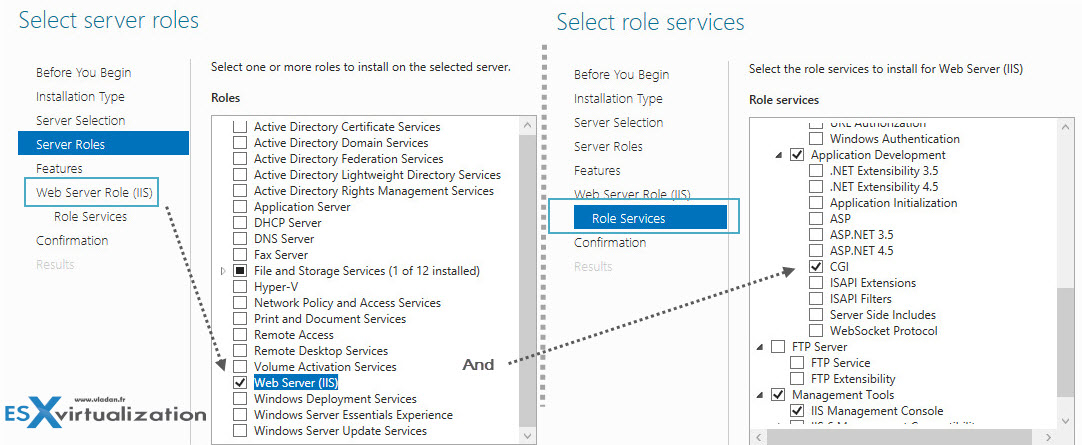
PHP5 and IIS on Windows Server 2012

02. Download and Install the Web Platform Installer

Go to Microsoft Web Platform Web Installer and download the installation package. It's a tiny package, which when launched it allows you to select the components you need. Those components then are downloaded and installed in the background.
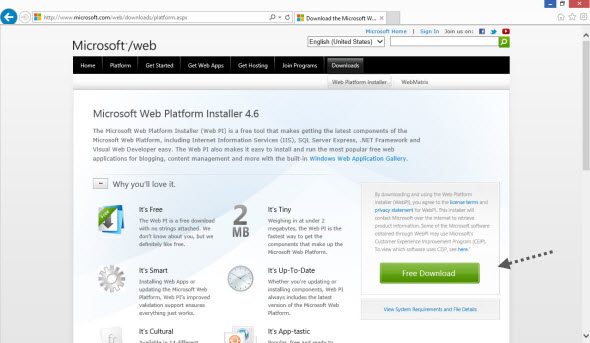
Microsoft Web Platform Installer

So when launched, you have a screen like this one, where all you need to do is to chose a PHP5 package. Click the Add button.
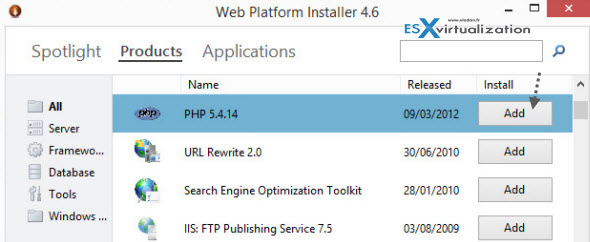
Microsoft Web Platform Installer

On the next screen you should just and click Install accept the license agreement. ..
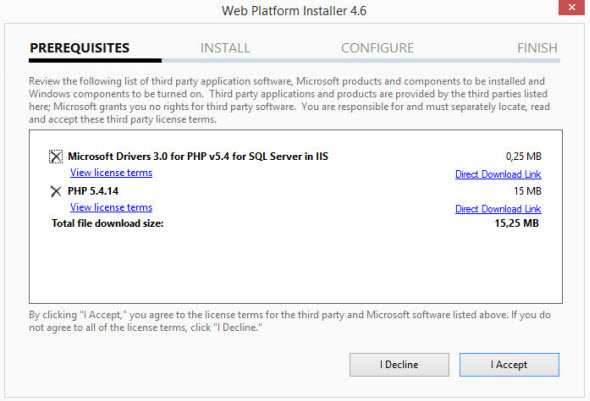
Web Platform Installer

03. Test if everything works

If you followed those 3 simple steps, then everything should work. The working directory for IIS is  C:\inetpub\wwwroot

You can quickly create a text file with Notepad, save it as for example phpinfo.php into that directory and and inside just paste this code:

<?php phpinfo(); ?>

Then save and open open your web browser with https://localhost/phpinfo.php

You should see a nice default PHP info page like this… -:) Enjoy..
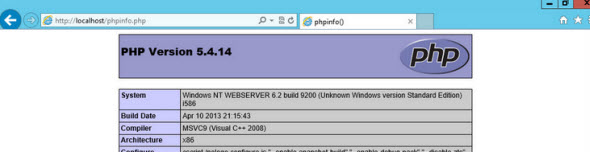
phpinfo

There is tons of resources and ways to install WAMP/LAMP based server/workstation. Systems allowing to test web based applications needs those 3 components to works for providing dynamic web based applications – Apache (or any other web server), MySQL (or any other DB), and PHP/Python/Perl scripting language. So this is certainly not a single way to do it..

Vote !
Shares

| Filed Under: How To, Windows Server 2012 Tagged With: IIS, IIS and PHP5, PHP5

About Vladan SEGET

This website is maintained by Vladan SEGET. Vladan is as an Independent consultant, professional blogger, vExpert x17, Veeam Vanguard x11, VCAP-DCA/DCD, ESX Virtualization site has started as a simple bookmarking site, but quickly found a large following of readers and subscribers.

Connect on: Facebook. Feel free to network via Twitter @vladan.

Private Sponsors


Featured

  • Thinking about HCI? G2, an independent tech solutions peer review platform, has published its Winter 2023 Reports on Hyperconverged Infrastructure (HCI) Solutions.
Click to Become a Sponsor

Most Recent

  • Reviving Old School Laptops with PrimTux: Battling Obsolescence on a Budget
  • Proxmox Datacenter Manager 1.0 released – a real vCenter Server Alternative?
  • Recovering a Corrupted Exchange Database with Stellar Repair for Exchange
  • Commvault at AWS re:Invent 2025: Pioneering AI-Enhanced Cyber Resilience with Cloud Unity
  • How to Set Up pfSense Community Edition as a Firewall Using VMware Workstation Pro 17 (2025 Edition)
  • HPE Morpheus VM Entreprise and Morpheus VM Essentials updates released – v8.0.11
  • Veeam Backup and Replication Upgrade on Windows – Yes we can
  • Commvault’s Cloud Unity Platform: Revolutionizing Enterprise Resilience in the AI Era
  • Securing Your Backups On-Premises: How StarWind VTL Fits Perfectly with Veeam and the 3-2-1 Rule
  • 3 New Advanced Certifications from VMware/Broadcom Released

Get new posts by email:


Deals

Support us on Ko-Fi


Buy Me a Coffee at ko-fi.com

Friendly Websites and Blogs

  • vBlog.io
  • VMware Engineer Jobs
 

YouTube

…

Find us on Facebook

ESX Virtualization

…

Copyright © 2025 ·Dynamik-Gen · Genesis Framework · Hosted with HostColor.com