
If you have been running Windows 11 for any length of time, you already know the story. The OS arrives packed with telemetry, pre-installed apps you will never use, aggressive advertising, and a growing list of AI features that many power users and enthusiasts prefer to keep at arm’s length. Manual debloating with PowerShell scripts works, but it is time-consuming, error-prone, and hard to maintain across machines. This is exactly where Winhance shines.
Winhance is a free, open-source C# Windows Enhancement Utility developed by memstechtips. Available for both Windows 10 (x64, with LTSC preference) and Windows 11, it combines debloating, system optimization, privacy controls, customization options, and even unattended installation media creation into one polished graphical interface. No more hunting through scattered registry tweaks or third-party scripts.
Why Windows 11 Needs Tools Like Winhance
Windows 11 24H2/25H2 brings improved visuals and security, but also more background services, Copilot integration, Recall (on supported hardware), OneDrive hooks, Edge enforcement, and telemetry that phones home regularly. For enthusiasts, gamers, privacy-conscious users, or IT pros managing multiple systems, these elements translate into higher idle RAM usage, unnecessary CPU cycles, and reduced sense of ownership over the OS.
Interesting and useful – possibility to save and import config. Useful when you want to have the same settings on multiple machines.
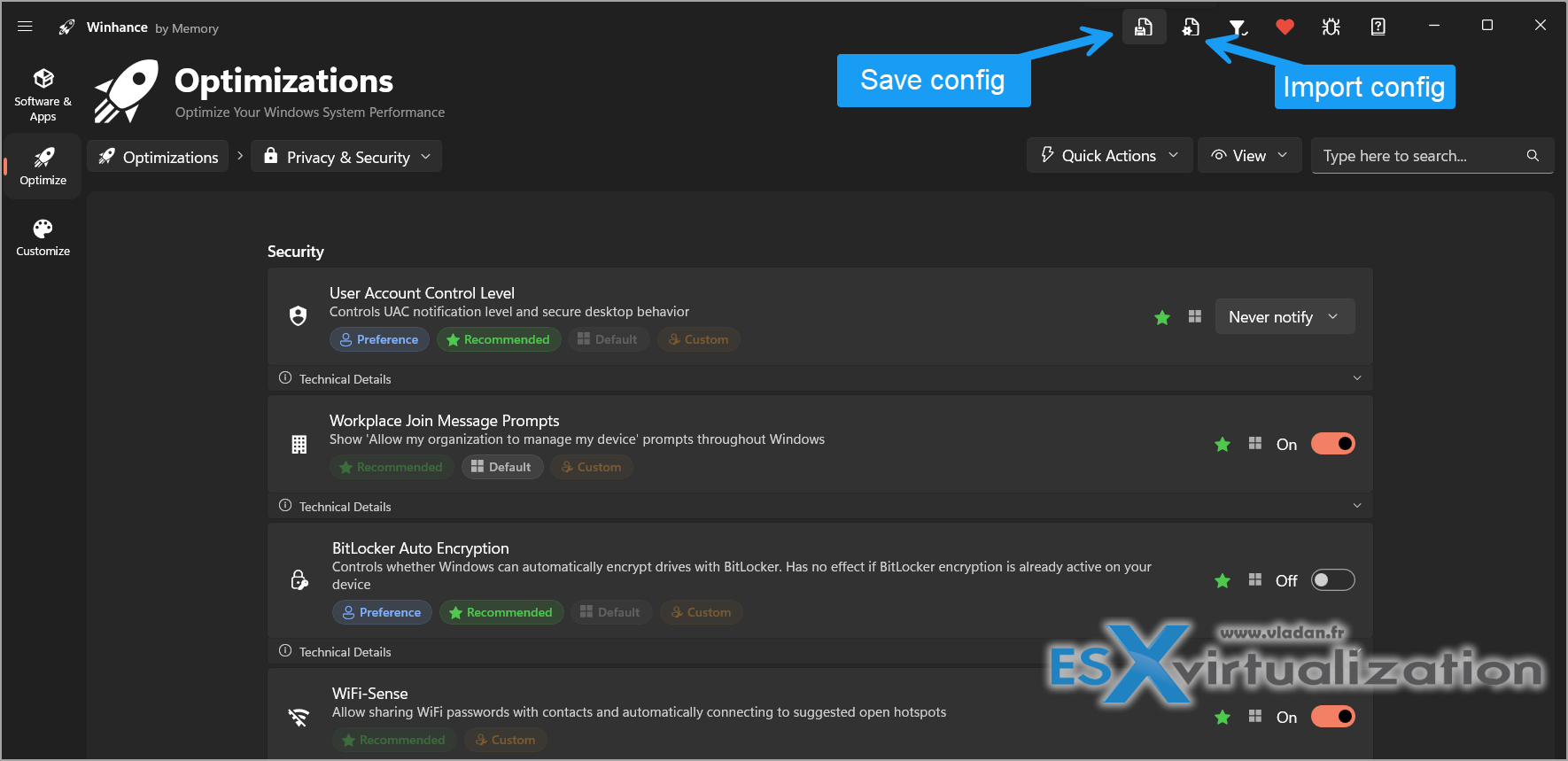
Traditional clean installs help, but Microsoft’s official ISOs still include the bloat. Power users have long relied on community scripts (Chris Titus Tech, NTDEV, etc.), yet maintaining them requires ongoing scripting knowledge. Winhance packages years of community knowledge into an accessible, regularly updated tool with safety nets like automatic restore points.Core Features That Matter for Technical Users
1. Intelligent Debloating and App Management
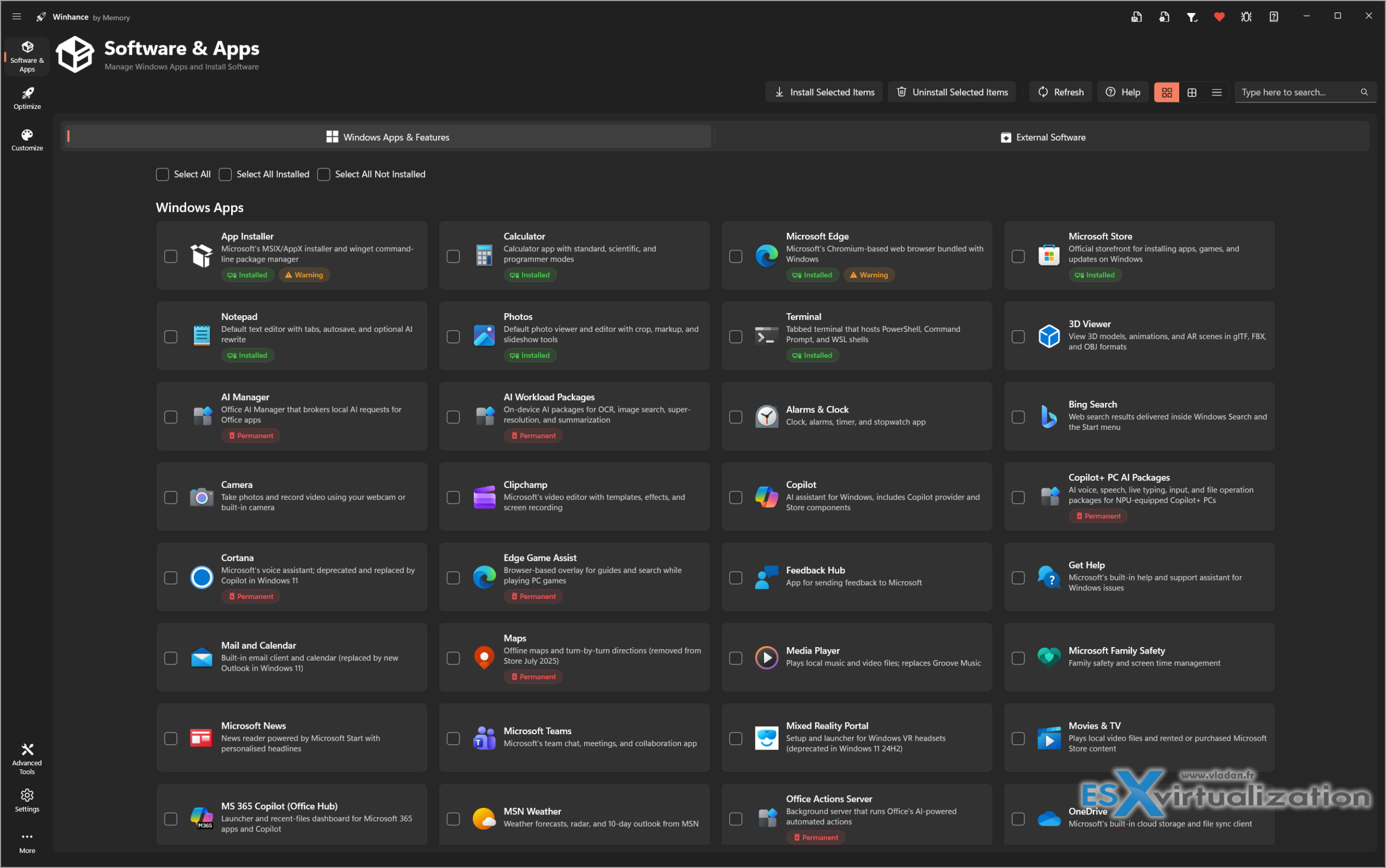
Winhance lists Windows components, provisioned packages, and optional features in clear categories. You can remove or reinstall Edge, OneDrive, Copilot, Recall, Clipchamp, News, Weather, Xbox components, and many others with a few clicks. It shows which apps can be safely restored later and which are deeply integrated.
Beyond removal, you can install popular apps and features directly from the tool. This turns Winhance into a lightweight package manager for post-install workflows.
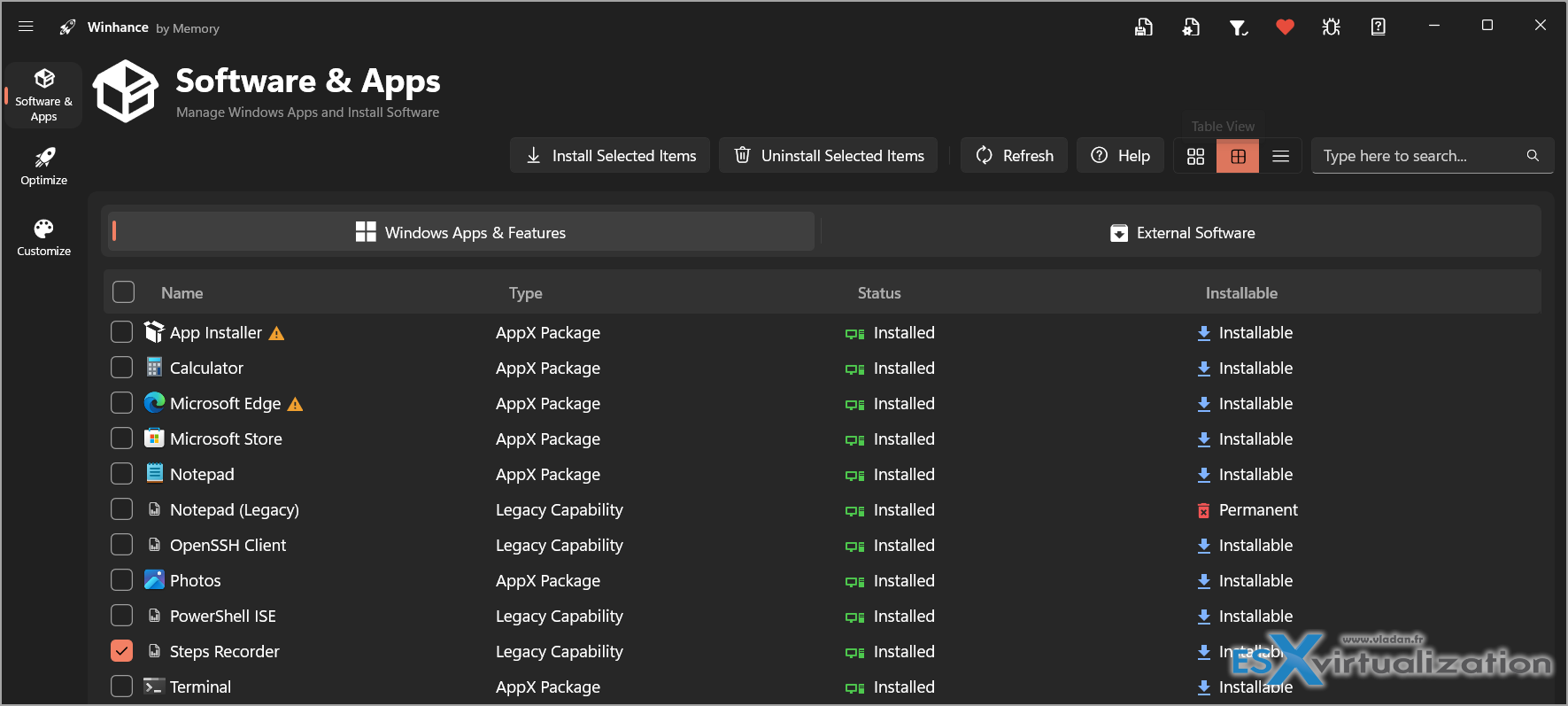
You can also chose table view, which takes less space on your screen. Example below.
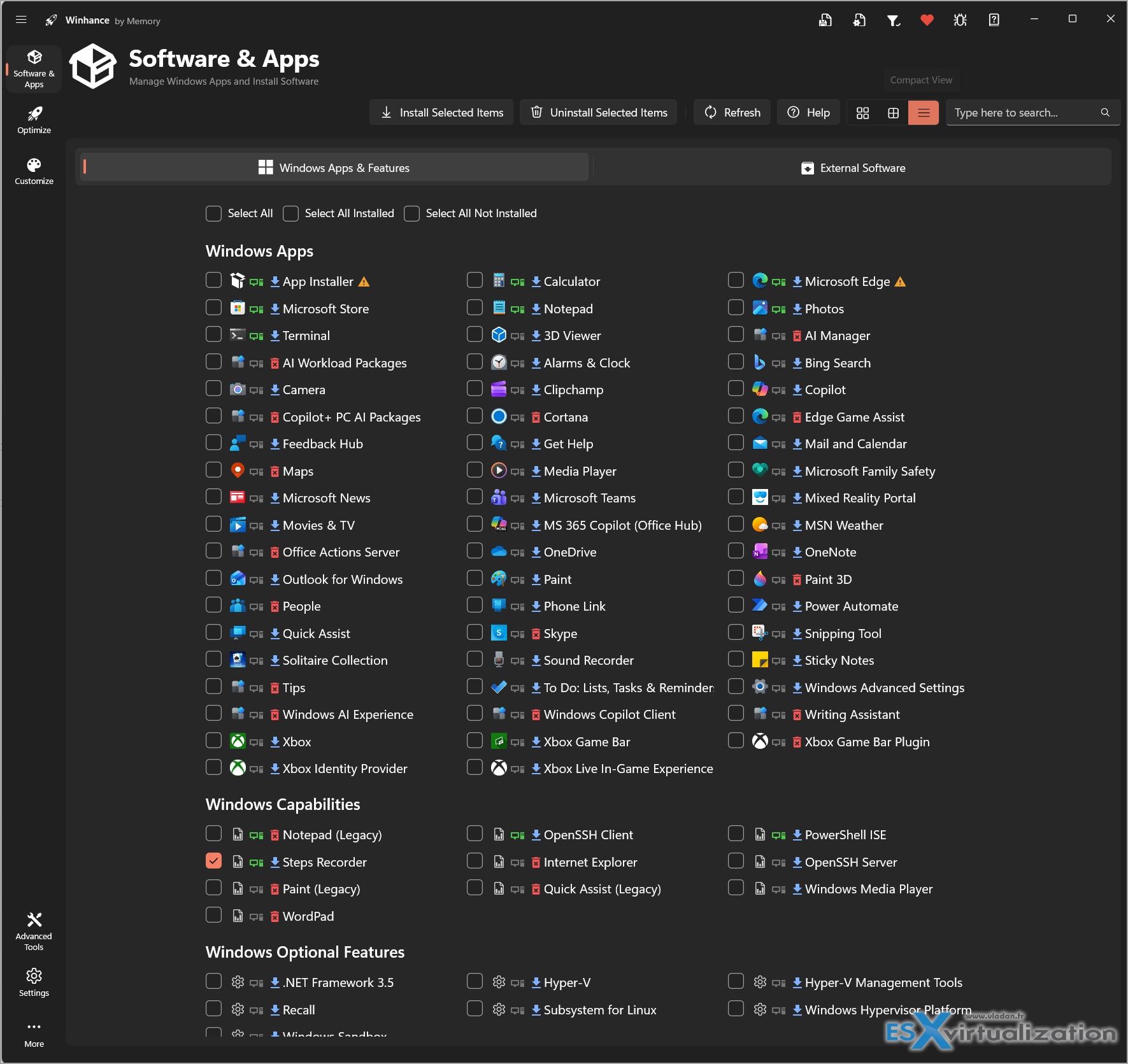
or also compact view, which is organized into categories… Example from the lab below.
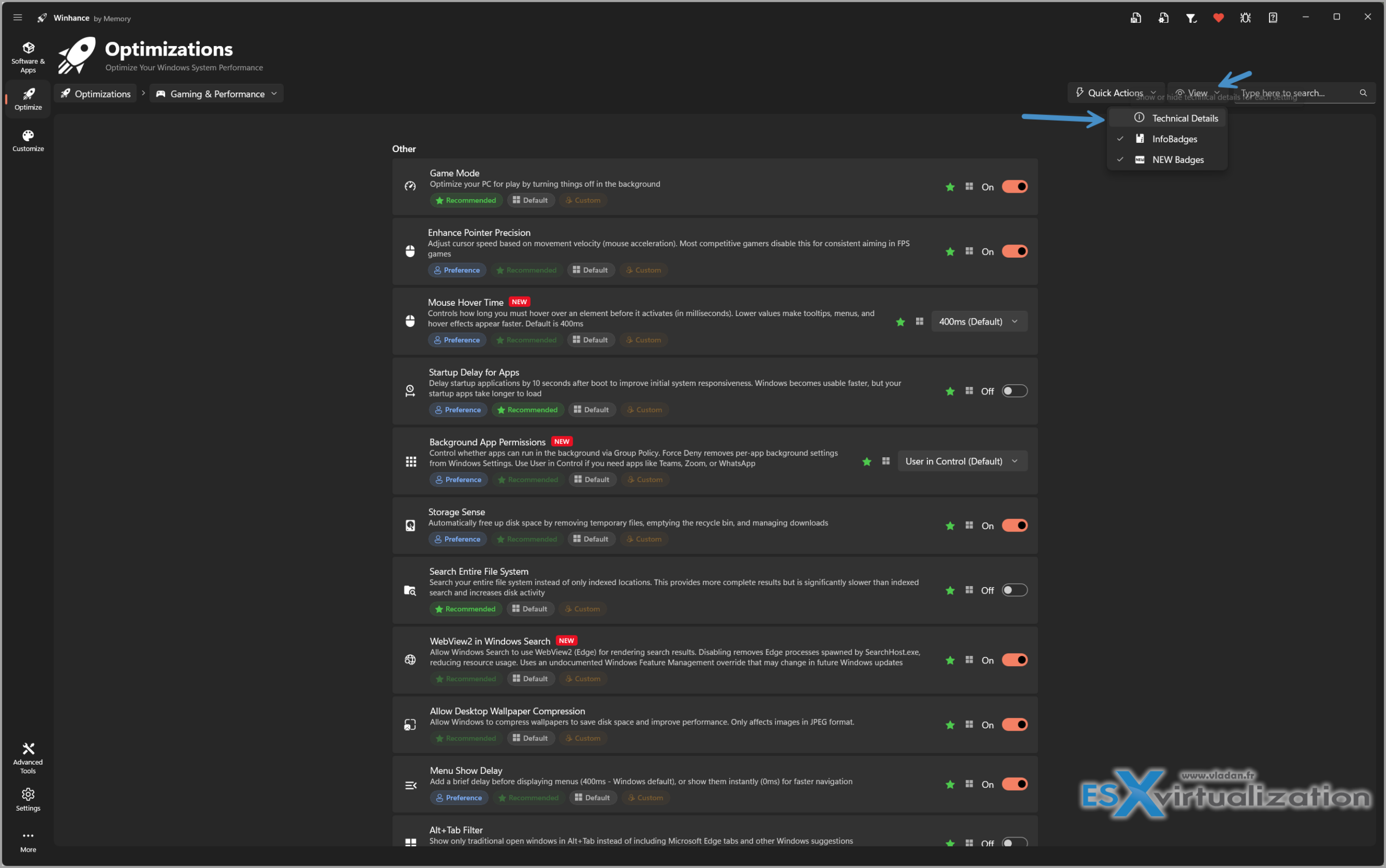
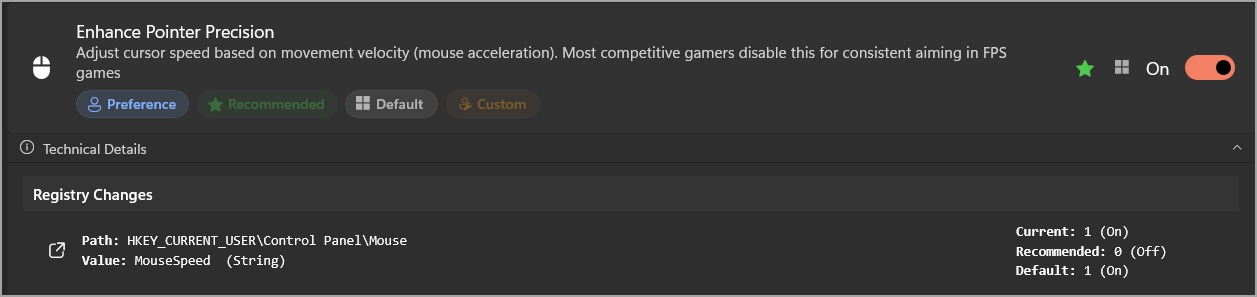
Example of optmization section: When viewing options you have a possibility to show technical details.
This gives you an overview what registry entry is modified in the background…..
2. Performance and Gaming Optimizations
The tool exposes tweaks for:
- Power settings (balanced vs. high performance profiles with custom plans)
- Scheduler behavior and core parking
- Visual effects (animations, transparency)
- Explorer optimizations (disable folder thumbnails, prefetch tweaks)
- Gaming-specific options (Game Bar, fullscreen optimizations, variable refresh rate handling)
Many of these changes reduce latency and background overhead without requiring manual registry editing or third-party tools like Process Lasso for basic tuning.
3. Privacy and Telemetry Controls
Winhance provides grouped toggles for:
- Diagnostic data levels
- Advertising ID
- Cortana / Search indexing
- Location, camera, microphone permissions at OS level
- Windows Update delivery optimization (peering)
It also includes security-focused settings such as hardening AppLocker policies, SmartScreen adjustments, and Defender exclusions where appropriate (use with caution).
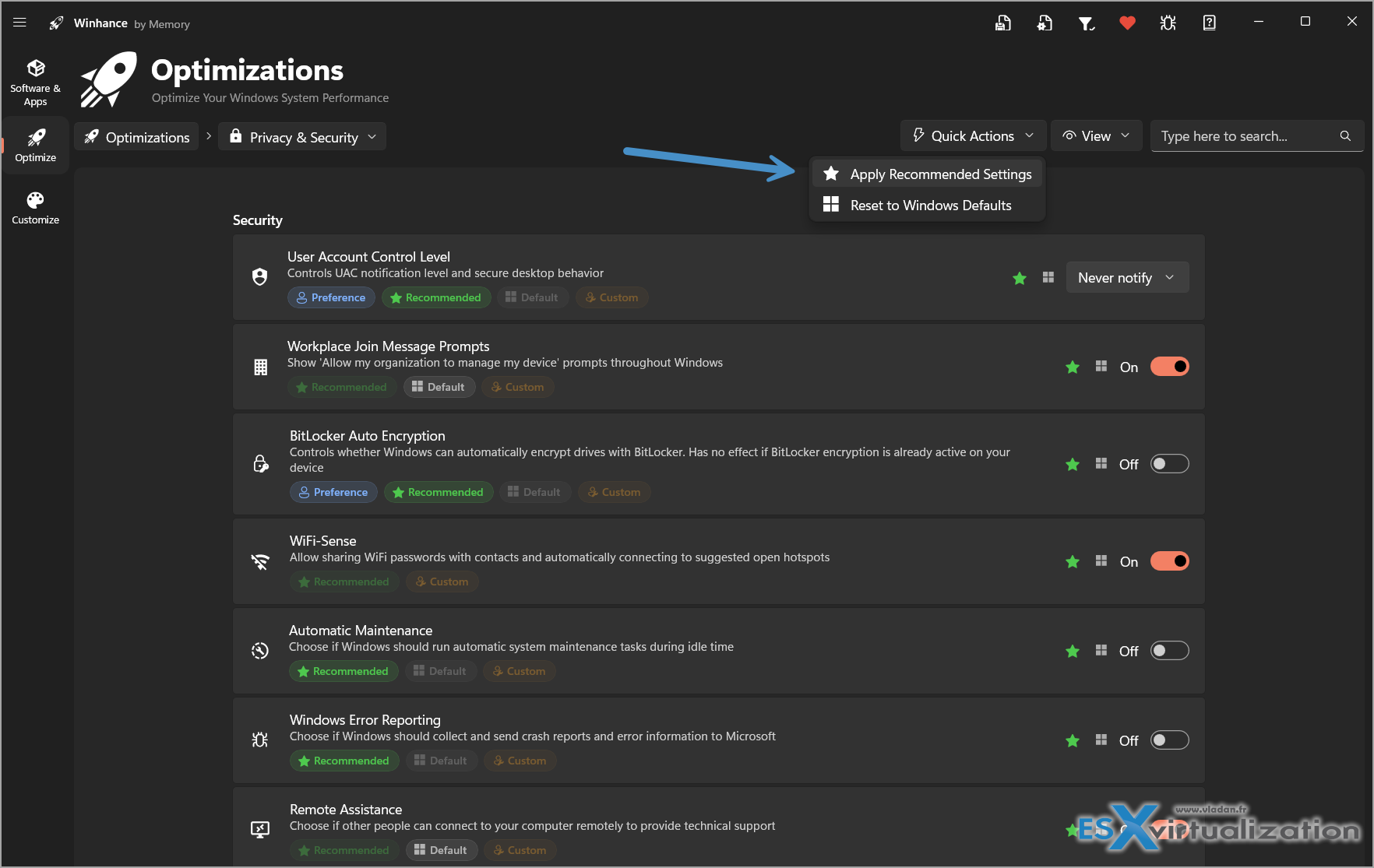
Apply recommended settings quickly…
4. Interface Customization
Taskbar (center/left alignment, size, combine behavior, system tray icons), Start menu layout, themes (dark/light with accent colors), notification behavior, sound schemes, and File Explorer tweaks. You can quickly achieve a more Windows 10-like or minimalist Windows 11 experience.
5. Advanced Tools – WIMUtil and Unattended Setup
This is where Winhance stands out for enthusiasts and deployers. The built-in WIMUtil lets you:
- Extract an official Microsoft ISO
- Apply custom autounattend.xml (generated or edited within the tool)
- Inject drivers
- Remove components during image servicing
- Rebuild a bootable ISO tailored to your preferences
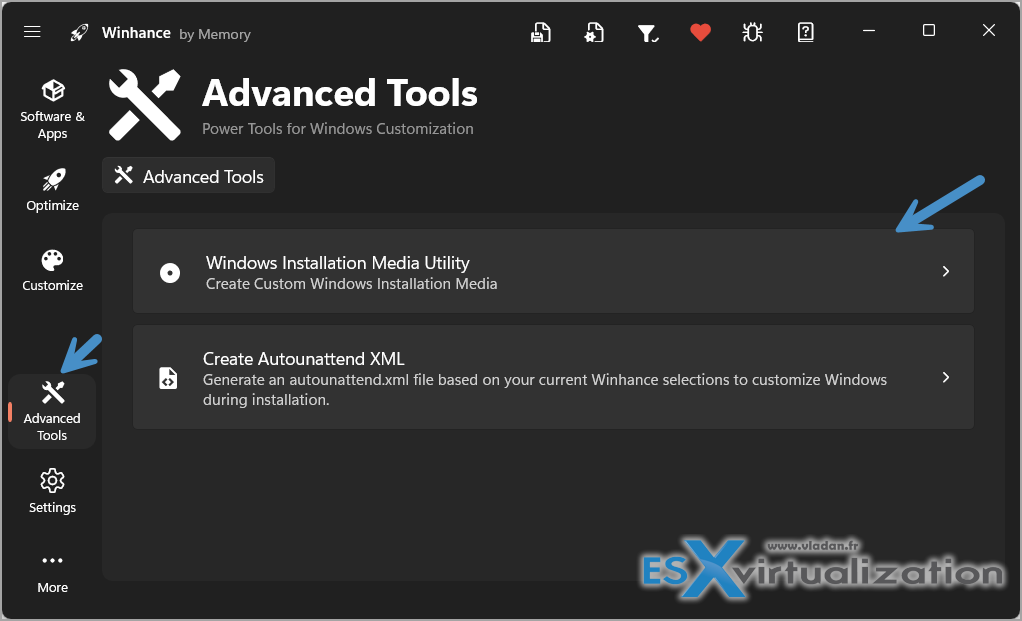
which gets us here.
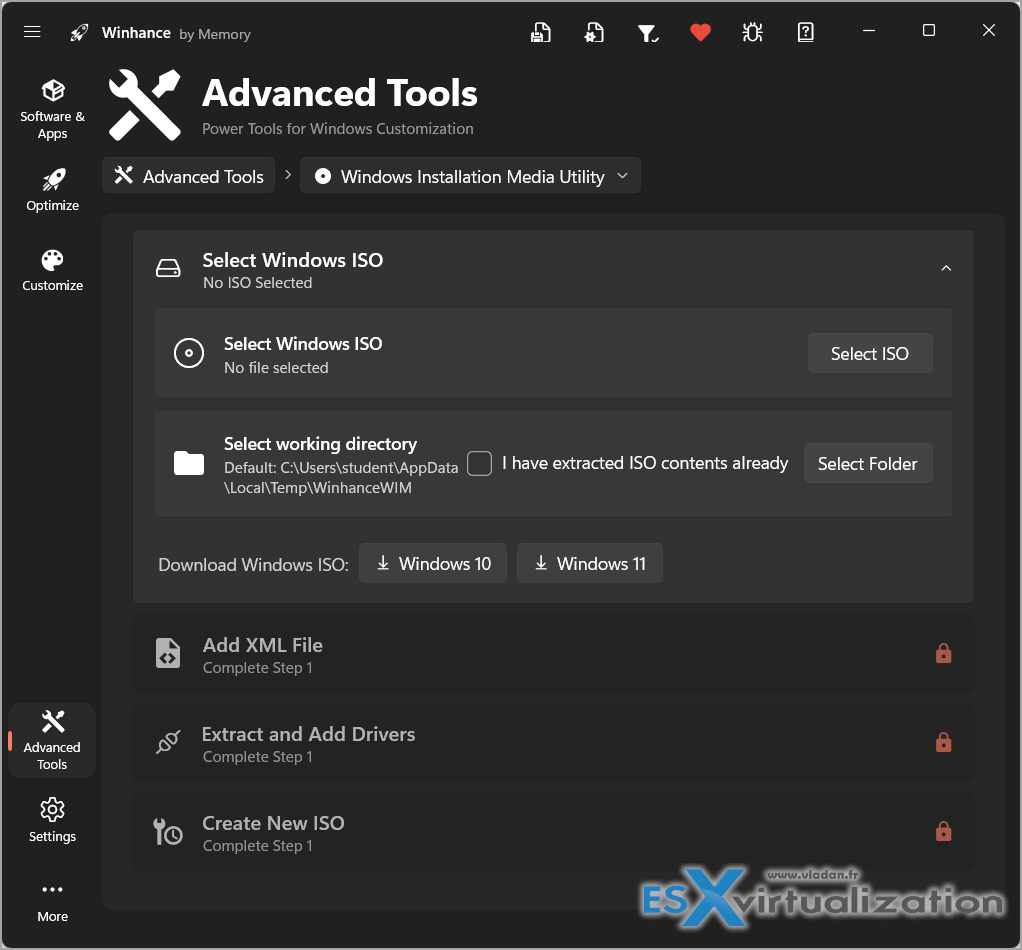
This means you can create a truly clean, pre-optimized installation media once and reuse it across machines. Perfect for homelabs, multiple PCs, or standardized builds.
Technical Safety and Best PracticesWinhance creates a System Restore point before major operations. It runs with proper elevation and logs actions. Still, as with any debloater:
- Review changes before applying (especially “Recommended” vs. “Aggressive” profiles).
- Test on a virtual machine first if managing production systems.
- Some removals (e.g., Edge) may require additional steps for full uninstall or to prevent reinstall via updates.
- Always keep a backup or recovery drive handy.
The project is actively developed on GitHub with frequent releases addressing new Windows 11 builds. Community feedback drives many additions.
Who Should Use Winhance?
- Everyday enthusiasts tired of bloat who want better performance and privacy without deep scripting.
- Gamers looking for lower background resource usage and snappier response.
- IT professionals and power users who manage multiple Windows installs and value repeatable, documented configurations.
- Privacy advocates wanting granular control without relying solely on group policy or registry hacks.
It is not a “set and forget” magic bullet—Windows updates can sometimes reintroduce components—but it makes ongoing maintenance far easier than before.
Download and Getting Started
Head to the official site: https://winhance.net/ or the GitHub repository for the latest release.
Installation is straightforward (MSI or portable options available). The interface is clean and WinUI-based, with tooltips and explanations for most settings. A comprehensive tutorial video by the developer walks through all major sections.Winhance is donationware / open source. Supporting the developer via Ko-fi is a nice way to say thanks for keeping this tool free and high-quality.
Final Thoughts
I usually use BCUninstaller for quickly uninstalling a software component or external software from my system. Winhance is another tool I keep and which is handy!
In an era where operating systems keep adding layers of “intelligence” and cloud connectivity that not everyone wants, tools like Winhance restore agency to the user. It does not fight Windows 11—it refines it into a faster, cleaner, more private, and more customizable platform that respects your preferences.Whether you perform a fresh install or optimize an existing system, Winhance saves hours of tinkering and delivers measurable improvements in responsiveness and resource efficiency. For Windows 11 users and enthusiasts who like to stay in control, it has become one of the most valuable free utilities available today.
Give it a try on a non-critical machine. You will likely wonder how you managed without it.
More posts from ESX Virtualization:
- Veeam Backup and Replication Upgrade on Windows – Yes we can
- Securing Your Backups On-Premises: How StarWind VTL Fits Perfectly with Veeam and the 3-2-1 Rule
- Winux OS – Why I like it?
- VMware Alternative – OpenNebula: Powering Edge Clouds and GPU-Based AI Workloads with Firecracker and KVM
- Another VMware Alternative Called Harvester – How does it compare to VMware?
- VMware vSphere 9 Standard and Enterprise Plus – Not Anymore?
- VMware vSphere Foundation (VVF 9) and VMware Cloud Foundation (VCF 9) Has been Released
- Vulnerability in your VMs – VMware Tools Update
- VMware ESXi FREE is FREE again!
- No more FREE licenses of VMware vSphere for vExperts – What’s your options?
- VMware Workstation 17.6.2 Pro does not require any license anymore (FREE)
- Two New VMware Certified Professional Certifications for VMware administrators: VCP-VVF and VCP-VCF
- Patching ESXi Without Reboot – ESXi Live Patch – Yes, since ESXi 8.0 U3
- Update ESXi Host to the latest ESXi 8.0U3b without vCenter
- Upgrade your VMware VCSA to the latest VCSA 8 U3b – latest security patches and bug fixes
- VMware vSphere 8.0 U2 Released – ESXi 8.0 U2 and VCSA 8.0 U2 How to update
- What’s the purpose of those 17 virtual hard disks within VMware vCenter Server Appliance (VCSA) 8.0?
- VMware vSphere 8 Update 2 New Upgrade Process for vCenter Server details
- What’s New in VMware Virtual Hardware v21 and vSphere 8 Update 2?
- vSphere 8.0 Page
- ESXi 7.x to 8.x upgrade scenarios
- VMware vCenter Server 7.03 U3g – Download and patch
- Upgrade VMware ESXi to 7.0 U3 via command line
- VMware vCenter Server 7.0 U3e released – another maintenance release fixing vSphere with Tanzu
- What is The Difference between VMware vSphere, ESXi and vCenter
- How to Configure VMware High Availability (HA) Cluster
Stay tuned through RSS, and social media channels (Twitter, FB, YouTube)





Leave a Reply