
If you've been running Windows 11 for a while, you know the feeling. The OS itself is solid under the hood—great performance, modern UI elements, solid security foundations—but Microsoft keeps layering on stuff you didn't ask for. Telemetry, aggressive suggestions, Copilot (whether you want it or not), ads in the Start menu, OneDrive nagging, background services that chew resources, and a growing list of “features” that feel more like corporate priorities than user benefits.
Enter Winslopr (formerly Winslop), a lightweight, focused tool from builtbybel that does exactly what its new name promises: removes the Windows slop. I came across the latest release (26.04.04) and decided it was worth a detailed look for my readers who manage home setups, small offices, or enterprise Windows fleets.
What Exactly Is Winslopr?
Winslopr is a Windows Slop Remover—simple, deterministic, and local-only. It's a small C# application built with WinUI 3 (with a legacy WinForms version still available). Think of it as a centralized hub for cleaning up, debloating, and managing the unnecessary bits that ship with Windows 11.
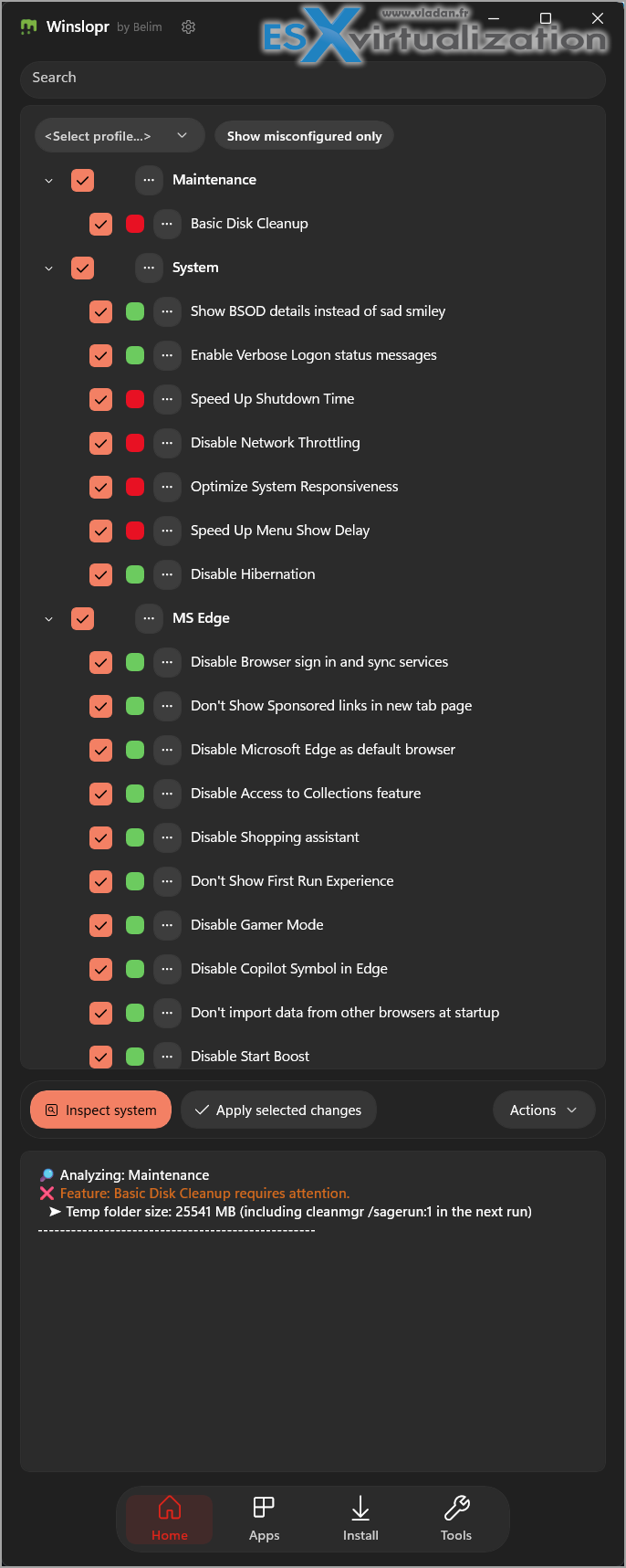
It started as a focused fork of CrapFixer with a clearer, narrower scope. No bloat in the tool itself: no AI, no cloud uploads, no telemetry from the app, no unnecessary animations or glossy design. Just functional tools that show you exactly what they'll change, let you review, and keep you in full control.
Key philosophy (straight from the project): Windows is fine. The slop layered on top isn't. Slop includes forced assistants, ads, suggestions, opaque telemetry, and background junk that wastes resources and takes away control.
Latest Release Highlights – 26.04.04The April 2026 update brings welcome refinements:
- Unified Plugins & Scripts management: One dialog now handles both. Routing is smart based on the manifest type= field (tool scripts go to Scripts/, others to Plugins/).
- Smoother performance: Reduced resource usage. WinUI 3 can still be quirky, but daily use feels noticeably lighter.
- Critical winget fix: Fresh Windows installs now work out of the box with the Install tab—no more manual terminal acceptance of source agreements.
- UI polish: Lighter, cleaner, more modern across the board.
- Better installed-state detection: Folder-aware checks prevent false positives.
- Plugins entry in the settings flyout for quick access.
- Removals of redundant features (ThirdPartyDetector, Share button) and cleanup of obsolete localization keys.
- Updated localizations (es-ES, zh-CN).
Download the main package: Winslop-26.04.04.zip (legacy WinForms version also available).
Why This Matters for Home Windows 11 Enthusiasts
At home, you want your PC snappy, private, and focused on you, not selling you stuff or phoning home constantly.Winslopr shines here because it gives you one place to handle common pain points:
- Disable or remove telemetry components safely.
- Tame Start menu ads and suggestions.
- Control OneDrive, Copilot, Recall (if present), and other modern “features.”
- Manage background apps and services that run even when you don't need them.
- Install useful third-party tools or scripts via the unified plugin system.
Many home users run into the same annoyances: a cluttered Start menu, unexpected restarts for updates with nagging, or apps reinstalling themselves. Winslopr doesn't automate blindly – it shows you the changes, often with descriptions, so you can pick and choose. Perfect for enthusiasts who like to tweak but don't want to hunt down dozens of registry edits or PowerShell scripts.
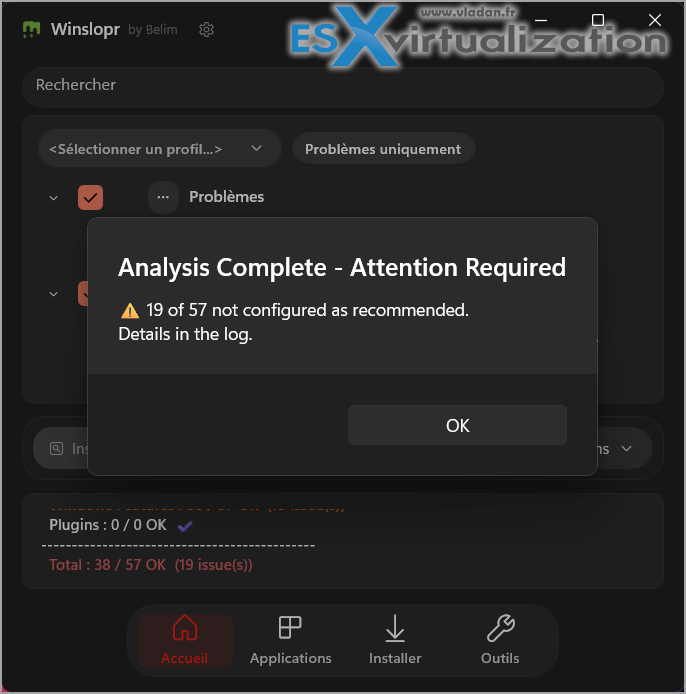
There's even a community-sourced list of 59 Windows 11 annoyances with fixes—very handy for seeing what the tool addresses versus what might need manual steps.
For IT Admins: Practical Management in Mixed Environments
In small business or departmental admin roles, you deal with fleets of Windows 11 machines—some lightly used, some for specific workloads. Consistency and repeatability matter.
Winslopr helps by:
- Providing a GUI for actions that would otherwise require scripting or GPO wizardry.
- Allowing review before application—crucial when supporting users who aren't technical.
- Plugin/script system for custom or community tools (e.g., debloat scripts, privacy tools).
- No cloud dependency means it works fine in air-gapped or strict environments.
- winget integration improvements make installing clean alternatives easier right from the tool.
You stay in control. Nothing runs automatically, changes are transparent, and you can often revert. It's not a “set it and forget it” enterprise MDM replacement, but an excellent companion for rapid cleanup of new installs or troubleshooting sluggish machines.
Pro tip for admins: Test on a VM first (Hyper-V or VMware Workstation). Create a clean Windows 11 image, run Winslopr, snapshot, and note the differences in performance, disk usage, and network traffic. This gives you confidence when rolling out to users.
How to Get Started with Winslopr
- Download from the official GitHub releases: https://github.com/builtbybel/Winslopr/releases/tag/26.04.04 (always verify the hash if paranoid—good practice).
- Extract the ZIP (portable—no installer needed, which is refreshing).
- Run the executable (as admin for full capabilities).
- Explore the tabs: typically sections for debloat, privacy, apps, plugins, etc.
- Use the unified Plugins dialog to browse and apply community or custom fixes.
- Review proposed changes carefully—especially on production machines.
- Apply selectively. Monitor system behavior afterward (Task Manager, Resource Monitor, or tools like Process Explorer).
Check the included Help/Quick Start docs for details.
Safety and Best Practices
Any system tool can cause issues if misused, but Winslopr is designed responsibly:
- Explicit previews of changes.
- No silent automation.
- Local execution only.
- Revert options where applicable.
Still, best practices apply:
- Backup important data (or create a System Restore point).
- Test on non-critical machines first.
- Understand what each option does—don't just click “everything.”
- Combine with built-in Windows tools: Group Policy for domain-joined, Settings app tweaks, and PowerShell for advanced users.
- Keep Windows updated for security patches, even if you're removing slop.
For home enthusiasts worried about stability: start small. Disable visual suggestions and some telemetry first. You'll often notice a snappier feel and less distraction immediately.
Additional Features I like
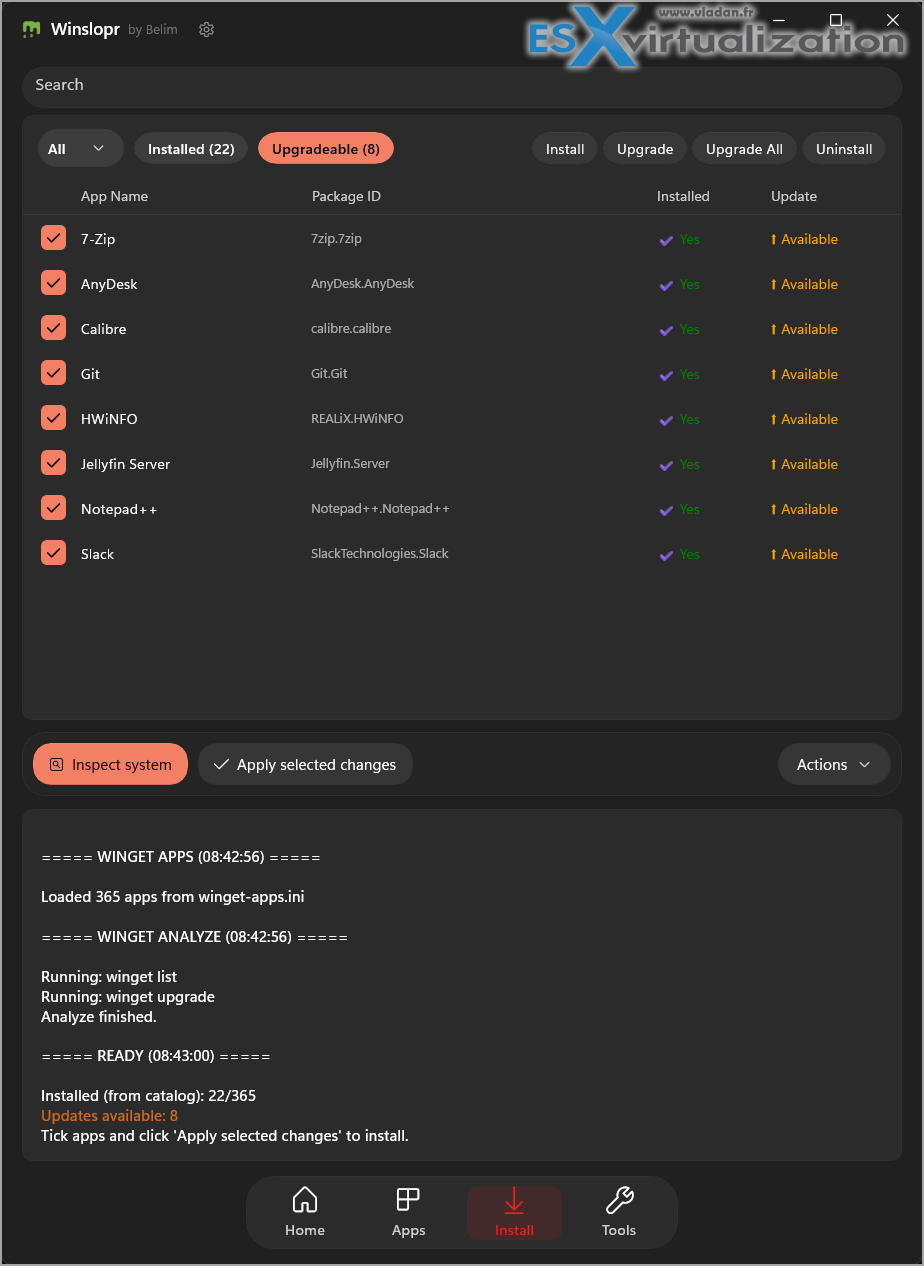
I like the way you can install/upgrade new software. I'm sure you can find many tools around where you simply check box, and then installs via Winget in the background. This tools works this way and in addition, it can also upgrade your existing installed software. Neat.
Launch other tools from within the UI
You can launch other tool which is going further within the optimizations.
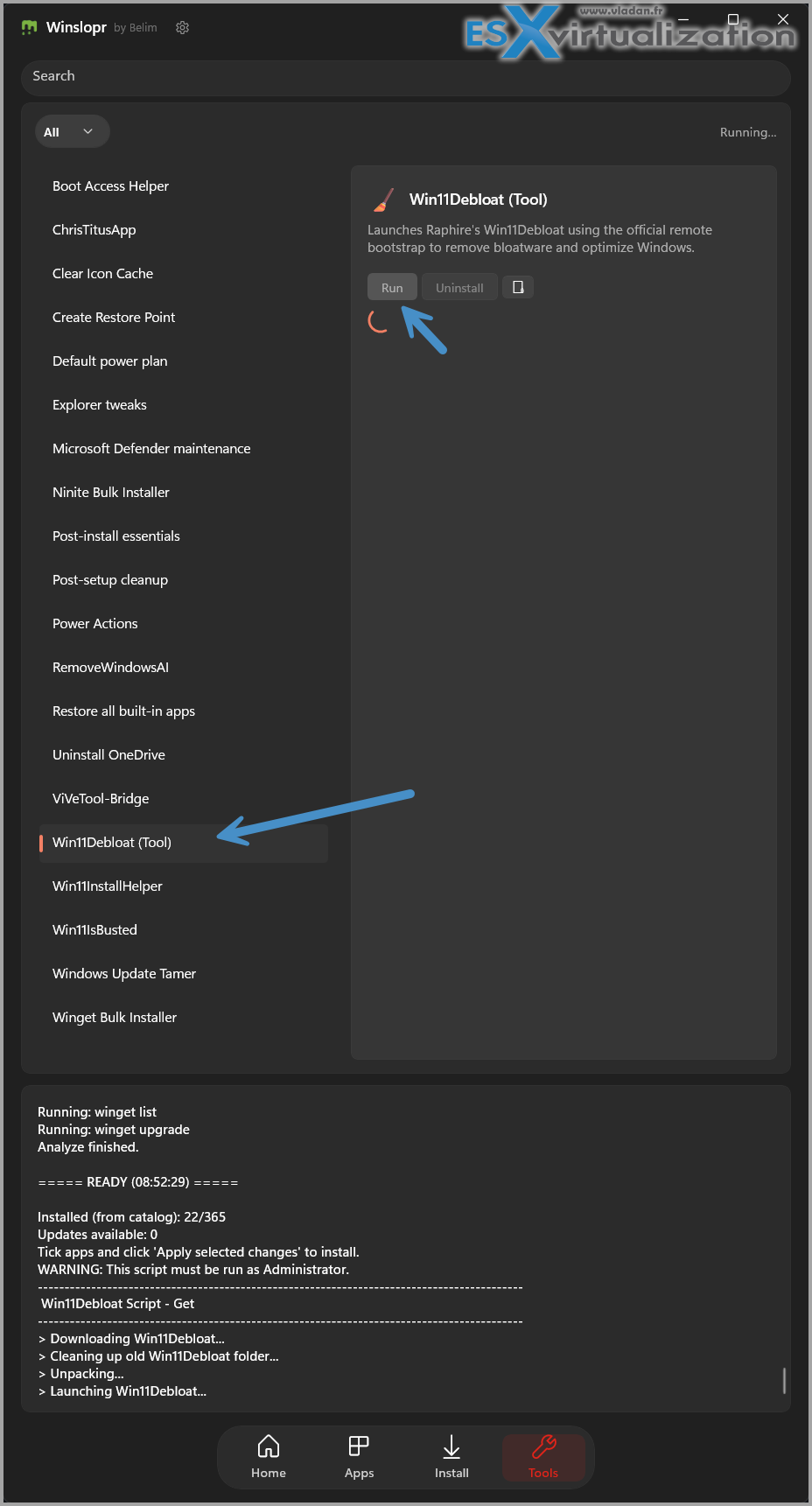
And this will launch 2 new windows which one of them (the powershell one) needs to stay opened.
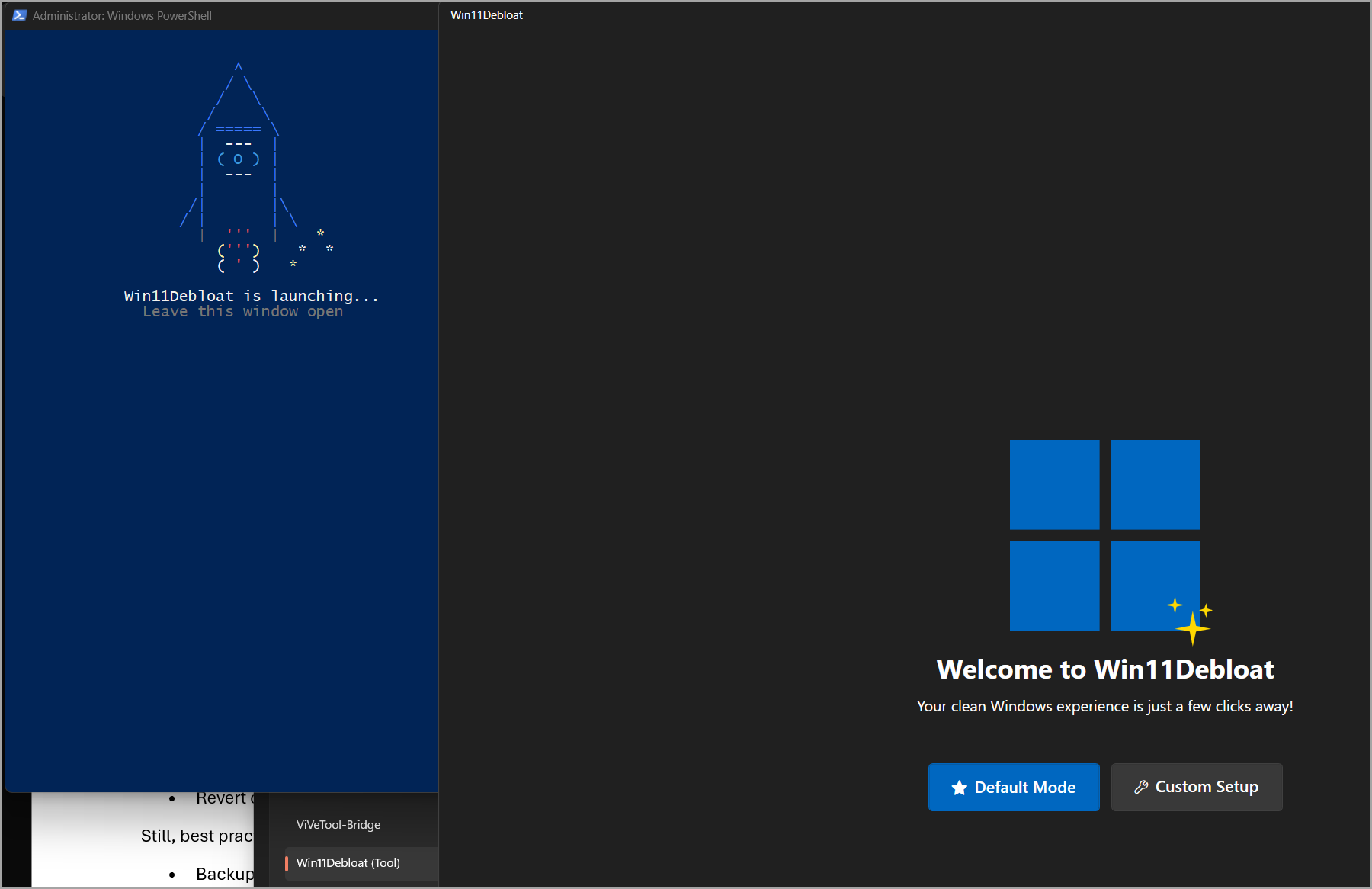
Then when you click the Custom Setup (to see what's behind) , you'll discover a huge amount of options you can deactivate or optimize!
You'll have one screen after another:
- App Removal
- System Tweeaks
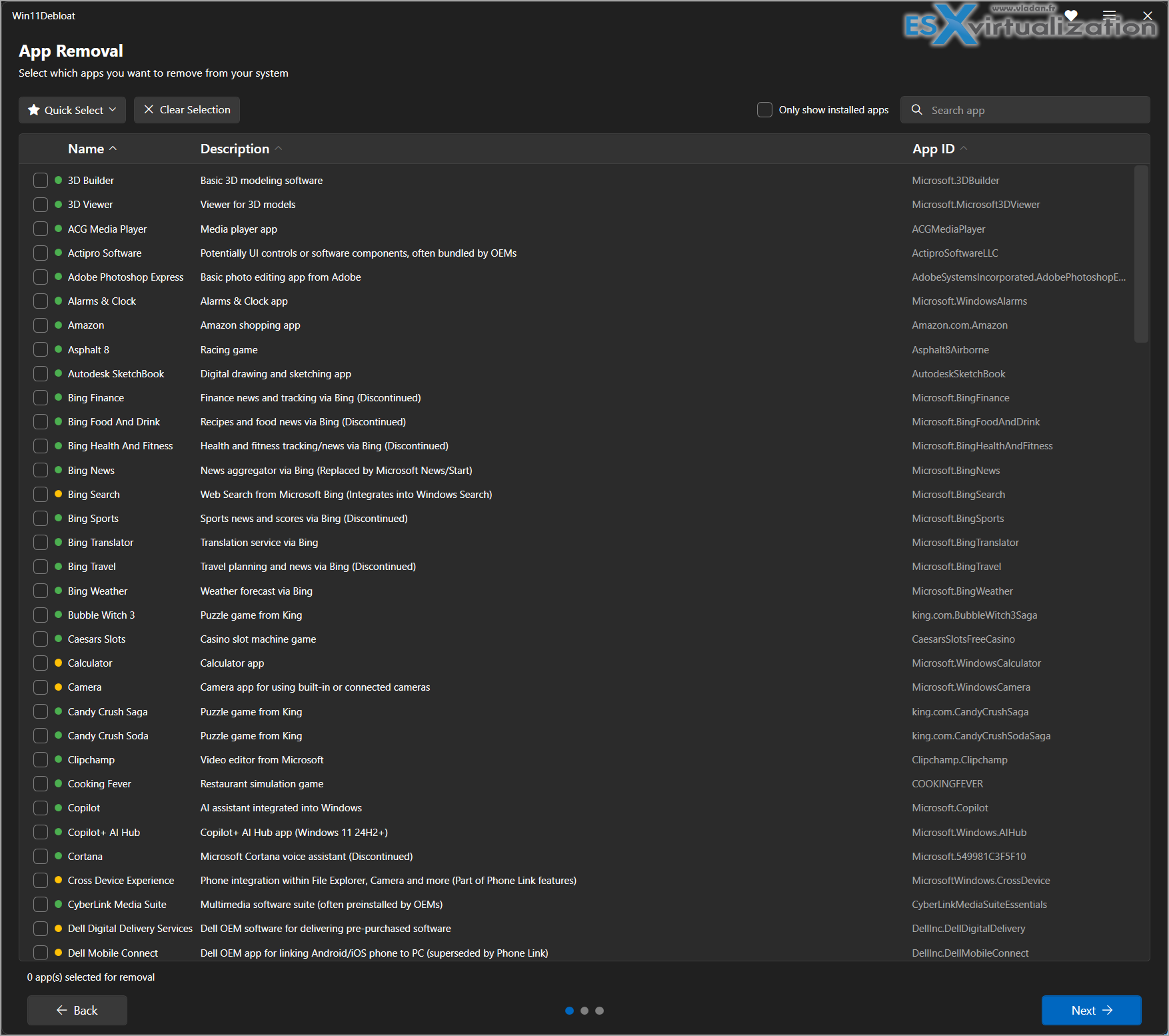
and
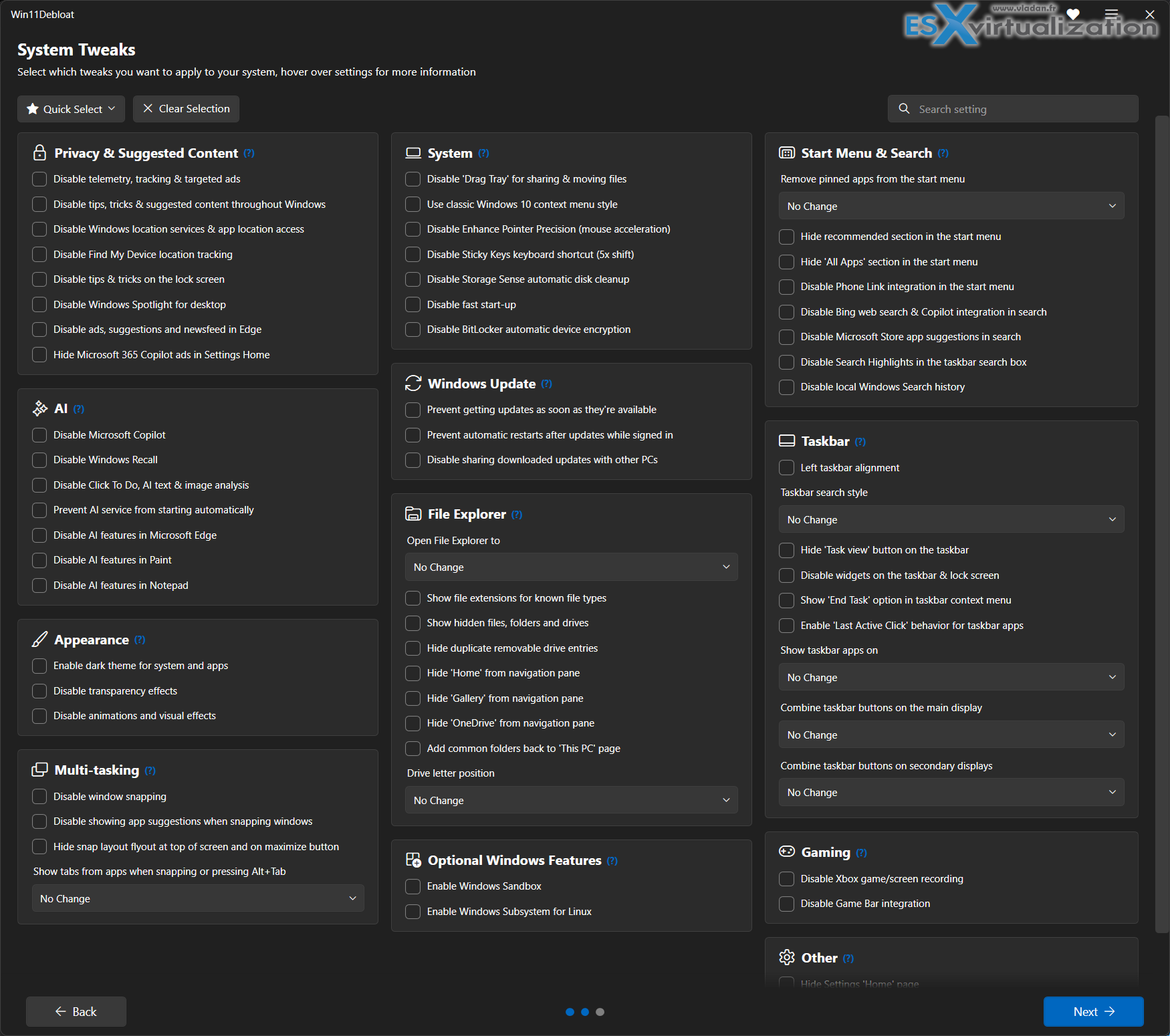
My Thoughts After Testing
Windows 11 has improved in many areas (Snap layouts, virtual desktops, security), but the “slop vs sophistication” comment from Microsoft leadership perfectly captures why tools like Winslopr exist. It's not anti-Windows—it's pro-user.
I like that the tool is small, focused, and opinionated in the right way: remove more than it adds. For home users tired of fighting the OS, it's liberating. For admins, it's a time-saver for standardizing clean deployments.If you're into minimalism, privacy, or just want your PC to feel like yours again, give Winslopr a try. It's free, open-source (MIT license), and actively maintained.
For those who want to go further (the super tinkerers) you can try Win11Debloat tool which is available via click in the Tools section. Really impressive!
Download latest: https://github.com/builtbybel/WinsloprWhat annoys you most about Windows 11? Drop a comment—I might cover specific tweaks or combinations with other tools in follow-ups.
Stay in control of your systems!
More posts from ESX Virtualization:
- Veeam Backup and Replication Upgrade on Windows – Yes we can
- Securing Your Backups On-Premises: How StarWind VTL Fits Perfectly with Veeam and the 3-2-1 Rule
- Winux OS – Why I like it?
- VMware Alternative – OpenNebula: Powering Edge Clouds and GPU-Based AI Workloads with Firecracker and KVM
- Another VMware Alternative Called Harvester – How does it compare to VMware?
- VMware vSphere 9 Standard and Enterprise Plus – Not Anymore?
- VMware vSphere Foundation (VVF 9) and VMware Cloud Foundation (VCF 9) Has been Released
- Vulnerability in your VMs – VMware Tools Update
- VMware ESXi FREE is FREE again!
- No more FREE licenses of VMware vSphere for vExperts – What’s your options?
- VMware Workstation 17.6.2 Pro does not require any license anymore (FREE)
- Two New VMware Certified Professional Certifications for VMware administrators: VCP-VVF and VCP-VCF
- Patching ESXi Without Reboot – ESXi Live Patch – Yes, since ESXi 8.0 U3
- Update ESXi Host to the latest ESXi 8.0U3b without vCenter
- Upgrade your VMware VCSA to the latest VCSA 8 U3b – latest security patches and bug fixes
- VMware vSphere 8.0 U2 Released – ESXi 8.0 U2 and VCSA 8.0 U2 How to update
- What’s the purpose of those 17 virtual hard disks within VMware vCenter Server Appliance (VCSA) 8.0?
- VMware vSphere 8 Update 2 New Upgrade Process for vCenter Server details
- What’s New in VMware Virtual Hardware v21 and vSphere 8 Update 2?
- vSphere 8.0 Page
- ESXi 7.x to 8.x upgrade scenarios
- VMware vCenter Server 7.03 U3g – Download and patch
- Upgrade VMware ESXi to 7.0 U3 via command line
- VMware vCenter Server 7.0 U3e released – another maintenance release fixing vSphere with Tanzu
- What is The Difference between VMware vSphere, ESXi and vCenter
- How to Configure VMware High Availability (HA) Cluster
Stay tuned through RSS, and social media channels (Twitter, FB, YouTube)





Leave a Reply