
Installing VMware Workstation and receiving error?
If you receive a following error when you're installing VMware Workstation, then the resolution of the problem is quite simple. Just read on.
So it might happens that during the computing space requirements you'll receive an error like this one:
Error 1327. Invalid drive x:
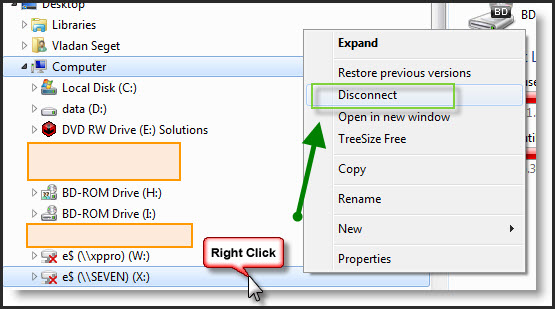
This can happens if you have a mapped drive connected to your computer. To get out from this, just disconnect the network drive:
1. Open My Computer.
2. Right-click any network drives and click Disconnect.
This issue can also occur if My Documents is remapped to the network drive:
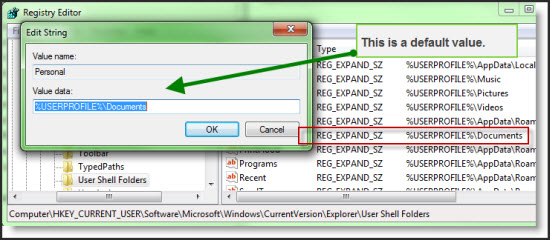
This may change the registry key Personal in
HKCU\Software\Microsoft\Windows\CurrentVersion\Explorer\User Shell Folders from %USERPROFILE%\Documents to a drive letter that you specify (for example, z:\).
There is a workaround for this issue. You must change the registry value to the default and when the install is complete, change it back to the assigned drive letter.
Source: VMware KB


Do you help me someone
Thanks, this fixed the issue for me, somehow it was pointing to a drive that was no longer connected