
Hey folks, Vladan here from ESX Virtualization. If you've been following my blog since way back in 2008 (yeah, we're that old-school), you know I love diving into free virtualization tools, backup and DR, rectnly some alternatives to VMware, and anything that makes life easier for IT pros juggling multiple OSes. Lately, with all the chatter around Proxmox, XCP-NG, and even Hyper-V, I've been keeping an eye on solutions for cross-platform compatibility. That's how I stumbled upon WinBoat – this nifty Linux app that's shaking things up by letting you run Windows applications right on your Linux desktop, as if they were native. No more dual-booting or overhead with VMs (even if myself I'm still using FREE VMware Workstation on my Windows Desktop).
I first heard about WinBoat through some Reddit threads and GitHub buzz, and after testing it out on my Ubuntu setup, I'm impressed. It's not perfect (it's still in beta, version 0.9.0 as of early 2026), but for anyone who's tired of Wine's compatibility headaches or VirtualBox's overhead, this could be a game-changer. In this post, I'll break it down technically – what it is, how it works under the hood, features, setup, pros/cons, and my two cents.
What is WinBoat Exactly?
WinBoat is an open-source Electron-based application designed to run Windows apps on Linux with what they call “seamless integration.”
Think of it as a bridge between your Linux host and a containerized Windows environment. Unlike Wine, which tries to translate Windows API calls to POSIX (and often falls short with complex apps like Adobe Suite or proprietary tools), WinBoat runs a real Windows instance in the background. This means 100% compatibility – if it works on Windows, it'll work here.Developed by TibixDev and released around mid-2025, it's MIT-licensed and available on GitHub.
It's attracting attention as an alternative to older tools like WinApps, but with more automation and a user-friendly GUI. For virtualization folks like us, it's essentially a lightweight HCI (Hyper-Converged Infrastructure) hack for personal use, blending containerization with VM tech.
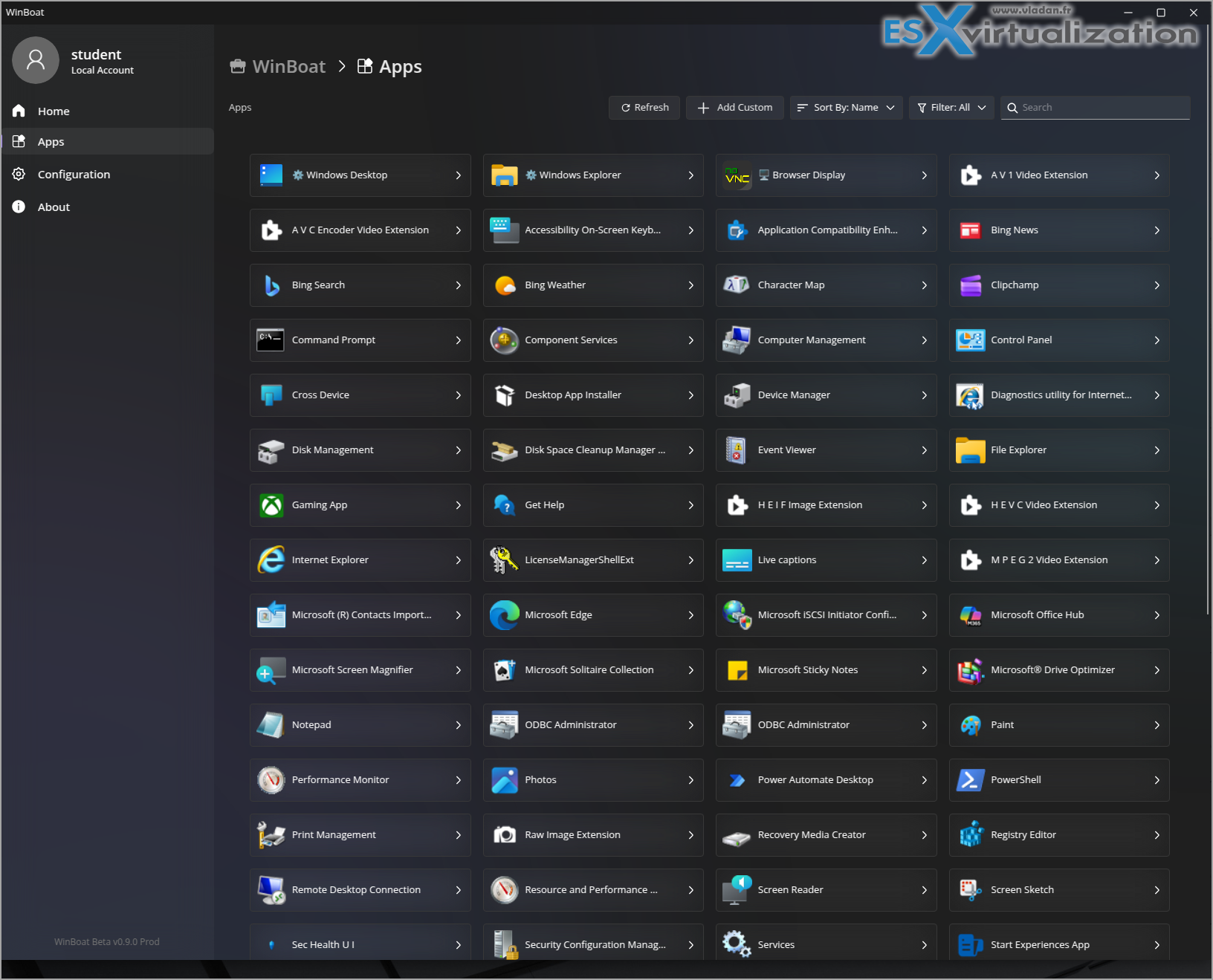
How Does WinBoat Work Under the Hood?
Alright, let's get technical – this is where it shines. WinBoat leverages Linux's native KVM (Kernel-based Virtual Machine) for virtualization, but wraps it in a container using Docker or Podman.
Here's the breakdown:
- Containerized Windows VM: It spins up a Windows container within a Docker/Podman container environment. This isn't a full-blown hypervisor like VMware ESXi; it's more efficient because the container handles isolation while KVM provides the hardware acceleration. You need KVM enabled in your BIOS/UEFI – that's non-negotiable for performance.
- RDP for Seamless Integration: Communication happens via Microsoft's Remote Desktop Protocol (RDP). WinBoat uses FreeRDP (version 3.x.x required, with sound support) to connect to the Windows guest (it gets installed as a part of the pre-requisites).
- Apps are exported using Windows' RemoteApp feature, so they appear as individual, native windows on your Linux desktop – no visible VM borders or laggy full-desktop remoting. It's like X11 forwarding but for Windows.
- Guest Server Magic: Inside the Windows VM, a “WinBoat Guest Server” runs to manage app launching and integration. This handles things like clipboard sharing, audio passthrough, and even smartcard redirection.
- Filesystem Mounting (optional): Your Linux home directory gets mounted as a network drive in Windows (e.g., \host\home), allowing seamless file access. Under the hood, this uses Samba or similar for sharing, but it's automated. Be cautious, though – exposing Linux files to Windows could invite malware risks.
Performance-wise, expect near-native speeds on a decent machine (more on requirements below). I only tested in a VM so kind of a nested virtualization only in my case. The VM stays hidden and doesn't auto-login to save resources, starting only when you launch an app.
Compared to WinApps, which also uses RDP but requires more manual config (like editing scripts for IP addresses), WinBoat automates most of it.
If you're into the weeds, check the GitHub repo – it's mostly TypeScript with some Go for the guest server. Building from source is straightforward with Bun and Go installed.
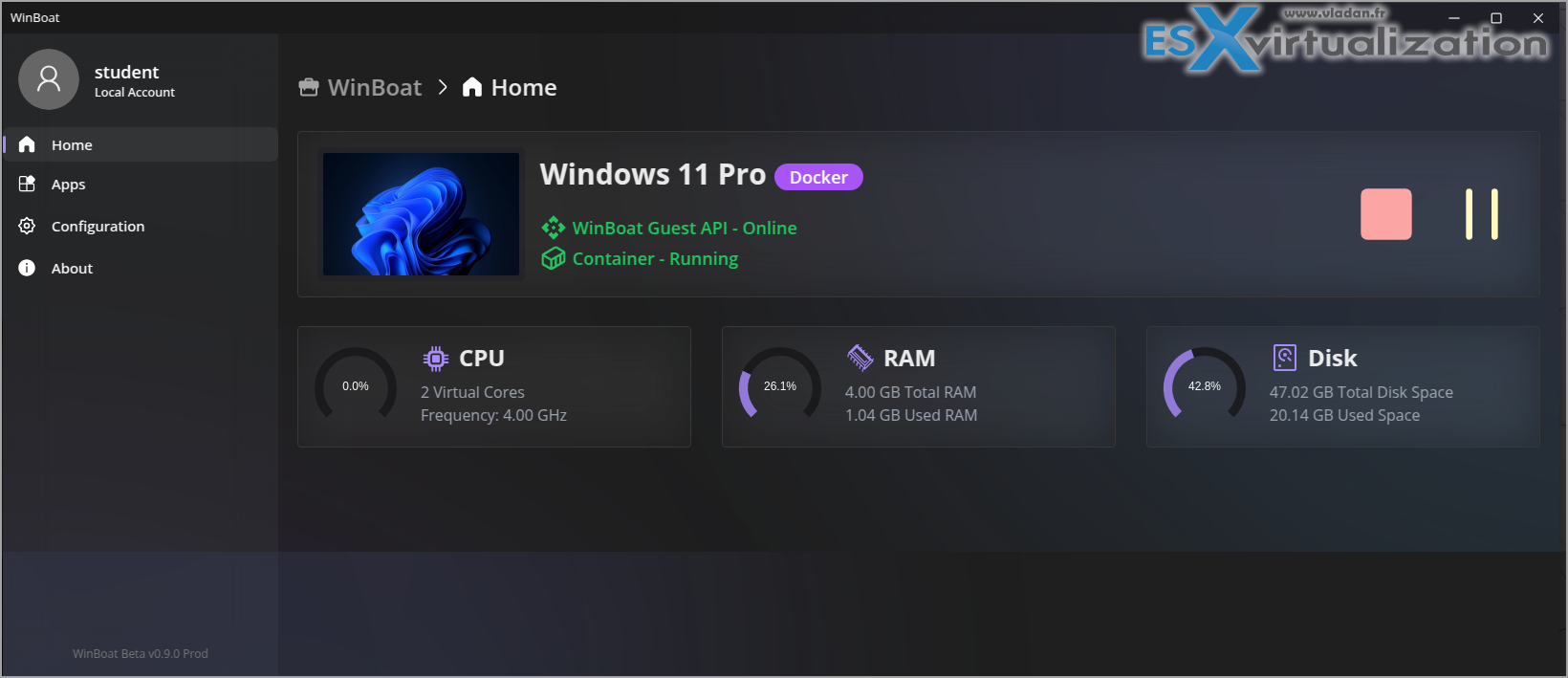
Here is the app running Windows 11 in a Docker container
Key Features That Stand Out
WinBoat packs some solid features, especially for a young project:
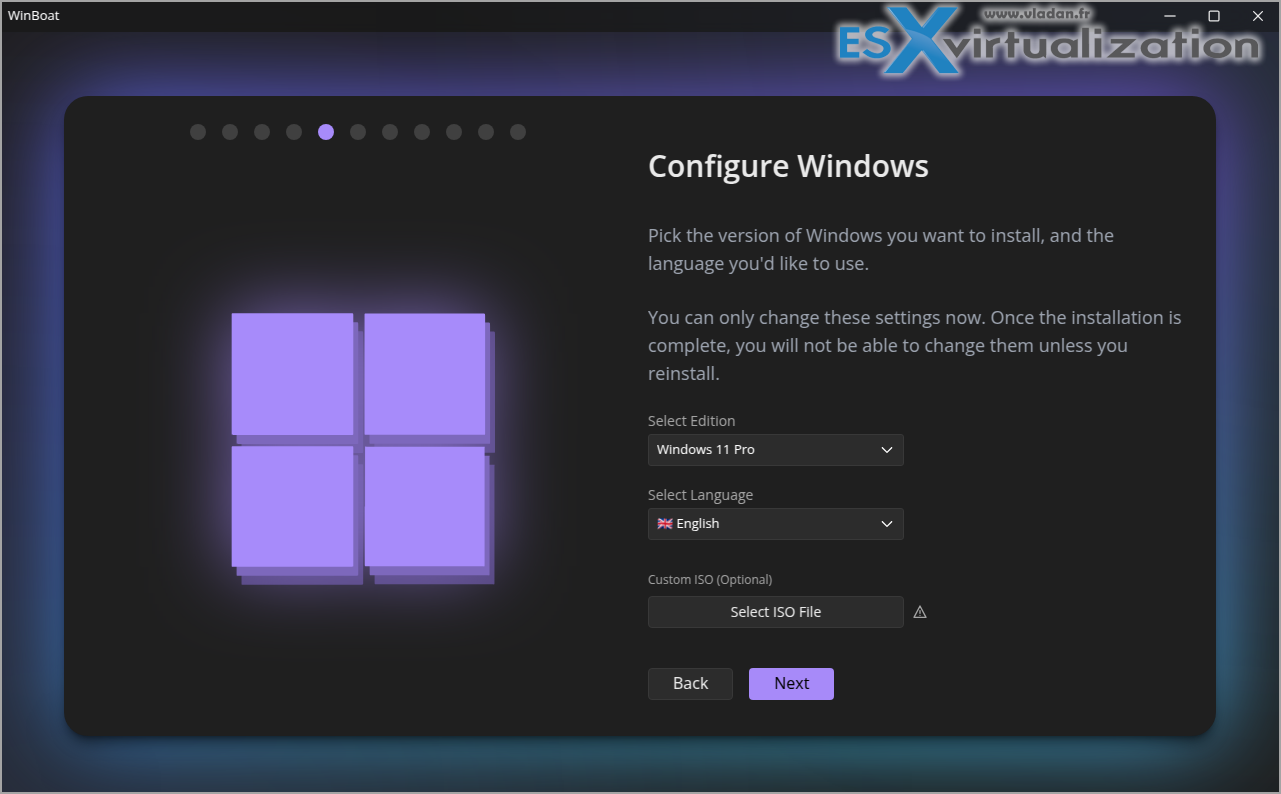
- Automated Windows Installation: Pick your Windows ISO (it can download an eval version by itself in the background!!!), set specs like RAM/CPU allocation, and let it handle the install. No more manual VM creation in virt-manager.
- App Launcher GUI: A clean interface lists installed Windows apps, shows VM status, and lets you launch/pause/stop with a click. Multi-monitor support was added in 0.8.7, though it's still buggy in mixed setups.
- Resource Monitoring: Built-in dashboard for CPU, RAM, and disk usage. Plus, experimental USB passthrough and save states for apps.
- Full Desktop Access: If you need the whole Windows desktop, it's there – or stick to individual apps for minimal overhead.
- Extras: noVNC for browser access, auto-start containers, and disk space warnings.
It's not just for games (though light ones might work); think Microsoft Office, Photoshop, or that obscure Windows-only tool your job requires.
Installation and Requirements – Step by StepGetting started is easier than setting up a Proxmox cluster, tbh. Here's what you need:Hardware: 4GB RAM min (8GB+ recommended), 2 CPU threads, 32GB free storage, KVM-enabled CPU.
- Software: Docker (with Compose v2) or Podman (with Compose). FreeRDP 3.x.x. No Docker Desktop – it won't work.
Optional: iptables/nftables for better networking.
Steps:
- Install prerequisites: On Ubuntu, that's sudo apt install docker.io docker-compose freerdp2-x11. Add your user to the docker group and relog.
- Download WinBoat from GitHub releases – grab the .deb, .rpm, or AppImage.
- Run the app, point to a Windows ISO (Win10 IoT LTSC recommended for lightweight), and wait 30-60 mins for setup.
- Install your Windows apps inside the VM, and they'll show up in the launcher.
Pro tip: If using Podman, note that USB passthrough is disabled in v0.9.0.
And yeah, you'll need a valid Windows license eventually – eval versions expire.
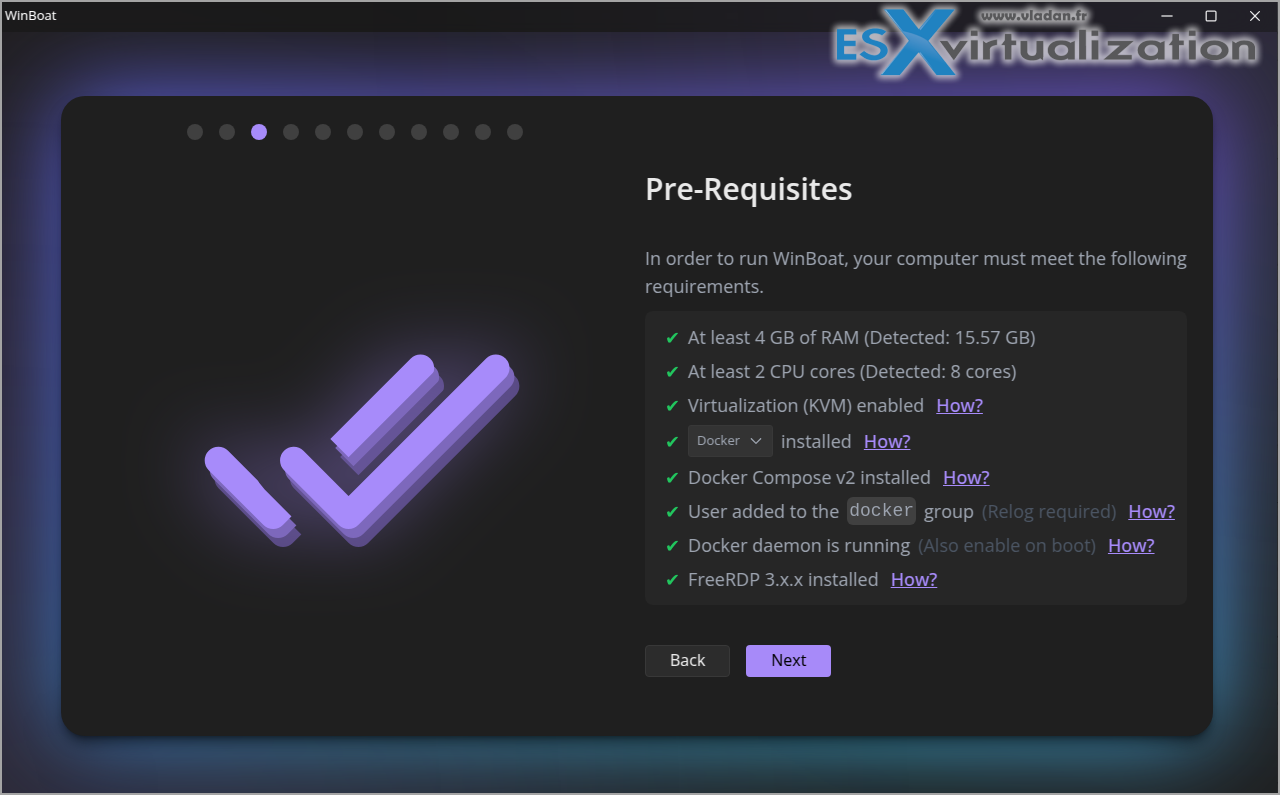
Continue with the assistant until you reach all green check marks. (in my case I had to install Docker, Docker Compose v2, then add the user to the docker group …. basically I had only 3 green check at the beginning. And I'm not a Linux Guru by any means!)
The Windows config is easy. Either you leav the app doing its thing or you have your own ISO.
Pros and Cons – The Real Deal
Pros:
- Ultimate compatibility: Real Windows means no Wine quirks.
- Easy Install with nice assistant – the assistant guides you to install all the pre-requisites, and then shows up All green checks which is pretty cool and nice designed.
- Lightweight: Uses host resources efficiently, better than full VMs.
- Free and open-source: No subscriptions, unlike some VMware add-ons.
- Growing fast: Recent updates added multi-monitor and GPU passthrough experiments.
Cons:
- Beta bugs: Cursor issues on multi-monitors, occasional glitches.
- Resource hog: Needs a beefy machine for smooth operation; slow on old hardware.
- Security risks: Sharing files exposes Linux to Windows threats.
- Not for gaming: Full-screen apps or GPU-heavy stuff? Look elsewhere like Proton.
- Maintenance: You still have to patch Windows and run AV.
The app configuration…

Compared to WinApps, WinBoat is easier for beginners but less customizable for power users.
My Thoughts After Testing
I spun it up on my test VM with (8vCPU, 16GB RAM, Ubuntu 24.04) and ran Office and some other windows software – worked flawlessly, with audio and clipboard sync. Launch times are about 10-20 seconds if the VM's cold, but once running, it's snappy.
Not a full hypervisor replacement, but a killer add-on.
Final Words
WinBoat is breathing new life into Linux-Windows hybrid workflows If you're an IT pro or hobbyist, give it a spin – it's free, and the community is active on Discord. Who knows, it might save you from a dual-boot nightmare. If you’re like me and stick with Windows, you can easily test it in a Ubuntu VM -😊.
What do you think? Tried it yet? Drop a comment below, and don't forget to follow me on for more tips. Until next time!
Source link: WinBoat
More posts from ESX Virtualization:
- Veeam Backup and Replication Upgrade on Windows – Yes we can
- Securing Your Backups On-Premises: How StarWind VTL Fits Perfectly with Veeam and the 3-2-1 Rule
- Winux OS – Why I like it?
- VMware Alternative – OpenNebula: Powering Edge Clouds and GPU-Based AI Workloads with Firecracker and KVM
- Proxmox 9 (BETA 1) is out – What’s new?
- Another VMware Alternative Called Harvester – How does it compare to VMware?
- VMware vSphere 9 Standard and Enterprise Plus – Not Anymore?
- VMware vSphere Foundation (VVF 9) and VMware Cloud Foundation (VCF 9) Has been Released
- Vulnerability in your VMs – VMware Tools Update
- VMware ESXi FREE is FREE again!
- No more FREE licenses of VMware vSphere for vExperts – What’s your options?
- VMware Workstation 17.6.2 Pro does not require any license anymore (FREE)
- Two New VMware Certified Professional Certifications for VMware administrators: VCP-VVF and VCP-VCF
- Patching ESXi Without Reboot – ESXi Live Patch – Yes, since ESXi 8.0 U3
- Update ESXi Host to the latest ESXi 8.0U3b without vCenter
- Upgrade your VMware VCSA to the latest VCSA 8 U3b – latest security patches and bug fixes
- VMware vSphere 8.0 U2 Released – ESXi 8.0 U2 and VCSA 8.0 U2 How to update
- What’s the purpose of those 17 virtual hard disks within VMware vCenter Server Appliance (VCSA) 8.0?
- VMware vSphere 8 Update 2 New Upgrade Process for vCenter Server details
- What’s New in VMware Virtual Hardware v21 and vSphere 8 Update 2?
- vSphere 8.0 Page
- ESXi 7.x to 8.x upgrade scenarios
- VMware vCenter Server 7.03 U3g – Download and patch
- Upgrade VMware ESXi to 7.0 U3 via command line
- VMware vCenter Server 7.0 U3e released – another maintenance release fixing vSphere with Tanzu
- What is The Difference between VMware vSphere, ESXi and vCenter
- How to Configure VMware High Availability (HA) Cluster
Stay tuned through RSS, and social media channels (Twitter, FB, YouTube)


Leave a Reply