
Enable the clipboard copy and paste functionality in vSphere 4.1 and later versions. The security has been tightened in vSphere 4.1, so that's why by default if you install vSphere 4.1 or if you upgrade your vSphere 4.0 installation, you can't copy paste between the VI client and the VMs running in your vSphere environment. You can read more about why it was changed in vSphere 4.1 in ESX 4.1. To be able to copy and paste between the guest operating system and the remote console, you must enable the Copy and Paste option.
A quick quote from that chapter:
When copy and paste is enabled on a virtual machine running VMware Tools, you can copy and paste between the guest operating system and remote console. As soon as the console window gains focus, non-privileged users and processes running in the virtual machine can access the clipboard for the virtual machine console. If a user copies sensitive information to the clipboard before using the console, the user—perhaps unknowingly —exposes sensitive data to the virtual machine. To prevent this problem, copy and paste operations for the guest operating system are disabled by default.
How to enable copy paste operations :
01. You want to enable it only for certain VMs (not all of them) – but if you vMotion the VM to another host, the VM looses this functionality.
02. You want to enable copy/paste operations for all VMs running on particular ESX(i) host.
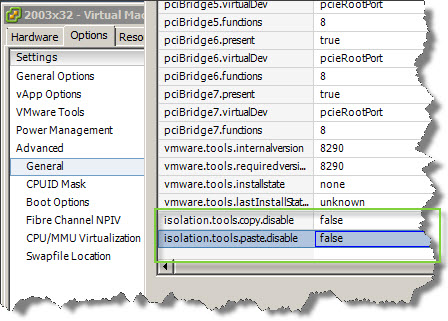
As for the 1st – enabling copy/paste for single VM:
– Log into a vCenter Server system using the vSphere Client and power off the virtual machine.
– Select the virtual machine and click the Summary tab
– Edit Settings > Options > Advanced > General
– Click Configuration Parameters.
– Click Add Row and type the following values in the Name and Value columns:
isolation.tools.copy.disable – false
isolation.tools.paste.disable – false
Click ok. That's all. You can start the VM now and you'll be able to use your clipboard to copy/paste for that particular VM.
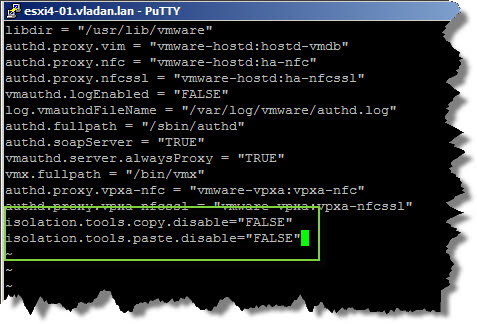
And for the Second – If you want to enable copy paste for All the VMs running on particular ESX (i) server – you'll need to go and add 2 lines via CLI by connecting via SSH with Putty or any other SSH client.
Steps:
– Connect via putty to your ESX(i) host and go to /etc/vmware
– Open the VI editor, open the config file by typing “vi config”
paste those two lines at the end:
isolation.tools.copy.disable=”FALSE”
isolation.tools.paste.disable=”FALSE”
– Save the file by :wq
FYI, the Copy and Paste options are only enabled when the virtual machines restart or resume the next time, so to apply that to all VM on that particular host you must basically all restart them.
Source: KB 1026422





Nice article!
Gabriel
The path to the config file in option #2 above should read: /etc/vmware/config (http://kb.vmware.com/kb/1026437).
Yes, the config file is in the vmware folder. Than you can ls to list the directory and you should see the config file there…
Vladan: Good article but I was pointing out that the correct path is /etc/vmware and NOT /usr/vmware as you have listed in option #2 above.
I see, going to correct that.
Thanks
Just a note- the :wq only quits vi 🙂 It doesn’t close putty.
Very good article, I had noticed my cut and paste had disappeared but thought I must have been delirious and that it must have never worked. Going to try this out today! Thank you very much!!
Thanks… -:)
Vladan
SO does everyone know that this copy and paste options is just for text and not to copy folders or object, right?
The articles in Vmware and all over the internet are not indicating that it is only for text.
Thanks for confirming that. I wanted to copy the files and it didn’t work. Text copy works
There WAS a drag & drop parameter, “isolation.tools.dnd.disable”.
Is this a deprecated parameter? I tried it on vSphere 5.5, and failed to get what I wanted.
the little things in hyper-v are so much better
Doesn’t work in 6.5. Ideas?
I can add those rows but they don’t save. Any idea why? Why does it allow me to enter them if it’s not going to save them??