
Outlook PST files still cause plenty of headaches for admins and end users alike. Large files, sudden corruption after a crash, network sharing issues, or just the usual “Outlook can’t open this file” errors pop up regularly. The principal outlook data file, the PST, is a crucial piece for Outlook to function.
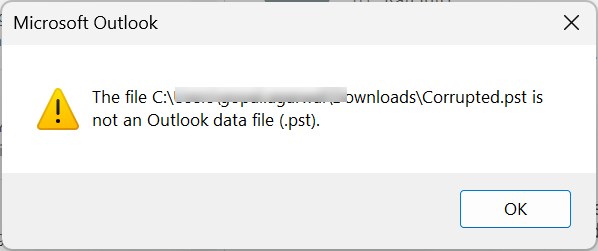
Microsoft’s built-in ScanPST.exe helps with minor problems but often falls short on severely damaged or oversized PSTs.
Stellar offers two practical approaches to repair PST files: the full desktop Stellar Repair for Outlook and the browser-based free Online PST Repair service by Stellar. I evaluated both from an IT perspective – functionality, ease of use, performance, the repair experience, and when each is more appropriate.
Overview of the Two Solutions
Stellar Repair for Outlook (Desktop) is a Windows application aimed at professional and heavier recovery jobs. It handles corrupt, damaged, and large PST files with no practical size limit. It recovers emails, contacts, calendars, notes, journals, attachments, and deleted items (highlighted for easy spotting).
You get a full preview before saving, and the Technician edition can export directly to a new PST, Microsoft 365, or a live Exchange Server. It works with current and older Outlook versions.
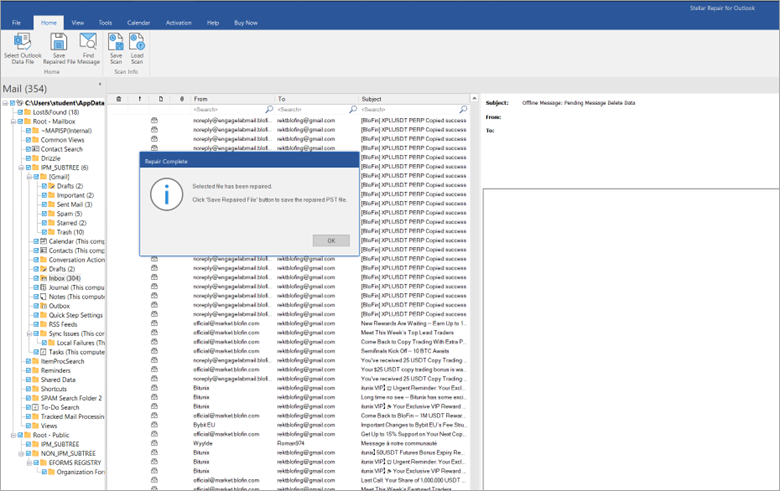
Example of PST repair from the lab
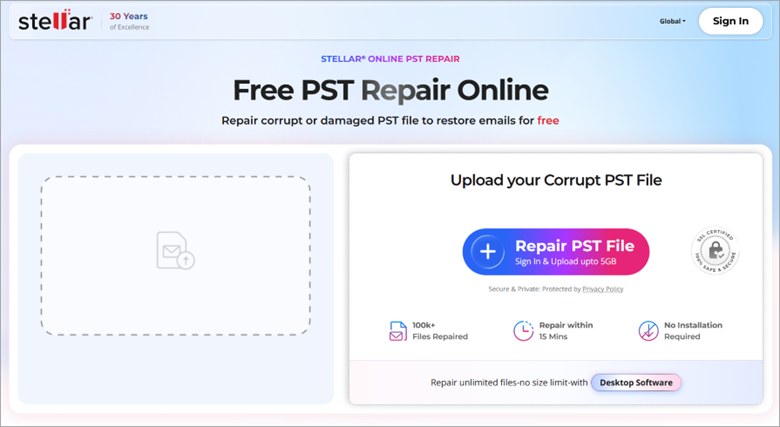
Stellar Online PST Repair is a web service. You upload the PST through a browser, the service repairs it, lets you preview recoverable items, and you download the result. No software install is required. It is designed for quick, one-off jobs. Free repair is available up to 500 MB; paid repairs go up to 5 GB per file.
Both tools keep the original file untouched (read-only operation) and try to preserve folder hierarchy and data integrity.
Installation and Setup Experience (Desktop)
The desktop installer is straightforward. Download, run the MSI, accept the defaults, and it is ready in a couple of minutes. Minimum requirements are modest (modern Windows, 4 GB RAM minimum, 8 GB recommended). No complicated configuration or services to set up. Launch it, and the interface looks familiar if you have used other Stellar recovery tools.
The Online version needs only a browser and an account. Sign up, upload, and go. Useful when you are on a locked-down machine or simply do not want to install anything.
User Interface and Ease of Use
The desktop UI is clean and Outlook-like in its three-pane preview. Select the PST (or let it find Outlook profiles), click Repair, wait for the scan, then browse folders, search, filter, and select what you want to keep. Deleted items are clearly highlighted with red color. Saving options are clear: new PST, individual formats (EML, MSG, etc.), or direct export on higher editions.
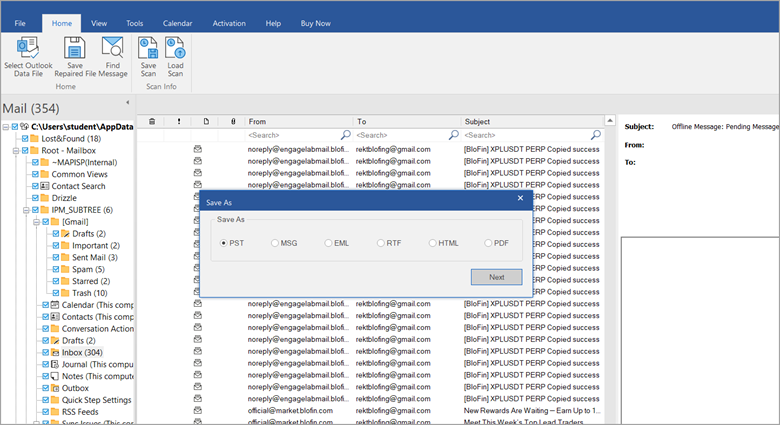
Saving options
The Online interface is even simpler: Upload > Start Repair> preview folder structure > download.
First, you need to upload the corrupted PST file to Stellar’s website.
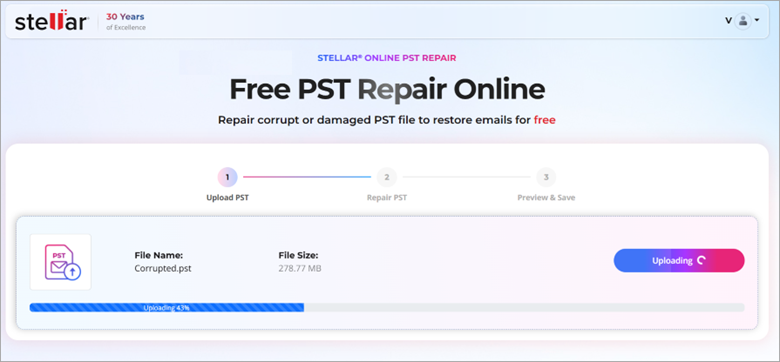
Then, once done, click the Start Repair button.
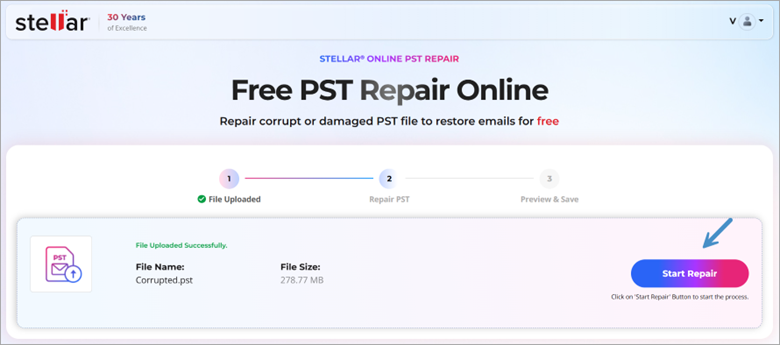
The system will analyze the file. Be patient, because depending on the size, it is not instant.
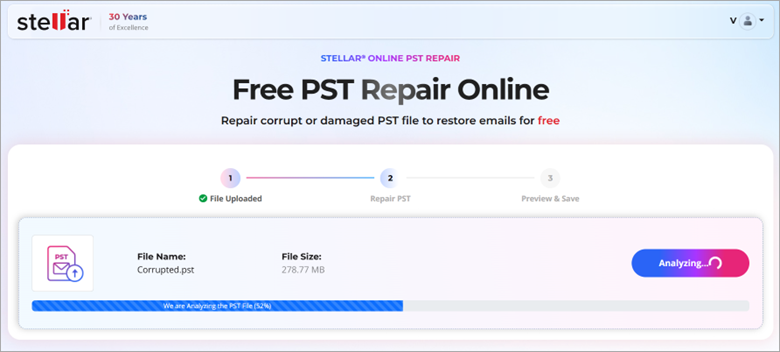
Once the analyze done, the repair process starts. The screen looks like this.
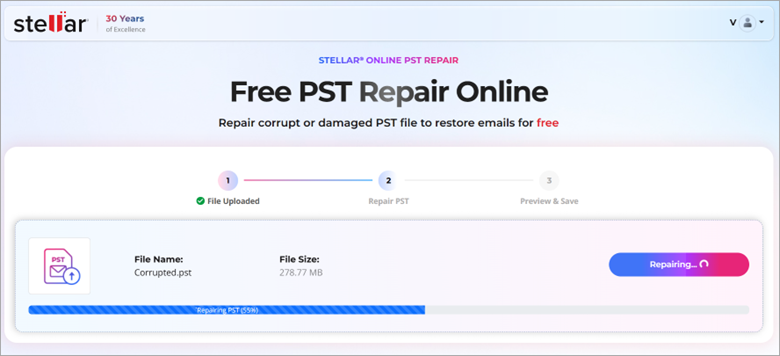
Once again, give it a minute or two. Then finally, you have the option to preview of the PST or to download the file.
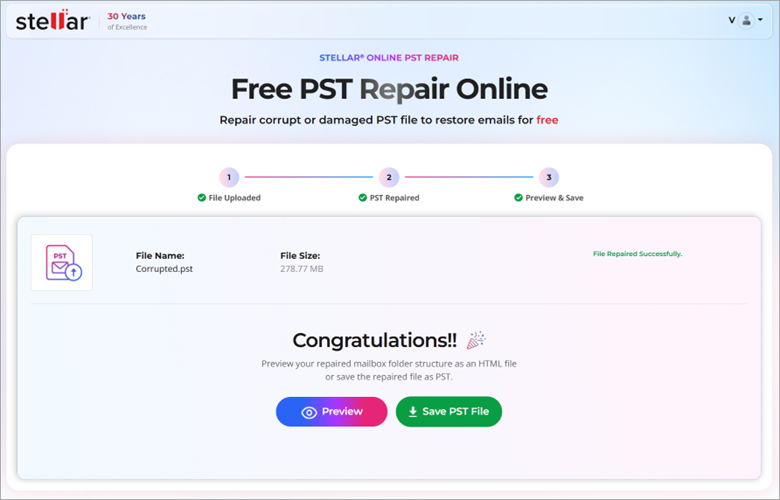
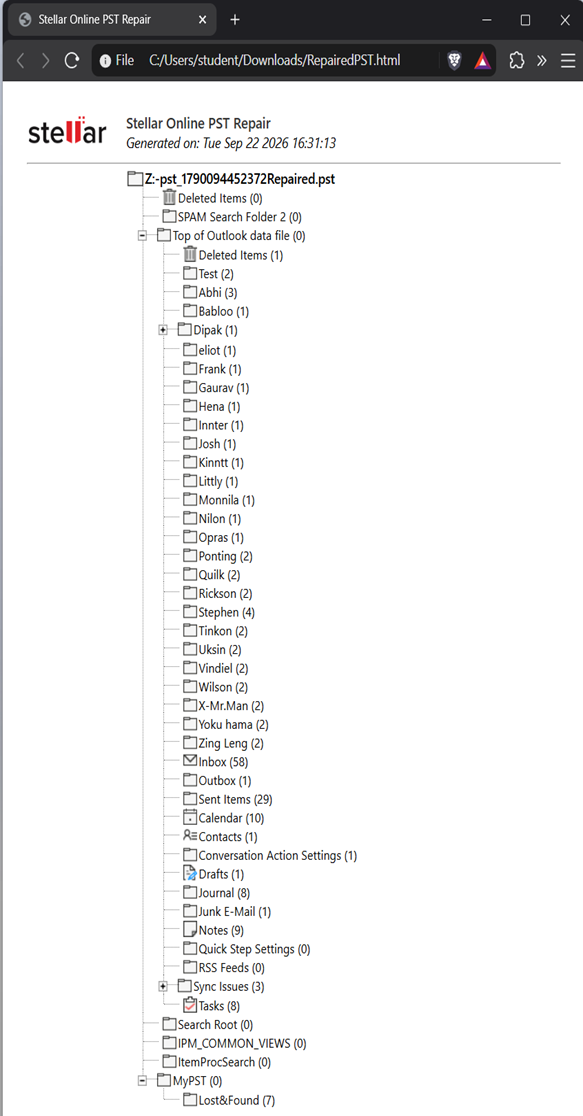
The preview generates a HTML file which, when open, gives you an overview of all the folders and subfolders within the PST. It is a preview of the PST file as it appears within Outlook once you download it.
And the download option gives you the actual repaired file which you can save to your hard drive.

Note the “Repaired” text added at the end of the original file.
That’s it, your PST is now repaired.
Sure, with the Online option you get fewer options, which is fine for straightforward cases. You do not get the same depth of search, filtering, or selective recovery controls that the desktop version offers.
Both are easy enough for non-experts, but the desktop tool gives more control when you need it.
Key Features and Functionality
Desktop highlights:
- No file-size limitation (handles large and severely corrupted PSTs that ScanPST struggles with).
- Recovers deleted items and highlights them.
- Full preview with search and advanced filters.
- Multiple export formats.
- Technician edition: direct export to Microsoft 365 / Live Exchange, plus split/compact options on higher tiers.
- Works offline, the original file never modified.
Online highlights:
- No installation.
- Quick upload-and-repair workflow.
- Preview before download.
- Free tier for small files (≤ 500 MB).
- Paid per-file repair up to 5 GB.
The desktop version is clearly the more complete tool for repeated or complex work. The Online service focuses on convenience and speed for smaller jobs.
PST Repair and Recovery Performance
In real use, the desktop software handles large files (tens of GB) reliably. My own PST file is about 8 GB in size, and it has over 10 years of emails. I should probably split it and archive the older emails which aren’t relevant anymore.
Scan time depends on size, corruption level, and hardware, but it stays stable and does not hang the way ScanPST from Microsoft sometimes does on big or badly damaged files. Once scanned, preview and selective save are fast. You can resume from a saved scan in some cases, which is handy for very large jobs.
The Online service is convenient for files under a few GB. Upload speed depends on your connection. The repair happens on Stellar’s side. For a 2–4 GB file it is usually quicker end-to-end than installing and running a full desktop scan if you only need a one-time fix. However, considering that not everybody has a high-speed internet connection, the desktop version makes more sense. Beyond 5 GB, or with heavy corruption, the Online option is no longer suitable.
Both tools emphasize data integrity and preserve structure better than the native Microsoft utility in most severe cases.
When to Choose Online vs Desktop
Choose the Online service when:
- The PST is under 5 GB (ideally under 2–3 GB for comfort).
- You need a quick fix and do not want to install software.
- You are working from a restricted or temporary machine.
- It is a one-time personal or small-business recovery.
- You want to test with the free 500 MB tier first.
Choose the Desktop software when:
- The PST is large (well over 5 GB) or heavily corrupted.
- You need to recover deleted items selectively or perform detailed searching/filtering.
- You plan to export directly to Microsoft 365 or a live Exchange environment.
- You handle multiple recoveries (IT support, MSPs, regular admin work).
- Data cannot leave the local machine for policy or sensitivity reasons.
- You want maximum control and the ability to split/compact large repaired PSTs.
In short: Online for convenience and smaller files; Desktop for power, size, and professional scenarios.
Pros and Cons
Desktop Pros
- Handles any size and severe corruption reliably.
- Rich preview, search, and selective recovery.
- Strong export options (especially Technician).
- Offline and fully local.
Desktop Cons
- Requires installation and a Windows machine.
- Paid license needed to save results (trial is preview-only).
Online Pros
- Zero install, works from any modern browser.
- Free tier for small files.
- Very simple workflow.
Online Cons
- Hard 5 GB limit.
- Less control and fewer advanced features.
- File must be uploaded (temporary storage on Stellar side).
- Not ideal for repeated or very large jobs.
Final Words
Both solutions from Stellar do what they claim and are noticeably more capable than ScanPST from Microsoft on real-world corrupted or oversized PSTs. If you are an end user or occasional admin with a moderate-sized file and just want it fixed fast without installing anything, start with Stellar Online PST Repair. The free tier is useful for testing, and the paid per-file option is reasonable for one-offs.
For anyone dealing with large PSTs, severe corruption, deleted-item recovery, or regular support work — or when data must stay local and you need export to Microsoft 365/Exchange — the Desktop Stellar Repair for Outlook (preferably Technician edition) is the clear choice. It is the more complete, flexible, and future-proof tool.
In my quick testing experience the desktop version remains the go-to for serious Outlook data recovery work, while the Online service fills a convenient niche for smaller, time-sensitive jobs. Pick according to file size, corruption severity, and whether you need ongoing capability or a quick one-time fix.
More posts from ESX Virtualization:
- How to update your ESXi 7.x or 8.x to the latest ESXi 8.0U3k via command line
- Veeam Bare Metal Recovery from Recovery partition
- Veeam Backup and Replication Upgrade on Windows – Yes we can
- Securing Your Backups On-Premises: How StarWind VTL Fits Perfectly with Veeam and the 3-2-1 Rule
- VMware Alternative – OpenNebula: Powering Edge Clouds and GPU-Based AI Workloads with Firecracker and KVM
- Another VMware Alternative Called Harvester – How does it compare to VMware?
- VMware vSphere 9 Standard and Enterprise Plus – Not Anymore?
- Vulnerability in your VMs – VMware Tools Update
- VMware ESXi FREE is FREE again!
- No more FREE licenses of VMware vSphere for vExperts – What’s your options?
- VMware Workstation 17.6.2 Pro does not require any license anymore (FREE)
- Two New VMware Certified Professional Certifications for VMware administrators: VCP-VVF and VCP-VCF
- Patching ESXi Without Reboot – ESXi Live Patch – Yes, since ESXi 8.0 U3
- Update ESXi Host to the latest ESXi 8.0U3b without vCenter
- Upgrade your VMware VCSA to the latest VCSA 8 U3b – latest security patches and bug fixes
- VMware vSphere 8.0 U2 Released – ESXi 8.0 U2 and VCSA 8.0 U2 How to update
- What’s the purpose of those 17 virtual hard disks within VMware vCenter Server Appliance (VCSA) 8.0?
- VMware vSphere 8 Update 2 New Upgrade Process for vCenter Server details
- What’s New in VMware Virtual Hardware v21 and vSphere 8 Update 2?
- vSphere 8.0 Page
- ESXi 7.x to 8.x upgrade scenarios
- VMware vCenter Server 7.03 U3g – Download and patch
- Upgrade VMware ESXi to 7.0 U3 via command line
- VMware vCenter Server 7.0 U3e released – another maintenance release fixing vSphere with Tanzu
- What is The Difference between VMware vSphere, ESXi and vCenter
- How to Configure VMware High Availability (HA) Cluster
Stay tuned through RSS, and social media channels (Twitter, FB, YouTube)





Leave a Reply