How-to enable Thin Print in VMware Workstation 7
My exploration of ThinPrint in VMware Workstation 7.
With the latest version of VMware Workstation 7, there is one cool feature called Thin Print. The feature I explained in this blog post together with other new functionalities.
The question is How-to enable this feature? Because it’s not enabled by default… I’ve done this test on my laptop running Windows 7 x64. The Virtual Machine used for the test was Windows Server 2008 R2 x64. If virtual printing is enabled in the virtual machine setting, all of the printers installed on the host operating system are available in the guest operating system. When you enable the virtual printer, Workstation configures a virtual serial port 1 to communicate with the host printers.

But, what if the VM does not have serial port? (my case…). I could see actually not ALL my printers available on my laptop inside of the VM, but only one out of three of them … My laptop DOES NOT has serial port anyway…
So I added the Serial port to the VM anyway (FYI: it’s been added as a Serial port 2), to try what’s happens. Nothing, I still can see only one of my three printers installed on my Laptop.(The DEFAULT one). And that’s it. I could see only the Default printer.
Someone could ask. How do you change this printer if you want to print on another printer available on your physical system (my laptop)? Well you just change the default printer on your physical system, and inside of your VM go and refresh the printers window (or hit F5 key). And that’s it. It changes immediately. No reboot or log off are necessary.
Normally when you need to enable virtual printing just follow this step.
First Stop your VM (not suspend) and go to VirtualMachineSettings->Hardware->Add…->Virtual Printer
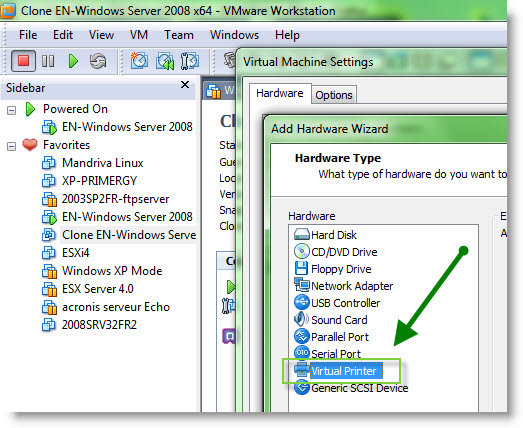
If you are registered user of VMware Workstation, you can register for free online course here.
Related Posts :
Thin provisioning can save you a LOTs of SAN space. You know that storage space on a SAN its exp ...
I was always very happy with one of the features present in VMware Workstation since few years n ...
After the Death of Virtual Iron acquired by Oracle, the users of Virtual Iron do have a solution ...
New performance whitepaper from VROOM blog . If you ever doubted any performance issues due to ...
What about Thin provisionning? Thin provisioning, new feature in vSphere 4 is great, but it's n ...
Other posts from Desktop Virtualization
- Readers Choice Awards for VMware Fusion and update for 3.0.2
- Use snapshots on Virtual ESX with VMware Workstation
- VMware Workstation with Teams functionality is a really flexible and usefull
- Minor release update for VMware Workstation 7
- Why I did not start using teams earlier?
- SSD's will transform the way we think of hard disks
- How-to install Windows 98 inside VMware fusion
- Invalid drive error when Installing VMware Workstation
- Vmware Workstation 7 new features - Import Windows 7 XP mode VM
- VMware ACE portable package VM creation How-to
- How-to install VMware Workstation
- How-to setup Windows 7 XP Mode
- VMware ACE
- VMware Fusion updated to 3.0.1
- Learn for free with this VMware course for VMware Workstation 7
- New Website Design of VMware Website and new product launch - VMware View 4
- How-to Install ESX 4 inside VMware Workstaiton 7 video
- Expand Virtual disk of Windows 7 VW with VMware Workstation 7
- You can really play now with VMware Workstation 7
- VMware Workstation 7 final is here
- Great tip how-to boot from USB stick inside of VMware Workstation
- Create a Virtual Machine in VMware Player 3.0
- New Virtual Network Editor in VMware Workstation 7
- New feature in VMware Workstation 7 - Auto Protect
- Buying VMware Fusion 2 now gets you free upgrade to Fusion 3
- MAC users - VMware Fusion 2 On Sale only Today at Amazon
- No more tweaks of VMX files. With VMware Workstation 7 you will be able to run ESX 4 with nested VMs without any tweaks.
- Install Linux Backtrack in a VM on VMware Workstation running on Windows 7
- VMware Workstation On Sale Too...40% OFF !!!
- VMware Workstation update 6.5.3


How-to enable Thin Print in VMware Workstation 7 http://goo.gl/fb/WYjd
This comment was originally posted on Twitter
Hello vladan,
Are you able to choose between the printers if you print with an usual application like wordpad? As far as I know Windows 7 collates all printers which have the same port and the same driver and this happens if “virtual printing” is activated as all printers get a “TPVM.” port and the “ThinPrint Output Gateway” driver. Just right-click the one you see in the “Devices and Printers” View and expand “See whats printing”. You now will see all printer queues.
Cheers