Installing VMware View Database and ODBC connection in my lab.
After the introductory post where I showed the basic setup which you'll going to follow, now we going to kick the installation process. We will work on my vCenter VM which was already setup for my lab environment I'm using for vSphere 5, so this part of the setup is not included in this How-to install, configure VMware View series of articles.
Fist thing we need to do is to setup the VMware View Database. I'm gonna stick with SQL Express for my lab, since it's also the bundled database provided when you install VMware vSphere 5. Be aware of the size limitation on that kind of “Express” database and rather plan use SQL Server Standard for larger deployments.
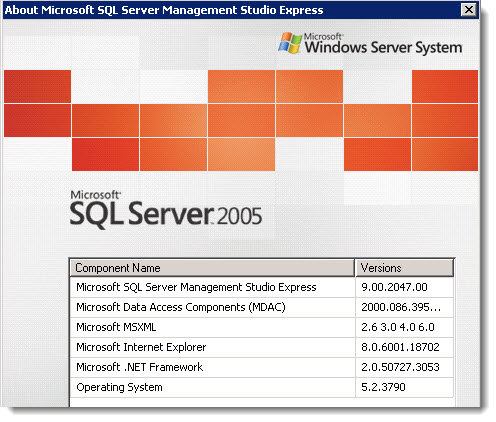
Creating the View Database through SQL Server Management Studio – SQL express management studio express (version 2005 in my case) has the possibility to create local databases and so I'm gonna use this free tool from Microsoft to do the job. You can find the download of this tool through this link.
I'm sure that there is other tools which can do the same job, so feel free to comment, I'll update the post so everyone can benefit from it.
So the first step as I said above, is the database creation for VMware View 5. I'm gonna call that database view5, but any name can be of course used.
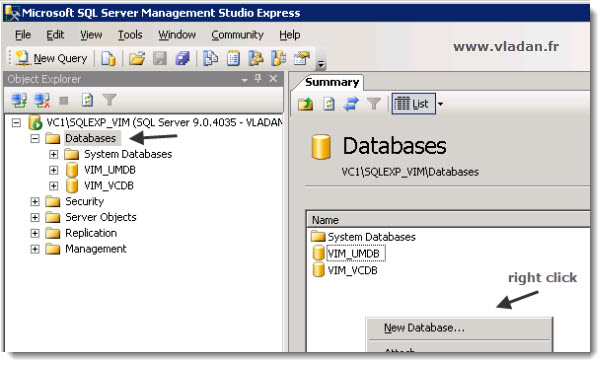
As you can see there is nothing fancy. Select the Databases on the left > Right click the white space and choose New database.
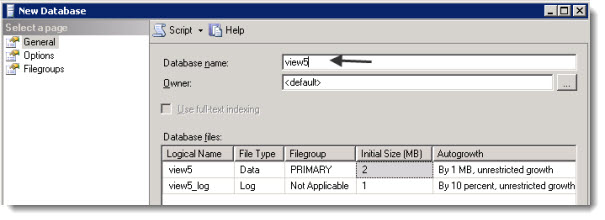
The next thing is to give it the Proper Name.
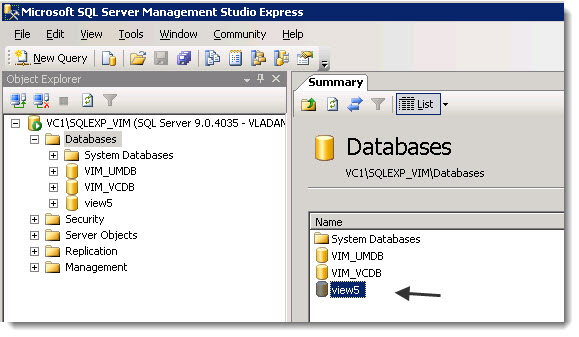
Once done you just validate on clicking OK button. And as you can see the database will appear allong with your existing vSphere databases. In my case there are already the VCDB (vCenter Database) and UMDB (vSphere Update Manager Database).
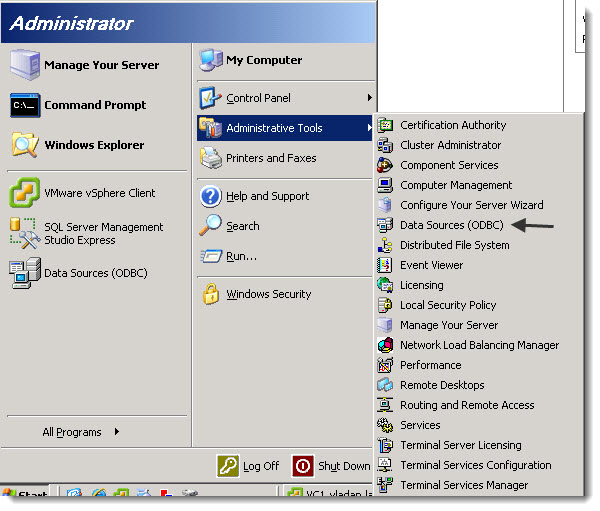
Creation of the ODBC connection for VMware View Database. This connection is created on the vCenter Server. You go throught the Start menu > Administrative tools > ODBC
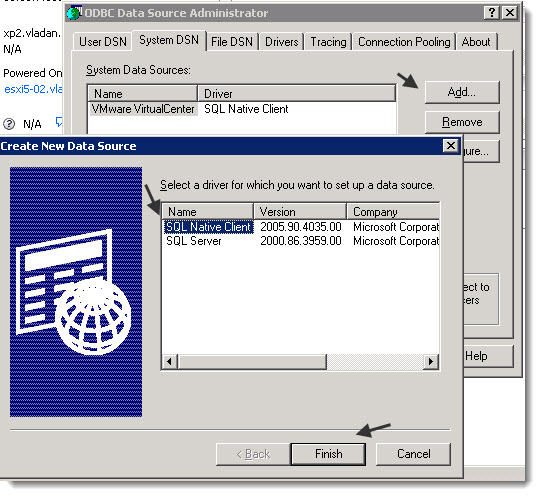
The next few screens will show you on how to configure the ODBC connection. Selecting the System DSN > Add button > Selecting SQL Native Client
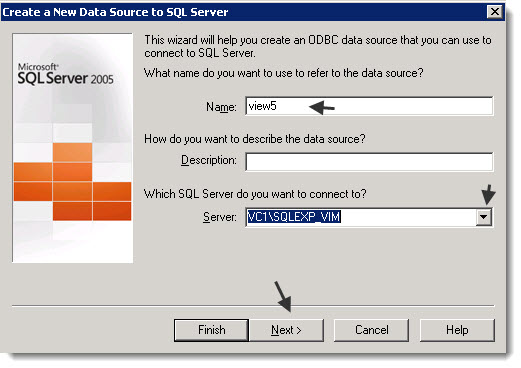
And then to continue through the assistant. You give a name for connection. I named it the same as the View database itself ….
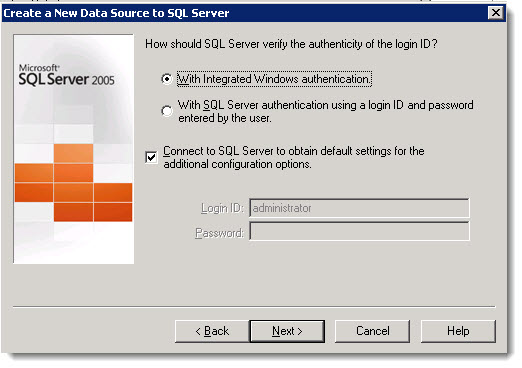
And the wizard continues to select the authentication method..
Once done, just follow and change the default database to the view5 – which is your VMware View database you created in the Microsoft SQL server Management studio express 2005 tool.
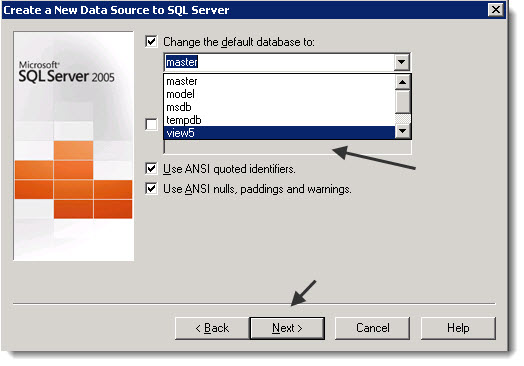
The next step just verifies that the connection is available
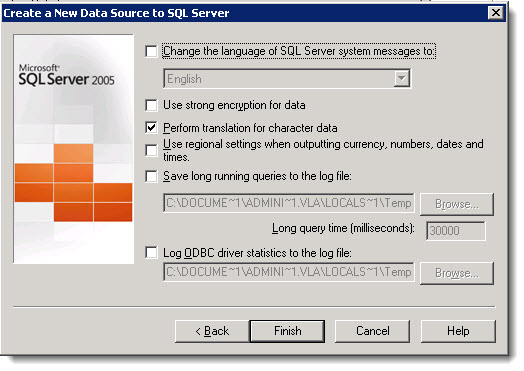
And we got to the end screenshot here.
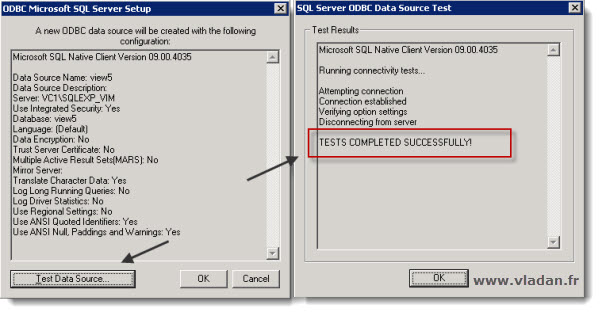
This was one of the crucial parts for successful setup of VMware View. If you're more serious on VMware View, you can attend a VMware Class where you'll be guided by professional instructor and you'll be able to pass a desktop certification. The VMware Desktop Certification is called VCA4-DT (VMware Certified Associate 4 – Desktop). The VCA4-DT is a new VMware certification which has been introduced for public only recently.
You can also Study more remotely or while on-the-go with Trainsignal's Training done by Brian Knudston, which I reviewed several months back. Read my review here – VMware View Administration Training – My Review.
Even if this training is for View 4.6 the concepts there are the same, and recently Brian confirmed that this training will be updated for VMware View 5 as he is already working on the project.
The full serie – VMware View 5 Install, configure – How-to in my lab :
- VMware View 5 Install, configure – How to do a simple lab setup
- How to install Database and ODBC for VMware View – this post
- How-to install VMware View Connection Server
- How-to install VMware View Composer
- How to install VMware View Agent in the Virtual Desktop plus more
- How to create desktop pool in VMware View
- The first connection to a desktop pool
- VMware View – Virtual machine with Input Specification already exists error
- How to Optmize the Master Desktop Image for VMware View
- VMware View Video for SMB
- How-to configure VMware View Persona Management
- How-to remove linked clones reference from composer database video
- VMware Horizon View Connection Server SSL Certificate How-to
Enjoy…-:)








Hi,
Nice documentation. I will give a try now . Thanks a lot for the post.