Installation of VMware View Connection Server in my lab.
I'm going to use a new VM running Windows 2008R2 x64 which is attached as a member server of my vladan.lan Microsoft domain and has got a fixed IP address. I'm not detailing here those steps since I believe that you don't need a hand on that and that you can do it easily by yourself different ways:
– You create a VM from scratch
– You deploy a new VM from Template
You could still use 2003 x32 or x64 platforms if you'd wanted, but the installation steps would probably differed, since some .NET would get installed and maybe other components too.
You could also install View connection server on physical hardware, if you're fearing some performance issues on a VM, but it's really not justified. Besides that, you can protest that VM by HA (High availability), since that VM will became a part of the vSphere 5 cluster, so why go differently?
Installation of VMware View Connection Server – After getting the right installation file at the VMware's website, the installation starts with an assistant.
Basically you need just one file to install VMware View Connection server, VMware View Security Server, VMware View Transfer Server…..

As you can see on the image below the same file brings many different installation options. Ideally, one would need 4 VMs for all this, because each one of those servers has got different role within VMware View. To simplify the installation, I'm going to use only the VMware view standard server option in order to keep this serie small, but you can always add the additional servers afterwards if you want to implement the functions like Offline Desktops, or DMZ with Security server in it ..
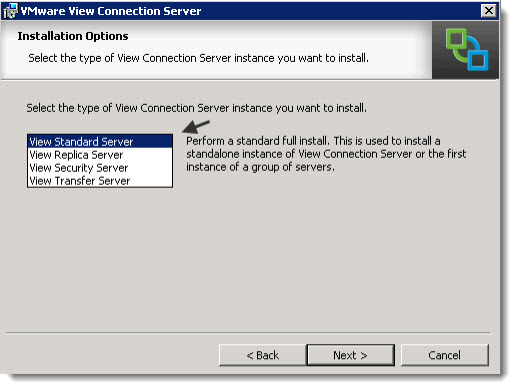
So In my particular case, it's first server in my View Cluster, so I go ahead and choose this option.
The assistant goes on and I leave the default values here.
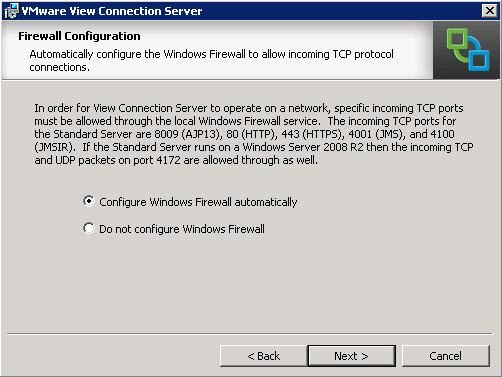
There might be some screenshot without importance which are not included in this post. But you're not missing anything.
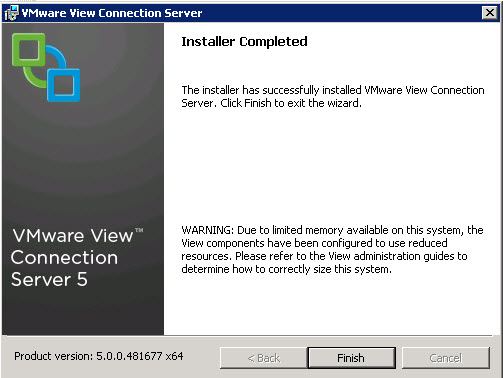
After completing the assistant, you'll see on your desktop new icon which when double clicked, opens a default browser and leads you to the connection's server default page. You'll have to accept the certificate and you'll be facing a nice Flesh Webinterface like this one. (In case you got Adobe Flash Installed, if not you'll be prompted to go and download the Flash player).
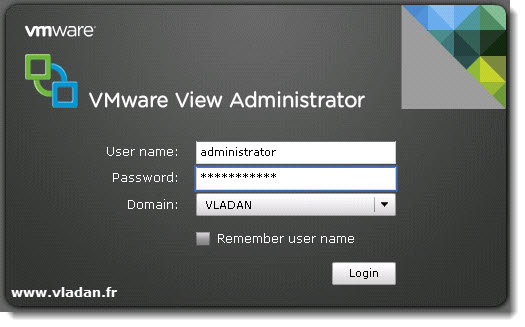
This ends up the first setup of VMware View Connection Server.
Feel free to leave a comment, subscribe to our RSS feed or Register for Weekly e-mail updates.
The full serie – VMware View 5 Install, configure – How-to in my lab :
- VMware View 5 Install, configure – How to do a simple lab setup
- How to install Database and ODBC for VMware View
- How-to install VMware View Connection Server – this post
- How-to install VMware View Composer
- How to install VMware View Agent in the Virtual Desktop plus more
- How to create desktop pool in VMware View
- The first connection to a desktop pool
- VMware View – Virtual machine with Input Specification already exists error
- How to Optmize the Master Desktop Image for VMware View
- VMware View Video for SMB
- How-to configure VMware View Persona Management
- How-to remove linked clones reference from composer database video
- VMware Horizon View Connection Server SSL Certificate How-to








hi vladan,I got a nice material for my VDI preparation.
Where can i get the EXE file for the Connection server installation ?