
Update your VMware tools in multiple Virtual Machines.
If you looking to find a way to update vmware tools multiple VMss in your datacenter, you might want to have a look a following picture which explains that in 3 easy steps:
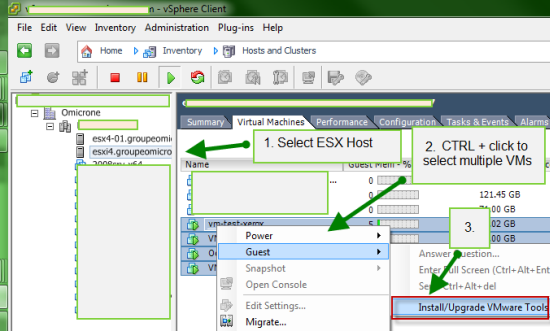
Here is the step-by-step to update vmware tools multiple vms
01. Select your host where your VMs reside and need their tools to be updated. Click on the Virtual Machines TAB.
02. CTRL + click on each VM that needs the VMware tools to be updated.
03. Right click on those selected VMs and in the menu select Guest > Install/upgrade VMware Tools
There is many more how-to tips and step-by-steps in the How-to category of this website. Another good category is the video category where you can find usually some good videos and tutorials.
To learn more about free ESXi and VMware licensing, you might want to check out one of those articles:
- ESXi Free – how to upgrade to ESXi 5.1
- ESXi 5.1 Free with no vRAM limit but physical RAM limit of 32Gb
- vSphere Web Client – New in VMware vSphere 5.1
- vSphere Data Protection – a new backup product included with vSphere 5.1
- Top VMware vSphere 5.1 Features
- vSphere 5.1 licensing – vRAM is gone – rather good news, any more?
- VMware vSphere 5.1 – Virtual Hardware Version 9
This website is updated daily. You might want to subscribe via RSS. If you don't know what is RSS, just have a look at my page here where you will find two videos which are explaining how to use RSS and save your daily time.
You might also want to check out my Free e-book which will give you the step-by-step guide to install and configure nested VMware vSphere lab on a laptop or desktop PC with limited resources. When you subscribe to receive the weekly newsletter, you'll receive the E-book during the next business day.
ESX virtualization website is updated daily.

