
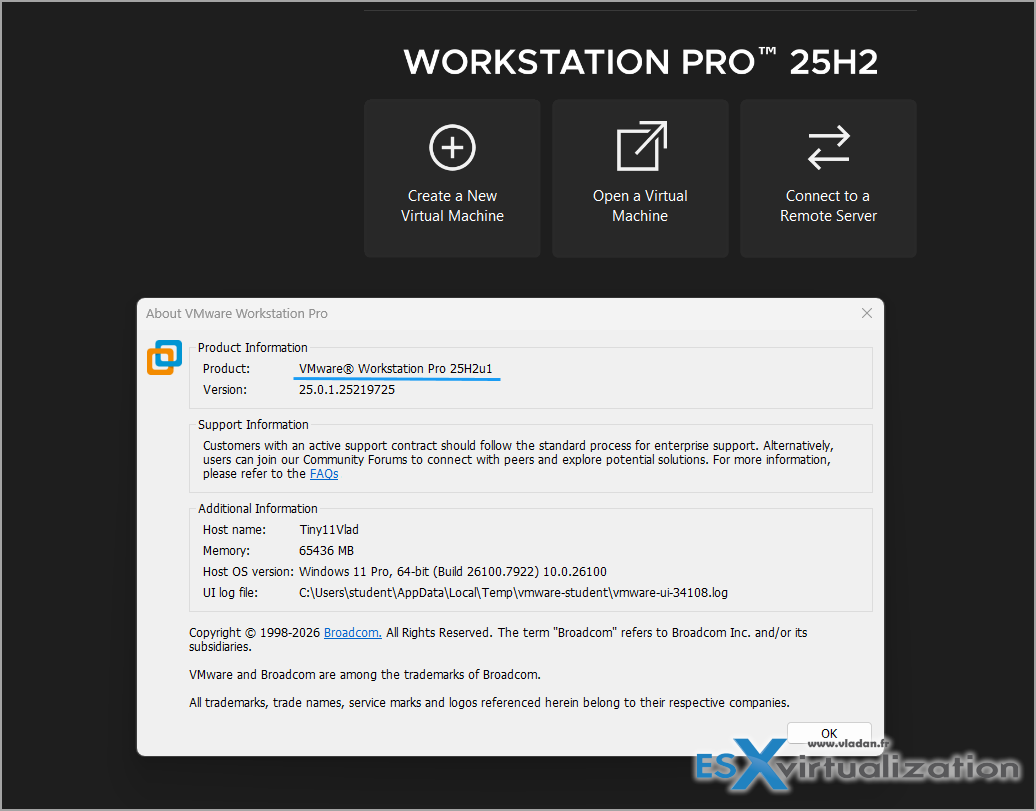
Broadcom has just dropped the latest update for VMware Workstation Pro – version 25H2u1, build 25219725, released on February 27, 2026. If you're running Workstation on your desktop for development, testing, or even homelab setups, this patch is worth your attention. It's primarily focused on security fixes and resolving some nagging bugs, especially on Windows hosts.
I'm using VMware Workstation as a main virtualization tool as since I've moved from Reunion Island, I'm running only nested labs on a desktop PC with 64Gigs of RAM. That's my main setup where I'm able to have multiple virtualization platforms installed all-in-once (but not executing them at the same time, it would hit my RAM limit quickly), so having VMware, Proxmox, XCP-NG and test also other alternative platforms is possible. At the same time, the machine is a multimedia desktop.
In this post, I'll break down the key changes, why updating, and a quick reminder on updating VMware Tools in your VMs to keep everything running smoothly.
Key Updates in Workstation 25H2u1
This isn't a feature-packed release like the initial 25H2 drop last October, but it brings back a handy option and squashes several issues. The “Check for updates” functionality has been re-enabled, so you can easily stay on top of future releases directly from the app.
No major new features here, but the focus on stability and security makes it essential for production-like environments.
Resolved Issues: Fixing Windows-Specific Headaches
Most of the bug fixes target Windows hosts, addressing usability and performance glitches introduced in prior versions. Here's a rundown:
- Nested Virtualization with Hyper-V: If you had VMs set up for nested virt (using “vhv.enable = TRUE” in the .vmx file) on a Hyper-V-enabled Windows host, they might crash with an “unrecoverable error.” Now, you'll get a clear error message instead, preventing unexpected quits.
- Guest Screen Redraw Issues: Guests could feel sluggish due to failed screen updates during input. This has been patched for better responsiveness.
- Mouse Cursor in Full Screen Multi-Monitor Setup: With “focus follows mouse” enabled, the cursor would vanish when moving between monitors in full screen. Fixed.
- Vulkan Presentation Mode Bugs: The new Vulkan mode in 25H2 caused issues like permanent display dimming or invisible toolbars on certain hardware. Vulkan and DirectX 12 modes are now disabled by default to avoid these.
- 1-Pixel White Border in Full Screen: A minor but annoying visual glitch around the guest screen in full screen mode – gone.
- Black Screen on Old Guests After Host Reboot: Windows XP or Vista VMs with 3D acceleration would show black screens, low res, or color issues post-reboot. Resolved.
- USB Pass-Through Failures: Devices weren't listing properly, disconnecting randomly, or failing due to USBArbitrator problems. All sorted out.
These fixes should make your daily workflow smoother, especially if you've hit any of these snags since upgrading to 25H2.
Security Vulnerabilities Addressed: Patch Those Holes
Security is the big reason to jump on this update. Workstation 25H2u1 patches four vulnerabilities outlined in VMSA-2026-0002, affecting versions 17.x and 25H2. While none are critical (all Moderate or Low severity), they're worth fixing to prevent potential exploits in multi-VM setups. Here's the technical breakdown:
- CVE-2026-22715 (NAT Vulnerability, CVSSv3: 5.9, Moderate): A logic flaw in network packet handling. An admin-privileged attacker on one guest VM could disrupt or intercept network traffic of other guests using NAT. Impact: Network interference in shared environments.
- CVE-2026-22716 (Out-of-Bounds Write, CVSSv3: 5.0, Moderate): Non-admin user on a guest could trigger an out-of-bounds write, crashing Workstation processes on the host. Impact: Denial of service.
- CVE-2026-22717 (Out-of-Bounds Read, CVSSv3: 2.7, Low): Similar to above, a non-admin guest user could cause an out-of-bounds read, leading to limited info disclosure from host processes.
- CVE-2026-22722 (NULL Pointer Dereference, CVSSv3: 6.1, Moderate): Windows-specific; an authenticated malicious actor on the host could trigger a NULL pointer error, potentially crashing services.
No workarounds exist – the only fix is updating to 25H2u1. If you're in a lab with untrusted guests or shared access, prioritize this to avoid any risks.
Why Update to 25H2u1? The Technical Case
Updating isn't just about new bells and whistles; it's about maintaining a secure and stable hypervisor. Those security fixes close doors to potential VM-to-VM or guest-to-host attacks, which could be exploited in testing scenarios with experimental code or malware analysis. The bug resolutions also improve reliability on Windows, reducing downtime from crashes or UI glitches.
If you're still on 17.x (now free for all uses, as I covered in my earlier post), consider jumping to 25H2u1 for modern features like the dictTool CLI and better performance. But even if you're on 25H2, this u1 patch is low-risk and high-reward.
Don't Forget: Update VMware Tools in Your VMs
After installing the host update, head into your running VMs and update VMware Tools. This ensures guest-host integration stays optimal – think better mouse sync, shared folders, and performance tweaks. It's not explicitly called out in the release notes, but it's standard practice post-upgrade to avoid compatibility issues. Just right-click the VM, select “Install VMware Tools,” mount the ISO in the guest, and run the setup. Reboot if needed.
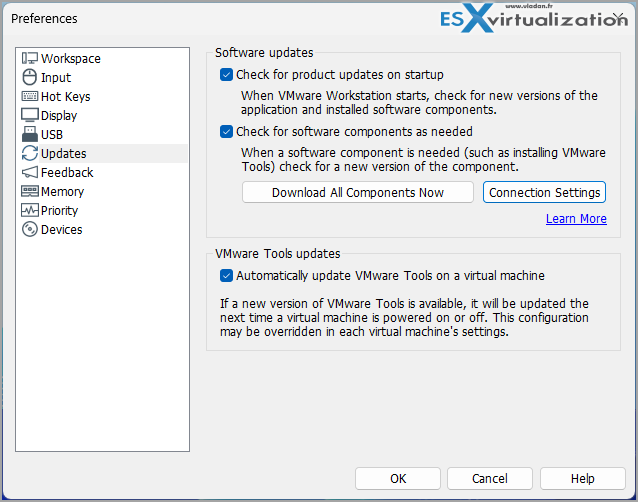
I know that the product has evolved over time, but one of the features stays really handy, and it is the Automatically update VMware tools on a virtual machine.
Known Issues to Watch
One gotcha: If you have encrypted VMs with vTPM (created in hardware version 22 from 25H2), downgrading to older hardware versions isn't supported. The VM won't start due to vTPM incompatibility. No workaround – stick to the current version or recreate if needed.
Final Words
VMware Workstation Pro 25H2u1 is a solid maintenance release that prioritizes security and fixes. Download it from the Broadcom support portal, install, and update those Tools. For full details, check the official release notes and VMSA-2026-0002.
Remember, VMware Workstation is FREE software. No license required, only VMware/Broadcom account if you wand/need to download it.
More posts from ESX Virtualization:
- Veeam Backup and Replication Upgrade on Windows – Yes we can
- Securing Your Backups On-Premises: How StarWind VTL Fits Perfectly with Veeam and the 3-2-1 Rule
- Winux OS – Why I like it?
- VMware Alternative – OpenNebula: Powering Edge Clouds and GPU-Based AI Workloads with Firecracker and KVM
- Proxmox 9 (BETA 1) is out – What’s new?
- Another VMware Alternative Called Harvester – How does it compare to VMware?
- VMware vSphere 9 Standard and Enterprise Plus – Not Anymore?
- VMware vSphere Foundation (VVF 9) and VMware Cloud Foundation (VCF 9) Has been Released
- Vulnerability in your VMs – VMware Tools Update
- VMware ESXi FREE is FREE again!
- No more FREE licenses of VMware vSphere for vExperts – What’s your options?
- VMware Workstation 17.6.2 Pro does not require any license anymore (FREE)
- Two New VMware Certified Professional Certifications for VMware administrators: VCP-VVF and VCP-VCF
- Patching ESXi Without Reboot – ESXi Live Patch – Yes, since ESXi 8.0 U3
- Update ESXi Host to the latest ESXi 8.0U3b without vCenter
- Upgrade your VMware VCSA to the latest VCSA 8 U3b – latest security patches and bug fixes
- VMware vSphere 8.0 U2 Released – ESXi 8.0 U2 and VCSA 8.0 U2 How to update
- What’s the purpose of those 17 virtual hard disks within VMware vCenter Server Appliance (VCSA) 8.0?
- VMware vSphere 8 Update 2 New Upgrade Process for vCenter Server details
- What’s New in VMware Virtual Hardware v21 and vSphere 8 Update 2?
- vSphere 8.0 Page
- ESXi 7.x to 8.x upgrade scenarios
- VMware vCenter Server 7.03 U3g – Download and patch
- Upgrade VMware ESXi to 7.0 U3 via command line
- VMware vCenter Server 7.0 U3e released – another maintenance release fixing vSphere with Tanzu
- What is The Difference between VMware vSphere, ESXi and vCenter
- How to Configure VMware High Availability (HA) Cluster
Stay tuned through RSS, and social media channels (Twitter, FB, YouTube)





Leave a Reply