
Over the years on this blog, I’ve documented dozens of Veeam upgrades, migrations, and best practices — from early versions running on vSphere 4.x all the way through v12 with its hardened repositories and immutability features. Today, we’re looking at one of the biggest platform shifts Veeam has introduced: moving from a traditional Windows-based Veeam Backup & Replication (VBR) 12.x deployment to the new Veeam Software Appliance (VSA) in version 13. The latest version of Veeam Backup & Replication is 13.0.2.29, released on May 27, 2026.
The VSA is a fully hardened, Linux-based virtual appliance that brings lower resource overhead, a reduced attack surface, simplified patching, and modern management capabilities. Many administrators running production environments on Windows are now evaluating this transition. In this detailed guide, I’ll walk you through the entire process based on official Veeam documentation (primarily KB4800), my own lab testing, and real-world considerations from the community.
This is not a simple in-place upgrade. It’s a platform migration, so expect planning, testing, and some downtime. As of mid-2026, the process is still in a guided pilot phase for many users, meaning Veeam Support involvement is highly recommended.
Why Consider Migrating to the Linux-Based Veeam Software Appliance?
Running VBR on Windows has been rock-solid for over a decade, but times are changing. The Veeam Software Appliance (VSA) offers several compelling advantages:
- Security: Minimal Linux OS with hardened configuration, automatic security updates, and FIPS mode support.
- Efficiency: Lower CPU/memory footprint compared to a full Windows Server installation. No need for Windows licensing in the backup server layer.
- Management: Dedicated Veeam Host Management web interface (Cockpit-based) on port 10443 for OS-level tasks, plus the familiar Windows console for full backup administration.
- Future-proofing: Aligns with Veeam’s direction toward appliance-based deployments. (The Windows version will be phased out in future releases).
In my lab environment (mixed vSphere and Proxmox, XCP-NG), the VSA felt noticeably snappier in the UI, and repository operations benefited from the Linux backend optimizations.
Of course, not everything migrates perfectly – more on limitations later.
Prerequisites and Thorough Planning
Success depends on preparation. Allocate time for this phase.
Licensing Requirements
You must use Veeam Universal License (VUL) – instance-based. Legacy socket-based licenses are not supported on VSA. Verify this in the console under License Information and convert if necessary.
Version Readiness
- Your Windows VBR should be on the latest 12.3.x patch.
- Upgrade path: 12.3.1 (build 12.3.1.1139) or newer → v13.0.2+ recommended.
- Check deprecated features and unsupported platforms in the v13 Release Notes.
Infrastructure Readiness
- Ensure the future VSA can reach all protected infrastructure (vCenter, Hyper-V hosts, proxies, repositories, agents) via proper networking, DNS, and firewall rules.
- Size the VSA VM appropriately — match or exceed your current backup server’s resources (CPU, RAM, and disk for configuration database).
- All Veeam Agents (Windows, Linux, Mac) must be upgraded to version 13 before migration.
Support Engagement
Register on the official VSA conversion portal and enable “Receive proactive support” in your VBR console. Open a migration case with Veeam Support. They will provide an authorization key and monitor the process, especially important during the pilot phase.
Key Limitations (from KB4800)
- Cloud Connect deployments are not migratable.
- Veeam Plug-in for Google Cloud configurations do not transfer.
- Some storage snapshot integrations (e.g., certain HPE Nimble, Hitachi, HPE XP) may require timezone matching or re-configuration.
- CDP policies need manual recreation.
- Long pre-v12 job history in the database can block migration — reduce session history retention temporarily if needed.
- Entra ID Tenant Backup jobs require special handling (secondary destinations recommended).
Screenshot of Veeam KB4800 Limitations Section
Step 1: Upgrade Windows VBR 12.x to v13
Perform a standard in-place upgrade first.
- Review the full upgrade checklist in the Veeam User Guide.
- Stop all jobs, disable schedules, and ensure no active tasks (SureBackup, Instant Recovery, etc.).
- Create an encrypted configuration backup.
- Run the v13 installer (ISO-mounted). Handle any .NET or prerequisite updates.
- Reboot if prompted and update all remote components.
- Validate backups and restores before proceeding.
This step keeps your environment operational while preparing the Linux target.
Step 2: Deep Preparation of the Windows Environment
Follow KB4800 meticulously:
- Apply the latest v13 patches.
- Remove unsupported elements (Google plugin, certain storage integrations).
- For Agent policies: Ensure disabled policies are properly applied and synced.
- Handle Entra ID backups: Configure secondary repository destinations for easier post-migration import.
- Stop and disable specific Veeam services as documented.
- Export a fresh encrypted .bco configuration backup.
- Document repository paths, proxy settings, and custom scripts.
Veeam Configuration Backup Wizard in v13
Step 3: Deploy the Veeam Software Appliance
- Download the VSA ISO from your Veeam account.
- Create a new VM with recommended resources (SCSI controller, sufficient vCPU/RAM).
- Boot from the ISO and complete the initial setup (network configuration, hostname, etc.).
- Access the web-based initial configuration.
- Install your VUL license.
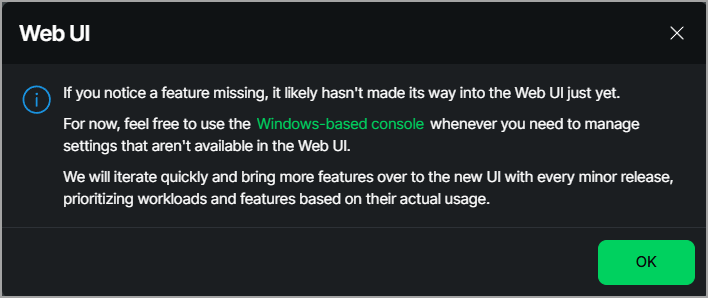
- Install the Windows-based Veeam Backup & Replication Console on your admin workstation — the web UI is excellent for daily tasks but the thick client unlocks full functionality.
Explore the new Veeam Host Management interface for Linux-side administration (networking, updates, monitoring).
Veeam Software Appliance First Boot and Configuration
Step 4: Execute the Platform MigrationWith Support assistance:
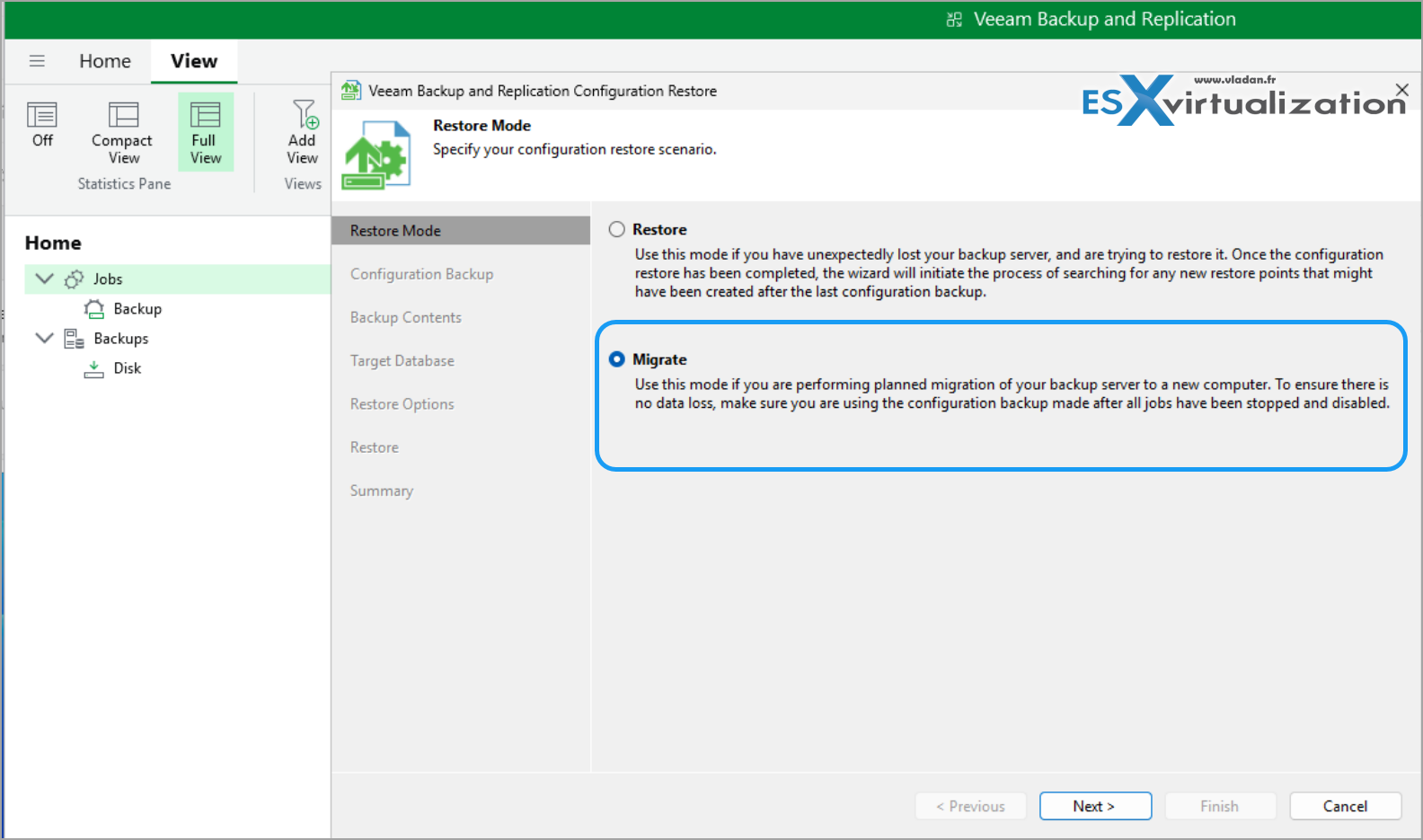
- On the VSA, navigate to Configuration Restore → Select Migrate mode.
- Upload the encrypted .bco file from the Windows server.
- Provide the source Windows server address/credentials and the authorization key.
- Initiate the migration process.
The tool transfers configuration database content, jobs, policies, inventory, and most settings. Expect the process to take time depending on database size.Backup files and repository data are not automatically moved. After migration:
- Re-scan existing repositories.
- Use Move Backups or SOBR policies for chain management if relocating data.
- Reconfigure non-migrated items (CDP, custom scripts).
Post-Migration Validation and Optimization
- Test backup jobs, synthetic fulls, and — most importantly — restores (VM, file-level, application items).
- Verify proxy and repository performance.
- Monitor via the new Host Management dashboard.
- Gradually decommission the old Windows server once everything is stable for at least one full backup cycle.
- Enable dark mode and explore new v13 features like enhanced AI governance (where available).
In my testing, repository rescans completed without major issues, and the Linux backend handled deduplication efficiently.
Common Challenges and Pro Tips
- Downtime minimization: Deploy and configure VSA in parallel with the live Windows server.
- Large environments: Consider phased migration of jobs/repositories.
- Rollback plan: Keep the Windows server powered on with config backups.
- Performance gains: Many users report lower overall resource usage on VSA.
- Mixed management: You can continue using the Windows console to manage the Linux VSA during transition.
Always test in a non-production environment first if possible.
Final Words
Migrating from Veeam 12.x on Windows to v13 on the Linux-based Software Appliance is a worthwhile project for most organizations looking to modernize their backup infrastructure. While it requires careful planning and Support collaboration, the end result is a cleaner, more secure, and efficient platform.
The process continues to improve with each patch — check KB4800 regularly for updates. If you’re running a homelab or smaller production setup, this is an excellent opportunity to get hands-on with the future of Veeam.
- Veeam KB4800: Platform Migration Guide (Windows to Linux)
- Official V13 User Guide – Veeam Software Appliance Deployment
- Veeam VSA Conversion Portal
More posts from ESX Virtualization:
- Veeam Backup and Replication Upgrade on Windows – Yes we can
- Securing Your Backups On-Premises: How StarWind VTL Fits Perfectly with Veeam and the 3-2-1 Rule
- Winux OS – Why I like it?
- VMware Alternative – OpenNebula: Powering Edge Clouds and GPU-Based AI Workloads with Firecracker and KVM
- Another VMware Alternative Called Harvester – How does it compare to VMware?
- VMware vSphere 9 Standard and Enterprise Plus – Not Anymore?
- VMware vSphere Foundation (VVF 9) and VMware Cloud Foundation (VCF 9) Has been Released
- Vulnerability in your VMs – VMware Tools Update
- VMware ESXi FREE is FREE again!
- No more FREE licenses of VMware vSphere for vExperts – What’s your options?
- VMware Workstation 17.6.2 Pro does not require any license anymore (FREE)
- Two New VMware Certified Professional Certifications for VMware administrators: VCP-VVF and VCP-VCF
- Patching ESXi Without Reboot – ESXi Live Patch – Yes, since ESXi 8.0 U3
- Update ESXi Host to the latest ESXi 8.0U3b without vCenter
- Upgrade your VMware VCSA to the latest VCSA 8 U3b – latest security patches and bug fixes
- VMware vSphere 8.0 U2 Released – ESXi 8.0 U2 and VCSA 8.0 U2 How to update
- What’s the purpose of those 17 virtual hard disks within VMware vCenter Server Appliance (VCSA) 8.0?
- VMware vSphere 8 Update 2 New Upgrade Process for vCenter Server details
- What’s New in VMware Virtual Hardware v21 and vSphere 8 Update 2?
- vSphere 8.0 Page
- ESXi 7.x to 8.x upgrade scenarios
- VMware vCenter Server 7.03 U3g – Download and patch
- Upgrade VMware ESXi to 7.0 U3 via command line
- VMware vCenter Server 7.0 U3e released – another maintenance release fixing vSphere with Tanzu
- What is The Difference between VMware vSphere, ESXi and vCenter
- How to Configure VMware High Availability (HA) Cluster
Stay tuned through RSS, and social media channels (Twitter, FB, YouTube)





Thanks again for another great article. I use the community edition at home in my lab, been a Veeam fan for years, sold a lot of it in the field. Unless they’ve changed their policy I don’t think we can use the appliance in our home labs. I’ll have to verify that, last time I checked a few months ago it was not an option for home labs?