ESX Virtualization

VMware ESXi, vSphere, VMware Backup, Hyper-V... how-to, videos....

Nakivo Backup and Replication - #1 Backup solution for Virtual, physical, cloud, NAS and SaaS

Menu
  • Certification
      • VCP-VVF Administrator
          • vcp-vvf-2.
        • Close
      • VCP-DCV vSphere 8
          • vcp2024-125.
        • Close
    • Close
  • VMware
    • Configuration Maximums
    • vSphere
      • VVF 9 and VCF 9
      • vSphere 8.0
      • vSphere 7.0
      • vSphere 6.7
      • vSphere 6.5
      • vSphere 6.0
      • Close
    • VMworld
      • VMware EXPLORE 2024
      • VMware EXPLORE 2023
      • VMware EXPLORE 2022
      • VMworld 2019
      • VMworld 2018
      • VMworld 2017
      • VMworld 2016
      • VMworld 2015
      • VMworld 2014
      • VMworld 2013
      • VMworld 2012
      • VMworld 2011
      • Close
    • Close
  • Proxmox
    • Proxmox
    • Close
  • Microsoft
    • Windows Server 2012
    • Windows Server 2016
    • Windows Server 2019
    • Windows Server 2025
    • Close
  • Categories
    • Tips – VMware, Microsoft and General IT tips and definitions, What is this?, How this works?
    • Server Virtualization – VMware ESXi, ESXi Free Hypervizor, VMware vSphere Server Virtualization, VMware Cloud and Datacenter Virtualization
    • Backup – Virtualization Backup Solutions, VMware vSphere Backup and ESXi backup solutions.
    • Desktop Virtualization – Desktop Virtualization, VMware Workstation, VMware Fusion, VMware Horizon View, tips and tutorials
    • How To – ESXi Tutorials, IT and virtualization tutorials, VMware ESXi 4.x, ESXi 5.x and VMware vSphere. VMware Workstation and other IT tutorials.
    • Free – Free virtualization utilities, ESXi Free, Monitoring and free backup utilities for ESXi and Hyper-V. Free IT tools.
    • Videos – VMware Virtualization Videos, VMware ESXi Videos, ESXi 4.x, ESXi 5.x tips and videos.
    • Home Lab
    • Reviews – Virtualization Software and reviews, Disaster and backup recovery software reviews. Virtual infrastructure monitoring software review.
    • Close
  • Partners
    • NAKIVO
    • StarWind
    • Xorux
    • Close
  • This Web
    • News
    • ESXi Lab
    • About
    • Advertise
    • Archives
    • Disclaimer
    • Privacy policy
    • PDFs and Books
    • Close
  • Free

How-to enable Thin Print in VMware Workstation 7

By Vladan SEGET | Last Updated: April 8, 2012

Shares

My exploration of ThinPrint in VMware Workstation 7.

With the latest version of  VMware Workstation 7, there is one cool feature called Thin Print. The feature I explained in this blog post together with other new functionalities.

The question is How-to enable this feature? Because it's not enabled by default… I've done this test on my laptop running Windows 7 x64. The Virtual Machine used for the test was Windows Server 2008 R2 x64.   If virtual printing is enabled in the virtual machine setting, all of the printers installed on the host operating system are available in the guest operating system. When you enable the virtual printer, Workstation configures a virtual serial port 1 to communicate with the host printers.

But, what if the VM does not have serial port? (my case…). I could see actually not ALL my printers available on my laptop inside of the VM, but only one out of three of them …  My laptop DOES NOT has serial port anyway…

So I added the Serial port to the VM anyway (FYI: it's been added as a Serial port 2), to try what's happens. Nothing, I still can see only one of my three printers installed on my Laptop.(The DEFAULT one). And that's it. I could see only the Default printer.

Someone could ask. How do you change this printer if you want to print on another printer available on your physical system (my laptop)? Well you just change the default printer on your physical system, and inside of your VM go and refresh the printers window (or hit F5 key). And that's it. It changes immediately. No reboot or log off are necessary.

Normally when you need to enable virtual printing just follow this step.

First Stop your VM (not suspend) and go to VirtualMachineSettings->Hardware->Add…->Virtual Printer
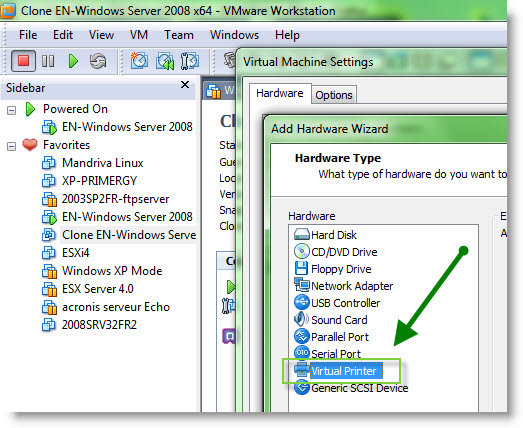

Then… That's it.

If you are registered user of VMware Workstation, you can register for free online course here.


Vote !
Shares

| Filed Under: Desktop Virtualization Tagged With: enable virtual printing VMware Workstation 7, how-to enable virtual printing Vmware Workstation 7, Thin Print, Thinprint VMware Workstation 7, Virtual printing in VMware Workstation 7

About Vladan SEGET

This website is maintained by Vladan SEGET. Vladan is as an Independent consultant, professional blogger, vExpert x17, Veeam Vanguard x11, VCAP-DCA/DCD, ESX Virtualization site has started as a simple bookmarking site, but quickly found a large following of readers and subscribers.

Connect on: Facebook. Feel free to network via Twitter @vladan.

Comments

  1. ThinFreak says

    January 21, 2010 at 9:11 am

    Hello vladan,

    Are you able to choose between the printers if you print with an usual application like wordpad? As far as I know Windows 7 collates all printers which have the same port and the same driver and this happens if “virtual printing” is activated as all printers get a “TPVM.” port and the “ThinPrint Output Gateway” driver. Just right-click the one you see in the “Devices and Printers” View and expand “See whats printing”. You now will see all printer queues.

    Cheers

Private Sponsors


Featured

  • Thinking about HCI? G2, an independent tech solutions peer review platform, has published its Winter 2023 Reports on Hyperconverged Infrastructure (HCI) Solutions.
Click to Become a Sponsor

Most Recent

  • Reviving Old School Laptops with PrimTux: Battling Obsolescence on a Budget
  • Proxmox Datacenter Manager 1.0 released – a real vCenter Server Alternative?
  • Recovering a Corrupted Exchange Database with Stellar Repair for Exchange
  • Commvault at AWS re:Invent 2025: Pioneering AI-Enhanced Cyber Resilience with Cloud Unity
  • How to Set Up pfSense Community Edition as a Firewall Using VMware Workstation Pro 17 (2025 Edition)
  • HPE Morpheus VM Entreprise and Morpheus VM Essentials updates released – v8.0.11
  • Veeam Backup and Replication Upgrade on Windows – Yes we can
  • Commvault’s Cloud Unity Platform: Revolutionizing Enterprise Resilience in the AI Era
  • Securing Your Backups On-Premises: How StarWind VTL Fits Perfectly with Veeam and the 3-2-1 Rule
  • 3 New Advanced Certifications from VMware/Broadcom Released

Get new posts by email:


Deals

Support us on Ko-Fi


Buy Me a Coffee at ko-fi.com

VMware Engineer Jobs

VMware Engineer Jobs

YouTube

…

Find us on Facebook

ESX Virtualization

…

Copyright © 2025 ·Dynamik-Gen · Genesis Framework · Hosted with HostColor.com