ESX Virtualization

VMware ESXi, vSphere, VMware Backup, Hyper-V... how-to, videos....

Menu
  • Shop
    • Datacenter
      • vSphere Essentials
      • vSphere Essentials PLUS
      • vSphere Standard
      • vSphere with Operations Management
      • vCenter Server Standard
      • vSphere Remote Office Branch Office
    • Desktop
      • VMware Workstation Pro
      • VMware Fusion Pro
      • VMware Fusion
      • Player Pro
    • Datacenter and Cloud
      • VMware SRM
      • vCenter Server Editions
    • Desktop
      • VMware Mirage
      • VMware Socialcast
      • Horizon Flex
      • VMware Horizon
    • Close
  • Study Guides
      • VCP6.7-DCV
          • VCP6.7-DCV 2019
        • Close
      • VCP6.5-DCV
          • VCP65-DCV-cert
        • Close
      • VCP6-DTM
          • VCP6-DTM
        • Close
      • VMware Mirage
          • mirageVMware Mirage
        • Close
    • Close
  • VMware
    • Configuration Maximums
    • vSphere
      • vSphere 6.7
      • vSphere 6.5
      • vSphere 6.0
      • vSphere 5.5
      • vSphere 5.1
      • Close
    • VMworld
      • VMworld 2019
      • VMworld 2018
      • VMworld 2017
      • VMworld 2016
      • VMworld 2015
      • VMworld 2014
      • VMworld 2013
      • VMworld 2012
      • VMworld 2011
      • Close
    • Close
  • Microsoft
    • Windows Server 2012
    • Windows Server 2016
    • Windows Server 2019
    • Close
  • Categories
    • Tips – VMware, Microsoft and General IT tips and definitions, What is this?, How this works?
    • Server Virtualization – VMware ESXi, ESXi Free Hypervizor, VMware vSphere Server Virtualization, VMware Cloud and Datacenter Virtualization
    • Backup – Virtualization Backup Solutions, VMware vSphere Backup and ESXi backup solutions.
    • Desktop Virtualization – Desktop Virtualization, VMware Workstation, VMware Fusion, VMware Horizon View, tips and tutorials
    • How To – ESXi Tutorials, IT and virtualization tutorials, VMware ESXi 4.x, ESXi 5.x and VMware vSphere. VMware Workstation and other IT tutorials.
    • Free Stuff – Free virtualization utilities, ESXi Free, Monitoring and free backup utilities for ESXi and Hyper-V. Free IT tools.
    • Videos – VMware Virtualization Videos, VMware ESXi Videos, ESXi 4.x, ESXi 5.x tips and videos.
    • Home Lab
    • Reviews – Virtualization Software and reviews, Disaster and backup recovery software reviews. Virtual infrastructure monitoring software review.
    • Close
  • Partners
    • Altaro
    • NAKIVO
    • StarWind
    • Veeam
    • Vembu
    • Zerto
    • Close
  • This Web
    • News
    • ESXi Lab
    • About
    • Advertise
    • Archives
    • Disclaimer
    • IT Books
    • Close
  • Free Tools
  • Books

VDP advanced compared to VDP Standard and Migration Options

By Vladan SEGET | Last Updated: February 17, 2017

Shares

vSphere Data Protection, based on Amavar’s code (EMC), it is packaged as backup appliance which can leverage existing virtual infrastructure to be implemented. No need to buy a new hardware for installation of this backup server. In this post I compare VDP advanced compared to VDP Standard and how to migrate from standard to advanced.

I have done the install/config of VDP in my article here and you can also find other articles on the blog, like the one for resetting the VDP password.

vSphere Data Protection 5.5 is distributed with vSphere Essentials Plus and higher where the Advanced version of VDP 5.5 is a separate product. But its features make this product destined for customers needing additional layer of protection for enterprise applications like MS Exchange, SQL or Sharepoint, and also customers wanting to protect larger vSphere infrastructures.

Both versions are distributed as pre-packaged virtual appliance (VM) for easy deployment and management (integration in vSphere Web Client). The basic version of VDP supports up to 100 virtual machines per appliance.
VDP and VDP AdvancedYou might say that that’s possibly enough for your environment, but every environment grows. Few VMs a day or more and you’ll have to add an additional VDP appliance to be able to backup your additional VMs. So it’s quite important IMHO to size and predict the evolution of the backup infrastructure before installation. Note that you can have up to 10 VDP appliances registered within single vCenter server, but then you’ll have to connect to each of those appliances for managing the backup/restoration jobs as those jobs are managed per-appliance.

VDP Advanced version can backup up to 400 VMs per appliance and also the storage size is quadrupled at 8TB (2TB only in VDP standard). You might say that 2Tb isn’t much in the standard version, but take in mind that this size is a deduplicated storage size of the storage repository.

Both versions supports:

*********************************************************************

Shop for vSphere licenses at VMware Store:

  • vSphere Essentials Plus – vMotion, HA… 3 Hosts, vCenter
  • vSphere Essentials – 3 Hosts, vCenter
  • vSphere Standard – Per Physical CPU license

*********************************************************************

  • Image level backups
  • Individual disk backups
  • Image-level restore jobs
  • Image-level replication jobs
  • Direct to host recovery
  • Detachable/remountable data partitions
  • File level recovery.

What’s more in the Advanced version:

  • Application-level replication
  • Ability to expand current datastore
  • Backup to a Data Domain
  • Granular level restore of Microsoft Servers
  • Automatic backup verification
  • Application consistent backup support – guest-level backups and restores of Microsoft SQL Servers, Exchange Servers, and Share Point Servers, providing for application consistent backups of these servers.
  • 8TB of deduplicated data for storage of backups (per appliance)
  • Up to 400 VMs per VDP Advanced appliance

How to upgrade from VDP Standard?

VDP advanced does not differ from VDP standard from the technical standpoint (single deployment of VDP standard can be turned on into VDP advanced by entering a license.

Once the VDP is licensed (tighten to a host), the advanced options will became available, So no need to reinstall or upgrade.

Each host can have only one VDP Advanced license assigned to it. But single license can be assigned to multiple hosts, as long as the sum total CPU count of the hosts is less than or equal to the amount allowed by the license.

Make sure that all hosts in the cluster are licensed.

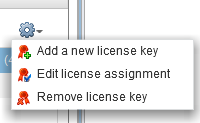
To enter the license first connect via vSphere web client > VDP > configuration tab > Add new license key.
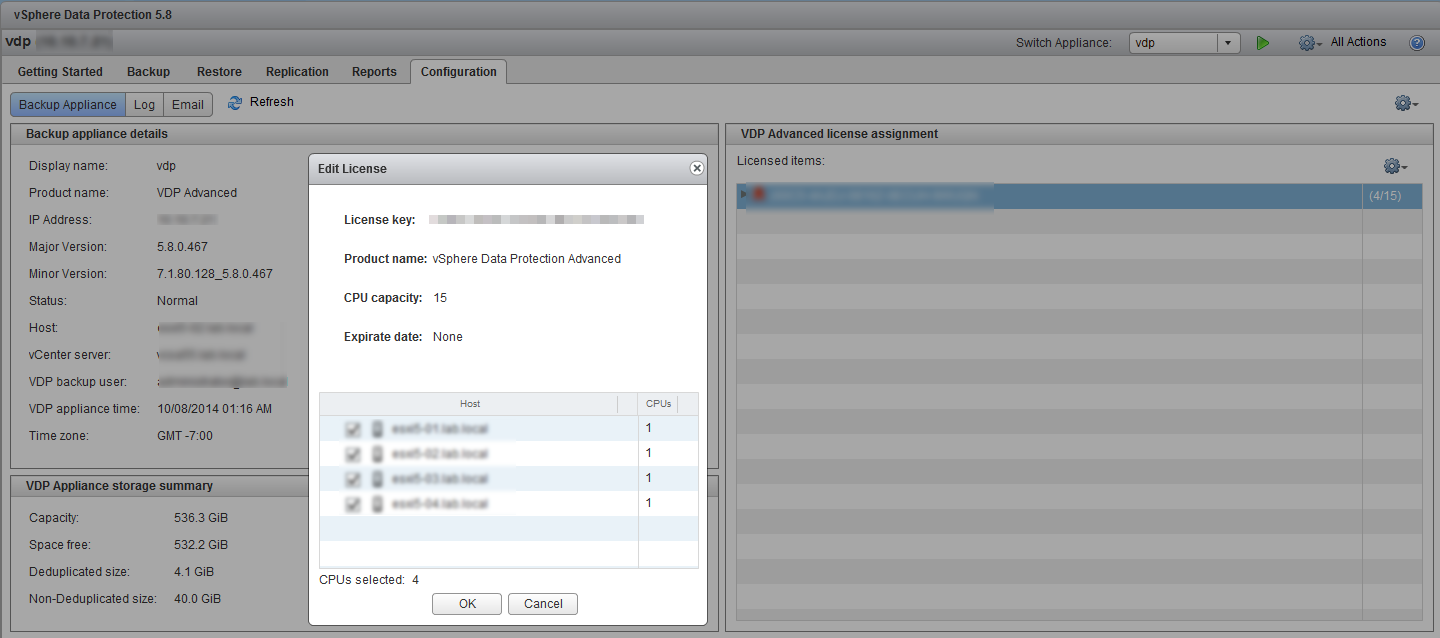
Difference between VDP and VDP Advanced

The deployment of VDP is straight forward and don’t differ from other products which are architected around Linux and packaged as a virtual appliance (OVA file).

The usual steps needs to take into account the DNS entries (forward and reverse), default gateway and subnet mask informations.

When it comes to planning for storage, there you shall do a proper planning for capacity:

  • How many data you’ll backup
  • How often the data changes (deltas)
  • Which frequency and retention period
  • Types of data (OS, Databases, individual files

VDP advanced has the possibility to increase the size of the backup repository, so even if you start small, you can grow up later. This isn’t possible by using the Standard version.

As a best practice VMware recommends to deploy the appliance and the storage of backups on VMFS based datastore.

The Administration guide provided by VMware is a must-read point and I won’t details every single aspect of it. The configuration UI is accessible through https://IP_of_VDP:8543/vdp-configure where you can manage different options including upgrades.
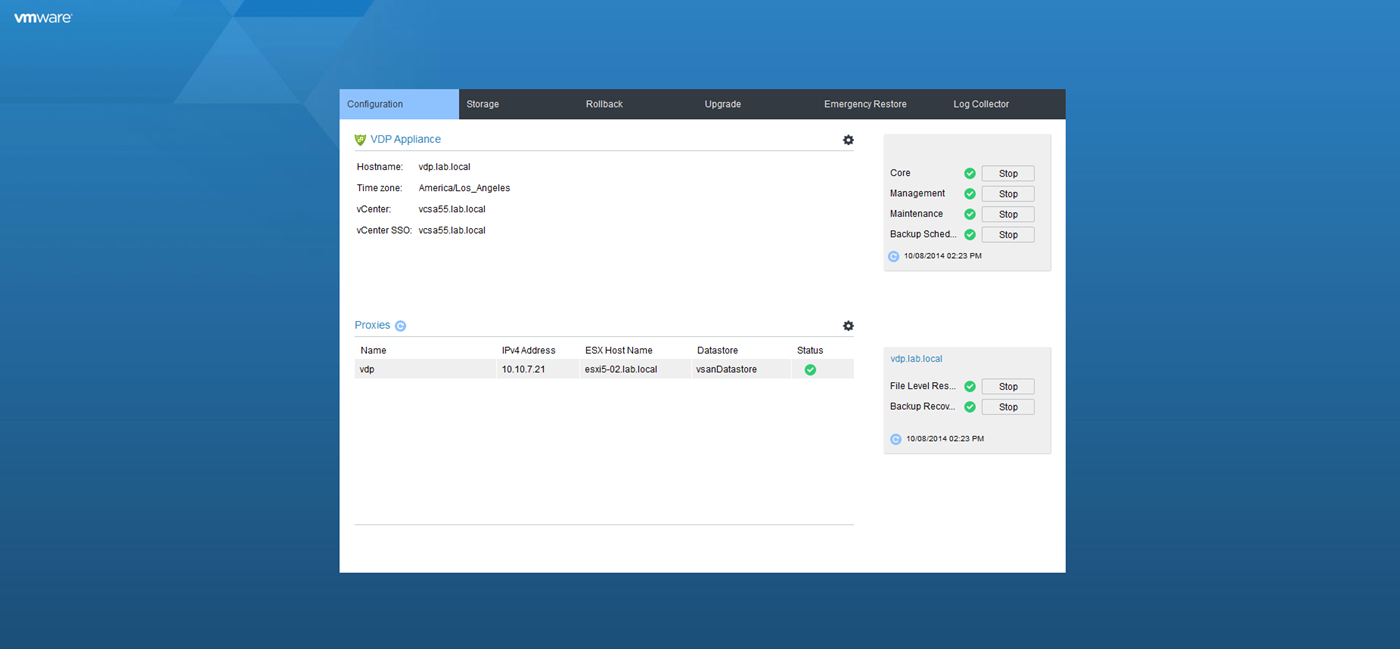
Differences between VDP and VDP Advanced

This configuration UI can also be leveraged in case of unavailability of vCenter. You can do an emergency restore without vCenter server.

Shares

| Filed Under: Backup Tagged With: VDP advanced compared to VDP Standard 6 Comments

About Vladan SEGET

This website is maintained by Vladan SEGET. Vladan is as an Independent consultant, professional blogger, vExpert x11, Veeam Vanguard x5, VCAP-DCA/DCD, VCP, ESX Virtualization site has started as a simple bookmarking site, but quickly found a large following of readers and subscribers.

Connect on: Facebook. Feel free to network via Twitter @vladan.

Comments

  1. Andras Herceg says

    November 4, 2014 at 10:46 am

    I have a VDP and VDPA 60-days trial licence. If I press the “switch to VDPA” button then later can I switch back to the VDP? Basically no. OK.
    But If I deploy a new VDP and during the configuration attaching the existing VDAP storage, will it work, what do you think, Vladan? (I wouldn’t exceed the 2TB storage size)

    Reply
    • Vladan SEGET says

      November 4, 2014 at 3:04 pm

      I assume that it’s lab environment. I never tested the rebuild of VDP/VDPA every 60 days with trial license as I have NFR being vExpert.

      But I think that you backups shall be fine when you attach them to newly configured VDP/VDPA. The process is called Detachable/remountable data partitions. More details here: http://www.vladan.fr/vmware-vdp-5-5-and-vdp-advanced-new-features-and-enhancements/

      Don’t hesitate to come back and report how it went -:).

      Reply
  2. Andras Herceg says

    November 4, 2014 at 5:21 pm

    thanks for the answer. It is not really a lab environment, the current VDP has big data disks. So I will not risk it. But I will deploy a new VDP, upgarde it to VDAP, than I will deploy another new VDP and reattach:)

    Reply
  3. Kra muko says

    June 1, 2016 at 8:32 pm

    Hi Vladan, What do you mean exactly by “File level recovery” Is it possible to restore a specific file or directory( windows server) ?

    Reply
    • Vladan SEGET says

      June 2, 2016 at 3:37 pm

      To be able to recover individual files from within your VMs. Ex. documents, photos…

      Reply
  4. Jogeshwar says

    August 27, 2017 at 12:25 pm

    HI Thanks for articles .

    Pls can you share information on licence of both the product. what is difference in both the licencing.

    licence is CPU based or VM based. how licensing works ?

    Reply

Leave a Reply Cancel reply

Your email address will not be published. Required fields are marked *

Nakivo Backup and Replication
Zerto 7Vembu Backup and Replication
Click to Become a Sponsor

Featured

  • Free Backup for VMware and Hyper-V - NAKIVO Backup & Replication
  • FREE Forever—Back up VMware with Altaro VM Backup. Grab your Free copy now!

Most Recent

  • Zerto Launching Analytics Resource Planning Tool
  • VMware vRealize Operations 8.0 Announced
  • VMware vRealize Network Insight 5.0 Announced!
  • VMware NSX-T 2.5 Announce
  • Load Balancing is All about Application Experience
  • Free PowerCLI E-book to download and a possibility to Win $20 Amazon voucher
  • How to use StarWind VSAN As a Resilient and Highly Available Shared Storage
  • VMware vSphere 6.7 U3 Announced – What’s New?
  • What is VMware Test Drive?
  • What Is VMware Remote Console and its differences with Web-based console

Most Liked

  • VCP6.7-DCV Study Guide - VCP-DCV 2019 certification
  • VCP6.5-DCV Study Guide - VCP-DCV 2019 Certification
  • vSphere 6.5
  • VCP6.5-DCV Objective 4.3 - Perform vCenter Server migration to VCSA
  • Zerto Virtual Replication 5.5 Update 3 Released

Fast NVMe Storage


Virtualization Software From VMware

  • VMware vSphere 6.7 U3 Essentials PLUS - vMotion, vSphere Replication...Included
  • VMware vSphere 6.7 U3 Essentials - 3 hosts, vCenter
  • vSphere Hypervisor Per Incident Support Click Here.
  • VMware Workstation 15 Pro and Upgrades - Best Desktop Virtualization Software
  • VMware Fusion 11 - Run Windows on MAC, and Upgrades
  • VMware Fusion 11 Professional - Restricted VMs, Virtualized VT-X/EPT... and Upgrades
**************************************************************************
  • Upgrade to vSphere Editions
  • Upgrade to vSphere Enterprise Plus
  • Upgrade to vSphere with vSOM Enterprise Plus
  • Upgrade to vSphere with Operations Management Editions
  • Upgrade to vSphere with Operations Management Enterprise Plus

Free Software

Altaro VM Backup – Protect your VMware and Hyper-V VMs for Free with Altaro VM Backup. 2 VM for Free, forever. Grab your copy now!
Veeam ONE Community (FREE) Edition 9.5 U4B – Download Now. monitor up to 10 instances of VMware, Hyper-V, Veeam Backup & Replication and Windows and Linux workloads!
Veeam Backup And Replication Community (FREE) Edition 9.5 U4B – protects up to 10 instances (VMs or Computers, laptops for Free.

Free Trials

Veeam Backup and Replication 9.5 Trial DownloadVeeam Backup & Replication 9.5 U4B Full Version Download (30 Days Trial – Get Your Copy !

YouTube

Find us on Facebook

ESX Virtualization


Copyright © 2019 ·Dynamik-Gen · Genesis Framework · Hosted with HostColor.com

X
Veeam Backup 9.5 U4B Community Edition
Download NOW
We use cookies to ensure that we give you the best experience on our website. If you continue to use this site we will assume that you are happy with it.Ok