
How to install vCenter 4.1 and ESX 4.1 best practices KB.
Browsing some KB articles this morning I found a KB with some best practices on how-to install ESX 4.1 and vCenter Server. I can highly recommend this one….It's actually a walk through point after point to be fulfilled to successfully install your vCenter and ESX 4. You'll find all the necessary answers there.
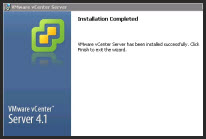 Some of the notes from there I retained I noted here, but make sure to check out the whole KB article:
Preparing the vCenter Server Installation Worksheet – Download and fill out the vCenter Server Installation Worksheet. Microsoft SQL Server 2005 Express is intended for use with small deployments of up to 5 hosts and/or 50 virtual machines.
- Memory – 3GB RAM. RAM requirements may be higher if your database runs on the same machine. VMware VirtualCenter Management WebServices requires 128Mb to 1.5GB of memory which is allocated at startup.
- vCenter Server 4.1 requires a 64 bit DSN and MUST NOT be a Domain controller. vSphere Compatibility Matrix.
- The computer name – no more than 15 characters.
- have reliable DNS and Time services.
Disk storage – 2GB. Disk requirements may be higher if your database runs on the same machine.
Recommended, but not mandatory:
- separate database for vCenter Server and vCenter Update Manager
vCenter server needs all this:
-
Apache Tomcat (64 bit)
-
Java Runtime Environment JRE (64 bit)
-
Active Directory Application Management (ADAM)
-
Visual C++ 2005 Runtime Redistributable
-
.NET 3.0 SP1 or above (optional based on DB selection)
If the machine on which you are installing vCenter Server has a previous version of vCenter installed (if it's on 64 bit hardware), you might want to upgrade instead of performing a fresh installation of vCenter Server.
Best practices for the ESX installations:
Check on the HCL (hardware compatibility list) page…. – I blogged about that earlier too ….
- System compatibility
- I/O compatibility (Network and HBA cards)
- Storage compatibility
- Backup software compatibility
32bits installation are no longer supported. VMware ESX 4.1 only installs and runs on servers with 64 bit x86 CPUs.
- Check the Enable Intel VT in the BIOS.
- If you are installing to the local disks and you have a SAN with Fiber Channel connected to the ESX host, make sure and detach the fiber before continuing with the installation. (Do not disable HBA cards in the BIOS)
- minimum size of the vmdk where the /, swap, and all the optional partitions are stored should be set for 8GB.
- Make a separate partition for /var/log.
Source: Installing ESX 4.1 and vCenter Server 4.1 best practices





Hi Vladan,
It’s not really a 8GB partition dedicated for swap, but as stated in the KB :
“The /, swap, and all the optional partitions are stored on a virtual disk called esxconsole-.vmdk. Set a size minimum of 8GB for this virtual disk”
Iann,
Aaaaa…
Sure, I know that… I better take my time to read my articles before I post them !!!
Thanks a lot for correcting me. I’ll correct my post….
Hi Vladan,
The link above for the “vCenter Server Installation Worksheet.pdf” does not work.
Thanks… I updated the link… -:)