
Hey everyone, Vladan here from ESX Virtualization. Over the years, I've tested and written about dozens of backup solutions for VMware, Hyper-V, and mixed environments, always keeping an eye on what actually works for small and medium-sized businesses (SMBs) without breaking the bank. Today, we're diving into a practical, cost-effective approach that's gained serious traction: using NAKIVO Backup & Replication installed directly on NAS devices as a dedicated backup appliance.
If you're an SMB admin juggling virtualization hosts, physical servers, cloud workloads, and file shares while worrying about ransomware and tight budgets, this setup deserves your attention. You keep primary backups onsite for fast restores, add strong ransomware protection through immutability and copies, and avoid expensive dedicated hardware or complex virtual appliances. Let's break it down.
Why NAS-Based Backup Appliances Make Sense for SMBs
In my experience covering backup tools since the late 2000s, one recurring pain point for smaller organizations is the 3-2-1 rule (or better) without exploding costs. You need fast, local backups for quick recovery, but also offsite or immutable copies to survive ransomware or site failures.
Running NAKIVO directly on a NAS device gives you an all-in-one backup appliance — hardware, storage, deduplication, compression, and management in a single box. No need for a separate Windows/Linux server or heavy VM just for backups. This offloads your production infrastructure, reduces power/cooling demands, and often delivers better performance because backups write directly to the NAS disks, bypassing slower network file protocols like SMB/NFS in many cases.
Performance gains are real. Users and NAKIVO documentation report up to 2x faster backups compared to traditional setups. For SMBs with limited IT staff, the web-based UI is intuitive, and policy-based automation handles a lot of the heavy lifting.
Supported NAS Devices and What They Offer
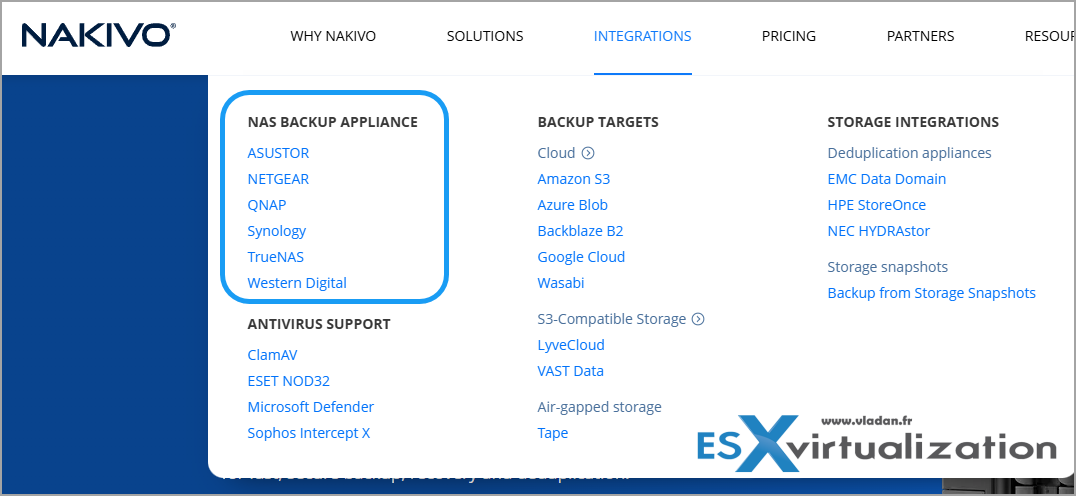
NAKIVO supports a solid range of popular NAS platforms for full Director + Onboard Transporter installation. This means the NAS becomes your central backup server. Here's the current lineup (always verify the latest supported models and firmware in NAKIVO's help center, as it evolves):
- Synology: Extensive support across DSM 6.0–7.3+ models, from entry-level to high-end like the FS and SA series. Great for those already in the Synology ecosystem with Snapshot Replication and Btrfs support for extra data integrity.
- QNAP: Broad compatibility with QTS, QuTS hero, and QuTScloud (physical and virtual NAS). Models range from TS-251 series upward. QNAP integration is mature and often praised for performance.
- ASUSTOR: Solid mid-range options with ADM firmware.
- NETGEAR ReadyNAS: Supported on compatible OS versions.
- Western Digital: My Cloud and similar models (check specifics).
- TrueNAS CORE (formerly FreeNAS): For those preferring ZFS-based systems.
- Buffalo and Generic ARM-based devices (with caveats — x86 preferred for full features; ARM has limitations like no VMware support in some configs).
Example Synology (image from Nakivo)
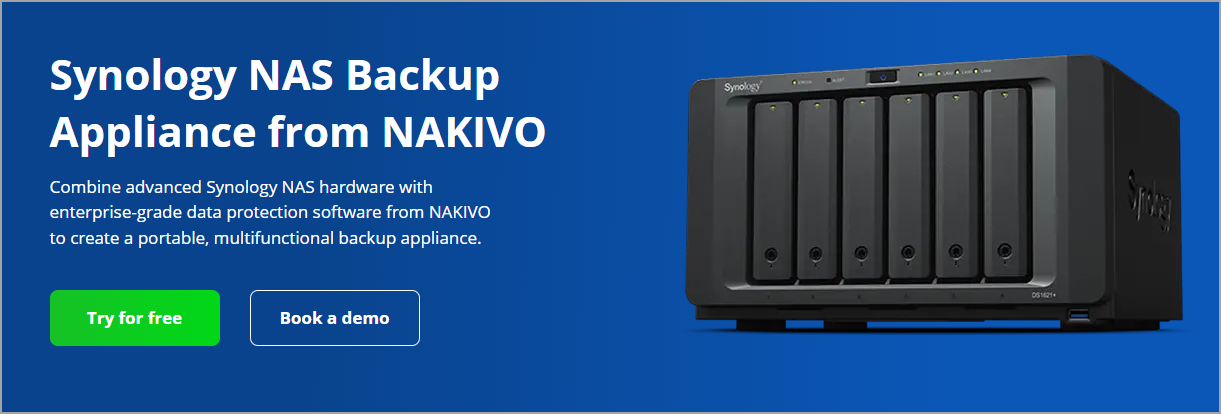
Not every model supports everything (e.g., ARM limitations for certain workloads), and you'll want sufficient RAM (8GB+ recommended for comfort) and CPU. But even mid-range NAS boxes handle SMB-scale environments surprisingly well.
I’ve seen admins repurpose existing NAS hardware they already own, turning “just storage” into a full backup solution. That’s huge for budget control.
Core Features That Matter for Onsite Protection and Ransomware Defense
NAKIVO shines in heterogeneous environments. You can protect:
- VMware vSphere, Microsoft Hyper-V, Nutanix AHV, Proxmox VE
- Physical Windows/Linux servers and workstations
- NAS/file shares (SMB/NFS)
- Cloud instances (AWS EC2) and Microsoft 365
Key strengths for the NAS appliance scenario:
Fast Incremental Backups and Efficiency: Native change tracking, global deduplication, compression, and skipping swap/unused blocks keep storage use low. Direct-to-disk writes speed things up.
Ransomware Protection Done Right: This is where it gets really useful. Enable immutability on your NAS repositories (Synology, QNAP, etc.) so backups can't be encrypted or deleted by attackers. Combine with:
- Backup Copy jobs to offsite locations, public clouds (AWS S3, Backblaze B2, Wasabi, Azure Blob), or tape.
- Air-gapped or detached storage options.
- Encryption (at rest, in transit, source-side).
- Malware scanning before restore.
- Role-based access control and 2FA.
You follow the 3-2-1 (or 3-2-1-1-0) best practice without extra complexity. Primary backups stay onsite on fast NAS storage for quick granular or full restores (including Flash VM Boot for near-instant recovery). Copies go elsewhere for DR.
Recovery Flexibility: Instant file-level recovery, full VM boot from backup, P2V, object recovery from apps like Exchange or SQL, and Site Recovery for automated DR testing and failover. Test your recoveries regularly — NAKIVO makes it straightforward.
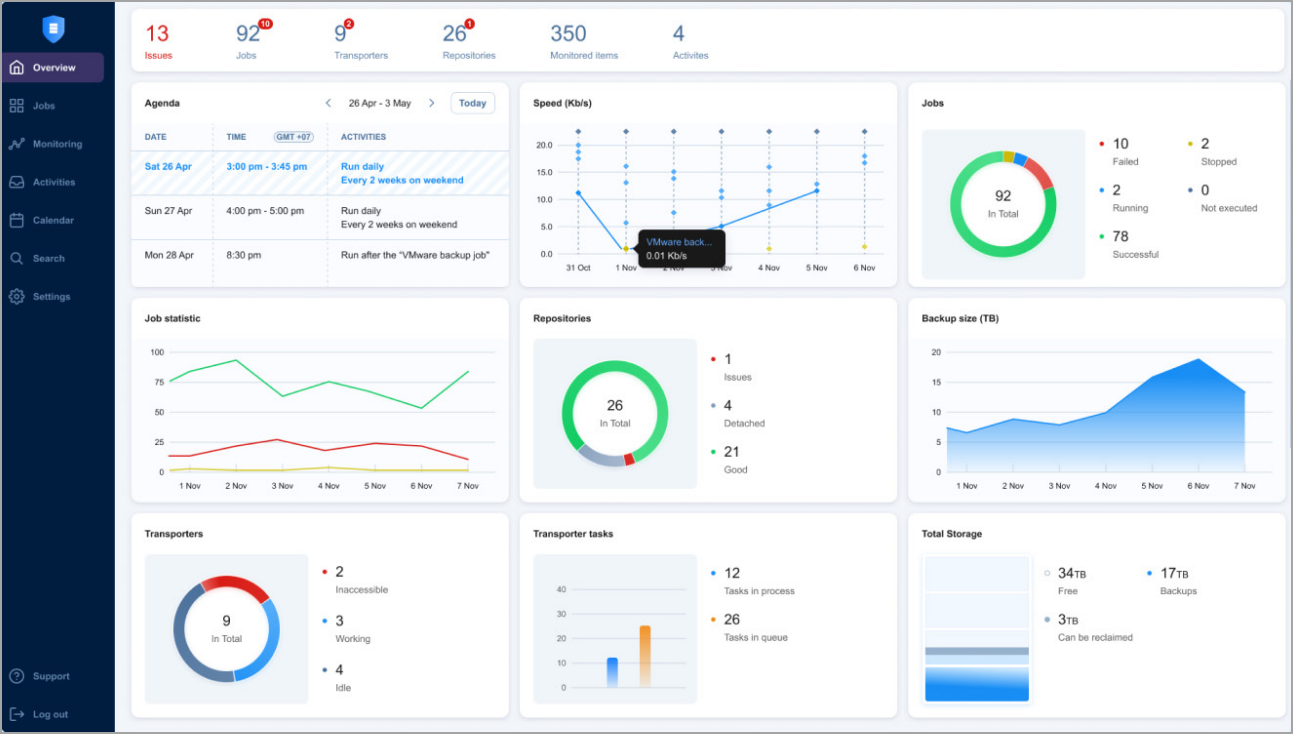
Management and Scalability: Single web dashboard, Calendar view for scheduling, job chaining, policy-based protection. Transporters scale easily if you grow beyond one NAS.
Licensing That Fits SMB Budgets: NAKIVO uses a per-socket or workload-based model that's often significantly cheaper than bigger-name competitors. There's even a Free Edition for smaller setups. No per-VM gouging in many scenarios.
Real-World SMB Deployment Tips
From what I've seen in reader feedback and my own tests over the years:
- Start Simple: Install the NAKIVO package via the NAS app store (Synology Package Center, QNAP App Center). It takes minutes. Configure a repository on the NAS volumes (use Btrfs or ZFS snapshots where available for extra protection).
- Resource Planning: Monitor CPU/RAM on the NAS. Start with lighter workloads and scale. Use a dedicated volume or SSD cache for the repository if possible. If planning your buy and the budget allows so, pick a device with beefier CPU.
- Networking: Direct LAN access helps performance. Set bandwidth throttling to avoid saturating links during business hours. (pick a device with 10Gb NIC if you ucan -:)
- 3-2-1 Implementation: Local immutable repo on NAS → Backup Copy to cloud or second NAS/site → Optional tape for long-term.
- Testing: Use the built-in verification and test recoveries. Flash VM Boot is a lifesaver for quick validation.
- Security Hardening: Keep NAS firmware updated, use strong auth, isolate the backup network if possible, and enable immutability from day one.
For existing NAS owners, this can be near-zero additional hardware cost. Even buying a decent new Synology or QNAP is often cheaper than a dedicated backup server + licenses.
Potential Drawbacks and Considerations
It's not perfect for every scenario. Very large enterprises might prefer dedicated appliances or scale-out options. ARM-based NAS have limitations (e.g., VMware support). High concurrent jobs need adequate RAM/CPU. Always check compatibility for your exact model.
Lastly, think about single point of failure. What if the motherboard of the NAS fries. You'll be without possibility to recover. (sure, you can possibly borrow a replacement unit > swap the disks in the correct order > recover configuration backup from cloud or other network location > recover your VM(s).
But for the vast majority of SMBs I've advised or read about, the pros far outweigh the cons.
Final Words
Affordable, Onsite, and ResilientDeploying NAKIVO on a NAS gives you enterprise-grade backup and ransomware protection without the enterprise price tag. You maintain fast onsite restores, offload production systems, and build a solid defense with immutability and copies — all while staying within budget.If you're tired of complex setups or high costs, this is one of the smartest “appliance” approaches available today. It fits perfectly with the practical, get-it-done mindset that SMB admins need.
Have you tried NAKIVO on NAS yet? Drop your experiences in the comments — I'd love to hear what models you're running and any tips. As always, test thoroughly in your environment before going live.Stay safe, backup often, and test your restores.
Links:
- Official What’s New PDF 11.2: https://www.nakivo.com/res/files/pdf/nakivo_backup_whats_new.pdf
- NAKIVO 11.2 download & 15-day trial
- Pricing page
Links: Nakivo
More about Nakivo on ESX Virtualization
- NAKIVO Backup & Replication 11.2: Full Proxmox VE 9.0 Support, VMware vSphere 9 Readiness – And Why It’s Literally Half the Price
- Nakivo 11.2 With Proxmox 9.1 and VMware vSphere 9 Support Released
- Diving Deep into Nakivo Backup & Replication: Lesser-Known Features, Multiplatform Flexibility, and Licensing Options for Cost-Effective Data Protection
- Nakivo Backup and Replication v11.1 Released
- Protect Mixed environments with Nakivo Physical Machine recovery (bare metal)
- NAKIVO Backup and Replication 11.0.1 Now Supports Additional Languages and Offers Flexible Deployment Options
- Major Release – Nakivo Backup and Replication v11 – VMware EXPLORE 2024
- Nakivo Backup and Replication: A Comprehensive Solution for Heterogeneous Environments
- Nakivo Backup and Replication New and upcoming features
- Nakivo Backup and Replication VMware EXPLORE 2023 (video)
- Nakivo Backup 10.10 and Real-Time Replication Details
- Nakivo Backup and Replication 10.9 GA Adds Ransomware Scan as well as Bare Metal Recovery
- Nakivo Backup and Replication 10.9 will be adding Backup Malware scan and more
- Nakivo Backup and Replication 10.8 With vSphere 8 Support and more
- First Backup Vendor with VMware vSphere 8 Support – Nakivo
- How to Add a Physical Server and create a first backup with Nakivo Backup and Replication Software
- Security Tips for Nakivo Backup and Replication users
- Backup a file share with Nakivo Backup and Replication
- NAS Backup with Nakivo Backup and Replication 10.6
- Nakivo Backup and Replication FREE Edition Features and Limitations
- How to configure immutable backups with Nakivo
- Nakivo Backup and Ransomware Recovery
More posts from ESX Virtualization:
- Veeam Backup and Replication Upgrade on Windows – Yes we can
- Securing Your Backups On-Premises: How StarWind VTL Fits Perfectly with Veeam and the 3-2-1 Rule
- Winux OS – Why I like it?
- VMware Alternative – OpenNebula: Powering Edge Clouds and GPU-Based AI Workloads with Firecracker and KVM
- Another VMware Alternative Called Harvester – How does it compare to VMware?
- VMware vSphere 9 Standard and Enterprise Plus – Not Anymore?
- VMware vSphere Foundation (VVF 9) and VMware Cloud Foundation (VCF 9) Has been Released
- Vulnerability in your VMs – VMware Tools Update
- VMware ESXi FREE is FREE again!
- No more FREE licenses of VMware vSphere for vExperts – What’s your options?
- VMware Workstation 17.6.2 Pro does not require any license anymore (FREE)
- Two New VMware Certified Professional Certifications for VMware administrators: VCP-VVF and VCP-VCF
- Patching ESXi Without Reboot – ESXi Live Patch – Yes, since ESXi 8.0 U3
- Update ESXi Host to the latest ESXi 8.0U3b without vCenter
- Upgrade your VMware VCSA to the latest VCSA 8 U3b – latest security patches and bug fixes
- VMware vSphere 8.0 U2 Released – ESXi 8.0 U2 and VCSA 8.0 U2 How to update
- What’s the purpose of those 17 virtual hard disks within VMware vCenter Server Appliance (VCSA) 8.0?
- VMware vSphere 8 Update 2 New Upgrade Process for vCenter Server details
- What’s New in VMware Virtual Hardware v21 and vSphere 8 Update 2?
- vSphere 8.0 Page
- ESXi 7.x to 8.x upgrade scenarios
- VMware vCenter Server 7.03 U3g – Download and patch
- Upgrade VMware ESXi to 7.0 U3 via command line
- VMware vCenter Server 7.0 U3e released – another maintenance release fixing vSphere with Tanzu
- What is The Difference between VMware vSphere, ESXi and vCenter
- How to Configure VMware High Availability (HA) Cluster
Stay tuned through RSS, and social media channels (Twitter, FB, YouTube)





Leave a Reply