
If you have been following the evolution of Veeam Backup & Replication over the last couple of years, you already know that version 13 marked a major architectural shift. The introduction of the Veeam Software Appliance (VSA) – a pre-built, pre-hardened JeOS-based Linux appliance delivered as ISO or OVA – changed the way many of us deploy and manage backup infrastructure. It brings stronger security, lower OS maintenance overhead, and immutability by design. But with great hardening comes a new challenge: what happens when the Host Management Console becomes unavailable and you lose access to the appliance?
That is exactly where the Veeam Live OS ISO comes into play. This specialized bootable media is designed as a last-resort recovery tool that gives system administrators local root access to the Veeam Backup & Replication Veeam Software Appliance when normal management paths are blocked. In this post I will walk you through what it is, how to use it, and why every Veeam admin should keep a copy ready.
What Exactly Is the Veeam Live OS ISO?
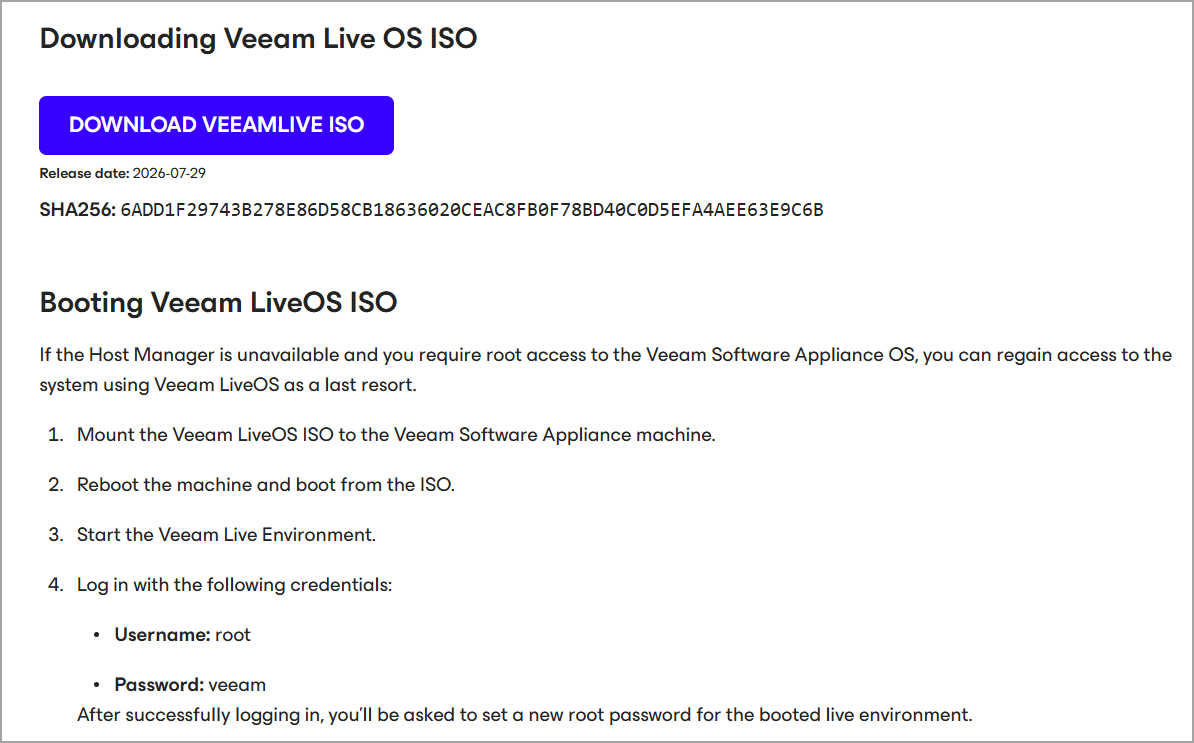
The Veeam Live OS ISO (sometimes called Veeam LiveOS) is a lightweight live Linux environment provided by Veeam. You can download it directly here: Download Veeam Live OS ISO. Once booted, it allows you to mount the appliance’s filesystem, chroot into it, and perform critical recovery operations such as unlocking locked accounts, resetting passwords, collecting hardware information, or troubleshooting deeper OS-level issues.
It is not a full installation media and it is not meant for everyday use. Think of it as the emergency key that Veeam intentionally keeps outside the hardened appliance itself. Because the VSA deliberately restricts root access and enforces MFA and other security controls, there must be a controlled way for administrators (and Veeam Support) to regain entry when something goes wrong – for example after a failed configuration change, a locked-out Host Admin account, or network-related problems that prevent the Host Management Console from responding.
You can find the official instructions and the current SHA256 checksum in Veeam KB4761. Always verify the hash after downloading – good security hygiene never hurts. This tool fits perfectly into the broader security posture that Veeam has been building, something I have covered extensively when discussing Veeam Immutable Backups – Your protection against Ransomware and the evolution of hardened repositories.
Why System Administrators Need This Tool
In traditional Windows-based Veeam Backup & Replication deployments we could usually log in with local administrator credentials or use remote tools to regain control. The Linux-based Veeam Software Appliance is different by design. Admins no longer receive unrestricted root privileges by default, SSH is restricted, and many sensitive operations require multi-factor authentication. This is excellent for reducing the attack surface and protecting against ransomware, but it also means that a single misconfiguration or forgotten credential can leave you locked out.Here are the practical scenarios where the Live OS ISO becomes invaluable:
- A Host Admin account is locked by faillock after too many failed login attempts and no other admin account is available.
- You need to reset a local account password when the Host Management Console is unreachable.
- Network configuration on the appliance is broken and you cannot reach the management interface.
- You must collect detailed hardware information for Veeam Support.
- You need to inspect logs under /var/log or fix filesystem issues that prevent normal boot.
In short, it restores the ability to perform low-level maintenance without having to reinstall the entire appliance and lose configuration. For anyone running production VSA instances – especially in larger environments or air-gapped setups – having this ISO on a USB stick or ready in the hypervisor’s ISO library is simply good operational practice.I have already covered related hardening topics in earlier posts such as Veeam VHR ISO v2 – 2025 Download and Install, What is Veeam VHR and how to quickly install and create hardened repository?, and How to Make Veeam Backup and Replication 12.1 More Secure.
The Live OS ISO complements those hardened repository solutions by giving you recovery options for the backup server itself. You may also find value in reading about Veeam 12.1 Four-Eyes Authorization as another layer of protection that works hand-in-hand with these recovery tools.
How to Use the Veeam Live OS ISO – Step by Step
The process is straightforward once you have the ISO.
- Download the latest Veeam Live OS ISO from the official link above Download Veeam Live OS ISO and verify the SHA256 checksum.
- Mount the ISO to the Veeam Software Appliance machine (physical server, VM, or cloud instance). In a virtual environment this is usually as simple as connecting the ISO in the hypervisor console.
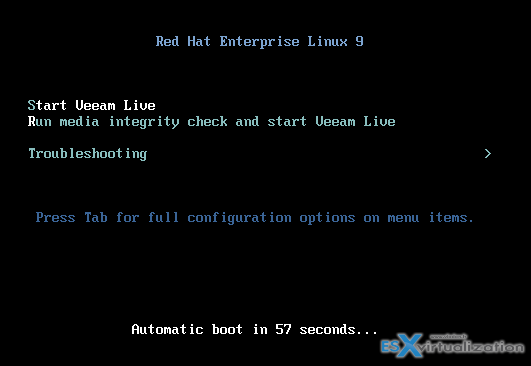
- Reboot the appliance and boot from the ISO. Select the Veeam Live Environment option.
- Log in with the default credentials:
Username: root
Password: veeam
You will immediately be prompted to set a new root password for the live session. Choose a strong temporary password. - Once inside the live environment you can optionally start the SSH daemon if you prefer remote access:
systemctl start sshd
Note that networking may not come up automatically; use nmtui to configure IP settings if needed. - Mount the appliance’s filesystem with the dedicated helper script:
veeam_mount_system - Chroot into the mounted system:
veeam_chroot_system
From this point you are effectively working inside the appliance’s root filesystem. Common recovery tasks become possible.
Useful Commands and Common Recovery Tasks
Unlock a locked user account
After mounting and chrooting, run:
faillock
to see which accounts are locked, then:
faillock –user <username> –resetChange a user password
Still inside the chroot:
passwd <username>
Important notes from Veeam documentation: resetting the password this way does not reset MFA. MFA for most accounts can only be cleared through the Host Management Console once you regain access. For the veeamadmin account, MFA reset via Live OS requires assistance from Veeam Support. The Veeam Security Officer account can only be recovered with the recovery token; losing both MFA and the token can permanently lock that account.
Collect hardware information
From the live environment (before or after mounting):
veeam_hw_collect
This writes a useful report to /tmp/hardware.txt that Support often asks for.
After finishing your work, exit the chroot, unmount if necessary, and reboot the system back into the normal Veeam Software Appliance OS. Remove the ISO so the machine does not boot into the live environment again.
Best Practices and Caveats for System Administrators
Treat the Live OS ISO as a controlled break-glass procedure. Document its use in your runbooks and restrict physical or hypervisor console access. Because it grants full root privileges, it should only be used when other recovery paths (additional Host Admin accounts, recovery tokens, etc.) have failed.
Always keep a configuration backup of your Veeam Backup & Replication instance. Even though the Live OS can help you regain OS access, it will not magically restore a corrupted configuration database. Pair it with regular configuration backups and, of course, immutable repositories – topics I have written about extensively, for example in Veeam Immutable Backups – Your protection against Ransomware and What is Inline Entropy Analysis in Veeam Backup and Replication 12.1.
If you are still running traditional Windows-based VBR servers, the Live OS ISO is less relevant today, but the direction is clear: more and more deployments are moving toward the hardened Linux appliance model.
Understanding recovery tools like this one is therefore becoming essential knowledge.
For those evaluating the full platform, check out 10 Key Benefits of Using Veeam CDP for Your Business, Veeam Backup & Replication 13.1 Released Today, and the deep dive on recent capabilities in Veeam Backup & Replication Q1 2026 Updates.
I also recommend reading the practical console guidance in Unlock your Veeam v13 With Windows-Based Console for VBR 13 and exploring cloud options such as What is Veeam Data Cloud Vault and how it can help SMBs. These articles help build a complete picture of modern Veeam data protection.
Final Words
The Veeam Live OS ISO is a quiet but powerful addition to the administrator’s toolkit. It respects the security posture of the modern Veeam Software Appliance while still giving experienced system administrators a reliable way to recover from lock-outs and low-level problems. In an era where ransomware and accidental misconfigurations can both threaten availability, having a tested recovery path is not optional – it is part of professional data protection practice.
Download the ISO from the official Veeam link Download Veeam Live OS ISO, test the boot process in your lab (I always recommend this), and store it securely alongside your other recovery media. When the day comes that the Host Management Console refuses to answer, you will be glad you did.As always, check the official Veeam KB4761 for the most current instructions and checksum, and keep an eye on the Veeam Help Center for any updates that arrive with future patches. For more practical Veeam content on this site, explore posts such as Veeam 12.1 Biggest Features, Protect your MongoDB with Veeam Backup and Replication 12.2, and Migration from VMware to another virtualization platform with Veeam Backup and Replication.Stay resilient!Stay tuned through RSS and social media channels for more practical Veeam and virtualization content.
More posts from ESX Virtualization:
- Veeam Bare Metal Recovery from Recovery partition
- Veeam Backup and Replication Upgrade on Windows – Yes we can
- Securing Your Backups On-Premises: How StarWind VTL Fits Perfectly with Veeam and the 3-2-1 Rule
- Winux OS – Why I like it?
- VMware Alternative – OpenNebula: Powering Edge Clouds and GPU-Based AI Workloads with Firecracker and KVM
- Another VMware Alternative Called Harvester – How does it compare to VMware?
- VMware vSphere 9 Standard and Enterprise Plus – Not Anymore?
- VMware vSphere Foundation (VVF 9) and VMware Cloud Foundation (VCF 9) Has been Released
- Vulnerability in your VMs – VMware Tools Update
- VMware ESXi FREE is FREE again!
- No more FREE licenses of VMware vSphere for vExperts – What’s your options?
- VMware Workstation 17.6.2 Pro does not require any license anymore (FREE)
- Two New VMware Certified Professional Certifications for VMware administrators: VCP-VVF and VCP-VCF
- Patching ESXi Without Reboot – ESXi Live Patch – Yes, since ESXi 8.0 U3
- Update ESXi Host to the latest ESXi 8.0U3b without vCenter
- Upgrade your VMware VCSA to the latest VCSA 8 U3b – latest security patches and bug fixes
- VMware vSphere 8.0 U2 Released – ESXi 8.0 U2 and VCSA 8.0 U2 How to update
- What’s the purpose of those 17 virtual hard disks within VMware vCenter Server Appliance (VCSA) 8.0?
- VMware vSphere 8 Update 2 New Upgrade Process for vCenter Server details
- What’s New in VMware Virtual Hardware v21 and vSphere 8 Update 2?
- vSphere 8.0 Page
- ESXi 7.x to 8.x upgrade scenarios
- VMware vCenter Server 7.03 U3g – Download and patch
- Upgrade VMware ESXi to 7.0 U3 via command line
- VMware vCenter Server 7.0 U3e released – another maintenance release fixing vSphere with Tanzu
- What is The Difference between VMware vSphere, ESXi and vCenter
- How to Configure VMware High Availability (HA) Cluster
Stay tuned through RSS, and social media channels (Twitter, FB, YouTube)





Leave a Reply