
Hey folks, Vladan here from ESX Virtualization. If you’ve been following my blog since way back in 2008 (yeah, we’re that old-school), you know I love diving into practical tools that actually solve real problems in the lab or on the desk — especially when hardware starts showing its age and Windows decides your machine is no longer “supported.”
Windows 11’s hardware requirements have left plenty of solid machines sitting on the sidelines. No TPM 2.0, older CPUs, limited RAM… and suddenly a perfectly usable laptop or desktop is pushed toward the landfill. That’s where Linux alternatives shine, and lately one name keeps popping up: AnduinOS.
AnduinOS is a custom Ubuntu-based Linux distribution designed to feel familiar to Windows users while delivering the speed, stability, and freedom of Linux. You can check it out and download it directly from the official site: https://www.anduinos.com/.
What Exactly Is AnduinOS?
AnduinOS takes Ubuntu’s solid package base (compatible with most apt packages) and layers a heavily customized GNOME desktop on top. The result looks and behaves a lot like Windows 11 — centered taskbar, familiar window controls, clean aesthetics — without the bloat, telemetry, or forced upgrades.
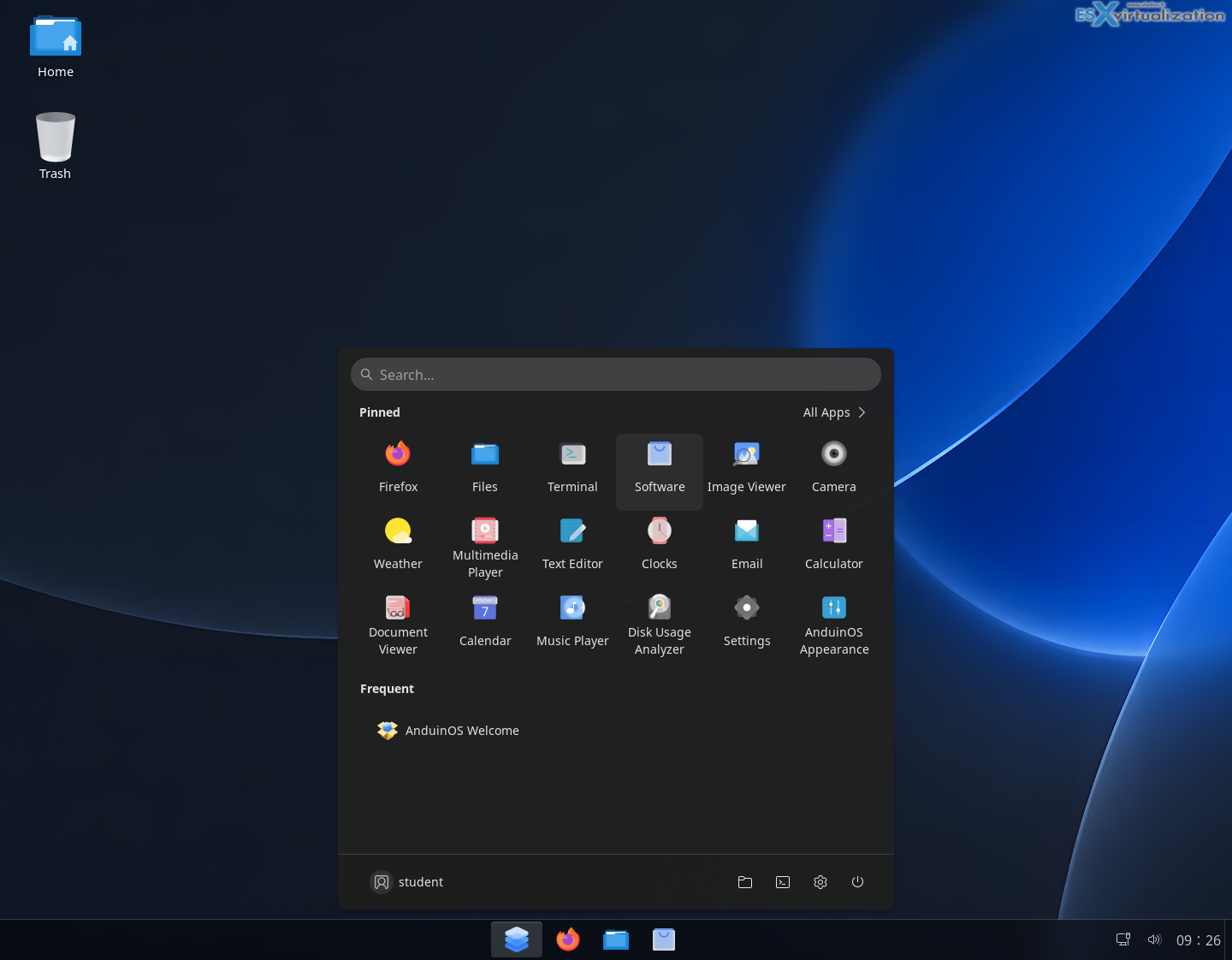
Simple desktop if you ask me…
It ships without Snap (a deliberate choice for many users who prefer cleaner packaging), leans on Flatpak for graphical applications (keeping them containerized and permission-controlled), and stays open-source under the GPL-v3 license. The ISO is compact — around 2.53 GB in recent builds — which makes downloading and creating a live USB straightforward. Live boot is quick, and you can run it persistently from a USB stick if you want a portable workstation in your pocket.
The project was created by Anduin Xue, a former Microsoft software engineer. He worked full-time at Microsoft (not on the Windows team) and built AnduinOS initially as a personal hobby project — essentially a comfortably themed Ubuntu that matched how he liked to work. In a public letter he explained that the goal was never commercial; it was simply about creating a system he enjoyed using in his spare time. The fact that someone with deep experience inside Microsoft chose to put this together for free, and keep it free, gives the project a certain credibility when it comes to understanding Windows user expectations.
Why It Works So Well on Older Hardware
This is where AnduinOS becomes especially interesting for the kind of machines many of us still have around the lab or at home.Official minimum requirements are modest: a 2 GHz processor, 4 GB of RAM, and about 20 GB of disk space, with support for both UEFI and legacy BIOS. Real-world reports and testing on older hardware show it runs comfortably even lower in many cases. Idle memory use is light, the desktop stays responsive, and you avoid the constant background processes and advertising layers that make modern Windows feel sluggish on aging silicon.
I see this as perfect for:
- Machines that fail Windows 11’s checks (older Intel Core series without TPM 2.0, for example).
- Laptops with 4–8 GB of RAM that struggle under Windows 10/11 after years of updates.
- Homelab test VMs or secondary machines where you want a full desktop experience without wasting resources.
- Users who simply want to keep a good 6–10 year old PC productive instead of buying new hardware.
Because it is Ubuntu underneath, hardware support is excellent — NVIDIA graphics, Wi-Fi, printers, and the usual suspects just work in most cases. ZRAM memory compression helps on systems with limited RAM, and the removal of unnecessary services keeps the system lean. Several independent testers have noted that AnduinOS feels snappier than Windows 11 on the same older hardware, which matches what you’d expect from a properly tuned Linux desktop.
Everyday Usability and the Transition Advantage
For Windows refugees the familiarity is a big plus. The desktop layout reduces the learning curve dramatically. You still get a full software ecosystem: Firefox as the default browser, easy access to Flatpak apps via Flathub, and the entire Ubuntu repositories via apt. Office work, browsing, light development, media, and even Steam gaming are all within easy reach.
Simple config wizard after install
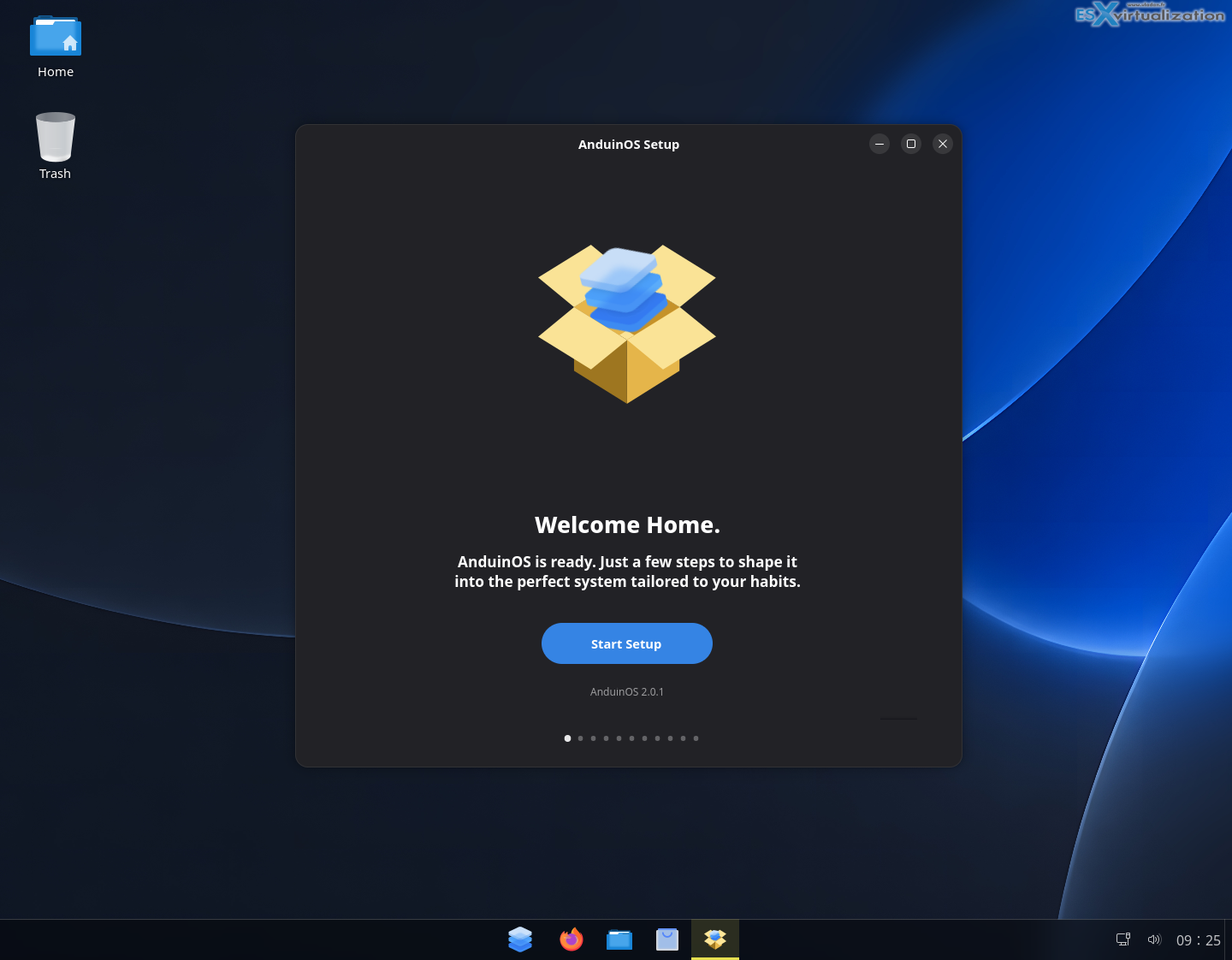
Privacy is another strong point.
AnduinOS is designed to collect nothing. No telemetry, no profiling. Combined with regular security updates from the Ubuntu base (LTS branches offer multi-year support), it gives users a stable, trustworthy daily driver.
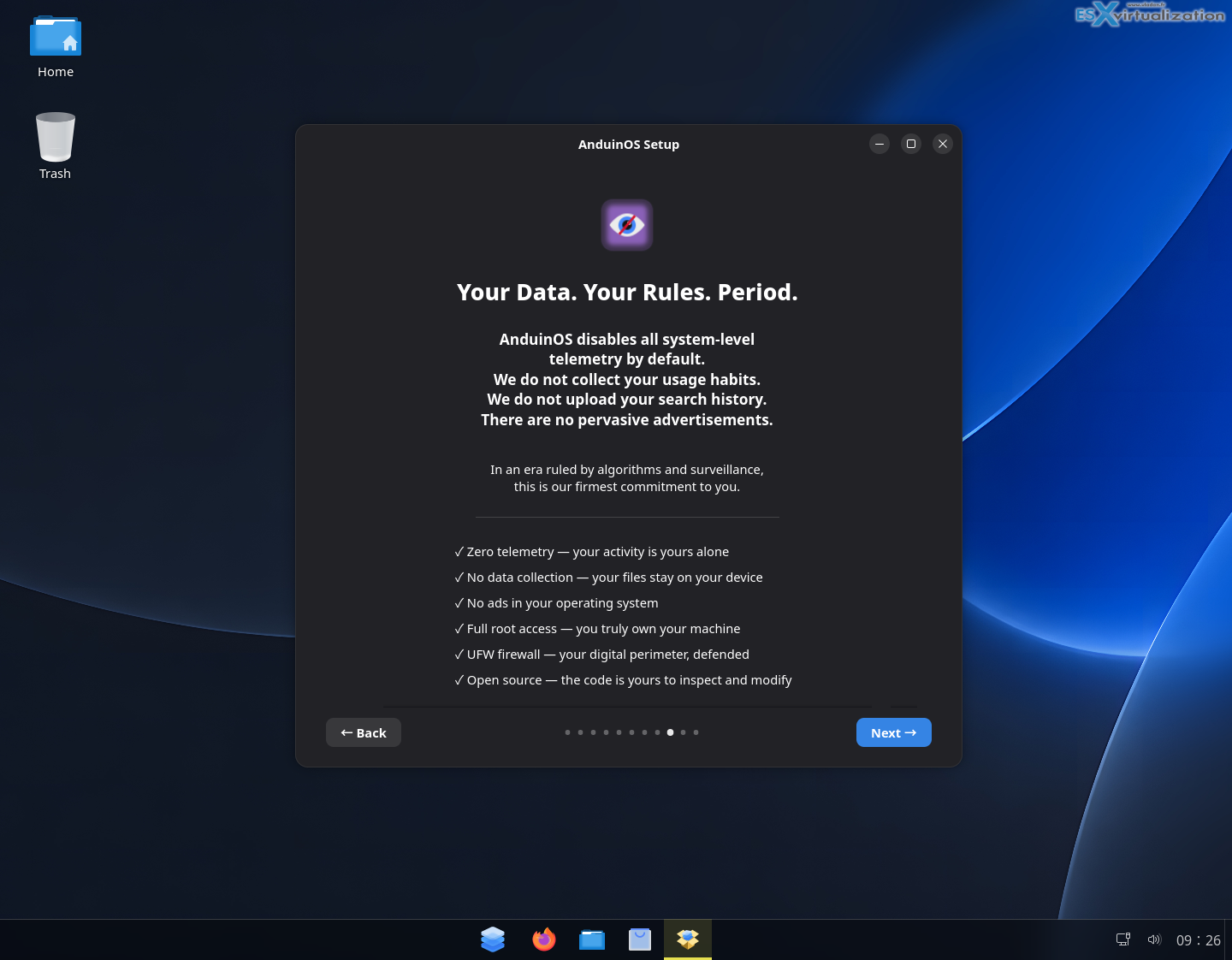
Installation follows the familiar Ubuntu path: boot the live ISO, click install, and you’re done in a short time. Language packs are handled cleanly (separate ISOs or options depending on the build), and the system is ready for daily use without hours of post-install tweaking.
Gaming
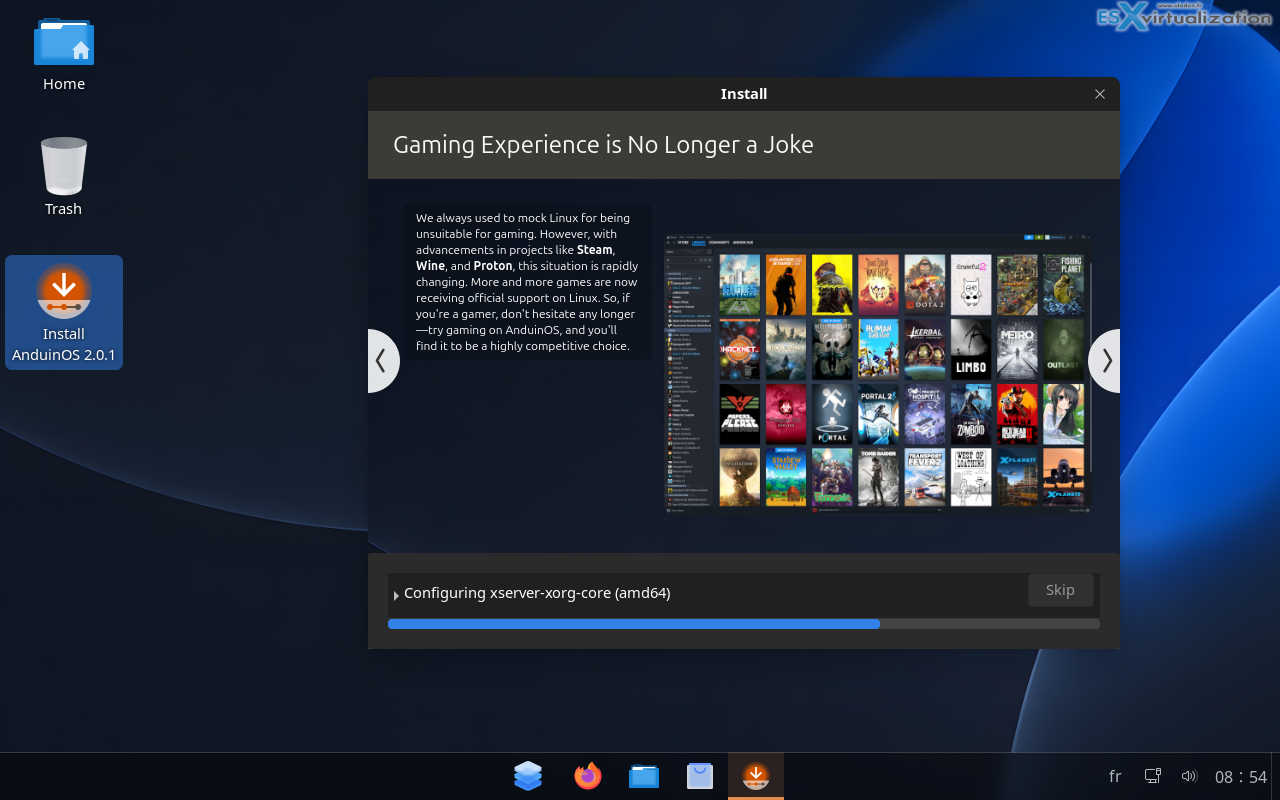
A Few Practical Notes
Like any relatively young distro maintained primarily by one person (though the Ubuntu foundation underneath is rock-solid), you should treat it with the usual open-source caution: test first, keep backups, and check the current release notes on the official site. Recent versions have moved to newer GNOME releases, kernel updates, and longer support windows on the LTS branch. The developer has been transparent about the project’s origins and intentions, and the source is publicly available.
For virtualization folks (this is still primarily a virtualization blog, after all), AnduinOS makes an excellent lightweight desktop guest in VMware Workstation, Proxmox, or ESXi labs when you need a Windows-like environment without the licensing and resource overhead of actual Windows.
Final Words
AnduinOS isn’t trying to reinvent Linux. It takes a proven base, applies a thoughtful Windows 11-inspired interface, strips out the parts many users don’t want, and delivers a system that feels modern yet remains usable on older hardware. The fact that it comes from a former Microsoft engineer who simply wanted a better personal desktop makes the story even more interesting.
If you have a capable but aging PC that Windows is slowly abandoning, or if you’re helping someone transition away from Windows without the usual “everything looks different” shock, give AnduinOS a try. Head over to https://www.anduinos.com/, grab the latest ISO, and spin it up in a VM or on real hardware.
It’s free, it’s open, and it just works. In a world of increasing hardware requirements and planned obsolescence, that’s exactly the kind of practical solution I like to see.
More posts from ESX Virtualization:
- Veeam Bare Metal Recovery from Recovery partition
- Veeam Backup and Replication Upgrade on Windows – Yes we can
- Securing Your Backups On-Premises: How StarWind VTL Fits Perfectly with Veeam and the 3-2-1 Rule
- Winux OS – Why I like it?
- VMware Alternative – OpenNebula: Powering Edge Clouds and GPU-Based AI Workloads with Firecracker and KVM
- Another VMware Alternative Called Harvester – How does it compare to VMware?
- VMware vSphere 9 Standard and Enterprise Plus – Not Anymore?
- VMware vSphere Foundation (VVF 9) and VMware Cloud Foundation (VCF 9) Has been Released
- Vulnerability in your VMs – VMware Tools Update
- VMware ESXi FREE is FREE again!
- No more FREE licenses of VMware vSphere for vExperts – What’s your options?
- VMware Workstation 17.6.2 Pro does not require any license anymore (FREE)
- Two New VMware Certified Professional Certifications for VMware administrators: VCP-VVF and VCP-VCF
- Patching ESXi Without Reboot – ESXi Live Patch – Yes, since ESXi 8.0 U3
- Update ESXi Host to the latest ESXi 8.0U3b without vCenter
- Upgrade your VMware VCSA to the latest VCSA 8 U3b – latest security patches and bug fixes
- VMware vSphere 8.0 U2 Released – ESXi 8.0 U2 and VCSA 8.0 U2 How to update
- What’s the purpose of those 17 virtual hard disks within VMware vCenter Server Appliance (VCSA) 8.0?
- VMware vSphere 8 Update 2 New Upgrade Process for vCenter Server details
- What’s New in VMware Virtual Hardware v21 and vSphere 8 Update 2?
- vSphere 8.0 Page
- ESXi 7.x to 8.x upgrade scenarios
- VMware vCenter Server 7.03 U3g – Download and patch
- Upgrade VMware ESXi to 7.0 U3 via command line
- VMware vCenter Server 7.0 U3e released – another maintenance release fixing vSphere with Tanzu
- What is The Difference between VMware vSphere, ESXi and vCenter
- How to Configure VMware High Availability (HA) Cluster
Stay tuned through RSS, and social media channels (Twitter, FB, YouTube)





Leave a Reply