
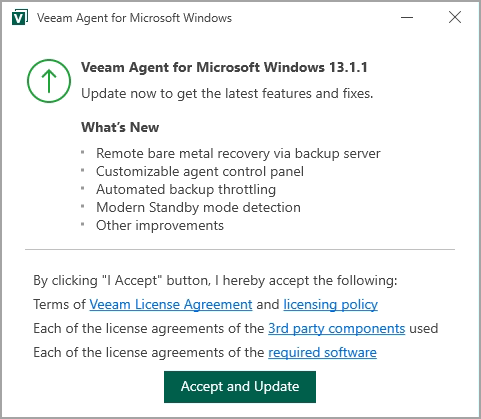
The latest standalone Veeam Agent for Microsoft Windows is version 13.1.1.700 (released around mid-August 2026, included with Veeam Backup & Replication 13.1.1). It continues the solid line of free endpoint protection that started years ago as Veeam Endpoint Backup. For home users, small offices, or anyone protecting individual Windows desktops/laptops without needing central management, the Free edition remains extremely capable. While there is also Linux or Mac version, in this post we'll focus on the Windows version only as still many laptops and desktops come out with Windows.
This post focuses on the Free edition: what it can do, where you can store backups, and the restore options available. I’ll keep it practical and technical, based on the official documentation and real-world usage.
Free Edition Capabilities and Limitations
The Free edition gives you essentially the same core functionality as the paid Workstation edition, with a few clear limits:
- One backup job only (targeted at local drive, network shared folder / NAS, or a Veeam Backup & Replication repository).
- No direct backup to object storage (S3-compatible, Azure Blob, etc.).
- No backup to Veeam Cloud Connect repository.
- No Veeam CBT driver (Changed Block Tracking is handled via Microsoft VSS / software snapshot).
- No synthetic full backups, no backup cache, no GFS (Grandfather-Father-Son) long-term retention policy.
- No guest processing (application-aware for SQL, Exchange, etc. – though VSS is still used for consistent snapshots of volumes).
- No parallel disk processing or advanced scheduling options available in the Server edition.
- No multiple jobs.
What you can do with Free:
- Image-level (volume-level) backup of the entire computer or selected volumes (including system/boot partitions).
- File-level backup of individual folders/files.
- Scheduled backups (daily at a specific time, or on events such as USB drive connection).
- Encryption of backup files.
- Compression and optional deduplication at the source.
- Health checks on backup files.
- Creation of bootable Veeam Recovery Media (USB, ISO, etc.).
- Full bare-metal restore, volume restore, and granular file-level restore.
In practice this is more than enough for protecting a Windows 10/11 laptop or desktop (supported from Windows 10 22H2 / LTSC up to Windows 11 25H2, and various Server editions if needed).
Where You Can Store Backup Files (Free Edition)
At the Destination step of the backup job wizard you have three realistic options:
- Local storage (recommended for many home/SOHO scenarios)
- External USB/eSATA/Firewire hard drive (NTFS preferred; exFAT is not supported as a target).
- Internal secondary drive (not the system drive if possible).
- You can configure the job to run only when the removable drive is connected and automatically eject the drive after the backup finishes – a simple but effective ransomware protection measure.
- Network shared folder (SMB/CIFS)
- Any NAS that presents an SMB share (Synology, QNAP, TrueNAS, Windows share, etc.).
- Provide credentials with write access. The agent supports high-latency/WAN links reasonably well.
- Veeam Backup & Replication repository
- If you already run a free Community Edition or licensed VBR server (v13.1+), you can point the agent job at a repository managed by that server. This is the cleanest way to centralize backups without upgrading the agent license.
Not available in Free: direct object storage and Cloud Connect.
Best practice: keep at least one copy off the machine (USB that you disconnect, or a NAS share).
The classic 3-2-1 approach still applies even with a free tool.
Backup Modes Available
- Entire computer – full image including all volumes + system/boot/recovery partitions.
- Volume-level – select specific drives (system volume automatically includes System Reserved/EFI).
- File-level – individual folders/files.
I usually use the volume level, to backup the system partition. So when I see some corruption or some driver issues, I can easily go back in time and restore the system to a state with the latest backup.
Backups are incremental after the first full. Retention is simple (keep X restore points). You can also trigger a standalone full backup on demand.
Restore Options
This is where the Free edition shines and matches the paid versions for single-machine recovery:
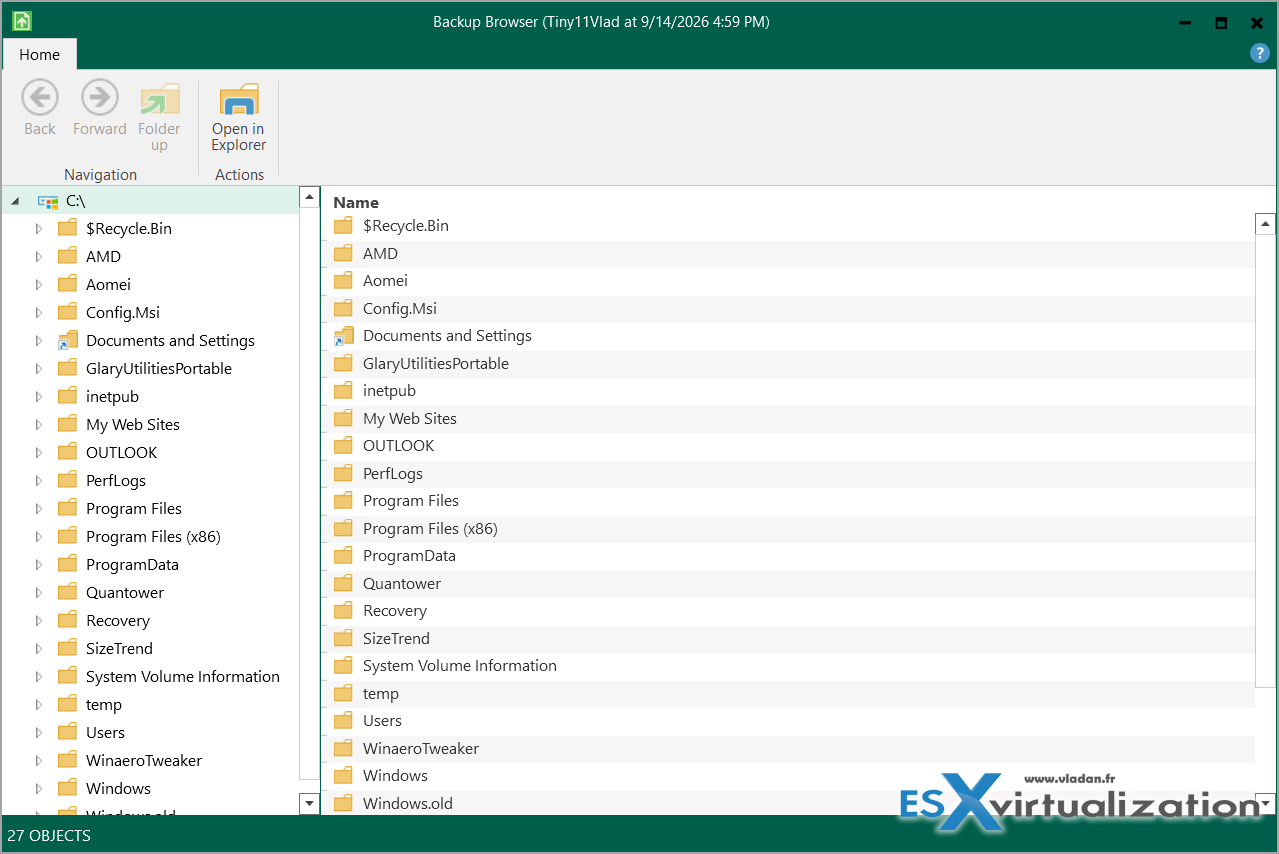
- File-level restore
- From any backup type (volume or file-level).
- Mounts the backup content into the file system (via Veeam’s Virtual Disk Driver) under C:\VeeamFLR\….
- Use the built-in Veeam Backup Browser or Windows Explorer to copy files/folders back.
- Works while the original system is still running.
- Volume-level restore
- Restore an entire volume (or resize it) to the original or a different location.
- Useful when a data drive fails or gets corrupted.
- System volume cannot be restored over itself while Windows is running – use Recovery Media for that.
- Bare-metal recovery (BMR)
- Create a Veeam Recovery Media (USB stick recommended, or ISO).
- Boot from it → launch Bare Metal Recovery wizard.
- Restore entire computer, system volumes only, or manual mapping of volumes.
- Works to the same hardware or different hardware (drivers can be injected if needed).
- Supports restoring from local USB, network share, or Veeam repository (network settings are available in the recovery environment).
Note: You can either launch the Bare Metal Recovery from an USB stick or you can use Veeam Bare Metal Recovery from Recovery partition (this needs to few steps prior to that).
After upgrading the agent or major Windows updates, recreate the Recovery Media – the product will remind you.Quick Installation Notes for 13.1.1.700Download the free agent from the official Veeam site (or via Chocolatey package veeam-agent if you prefer automated deployment). The installer includes the required Microsoft runtimes (ASP.NET Core / Desktop Runtime 10.x) and the OpenSSL FIPS provider. After install, the Recovery Media wizard usually launches automatically – create the USB immediately.System requirements remain modest: x64 CPU, 2 GB RAM minimum, ~250 MB disk space, BIOS or UEFI.
Final Words
Veeam Agent for Microsoft Windows 13.1.1.700 Free edition is still one of the best no-cost image-based backup solutions for Windows endpoints. You get reliable volume-level backups, flexible storage targets (USB + NAS + VBR repo), and full recovery options including bare-metal. The single-job limit and lack of object storage / Cloud Connect are the main trade-offs, but for most individual machines they are not blockers.
Create the Recovery Media, point the job at a disconnected USB or a NAS share, schedule it, and enable the eject option. That alone gives you solid protection against hardware failure and ransomware.
If you later need multiple jobs, CBT driver, synthetic fulls, or object storage, the upgrade path to Workstation or Server edition (or management via Veeam Backup & Replication) is straightforward.
Download, create the recovery USB, configure the job, and you’re protected. Simple and effective.

Here are ten of the latest posts focused on Veeam technology (the recent ones, not the early-version archives):
- Veeam Backup & Replication 13.1 Released Today – Major Update to the Veeam Data Platform
- Veeam Live OS ISO: How to Recover Access to a Locked Veeam Software Appliance (Admin Guide)
- Migrating from Veeam Backup & Replication 12.x on Windows to Veeam 13 on Linux (Veeam Software Appliance)
- Veeam Backup & Replication Q1 2026 Updates: Deep Dive into v13 Capabilities, Patches, and Emerging AI Governance Features
- Veeam v13 Download Available – Start your download engines!
- Unlock your Veeam v13 With Windows-Based Console for VBR 13
- Veeam Backup and Replication Plug-in for XCP-NG Enters Public Beta: Powering Up Xen Hypervisor Backups
- Veeam Backup Appliance 13.0 ISO automated installation
- Veeam VHR ISO v2 – 2025 Download and Install
- FREE ISO to Download – Veeam Hardened ISO Repository As a Community Preview
More posts from ESX Virtualization:
- How to update your ESXi 7.x or 8.x to the latest ESXi 8.0U3k via command line
- Veeam Bare Metal Recovery from Recovery partition
- Veeam Backup and Replication Upgrade on Windows – Yes we can
- Securing Your Backups On-Premises: How StarWind VTL Fits Perfectly with Veeam and the 3-2-1 Rule
- VMware Alternative – OpenNebula: Powering Edge Clouds and GPU-Based AI Workloads with Firecracker and KVM
- Another VMware Alternative Called Harvester – How does it compare to VMware?
- VMware vSphere 9 Standard and Enterprise Plus – Not Anymore?
- Vulnerability in your VMs – VMware Tools Update
- VMware ESXi FREE is FREE again!
- No more FREE licenses of VMware vSphere for vExperts – What’s your options?
- VMware Workstation 17.6.2 Pro does not require any license anymore (FREE)
- Two New VMware Certified Professional Certifications for VMware administrators: VCP-VVF and VCP-VCF
- Patching ESXi Without Reboot – ESXi Live Patch – Yes, since ESXi 8.0 U3
- Update ESXi Host to the latest ESXi 8.0U3b without vCenter
- Upgrade your VMware VCSA to the latest VCSA 8 U3b – latest security patches and bug fixes
- VMware vSphere 8.0 U2 Released – ESXi 8.0 U2 and VCSA 8.0 U2 How to update
- What’s the purpose of those 17 virtual hard disks within VMware vCenter Server Appliance (VCSA) 8.0?
- VMware vSphere 8 Update 2 New Upgrade Process for vCenter Server details
- What’s New in VMware Virtual Hardware v21 and vSphere 8 Update 2?
- vSphere 8.0 Page
- ESXi 7.x to 8.x upgrade scenarios
- VMware vCenter Server 7.03 U3g – Download and patch
- Upgrade VMware ESXi to 7.0 U3 via command line
- VMware vCenter Server 7.0 U3e released – another maintenance release fixing vSphere with Tanzu
- What is The Difference between VMware vSphere, ESXi and vCenter
- How to Configure VMware High Availability (HA) Cluster
Stay tuned through RSS, and social media channels (Twitter, FB, YouTube)





BEWARE: THERE IS NO CUSTOMER SERVICE FOR THE FREE EDITION!!!!!!!! OK, I used Veeam to back up my computer, and my wife’s on our home network. Her SSD DIED completely; I have no Veeam agent for MS Windows tied to her old computer to run to pull off the backed-up files. How do I get the backed-up files off of our network storage drive?????? THERE IS NO ONE TO ANSWER THE ABOVE QUESTION OR VIDEOS TO HELP YOU FIGURE IT OUT. Once you back up to Veeam and you need help, you are SCREWED!!!!!!
Hi Christopher,
Simply boot your her new laptop on a Recovery media (which you can create on any desktop/laptop system). Once booted into the Veeam recovery environment, point to your network drive and pick the latest restore point. Start the restore operation -:).
As long as you have your VBKs and VIBs on your NAS, no need to worry.