
How to upgrade from VDR 1.2? The new VMware Data Recovery 2.0 (VDR) has been released together with the release of vSphere 5 – VMware vSphere 5 available for download – and since there is quite a few upgrades planned ahead, it might be handy to have it written/bookmarked on my website as well. The upgrade process is simple since all the configuration data (jobs, schedule, retention policy etc…..) is stored at the destination. There is several scenarios possible since you might use as a destination different options:
– NFS
– VMDK stored on Datastore
– CIFS
How to proceed with the upgrade of VDR to the latest release?
01. Remove your backup destination disks from your VDR VM – So the first thing to do if you use VMDK as a destination on a datastore, is to “unlink” this virtual disk from your existing VDR 1.2 appliance. So first look at the configuration of your existing VDR and see where is the destination. If it's a VMDK on a datastore, then you can simply remove the disk from the VM but leave the other radio button alone !!
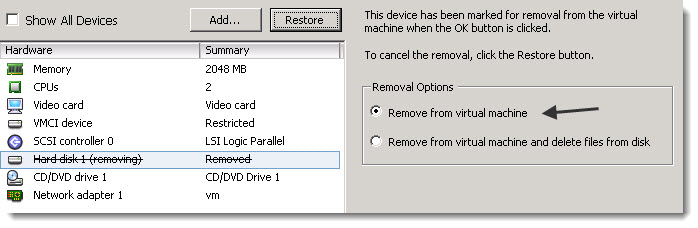
The upgrade process should be straightforward since I'll keep my deduplication stores and also my jobs. Those elements will get imported into the new VDR 2.0 after the deployment of the OVF file into vCenter.
02. Remove the old vSphere Plugin – Go to add/remove programs and remove the old plugin from there.
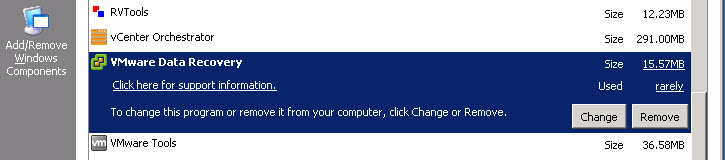
After the old plugin uninstalled you can install the new VDR plugin. You should see the icon in vSphere Client once you connect back again with your vSphere client to your vCenter. If not, just go to the Menu Plugins > Manage Plugins. You can activate the plugin there.
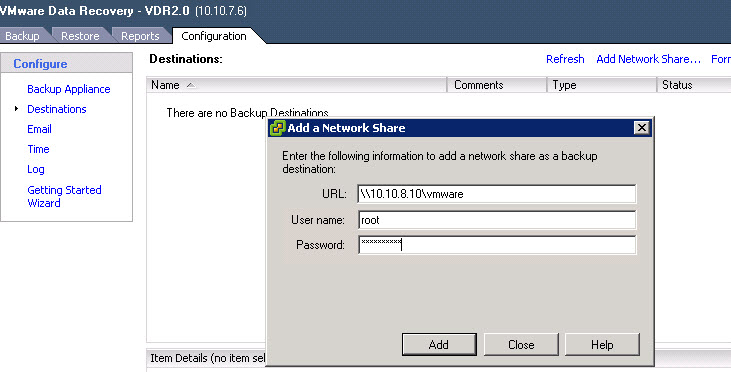
03. Specify the backup Destination – In my case I'm not using virtual disks attached to the appliance bu a simple network share. But even the network share retain the informations about the backup jobs, scheduling, retention policies etc….
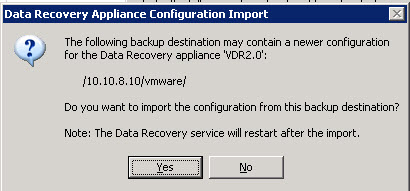
04 – Import the configuration and backups from your previous location – And when I reconnect my destination to the new VDR 2.0 appliance you'll see that the message asking to import the configuration will appear. You can see the message which shows you the possibility to import your backups and settings from your previous location. Click yes to validate and import the backups and backup jobs.
So If I recapitulate on what was done:
– Deploy the OVF file through vCenter and configure the VDR 2.0 (name, IP address, timezone…..)
– Uninstall the old plugin and Install the latest VDR plugin for vCenter
– Attach the VMDK's or point to the old backup location through network, like I did.
– Import the jobs from the de-duplication stores, to the VDR 2.0
– Do an Integrity check.
More on VMware Data Recovery:
- VDR connectivity and divers troubleshooting
- VMware Data Recovery 2.0 – the upgrade process from earlier version – this post
- Troubleshooting tool for VDR
- VDR plugin do not connect to VDR appliance
- How-to enable verbose logging in VDR – VMware Data Recovery
- If you're trying to use Windows CIFS with VDR
- How to fix damaged restore points in VDR
- Using VMware Data Recovery without vCenter?
- VDR appliance not mounting automatically the backup destination after reboot
- VDR – how to get a log bundle before you call the support
- How-to update VDR to 1.2
- Do you want to see a little magic?
- VDR backup fail error
- VMware Data Recovery – a tool for Easy backups of your Virtual Infrastructure
- VMware VDR – vSphere Data Recovery – part 3 – Restore Your Data
- VMware Data Recovery – your first backup – part 2 video
- VMware Data Recovery – install and configure video- part1
- Data recovery – new GUI backup tool present in vSphere 4





Thanks, it works fine and was a big help for me! Bye.
Glad it worked for you… -:)
Hi Vladan
Maybee someone could be interested to know, that VDR2.0 works (for now) also well on vCenter 4.1 and ESX 4.1 hosting. So, it is not 100% necessary to upgrade to ESXi5 and vCenter 5.0.
I did performed upgrades about week ago and the only thing that does not work for now is forwarding log events to remote syslog server (it must be some small thing I belive).
Right know I am doing upgrade to vCenter 5.0 and it looks good 🙂
Regards, Dejan