
If you’re a datacenter admin or architect still juggling VMware ESXi, Microsoft Hyper-V, Proxmox, oVirt, or even Oracle VirtualBox workloads – or if you’re moving stuff to/from Azure and AWS – you already know how painful VM conversions can be. Manual exports, temporary storage bloat, downtime, and the constant fear of data corruption during format switches.
StarWind has kept their free StarWind V2V Converter evolving quietly but powerfully for years, and the latest release (Version 9, build 848, November 24, 2025) just made it even more relevant for production environments. You can now convert multiple VMs at once, the CLI is fully mature across all major hypervisors, hot/live migrations are rock-solid, and cloud round-tripping got a nice polish. Best part? Still completely free, no licensing tricks, no telemetry nonsense.
I’ve been using this tool since the early VHD-to-VMDK days (remember when VMware Converter needed a full Hyper-V host just to do a simple conversion?). Let’s take a deep technical look at what’s new and how you can actually use it in a real datacenter workflow.
What’s New in Version 9 (build 848)
StarWind didn’t just bump the version number. The changelog shows real production-grade enhancements:
- Multi-VM conversion – finally! You can queue and run several VMs simultaneously instead of babysitting one wizard at a time.
- Improved P2V to Proxmox and ESXi with automated driver injection for Windows guests (huge time-saver on oVirt/OLVM too).
- Enhanced Azure and AWS cloud conversions – better SDK handling, faster sync, and fewer credential headaches.
- Windows Server 2025 VM support fully validated.
- Proxmox 9.0 compatibility.
- Live/hot VM synchronization fixes between ESXi Hyper-V (the delta sync now handles edge cases much cleaner).
- CLI expansions – full VM-level convert support for Hyper-V, ESXi, and Proxmox (disk-only CLI was added earlier, but now it’s complete for entire VMs).
Other long-standing niceties remain: direct conversion without intermediate copies, snapshot-based hot migration (zero downtime for running VMs), and preservation of BIOS/UEFI boot type checks.
Core Capabilities You’ll Actually Use in the Datacenter
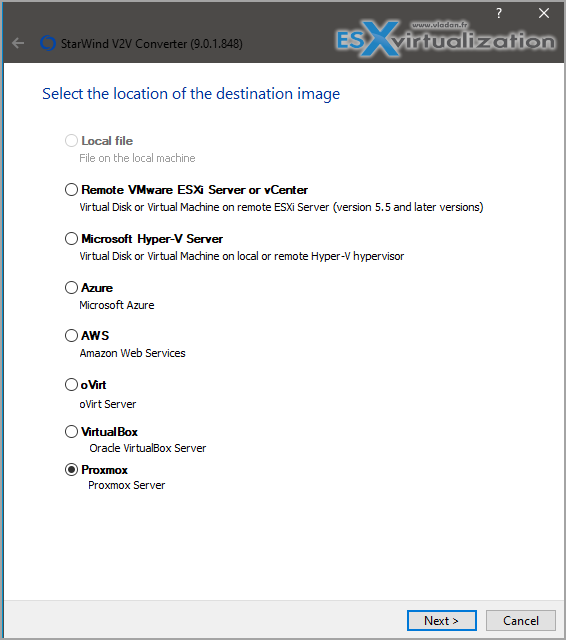
- V2V – ESXi Hyper-V Proxmox oVirt VirtualBox. Formats: VMDK (thin/thick/stream-optimized), VHD/VHDX (thin/thick), QCOW2 (including v3), IMG, RAW, VDI.
- P2V – Physical disks or entire machines straight into any of the above hypervisors or cloud. Perfect for decommissioning old physical servers without rebuilding them.
- Cloud round-trip – On-prem Azure AWS. Great for “cloud cost too high, bring it back” scenarios or hybrid bursting.
- Hot migration – Keep the source VM running while the converter syncs deltas. I’ve used this successfully on production Hyper-V to ESXi moves with <1 minute cutover.
All of this runs on a simple Windows machine (x64, admin rights required). No agents on source/target in most cases.
GUI Is Still Great for One-Offs – But CLI Is Where the Real Power Is
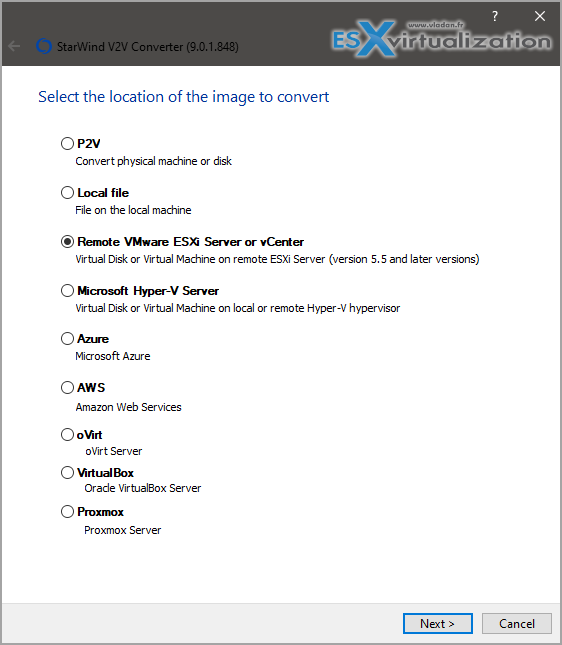
The wizard is clean and familiar: select source (local file, remote ESXi, Hyper-V host, Proxmox, physical disk, etc.), pick target, choose format/thin provisioning, and go. It even shows progress per disk and handles checkpoints on Hyper-V nicely.But the question you asked – can you script this? – the answer is a resounding yes. StarWind ships V2V_ConverterConsole.exe (located by default in C:\Program Files\StarWind Software\StarWind V2V Converter) and it has been production-ready for automation for years. Recent releases just extended it to full VM conversions across Proxmox, oVirt, etc.
You run it from an elevated Command Prompt (or wrap it in PowerShell/Batch for mass migrations).
Basic syntax:
V2V_ConverterConsole.exe convert parameter1=value1 parameter2=value2 …
Key parameters (most have sensible defaults):
- in_host_type / out_host_type = esx | win | local | proxmox (and oVirt/OLVM in newer builds)
- in_host_address, in_host_username, in_host_password
- in_vm_name or in_file_name (for local files or physical disks use \\?\PhysicalDiskX)
- out_vm_name, out_vm_path, out_file_name, out_file_type (ft_vhdx_thin, ft_vmdk_esx_thin, ft_qcow2, etc.)
- Proxmox-specific: out_proxmox_storage, out_proxmox_node, out_proxmox_vmid
Real-World CLI Examples
- Hyper-V to Proxmox (full VM, QCOW2)
V2V_ConverterConsole.exe convert in_host_type=win in_host_address=192.168.10.10 in_host_username=admin in_host_password=Passw0rd in_vm_name=SQL01 out_host_type=proxmox out_host_address=192.168.10.20 out_host_username=root out_host_password=Passw0rd out_vm_name=SQL01 out_proxmox_storage=vms out_proxmox_node=prox1 out_proxmox_vmid=501 out_file_type=ft_qcow2
- ESXi to Hyper-V (hot migration)
V2V_ConverterConsole.exe convert in_host_type=esx in_host_address=esx01.lab.local in_host_username=root in_host_password=Passw0rd in_vm_name=WebApp01 out_host_type=win out_host_address=hv01.lab.local in_host_username=admin in_host_password=Passw0rd out_vm_name=WebApp01 out_vm_path=E:\VMs out_vm_os=Windows
- Local file conversion (VMDK to VHDX thin)
V2V_ConverterConsole.exe convert in_file_name=D:\oldvm\disk1.vmdk out_file_name=E:\newvm\disk1.vhdx out_file_type=ft_vhdx_thin
- Batch/PowerShell wrapper idea (for mass migration – just loop through a CSV of VM names) You can throw these into a .bat or PowerShell foreach and run dozens overnight. The tool returns proper exit codes, so you can even build proper error handling and logging.
Pro tip: use a config file (-c config.cfg or @config.cfg) if you hate long command lines – great for repeatable jobs.
Installation and Requirements
Dead simple:
- Download from https://www.starwindsoftware.com/starwind-v2v-converter
- Run the .exe (no reboot needed)
- Done.
Runs on any modern Windows desktop or server. For remote ESXi/Proxmox you obviously need network access and credentials. P2V works best with the source machine shut down (or use hot mode where supported).
Who Should Be Using This in 2026?
- Anyone doing hypervisor consolidation (VMware → Hyper-V or Proxmox).
- Architects moving workloads back from Azure/AWS because of cost.
- Teams doing physical server retirement (P2V).
- Automation lovers who want to script mass conversions instead of clicking wizards at 2 a.m.
The fact that it’s still 100% free in 2026 is almost suspicious – but StarWind has been doing this for over a decade. No hidden limits, no “enterprise” upsell for basic conversions.
Final Words
If you haven’t looked at StarWind V2V Converter lately, download the latest Version 9 today. The combination of multi-VM support, rock-solid hot migration, and fully scriptable CLI makes it the most practical free conversion tool available for real datacenter work. I’ve used it on everything from small labs to multi-hundred-VM migrations and it just works.
- Grab it here: https://www.starwindsoftware.com/starwind-v2v-converter
- Release notes for the full changelog: https://www.starwindsoftware.com/v2v-converter-release-notes
- CLI help: https://www.starwindsoftware.com/v2v-help/CommandLineInterface.html
More posts about StarWind:
- StarWind VSAN for Hyper-V: Synchronous Replication for High-Availability Shared Storage
- StarWind VTL: Boosting Immutability and Ransomware Protection in Your Own Datacenter
- StarWind HyperConverged Appliance with Proxmox VE: Perfect HCI Solution for Small Businesses
- Fortifying Your Backup Infrastructure Against Ransomware – StarWind VTL Best Practices
- FREE version of StarWind VSAN vs Trial of Full version
- Installation of StarWind VSAN Plugin for vSphere
- StarWind VSAN with new UI and deployment options
- Backup Appliance with NVMe Speed and GRAID – StarWind Backup Appliance
- Exploring StarWind VSAN: High Availability, Cost Savings, and Performance
- StarWind V2V Converter The Cutting-Edge Upgrade: StarWind V2V Converter’s April 2024 Innovations
- What is StarWind Tape Redirector (FREE) and what’s the benefits?
- 5 Easy Steps to be more resilient with Two Hosts only – StarWind VSAN
- How StarWind VSAN solution can save you money and energy in ROBO environments
- 2-Nodes clusters without Witness – StarWind VSAN Heartbeat Failover Strategy
- You can’t extend backup window – Check NVMe Backup Appliance from StarWind
- Replacing Aging Hardware SAN Device by a Software – StarWind VSAN
- StarWind V2V Converter (PV2 Migrator) FREE utility
- Cluster with 2-Nodes only – How about quorum?
- StarWind VSAN Latest update allows faster synchronization with storing synchronization journals on separate storage
- How to Update StarWind VSAN for VMware on Linux- Follow UP
- StarWind SAN & NAS software details for VMware and Hyper-V
- VMware vSphere and HyperConverged 2-Node Scenario from StarWind – Step By Step(Opens in a new browser tab)
- How To Create NVMe-Of Target With StarWind VSAN
- Veeam 3-2-1 Backup Rule Now With Starwind VTL
- StarWind and Highly Available NFS
- StarWind VSAN on 3 ESXi Nodes detailed setup
- VMware VSAN Ready Nodes in StarWind HyperConverged Appliance
More posts from ESX Virtualization:
- Veeam Backup and Replication Upgrade on Windows – Yes we can
- Securing Your Backups On-Premises: How StarWind VTL Fits Perfectly with Veeam and the 3-2-1 Rule
- Winux OS – Why I like it?
- VMware Alternative – OpenNebula: Powering Edge Clouds and GPU-Based AI Workloads with Firecracker and KVM
- Proxmox 9 (BETA 1) is out – What’s new?
- Another VMware Alternative Called Harvester – How does it compare to VMware?
- VMware vSphere 9 Standard and Enterprise Plus – Not Anymore?
- VMware vSphere Foundation (VVF 9) and VMware Cloud Foundation (VCF 9) Has been Released
- Vulnerability in your VMs – VMware Tools Update
- VMware ESXi FREE is FREE again!
- No more FREE licenses of VMware vSphere for vExperts – What’s your options?
- VMware Workstation 17.6.2 Pro does not require any license anymore (FREE)
- Two New VMware Certified Professional Certifications for VMware administrators: VCP-VVF and VCP-VCF
- Patching ESXi Without Reboot – ESXi Live Patch – Yes, since ESXi 8.0 U3
- Update ESXi Host to the latest ESXi 8.0U3b without vCenter
- Upgrade your VMware VCSA to the latest VCSA 8 U3b – latest security patches and bug fixes
- VMware vSphere 8.0 U2 Released – ESXi 8.0 U2 and VCSA 8.0 U2 How to update
- What’s the purpose of those 17 virtual hard disks within VMware vCenter Server Appliance (VCSA) 8.0?
- VMware vSphere 8 Update 2 New Upgrade Process for vCenter Server details
- What’s New in VMware Virtual Hardware v21 and vSphere 8 Update 2?
- vSphere 8.0 Page
- ESXi 7.x to 8.x upgrade scenarios
- VMware vCenter Server 7.03 U3g – Download and patch
- Upgrade VMware ESXi to 7.0 U3 via command line
- VMware vCenter Server 7.0 U3e released – another maintenance release fixing vSphere with Tanzu
- What is The Difference between VMware vSphere, ESXi and vCenter
- How to Configure VMware High Availability (HA) Cluster
Stay tuned through RSS, and social media channels (Twitter, FB, YouTube)





Leave a Reply