
I’m blogging about Nakivo’s product since their inception. My first blog post about the product was around 2013! Nakivo Backup & Replication continues to stand out as a robust, reliable solution for safeguarding virtual, physical, cloud, and SaaS environments.
I've covered Nakivo extensively over the years, from its Proxmox integration and Transporter scalability to free edition limitations and heterogeneous environment support. But today, let's shift focus to some under-the-radar aspects that can truly optimize your backup strategy. We'll explore lesser-known features like malware scanning, direct recovery from tape, and immutable backups, while emphasizing Nakivo's multiplatform deployment options that help keep costs down – especially on Linux and NAS devices. The Linux list of suported platforms is impressive. Plus, a deep dive into their flexible licensing models, which still include perpetual options in an era dominated by subscriptions. If you're looking to enhance your data protection without breaking the bank, this post is for you.
Multiplatform Deployment: Install Anywhere, Save Everywhere
As I already highlighted this many times, Nakivo's strongest fact is its versatility in deployment. Unlike many backup solutions tied to specific operating systems or hardware, Nakivo can be installed on a wide array of platforms, making it ideal for mixed environments and cost-conscious IT admins. This multiplatform approach not only simplifies management but also reduces overhead by leveraging existing infrastructure.
At its core, Nakivo supports installation on Windows Server (from 2012 onward) and various Linux distributions, including Ubuntu, Red Hat Enterprise Linux (RHEL), CentOS, and Debian. The Linux installer is a single-command affair—simply run the .sh script, and you're up in minutes. This is particularly appealing for open-source enthusiasts or those migrating away from proprietary systems like VMware to Proxmox VE. By deploying on Linux, you avoid Windows licensing fees entirely, which can add up significantly in larger setups.
But it doesn't stop there. Nakivo shines when installed directly on NAS devices from vendors like Synology, QNAP, Western Digital, and ASUSTOR. This turns your storage appliance into a full-fledged backup server, eliminating the need for dedicated hardware. For instance, on a Synology DS series, you can deploy Nakivo as a native package via the DSM Package Center. The benefits? Faster data transfer rates since backups happen locally on the NAS, reduced network latency, and consolidated storage – your backups can reside on the same device without extra servers. (even if it is not my prefered scenario, it reduces costs, and we can consider it for edge locations).
Technically speaking, the deployment process involves downloading the appropriate installer (e.g., for Linux: sudo bash NAKIVO_Backup_Replication_v11.1_Installer.sh). Once installed, the Director component handles job management via a web-based UI, while Transporters (which can also be deployed on these platforms) perform the heavy lifting: data deduplication, compression, and encryption. In a distributed setup, you can have the Director on Windows and Transporters on Linux NAS for optimal performance.
This flexibility translates to real cost savings. Consider a small-to-medium business (SMB) with a heterogeneous setup: VMware VMs, physical Windows servers, and AWS EC2 instances. Instead of buying new servers or VMs for backups, install Nakivo on an existing Linux box or NAS. Deduplication ratios can hit 10:1 or higher, minimizing storage needs, and with no agent installation required for VM backups (agentless mode via APIs), overhead is minimal—typically under 5% CPU during jobs.
In my experience, this multiplatform strategy is interesting for edge computing or remote offices, where you might deploy a supported NAS device where Nakivo backs up 1 or 2 hosts’s and the VMs that runs there. Or deploy a smallish mini-server with Linux with Nakivo. Overall, it keeps your total cost of ownership (TCO) low while ensuring compatibility across ecosystems.
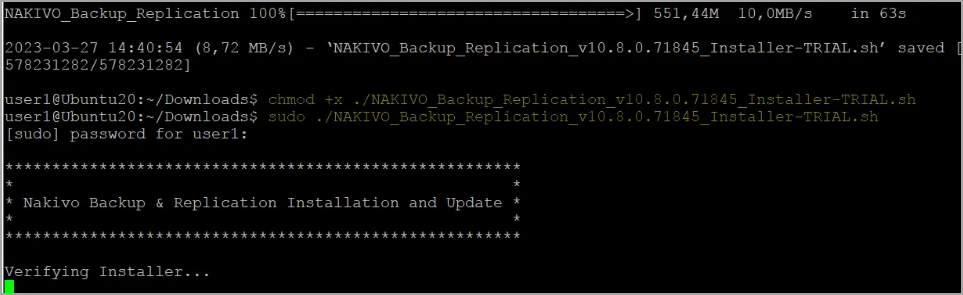
If you're not familiar with Linux, Nakivo has a nice step-by-step guide for Linux.
Licensing Models: Perpetual vs. Subscription – Choices That Fit Your Budget
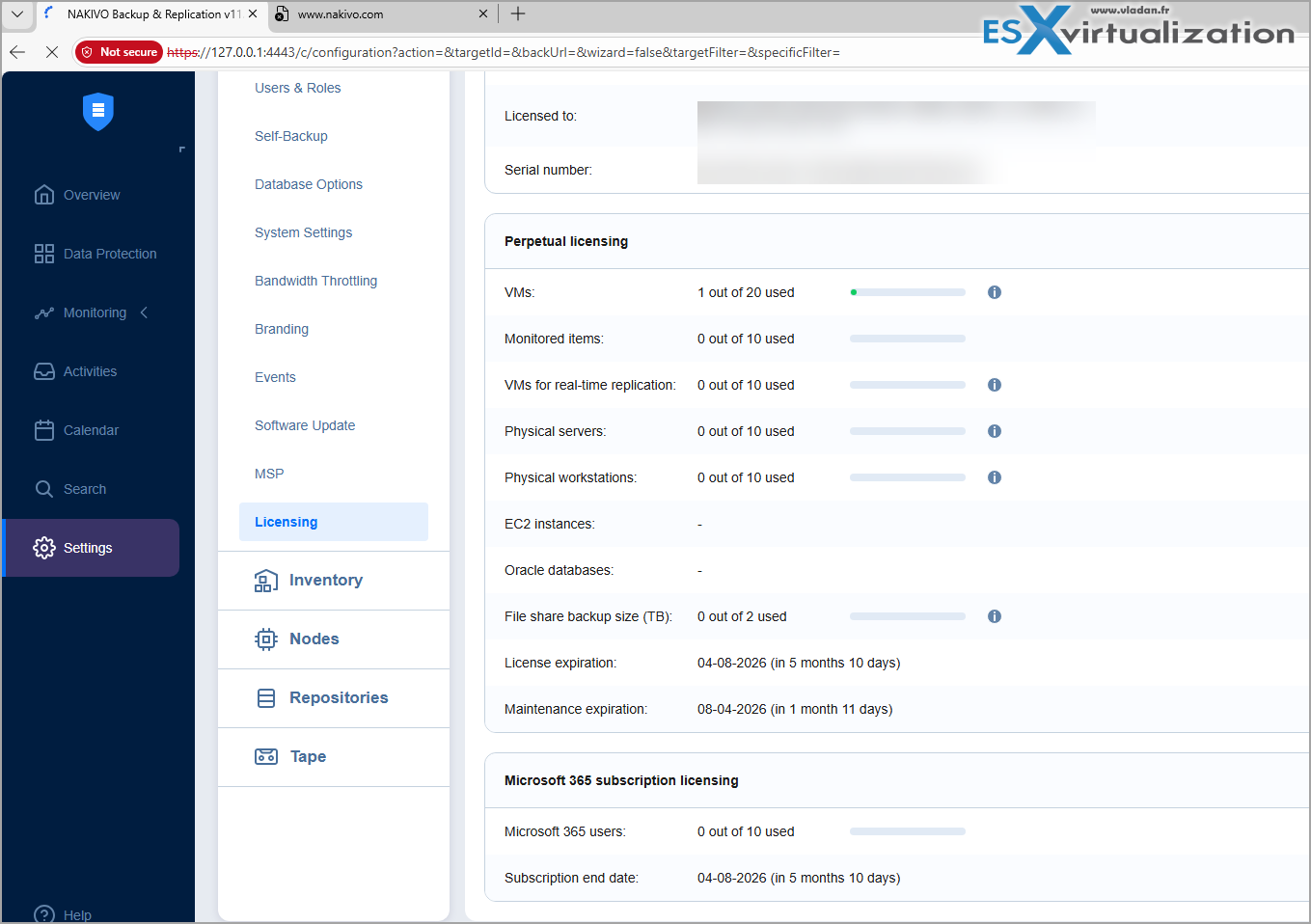
In a market where most vendors have shifted to subscription-only models, Nakivo's commitment to both perpetual and subscription licensing is refreshing. This dual approach allows organizations to choose based on cash flow, scalability needs, and long-term planning, without being locked into recurring payments if they don't want to.
Let's break it down technically. Perpetual licenses are a one-time purchase, granting indefinite use of the software version you buy. They're available for VMs (per CPU socket on hypervisors like VMware or Hyper-V), physical machines (per machine), NAS (per TB of shared file data), and Oracle Databases (per database). For example, a perpetual license for VMware might cost around $229 per socket (Enterprise edition), including one year of standard support (business hours, Monday-Friday). After that, you can renew support annually at about 20-25% of the license cost, but the software keeps working without it.
The upside? Predictable costs for stable environments. If your infrastructure isn't growing rapidly, perpetual makes sense – basically you pay once and focus on operations.
Subscription licenses are billed annually upfront (1-5 years) and licensed per workload, starting at $1.95 per workload/month for a 3-year term (Enterprise edition). A “workload” is broadly defined: one VM, one physical server, one AWS/Azure instance, 1 TB of NAS data, or one Oracle DB. This model includes 24/7 support, automatic updates, and full feature access. It's more adaptable – if your environment expands, add workloads easily without buying new perpetual keys.
For Microsoft 365 (e.g., Exchange Online, OneDrive), subscriptions start at $0.80 per user/month and can mix with other licenses. Nakivo also offers editions from Essentials (basic backup) to Enterprise Plus (advanced DR features like site recovery).
Comparatively, perpetual is ideal for CapEx-focused orgs, while subscription suits OpEx models or MSPs needing scalability. In practice, I've seen SMBs save 30-50% by mixing: perpetual for core VMs, subscription for variable cloud workloads. This hybrid keeps costs down while providing robust protection—especially since Nakivo's pricing is often half that of competitors like Veeam.
Lesser-Known Features: Hidden Gems for Advanced Protection
While Nakivo's core backup and replication are well-known, several advanced features fly under the radar but can significantly boost your data resilience. Let's highlight a few technical standouts.
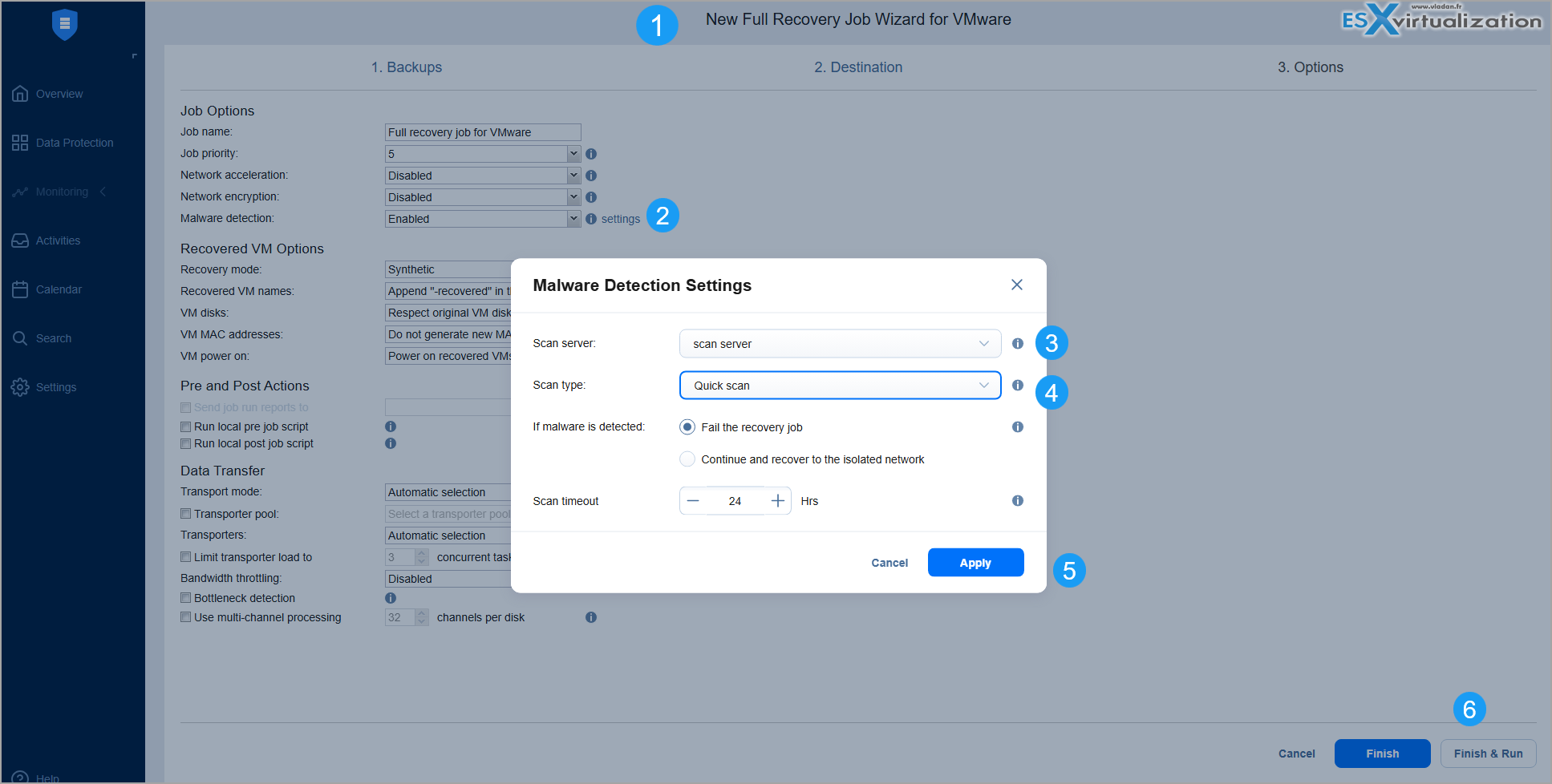
Malware Scan: Proactive Threat Detection in BackupsRansomware is rampant, and backups are prime targets. Nakivo's built-in Malware Scan analyzes backup data for threats during recovery or on-demand. It uses signature-based detection to spot known malware, ransomware patterns, and suspicious modifications. Enable it in job options: scan before restore to quarantine infected files, or schedule periodic scans on repositories.
Technically, it integrates with third-party engines (configurable via API) and supports VM, physical, and Office 365 backups. In tests, it adds minimal overhead (5-10% longer job times) but ensures recoverability which is crucial for compliance like GDPR. Unlike basic integrity checks, this feature detects stealthy threats, making it a must for high-risk environments.
Direct Recovery from Tape: Skip the Staging
We all know that tape remains vital for long-term archival, but traditional recovery involves staging data to disk first – time-consuming and storage-intensive. Nakivo's Direct Recovery from Tape lets you restore VMs, files, or app objects straight from LTO tapes without intermediate steps.
Setup involves adding a tape library to inventory (supports IBM, HP, etc., via NDMP), then creating backup-to-tape jobs. Recovery uses the Transporter to read directly, with options for full VM boot or granular file extraction. This cuts RTO by up to 50% and saves on staging repo space. For air-gapped strategies, it's gold – combine with immutability for ultimate protection.
And again, Nakivo has a nice step-by-step guide on their site where you'll learn how to start full recovery from tape.
Immutable Backups: Ransomware-Proof Storage
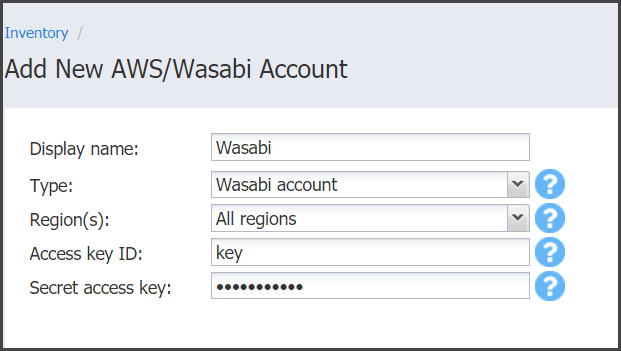
Immutability locks backups against deletion or modification for a set period, thwarting ransomware. Nakivo supports this on local Linux repos, Amazon S3 (Object Lock), Wasabi, and dedup appliances like NEC HYDRAstor. Enable in repo settings: set retention (e.g., 30 days), and data becomes write-once-read-many (WORM).
Under the hood, it leverages filesystem flags (on Linux ext4) or cloud APIs. For Microsoft 365, immutability protects OneDrive/SharePoint from unwanted changes. This feature, combined with air-gapping, aligns with 3-2-1 rules, ensuring at least one immutable copy. In v11.1, it's extended to Proxmox backups too.
Flash VM Boot and Instant Verification
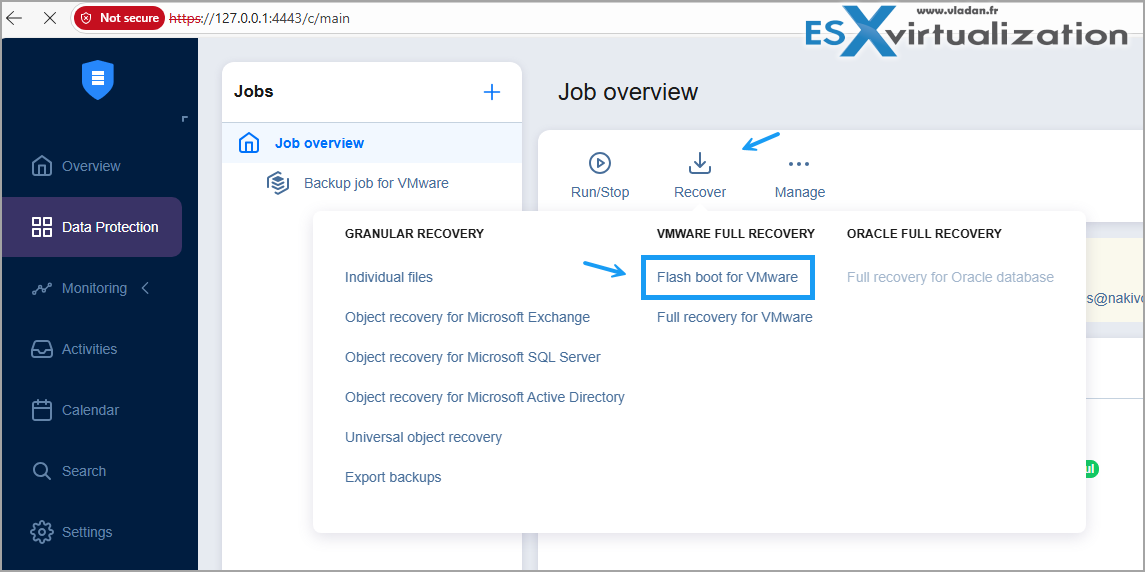
Flash VM Boot boots VMs directly from compressed backups on NFS datastores, enabling near-instant access (seconds) for testing or DR. It's agentless and supports VMware/Hyper-V/Proxmox.
You can also use it with Instant Verification: automated recoverability checks post-backup, running scripts or heartbeats in a sandbox. With this, you make sure that your backups aren't just files, but you can actually recover your VMs from.
Backup from Storage Snapshots
For SAN/NAS-integrated environments, backup directly from hardware snapshots (HPE 3PAR, NetApp, etc.). This offload processing from hosts, speeding jobs by 2x and minimizing production impact.
Configure via inventory addition – Nakivo handles snapshot creation, backup, and cleanup.
These features, often overlooked, add layers of efficiency and security, especially in enterprise setups.
Wrap Up
Nakivo Backup & Replication isn't just about basic backups – its multiplatform support, flexible licensing, and hidden features like malware scanning and immutability make it a cost-effective product. By deploying on Linux or NAS, you reduce your overall costs. Then choosing perpetual licenses locks in savings for the long haul. Add in these advanced tools, and you get resilient, ransomware-resistant protection without premium pricing.
If you're already a Nakivo user, explore these in your dashboard. New to it? Download the trial from nakivo.com and test the multiplatform install.
Check Nakivo's website here.
More about Nakivo on ESX Virtualization
- Nakivo Backup and Replication v11.1 Released
- Protect Mixed environments with Nakivo Physical Machine recovery (bare metal)
- NAKIVO Backup and Replication 11.0.1 Now Supports Additional Languages and Offers Flexible Deployment Options
- Major Release – Nakivo Backup and Replication v11 – VMware EXPLORE 2024
- Nakivo Backup and Replication: A Comprehensive Solution for Heterogeneous Environments
- Nakivo Backup and Replication New and upcoming features
- Nakivo Backup and Replication VMware EXPLORE 2023 (video)
- Nakivo Backup 10.10 and Real-Time Replication Details
- Nakivo Backup and Replication 10.9 GA Adds Ransomware Scan as well as Bare Metal Recovery
- Nakivo Backup and Replication 10.9 will be adding Backup Malware scan and more
- Nakivo Backup and Replication 10.8 With vSphere 8 Support and more
- First Backup Vendor with VMware vSphere 8 Support – Nakivo
- How to Add a Physical Server and create a first backup with Nakivo Backup and Replication Software
- Security Tips for Nakivo Backup and Replication users
- Backup a file share with Nakivo Backup and Replication
- NAS Backup with Nakivo Backup and Replication 10.6
- Nakivo Backup and Replication FREE Edition Features and Limitations
- How to configure immutable backups with Nakivo
- Nakivo Backup and Ransomware Recovery
More posts from ESX Virtualization:
- Veeam Backup and Replication Upgrade on Windows – Yes we can
- Securing Your Backups On-Premises: How StarWind VTL Fits Perfectly with Veeam and the 3-2-1 Rule
- Winux OS – Why I like it?
- VMware Alternative – OpenNebula: Powering Edge Clouds and GPU-Based AI Workloads with Firecracker and KVM
- Proxmox 9 (BETA 1) is out – What’s new?
- Another VMware Alternative Called Harvester – How does it compare to VMware?
- VMware vSphere 9 Standard and Enterprise Plus – Not Anymore?
- VMware vSphere Foundation (VVF 9) and VMware Cloud Foundation (VCF 9) Has been Released
- Vulnerability in your VMs – VMware Tools Update
- VMware ESXi FREE is FREE again!
- No more FREE licenses of VMware vSphere for vExperts – What’s your options?
- VMware Workstation 17.6.2 Pro does not require any license anymore (FREE)
- Two New VMware Certified Professional Certifications for VMware administrators: VCP-VVF and VCP-VCF
- Patching ESXi Without Reboot – ESXi Live Patch – Yes, since ESXi 8.0 U3
- Update ESXi Host to the latest ESXi 8.0U3b without vCenter
- Upgrade your VMware VCSA to the latest VCSA 8 U3b – latest security patches and bug fixes
- VMware vSphere 8.0 U2 Released – ESXi 8.0 U2 and VCSA 8.0 U2 How to update
- What’s the purpose of those 17 virtual hard disks within VMware vCenter Server Appliance (VCSA) 8.0?
- VMware vSphere 8 Update 2 New Upgrade Process for vCenter Server details
- What’s New in VMware Virtual Hardware v21 and vSphere 8 Update 2?
- vSphere 8.0 Page
- ESXi 7.x to 8.x upgrade scenarios
- VMware vCenter Server 7.03 U3g – Download and patch
- Upgrade VMware ESXi to 7.0 U3 via command line
- VMware vCenter Server 7.0 U3e released – another maintenance release fixing vSphere with Tanzu
- What is The Difference between VMware vSphere, ESXi and vCenter
- How to Configure VMware High Availability (HA) Cluster
Stay tuned through RSS, and social media channels (Twitter, FB, YouTube)





Leave a Reply